Up-to-Date Social Media Image Sizes for Every Platform in 2025

If you’ve ever felt frustrated by how often social media image sizes seem to change, you’re not alone. One day your cover photo fits perfectly, and the next, it’s cropped in all the wrong places. Many people have simply stopped trying to keep up.
Many of these platforms keep changing content specs and aspect ratios without any official guidelines to help users. It’s no wonder so many creators and brands have given up trying to keep track.
But here’s the truth – visuals aren’t just king on social media. They’re the kingdom. A well-sized image doesn’t just look better; it grabs attention, builds trust, and shows professionalism before a single word is read.
So, you just have to get it right. Fortunately, we’ve done the hard part for you – keeping track of every update, every pixel tweak, and every new format that rolled out this year.
In this guide, you’ll find the most up-to-date social media image sizes for every major platform in 2026. Whether you’re posting on Instagram, TikTok, LinkedIn, or anywhere in between, you’ll know exactly what dimensions to use to make your content stand out.
Table of Contents
- 1 But Why Bother So Much About Image Sizing
- 2 Social Media Image Sizes: A Quick Look
- 2.0.1 Basic Facebook image sizes and dimensions 2026
- 2.0.2 Basic Instagram image sizes and dimensions 2026
- 2.0.3 Basic TikTok image sizes and dimensions 2026
- 2.0.4 Basic X (formerly Twitter) image sizes 2026
- 2.0.5 Basic LinkedIn image sizes and dimensions 2026
- 2.0.6 Basic Threads image sizes and dimensions 2026
- 3 Facebook Image Sizes and Dimensions
- 4 Best Practices for Facebook Images
- 5 Instagram Image Sizes
- 5.1 Instagram Feed Image Sizes
- 5.2 Instagram Ads Image Sizes
- 5.3 Instagram Stories Ads Image Sizes
- 5.4 Instagram Reels Ads Image Sizes
- 5.5 Instagram Feed Image Specifications
- 5.6 Instagram Story Image Specifications
- 5.7 Instagram Reels Specifications
- 5.8 Instagram Profile Picture Specifications
- 5.9 Instagram Carousel Image Sizes
- 5.10 Best Practices for Instagram Images
- 6 TikTok Image and Video Sizes
- 7 X (Formerly Twitter) Image Sizes
- 8 LinkedIn Image Sizes and Dimensions
- 9 YouTube Image Sizes
- 10 Pinterest Image Sizes
- 11 Snapchat Image Sizes
- 12 Google My Business Image Sizes
- 13 Threads Image Sizes
- 14 Bluesky Image Sizes
- 15 Threads Image Sizes and Dimensions
- 16 Final Note
- 17 Take Your Social Media Further with OnlySocial
- 18 Frequently Asked Questions
- 18.0.1 What is the recommended Facebook image size?
- 18.0.2 What is the best size for a Facebook cover photo?
- 18.0.3 Does Facebook compress uploaded images?
- 18.0.4 Can I use the same image size for every Facebook post?
- 18.0.5 What is the best image size for Instagram?
- 18.0.6 What size should Instagram Stories be?
- 18.0.7 Which file formats does Instagram support?
- 18.0.8 Why do my Instagram photos look blurry?
- 18.0.9 What is the recommended TikTok video size?
- 18.0.10 What aspect ratio does TikTok use?
- 18.0.11 What is the TikTok safe zone?
- 18.0.12 What file formats does TikTok support?
- 18.0.13 How long can TikTok videos be?
- 18.0.14 What is the best profile picture size for X?
- 18.0.15 What video size does X recommend?
- 18.0.16 Why does X crop my images?
But Why Bother So Much About Image Sizing
Many brands and creators decided to ignore image sizing altogether because they felt it didn’t matter that much.
Well, getting your image sizes right isn’t just about neatness but about how your brand shows up online. Social media is visual by nature, and even the smartest caption can’t save a post that looks awkward or low-quality.
When your images fit perfectly, they instantly look more professional. Text isn’t cut off, faces aren’t cropped oddly, and your visuals load clearly across all devices. It tells your audience that you care about details – and that builds trust.
Incorrect sizes, on the other hand, can hurt engagement. A blurry banner or stretched thumbnail can make people scroll past without even realizing what you’re offering. And since most platforms compress or resize images automatically, uploading them at the right dimensions keeps them looking sharp and consistent.
Therefore, even if image size might look like a small thing, it plays a big role in how people perceive your brand. So before you hit “post,” make sure your visuals look their best – for every network, on every screen.
Social Media Image Sizes: A Quick Look
While we dive into full details of the size of image required for each platform later in this post, here is the basic requirement for the most common social media platform around today.
Basic Facebook image sizes and dimensions 2026
| Content Type | Recommended Size | Aspect Ratio |
| Feed Post | 1080 × 1350 px | 4:5 |
| Stories | 1080 × 1920 px | 9:16 |
| Reels | 1080 × 1920 px | 9:16 |
| Cover Photo | 820 × 360 px | 82:36 |
| Profile Picture | 360 × 360 px | 1:1 |
| Group Cover | 1640 × 856 px | 1.91:1 |
| Event Cover | 1920 × 1005 px | 1920:1005 |
Basic Instagram image sizes and dimensions 2026
| Image Type | Recommended Size | Aspect Ratio |
| Feed Post (Portrait) | 1080 × 1350 px | 4:5 |
| Feed Post (Square) | 1080 × 1080 px | 1:1 |
| Feed Post (Landscape) | 1080 × 566 px | 1.91:1 |
| Stories | 1080 × 1920 px | 9:16 |
| Reels Cover | 1080 × 1920 px | 9:16 |
| Profile Picture | 1080 × 1080 px | 1:1 |
| Carousel Posts | 1080 × 1350 px | 4:5 |
Basic TikTok image sizes and dimensions 2026
| Content Type | Recommended Size | Aspect Ratio | Maximum File Size | Maximum Length |
| Video | 1080 × 1920 px | 9:16 | Up to 4 GB | Up to 10 minutes |
| Photo Carousel | 1080 × 1920 px | 9:16 | Up to 500 MB | Not applicable |
| Profile Picture | 720 × 720 px | 1:1 | Up to 10 MB | Not applicable |
Basic X (formerly Twitter) image sizes 2026
| Content Type | Recommended Dimensions | Aspect Ratio | Maximum File Size | Maximum Length |
| Post Image | 1200 × 675 px | 16:9 | Up to 5 MB | N/A |
| Video | 1280 × 720 px | 16:9 | Up to 512 MB | Up to 140 seconds* |
| Header Image | 1500 × 500 px | 3:1 | Up to 2 MB | N/A |
| Profile Picture | 400 × 400 px | 1:1 | Up to 2 MB | N/A |
Basic LinkedIn image sizes and dimensions 2026
| Image Type | Recommended Size | Aspect Ratio |
| Feed Post (Standard) | 1200 × 627 px | 1.91:1 |
| Feed Post (Square) | 1200 × 1200 px | 1:1 |
| Feed Post (Wide) | 1128 × 376 px | 3:1 |
| Profile Picture | 640 × 640 px | 1:1 |
| Cover Photo (Personal Profile) | 1584 × 396 px | 4:1 |
| Company Logo | 300 × 300 px | 1:1 |
| Company Cover Photo | 1128 × 191 px | ~6:1 |
| Company Life Tab Hero | 1128 × 376 px | 3:1 |
| Article Feature Image | 1200 × 644 px | ~1.86:1 |
| Article Banner Image | 600 × 322 px | ~1.86:1 |
Basic Threads image sizes and dimensions 2026
| Content Type | Recommended Size | Aspect Ratio | Maximum File Size | Maximum Length |
| Post | 1080 × 1920 px | 9:16 | 100 MB | N/A |
| Video | 1080 × 1920 px | 9:16 | 1000 MB | 5 minutes |
Facebook Image Sizes and Dimensions
Facebook may be one of the oldest social platforms, but getting your image and video sizes right is still one of the easiest ways to make your content stand out. An incorrectly sized feed post or cover photo can make your brand appear less professional than you intended.
Unlike some social platforms that display content in a fairly consistent way, Facebook shows the same image in different layouts depending on where it’s viewed.
A cover photo may appear one way on desktop and another on mobile, while feed posts, Stories, Reels, Groups, and Events all have their own display rules. Using the correct dimensions helps your content adapt to each placement without losing important details.
Facebook Feed Post Size
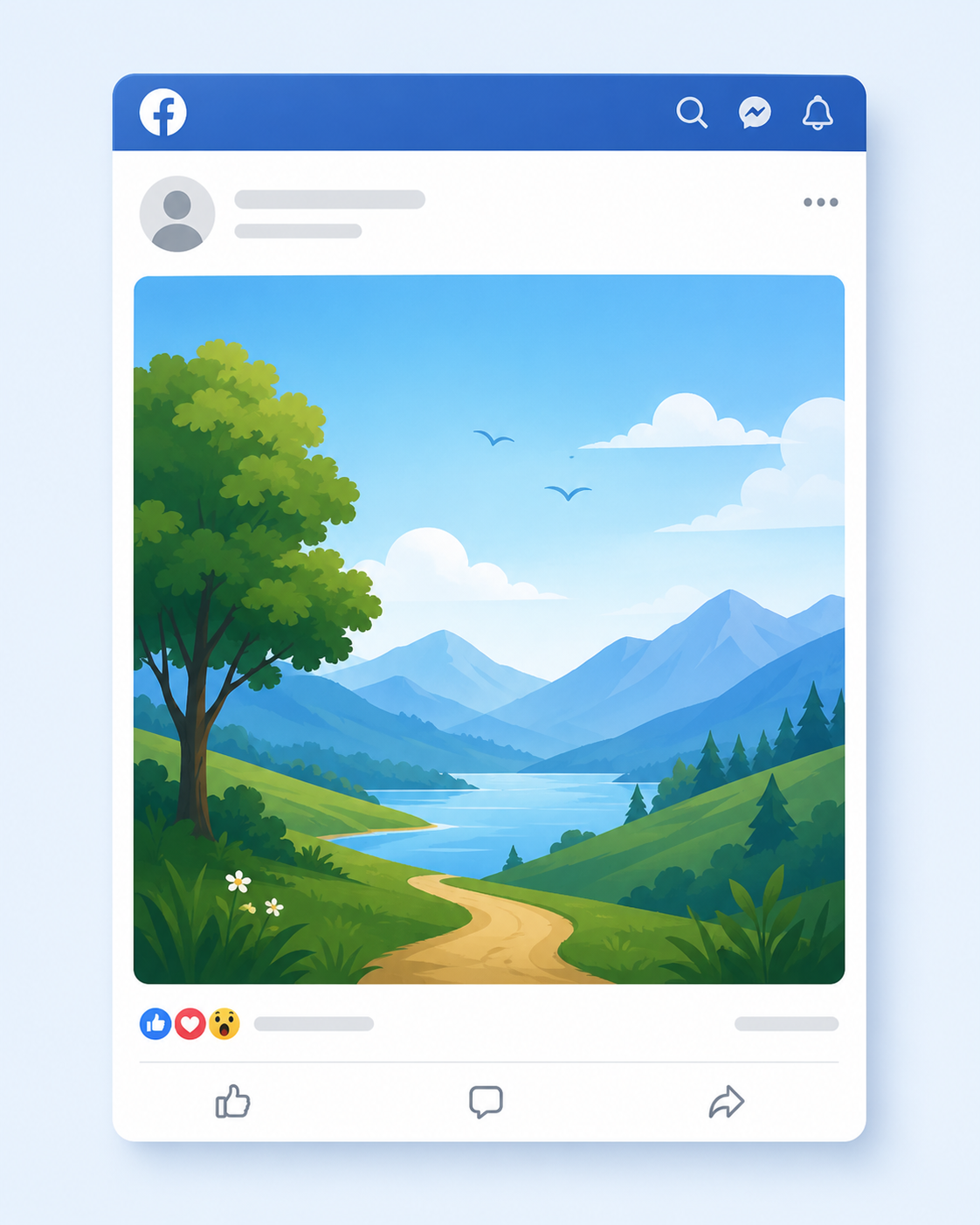
If you’re posting a single image to your Facebook feed, 1080 × 1350 pixels is the recommended size. This uses a 4:5 aspect ratio, which takes up more vertical space on mobile screens than square or landscape images.
Since most Facebook users browse on their phones, a taller image naturally stands out as people scroll through their feeds.
While Facebook accepts square and landscape images, they occupy less space in the feed and may not attract the same level of attention. Unless your design requires a different format, 4:5 is usually the safest choice for maximizing visibility.
Facebook Feed Post Specifications
| Specification | Recommendation |
| Recommended Size | 1080 × 1350 px |
| Aspect Ratio | 4:5 |
| Maximum File Size | 30 MB |
| Supported Formats | JPG, JPEG |
Facebook Story Size
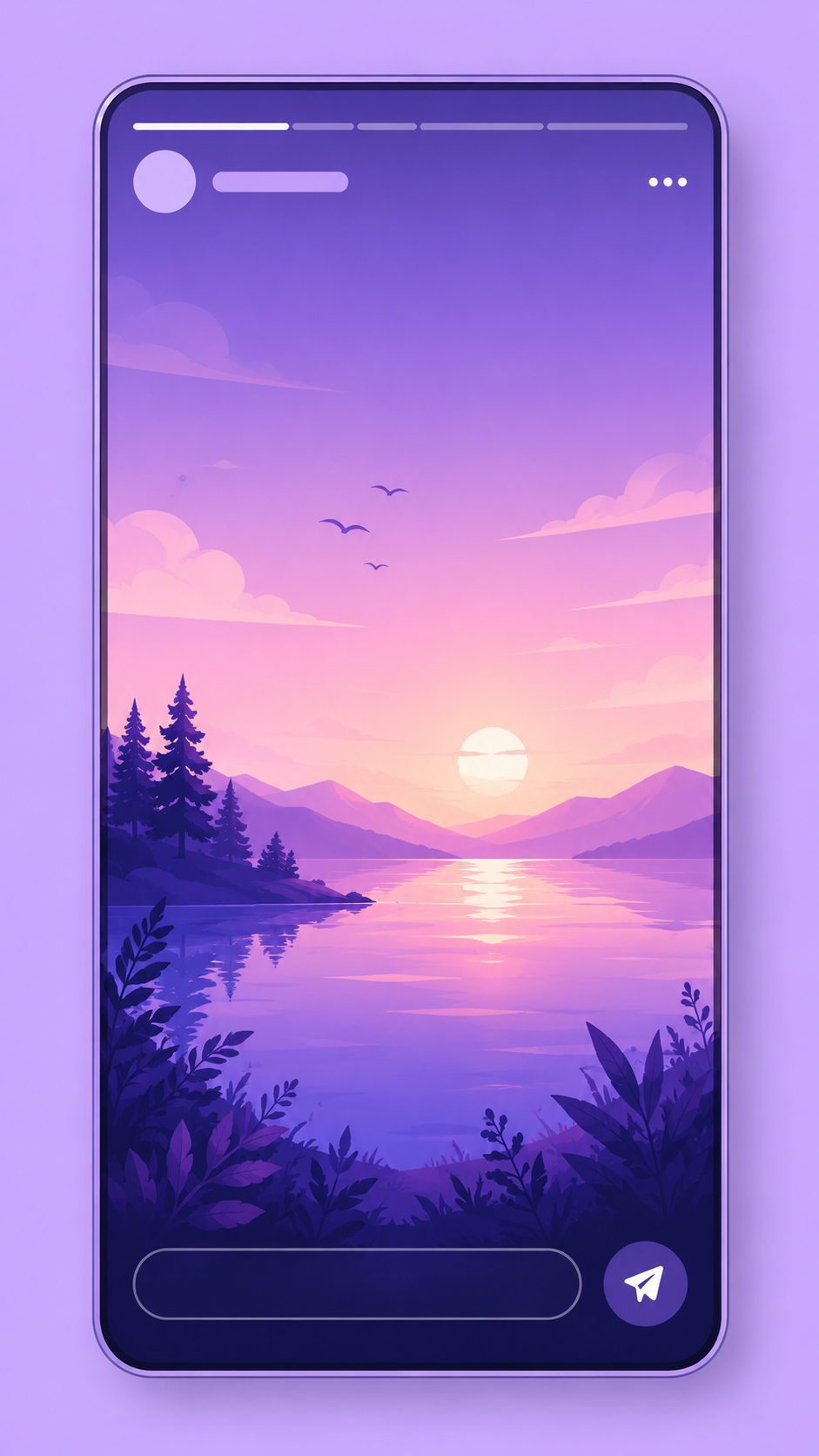
Facebook Stories are designed for a full-screen mobile experience, so the recommended size is 1080 × 1920 pixels with a 9:16 aspect ratio. This vertical format fills the entire screen, making your content more immersive and easier to view.
Because Facebook places interface elements such as your profile name, buttons, and reply options near the top and bottom of the screen, avoid placing important text or graphics too close to the edges. Keeping your main content within the center of the Story helps ensure nothing important is hidden.
Stories disappear after 24 hours, making them ideal for behind-the-scenes updates, announcements, promotions, and time-sensitive content.
Facebook Story Specifications
| Specification | Recommendation |
| Recommended Size | 1080 × 1920 px |
| Aspect Ratio | 9:16 |
| Maximum File Size | 4 GB |
| Supported Formats | MP4, MOV |
| Maximum Story Length | 60 seconds |
Facebook Event Cover Size
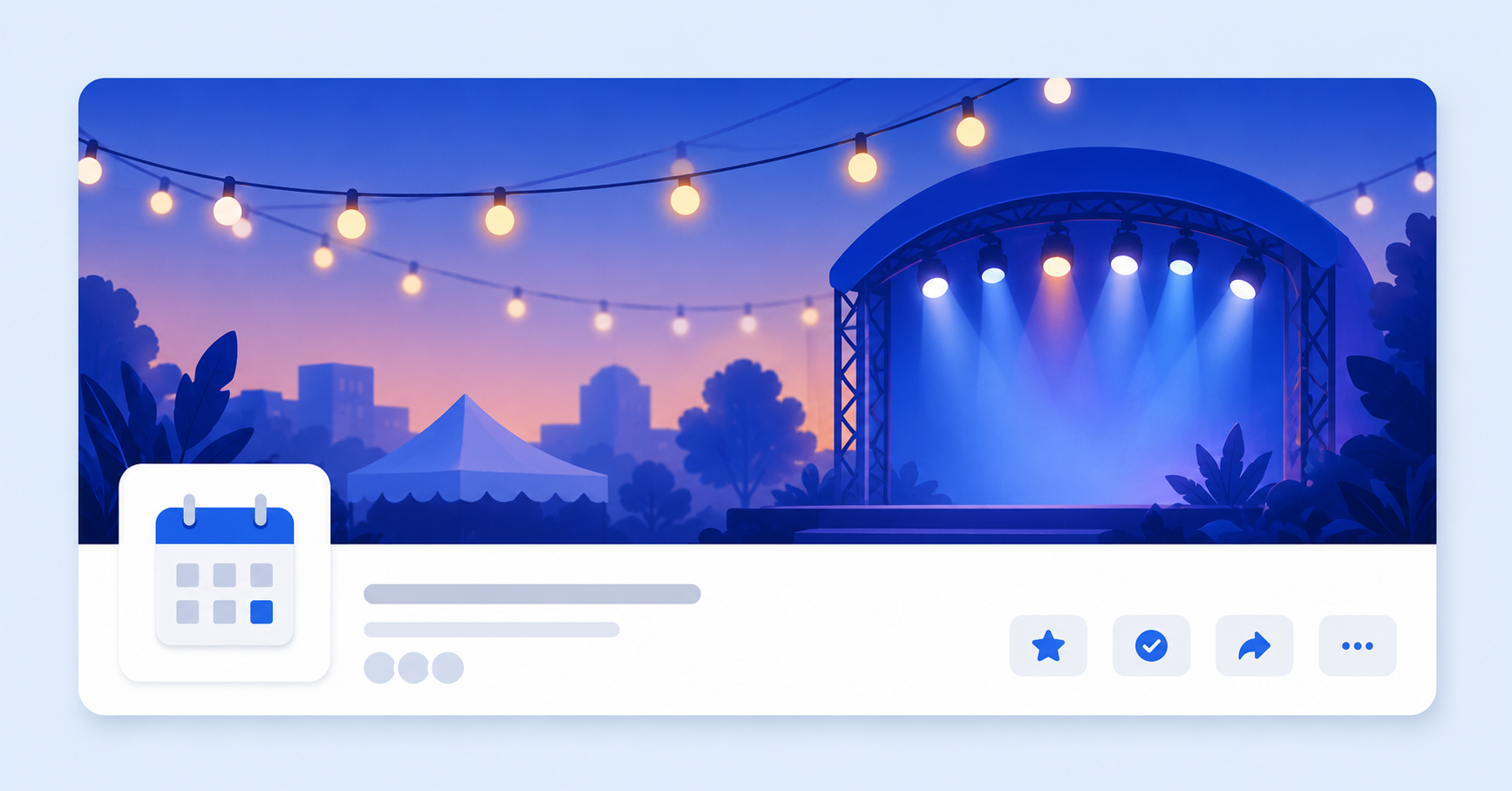
A Facebook Event cover is often the first thing people notice when they come across your event. Whether you’re promoting a conference, product launch, webinar, concert, or community gathering, the cover image helps set expectations and encourages people to click through for more details.
The recommended size for a Facebook Event cover is 1920 × 1005 pixels. This wide format gives you plenty of room for eye-catching visuals, but keep in mind that Facebook may crop the image slightly depending on where it’s displayed.
Event covers can appear in search results, feeds, event recommendations, and on the event page itself, so it’s best to keep logos, headlines, and other important elements close to the center.
If your design includes text, leave generous padding around the edges. This helps ensure everything remains visible across desktop and mobile devices.
Facebook Event Cover Specifications
| Specification | Recommendation |
| Recommended Size | 1920 × 1005 px |
| Aspect Ratio | 1920:1005 |
| Maximum File Size | 100 MB |
| Supported Formats | JPG, JPEG |
Facebook Cover Photo Sizes
Your cover photo is the large banner at the top of your page or profile – the visual equivalent of a handshake. It sets the tone for your brand, campaign, or personality.
- Recommended size: 851 × 315 pixels
- Displays:
- 820 × 312 pixels on desktop
- 640 × 360 pixels on smartphones
- Minimum size: 400 × 150 pixels
- Ideal file size: Under 100 KB for faster loading
- Pro Tip: Avoid placing important text or logos near the edges, as parts of the image may be cropped depending on the device.
Facebook Ad Image Sizes
When running Facebook Ads, it’s important that you get the right image dimensions. This is not just about looks. It directly affects performance and placement quality.
Feed Ads
- Recommended size: 1440 × 1440 pixels (1:1) or 1440 × 1800 pixels (4:5)
- Minimum size: 600 × 600 pixels
- Maximum file size: 30 MB
Search Ads
- Recommended size: At least 1080 × 1080 pixels
- Aspect ratio: 1.91:1 to 1:1
- Maximum file size: 30 MB
Marketplace Ads
- Minimum size: 1080 × 1080 pixels (1:1)
- Maximum file size: 30 MB
Right Column Ads (Desktop Only)
- Recommended size: At least 1080 × 1080 pixels
- Aspect ratio: 1:1
Stories Ads
- Recommended size: 1440 × 2560 pixels
- Aspect ratio: 9:16
- Maximum file size: 30 MB
- Design tip: Leave about 14% (250 pixels) at the top and 20% (340 pixels) at the bottom free of text or logos to avoid them being covered by interface elements
Best Practices for Facebook Images
Getting the dimensions right is a great start, but a few extra habits can make your content look even more polished and professional.
Use Portrait Images for Feed Posts
Whenever possible, create feed images in the recommended 1080 × 1350 px (4:5) format. They occupy more space on mobile screens, making your posts more noticeable as people scroll.
Keep Important Content Away from the Edges
Facebook adds interface elements to Stories, Reels, cover photos, and event banners. Place logos, headlines, and calls to action toward the center of your design so they remain visible across different devices.
Upload High-Resolution Files
Always export your images at Facebook’s recommended dimensions. Starting with a high-quality file helps reduce the impact of Facebook’s compression and keeps your visuals looking crisp.
Choose the Right File Format
Use JPG for photos, PNG for graphics with text or logos, and MP4 for videos whenever possible. Matching the format to the content helps preserve quality after upload.
Preview on Mobile Before Publishing
Most Facebook users browse on their phones. Before publishing, check how your post, Story, or cover image looks on a mobile device to catch any unexpected cropping or alignment issues.
Keep Branding Consistent
Use the same colors, fonts, logo placement, and visual style across your feed posts, Stories, Reels, and cover images. Consistent branding helps your audience recognize your content instantly.
Instagram Image Sizes
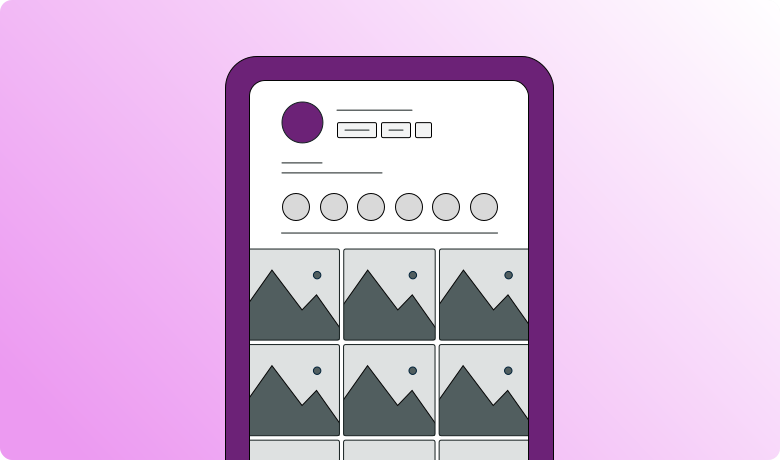
Instagram is where visuals do the talking. With over two billion users and a design-first layout, every pixel matters. A perfectly sized image not only looks sharp but also helps you stand out in a feed full of eye-catching content.
Instagram Feed Image Sizes
Instagram supports three main image formats for feed posts: portrait, square, and landscape. While all three are supported, they don’t take up the same amount of space in the feed, and some are better suited to certain types of content.
Here’s what you need to know about each format.
1. Portrait Images (4:5)
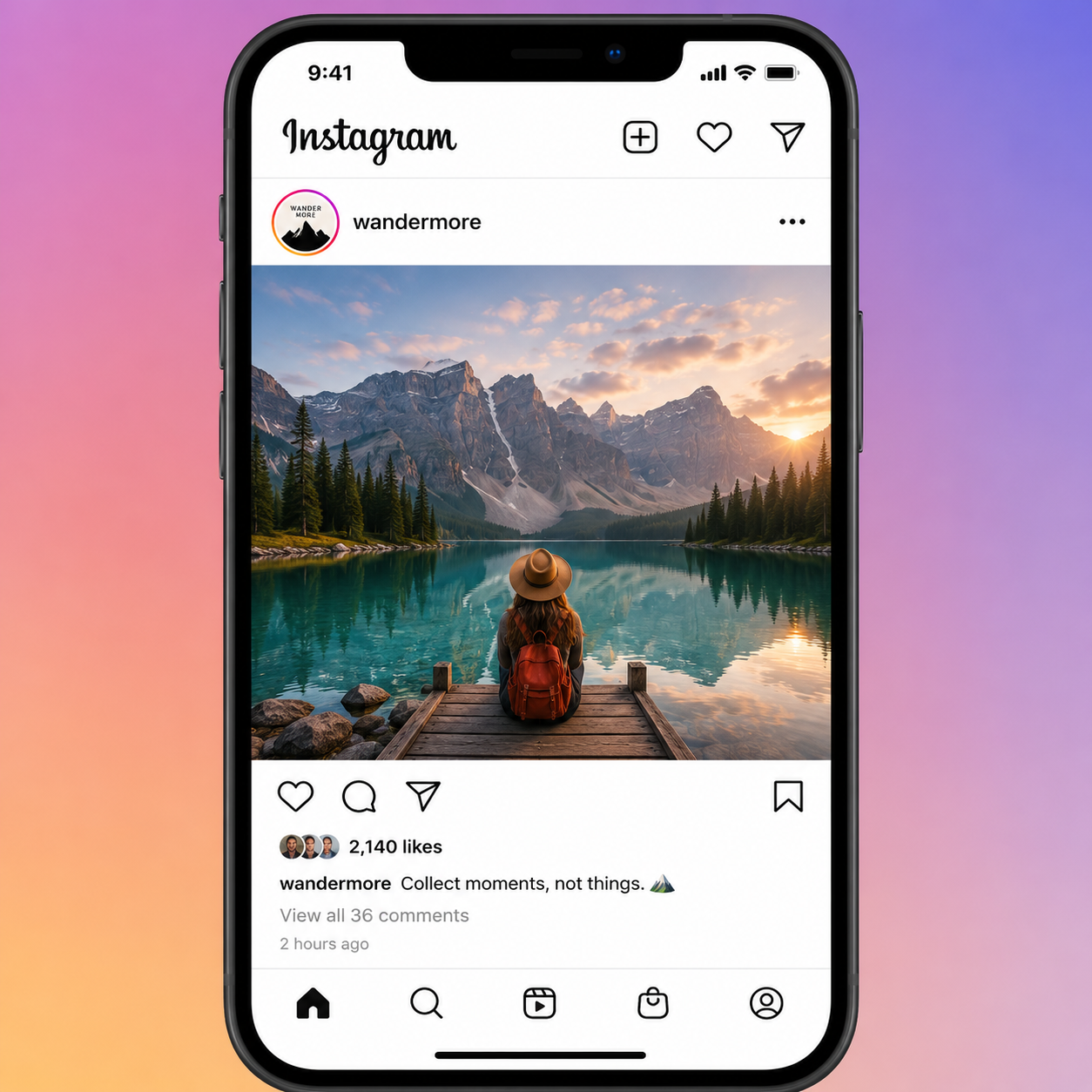
Recommended size: 1080 × 1350 pixels
Portrait is Instagram’s recommended format for feed posts because it occupies the most vertical space as people scroll. That extra screen space helps your content stand out and gives viewers more time to notice it.
Best for:
- Product photos
- Fashion and lifestyle content
- Educational graphics
- Promotional posts
- Portrait photography
2. Square Images (1:1)
Recommended size: 1080 × 1080 pixels
Square images were once Instagram’s default format and remain a popular choice today. They’re versatile, easy to design, and work well across multiple social media platforms.
Although they don’t fill as much of the screen as portrait posts, they still deliver a clean and balanced appearance.
Best for:
- Quotes
- Infographics
- Product images
- Brand announcements
- General social posts
3. Landscape Images (1.91:1)
Recommended size: 1080 × 566 pixels
Landscape images are ideal when your photo or design is naturally wide, such as travel photography or panoramic scenes. However, because they take up less vertical space in the feed, they’re generally less eye-catching than portrait images.
Best for:
- Landscapes
- Panoramic photography
- Website screenshots
- Wide product shots
- Team or group photos
Instagram Ads Image Sizes
Running Instagram ads? Getting your image dimensions right helps your visuals display cleanly and keeps your ad creative from being cut off in certain placements.
- Landscape: 1080 × 566 pixels
- Vertical: 1080 × 1350 pixels
- Square: 1440 × 1440 pixels
- Minimum width: 500 pixels
- Minimum height: 400 pixels
- Supported aspect ratios: Anywhere between 1.91:1 and 4:5
Pro Tip: Square or vertical ads generally perform better on mobile, as they take up more screen space and grab attention more easily.
Instagram Stories Ads Image Sizes
Stories ads appear between organic Stories and should feel natural within the experience – full-screen, vertical, and visually striking.
- Recommended size: 1440 × 2560 pixels
- Aspect ratio: 9:16
- Design tip: Keep roughly 14% (250 pixels) of the top and 20% (340 pixels) of the bottom clear of text, logos, or important visuals to prevent them from being covered by interface elements.
Instagram Reels Ads Image Sizes
Just like organic Reels, ad placements use a tall, vertical format, but with even more room to play creatively.
- Recommended size: 1440 × 2560 pixels
- Aspect ratio: 9:16
- Design tip: Leave 14% of the top, 35% of the bottom, and about 6% on each side empty to make sure your text and logos stay visible after cropping.
Instagram Feed Image Specifications
Choosing the right dimensions is only part of the equation. Using the correct file format, aspect ratio, and image quality helps ensure your feed posts stay sharp after Instagram applies its compression.
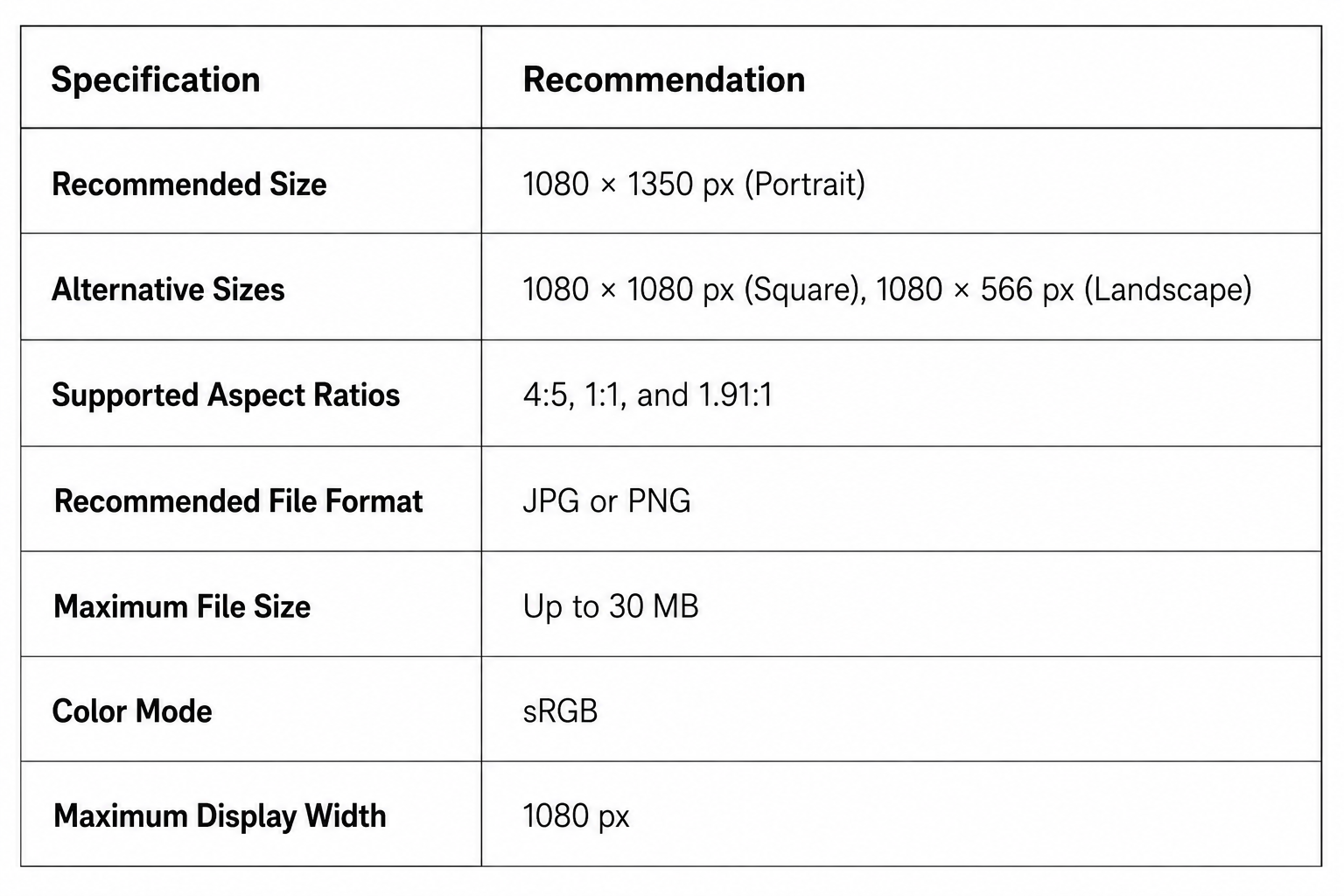
Instagram automatically resizes and compresses every image you upload. Exporting your images at 1080 pixels wide gives you more control over the final quality and helps avoid unnecessary loss of detail.
If you’re uploading graphics with text, PNG files often preserve sharper edges. For photographs, JPG usually offers an excellent balance between quality and file size.
When creating carousel posts, use the same dimensions and aspect ratio for every slide. Mixing portrait, square, and landscape images in the same carousel can result in inconsistent cropping and a less polished viewing experience.
Instagram Story Image Specifications
Instagram Stories are designed for full-screen vertical viewing, making them one of the most engaging content formats on the platform.
To ensure your Stories look their best, create them in a 9:16 aspect ratio so they fill the entire screen without unwanted cropping or empty space.
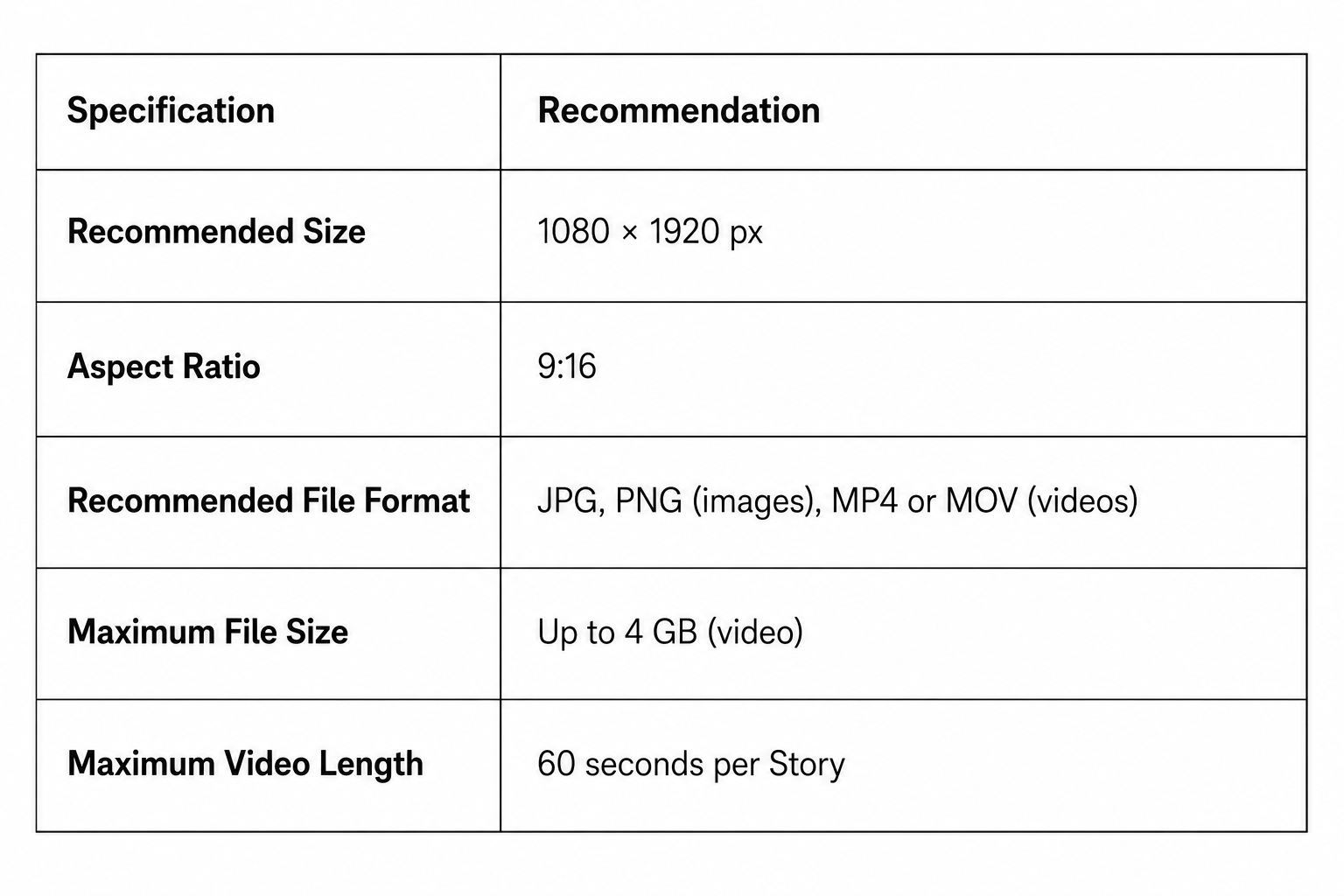
One of the most common mistakes is placing text, stickers, or logos too close to the top or bottom of the screen. Instagram overlays your profile photo, username, message box, and other interface elements, which can partially hide important content.
For the best results, keep key text and design elements within the center of the Story, leaving comfortable margins around the edges. This simple adjustment helps ensure everything remains visible across different devices.
Instagram Reels Specifications
Reels use the same full-screen vertical format as Stories, but they’re designed for longer-form video content and have their own dedicated tab on Instagram.
Uploading your videos in the recommended dimensions ensures they fill the screen and deliver the best viewing experience.
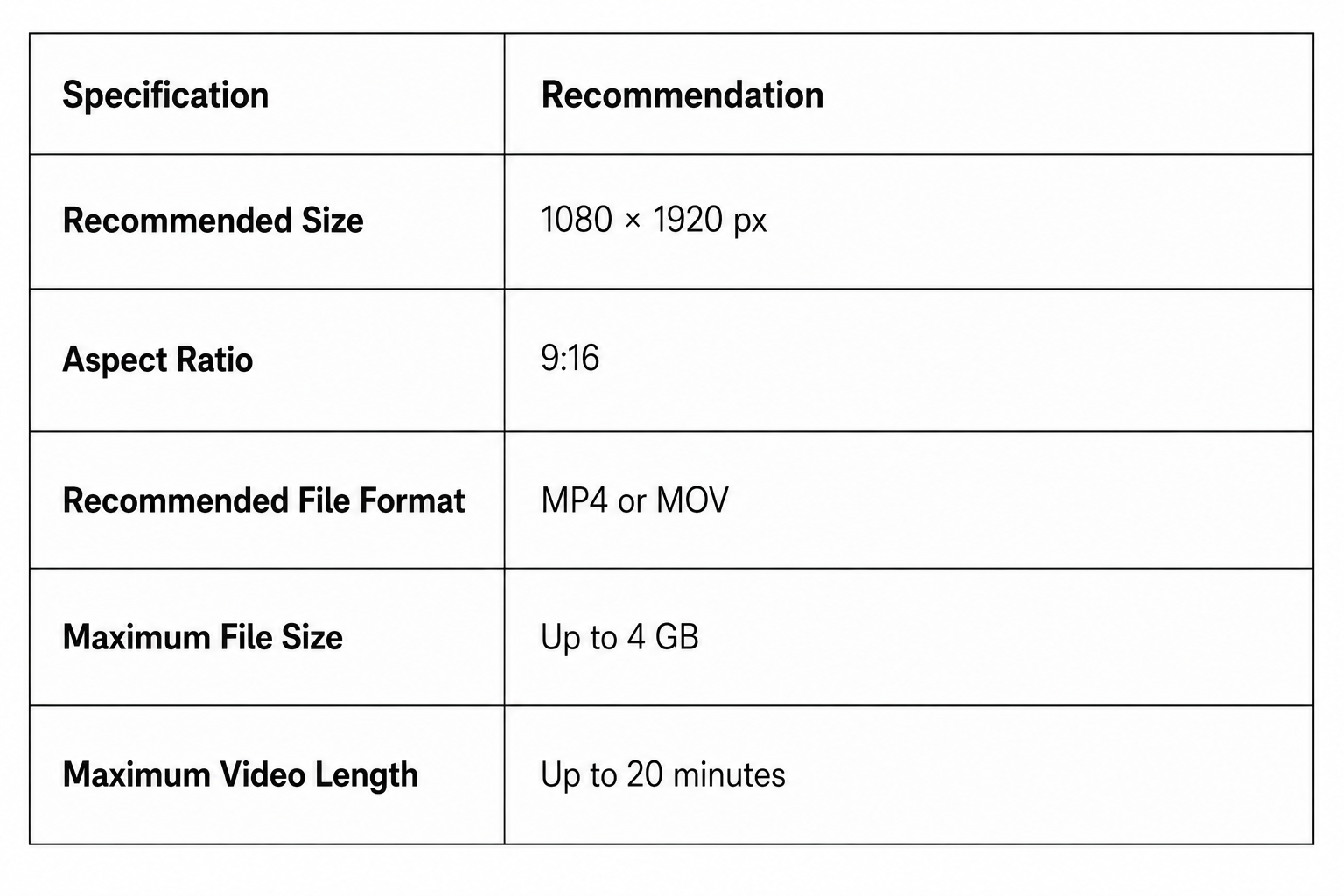
Although Reels are displayed vertically, the thumbnail shown on your profile grid is cropped differently. If you’re adding text or graphics to the cover frame, keep important elements near the center so they remain visible in both the Reels feed and your profile grid.
Avoid uploading landscape videos whenever possible. Instagram will add empty space around them, making the content look less immersive and reducing its visual impact.
Instagram Profile Picture Specifications
Your Instagram profile picture is one of the first things people notice when they visit your account. Although you upload it as a square image, Instagram displays it as a circle across your profile, comments, Stories, and search results.
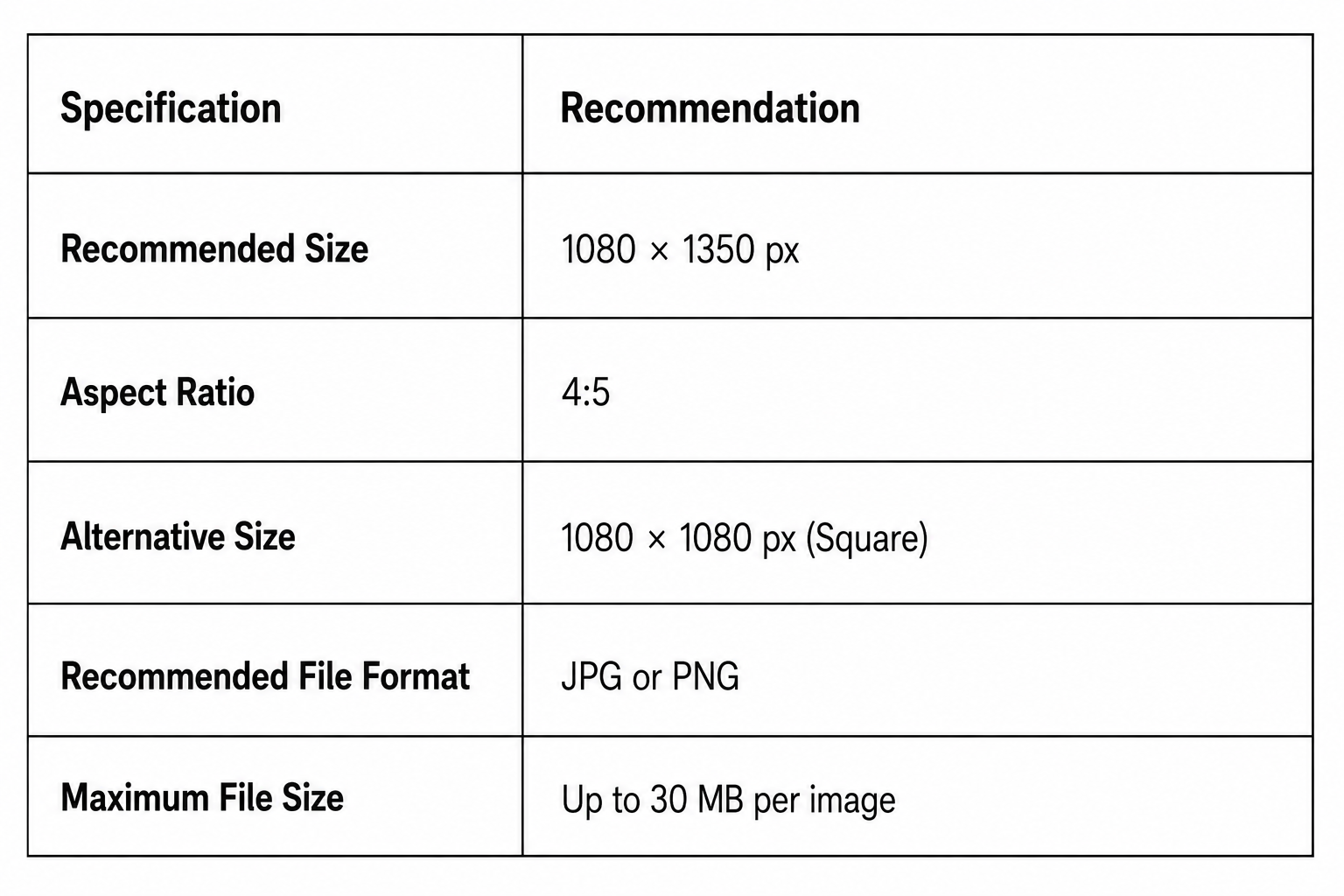
| Specification | Recommendation |
| Recommended Size | 1080 × 1080 px |
| Aspect Ratio | 1:1 |
| Display Shape | Circle |
| Recommended File Format | JPG or PNG |
| Maximum File Size | Up to 30 MB |
Since Instagram crops profile pictures into a circle, avoid placing important details near the corners of your image. Position your face, logo, or main subject in the center with enough padding around it to prevent unwanted cropping.
For business accounts, use a high-resolution version of your logo. Personal accounts generally look best with a clear headshot and a simple background that remains recognizable even at smaller sizes.
Instagram Carousel Image Sizes
Carousel posts let you share up to 20 photos or videos in a single post, giving you more room to tell a story, showcase products, or create step-by-step content. To keep the experience smooth, every slide should use the same dimensions and aspect ratio.
Portrait carousels (4:5) are generally the best option because they occupy more space in the feed and create a more immersive viewing experience. If you choose a square layout, keep every slide square from beginning to end.
Avoid mixing portrait, square, and landscape images in the same carousel. Instagram uses the dimensions of the first slide for the entire post, so inconsistent image sizes can lead to awkward cropping on subsequent slides.
Best Practices for Instagram Images
Using the right image dimensions is a great starting point, but a few additional habits can make your content look even better after it’s uploaded. So, before we round up this guide, let’s see some best practices that can help you maintain image quality and create a more consistent experience for your audience.
Export Images at 1080 Pixels Wide
Instagram displays images at a maximum width of 1080 pixels. Exporting at this size gives you more control over quality and helps reduce unnecessary compression.
Use Portrait Images for Feed Posts
Whenever possible, publish feed posts at 1080 × 1350 pixels (4:5). Portrait images occupy more space on the screen, making them more noticeable as people scroll through their feeds.
Create Stories and Reels in a 9:16 Format
Design Stories and Reels specifically for a vertical screen. Using 1080 × 1920 pixels ensures your content fills the display without black bars or awkward cropping.
Leave Safe Margins Around Important Content
Keep text, logos, and calls to action away from the edges of Stories and Reels. This prevents Instagram’s interface elements from covering key information.
Choose the Right File Format
Use JPG for most photos, PNG for graphics that include text or logos, and MP4 (H.264) for videos. These formats offer excellent compatibility and reliable image quality.
Keep Carousel Slides Consistent
Use the same dimensions, aspect ratio, colors, and design style across every slide in a carousel. Consistency creates a smoother viewing experience and gives your content a more polished appearance.
Preview Before Publishing
Take a final look at your post before it goes live. A quick preview helps you catch cropping issues, misplaced text, or design elements that may not display as expected on mobile devices.
TikTok Image and Video Sizes
TikTok has quickly become one of the biggest players in social media, and visuals are everything here. Whether it’s your profile photo, a trending video, or an eye-catching ad, getting your dimensions right helps your content stand out and display properly across devices.
TikTok Video Size and Specifications
TikTok videos are designed to be viewed in full-screen portrait mode. Exporting your videos using the recommended settings below helps them fill the screen properly, maintain better quality after compression, and display correctly across different devices.
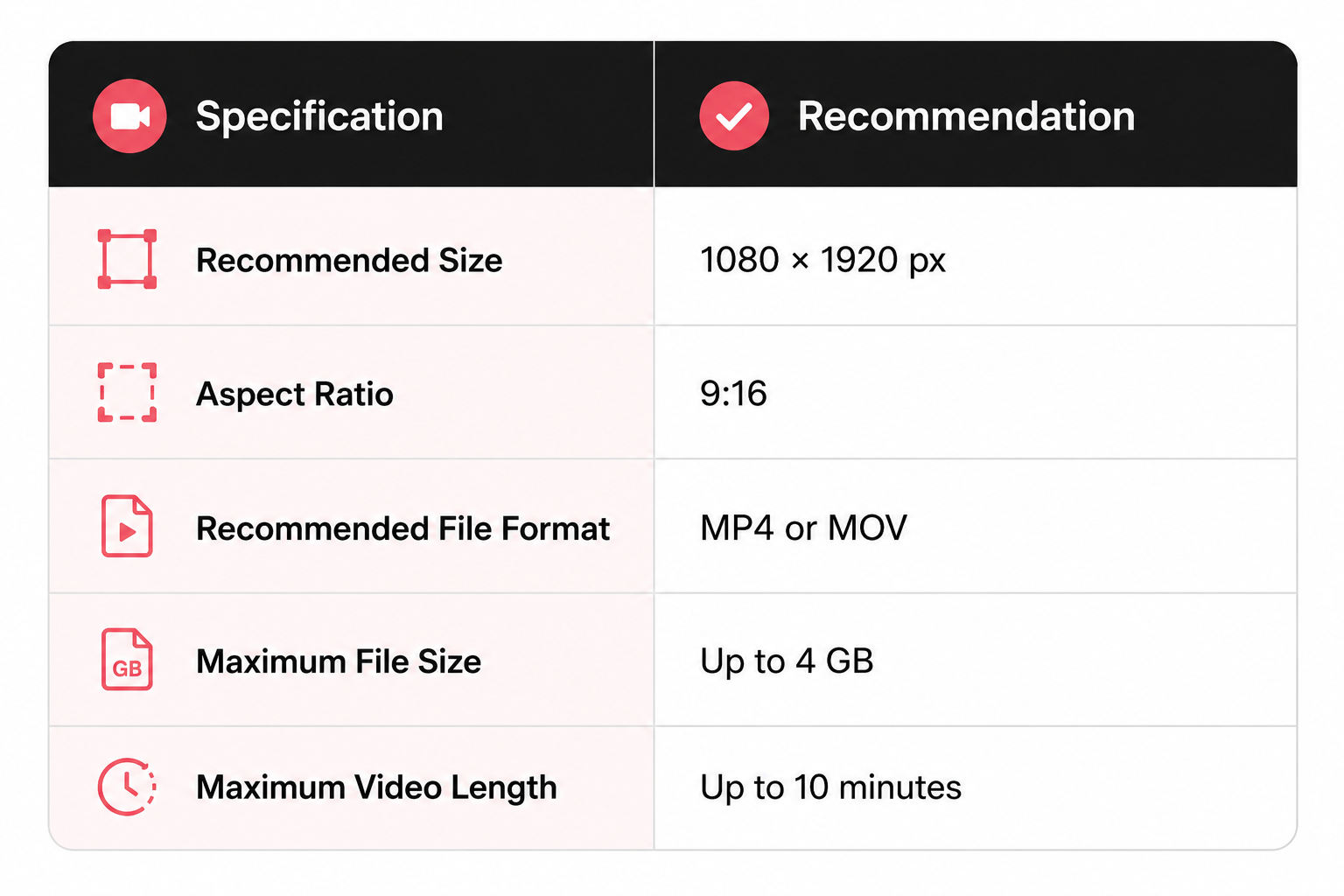
Although TikTok accepts videos in different orientations, 1080 × 1920 pixels (9:16) remains the recommended format for almost every upload. It fills the entire screen and creates the immersive viewing experience TikTok is known for.
For the best results, export your videos in MP4 or MOV format using a high-quality bitrate. It’s also a good idea to keep important text, subtitles, and your main subject within the center of the frame so they aren’t covered by TikTok’s interface.
If your editing software allows it, preview your video in a vertical 9:16 canvas before exporting. This makes it much easier to spot any text or graphics that may end up behind the action buttons or caption area once the video is published.
TikTok Carousel Specifications
TikTok’s Photo Mode lets you publish a series of images that viewers can swipe through, making it a great format for tutorials, before-and-after comparisons, travel highlights, product showcases, and storytelling.
Although these are photos rather than videos, they should still be designed for TikTok’s vertical layout.
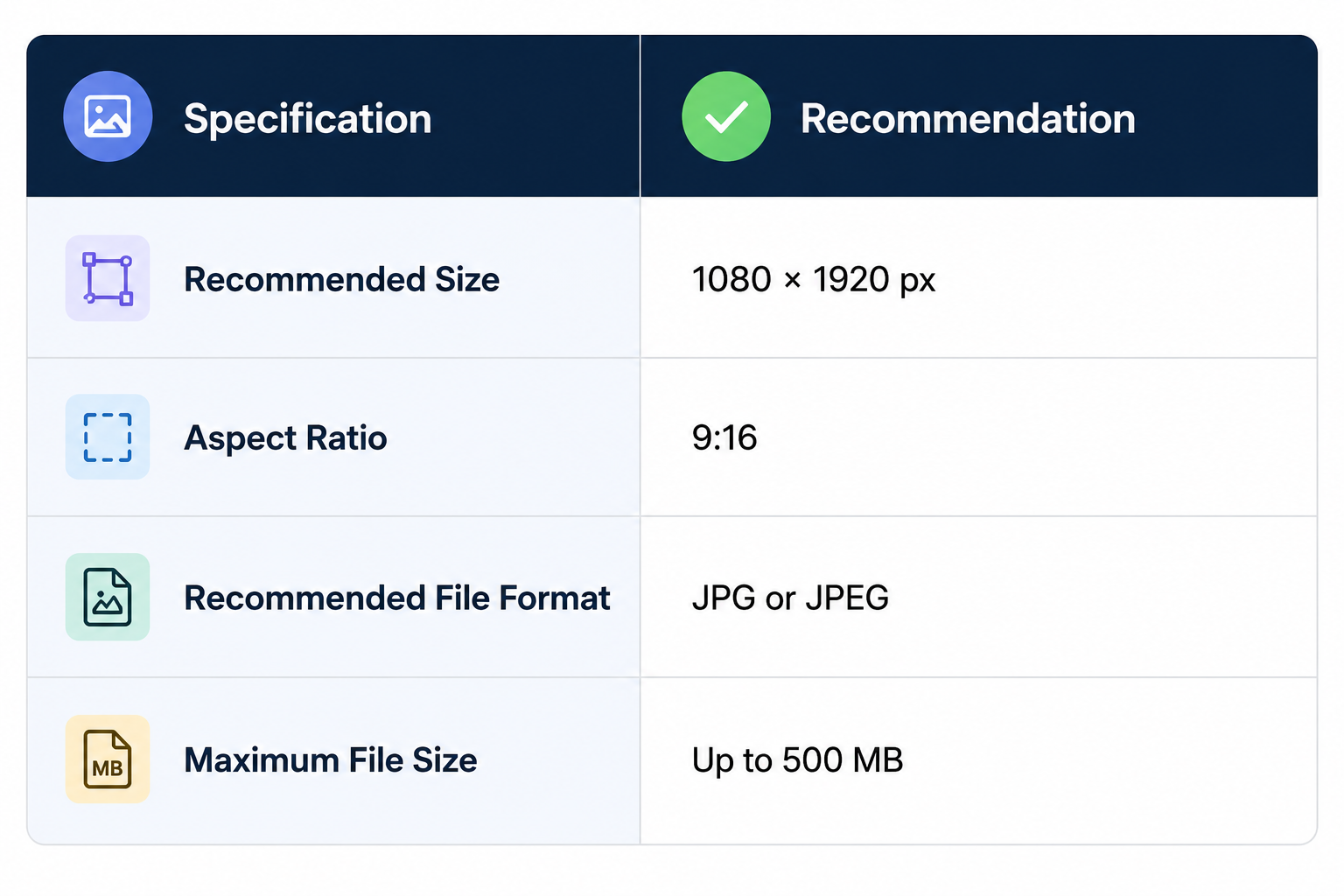
The recommended size for every carousel image is 1080 × 1920 pixels (9:16). Using this full-screen format ensures each slide fills the display naturally and creates a more immersive viewing experience.
It’s also important to keep every image in the carousel the same size and aspect ratio. Mixing portrait, square, or landscape images can result in inconsistent cropping and make your carousel feel less polished.
If your carousel includes text, leave enough space around the edges so nothing important is obscured by TikTok’s interface when viewers swipe through the images.
TikTok Profile Picture Specifications
Your profile picture is one of the first things people notice when they visit your TikTok account. While it appears relatively small across the app, a clear and recognizable profile photo helps strengthen your brand and makes your account easier to identify.
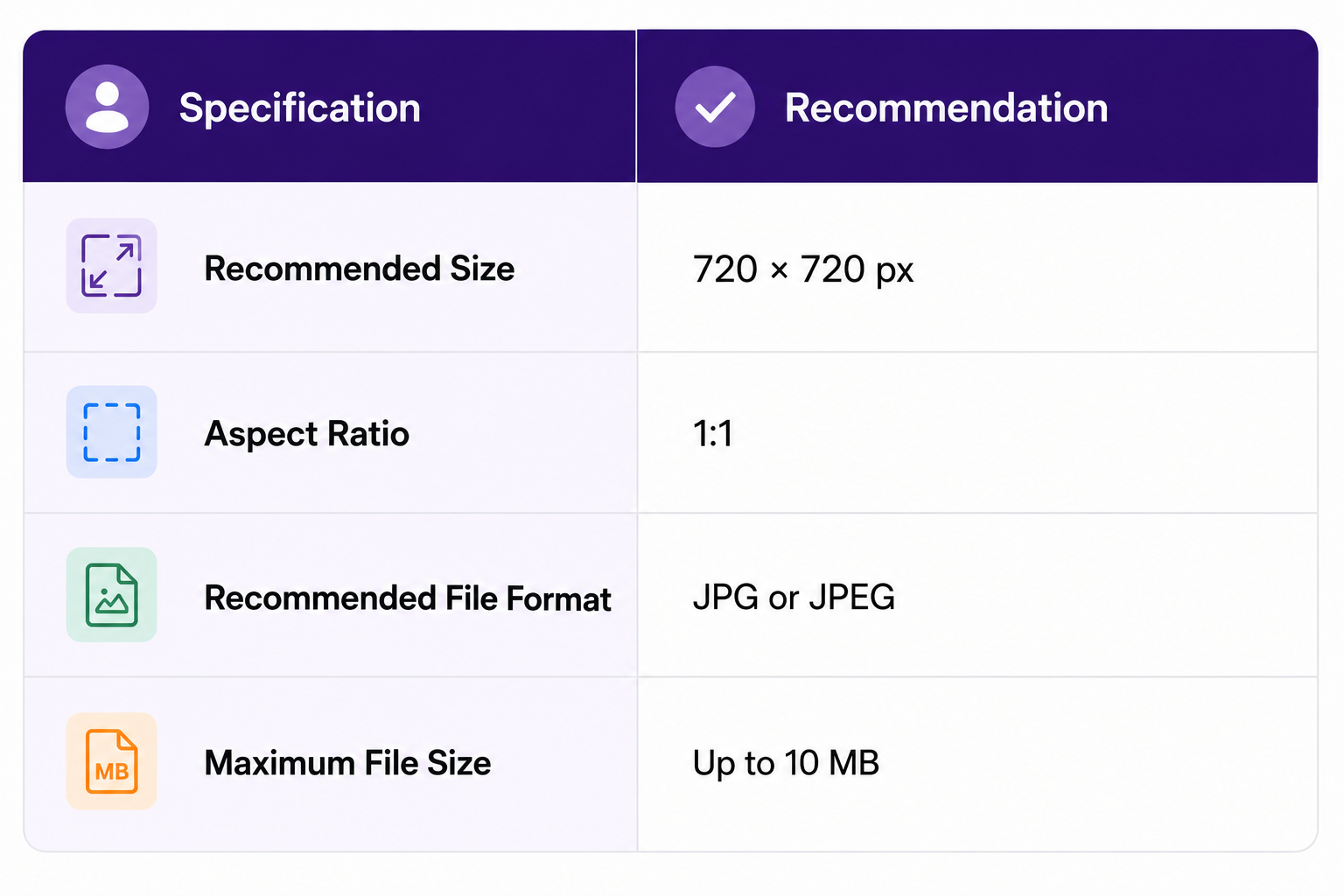
TikTok profile pictures are uploaded as square images but displayed inside a circular frame. For that reason, keep your logo, face, or other important elements centered to avoid them being cropped around the edges.
Choose a high-resolution image with good contrast so it remains easy to recognize even at thumbnail size. If you’re using a company logo, avoid placing small text inside it, as fine details can become difficult to read on mobile devices.
TikTok Ads Image Sizes
TikTok ads come in a few formats, from vertical video to carousels. Sticking to the correct sizes ensures your creatives look crisp and professional across placements.
- Vertical (recommended): 540 × 960 pixels minimum (9:16)
- Landscape: 960 × 540 pixels minimum (16:9)
- Square: 640 × 640 pixels minimum (1:1)
- Carousel Ads: 1200 × 628 pixels, 640 × 640 pixels, or 720 × 1280 pixels
- Images per carousel: 2 to 35
- Maximum file size: 100 KB
- Profile photo for ads: 98 × 98 pixels (1:1)
- Maximum file size: 50 KB
Understanding TikTok’s Safe Zone
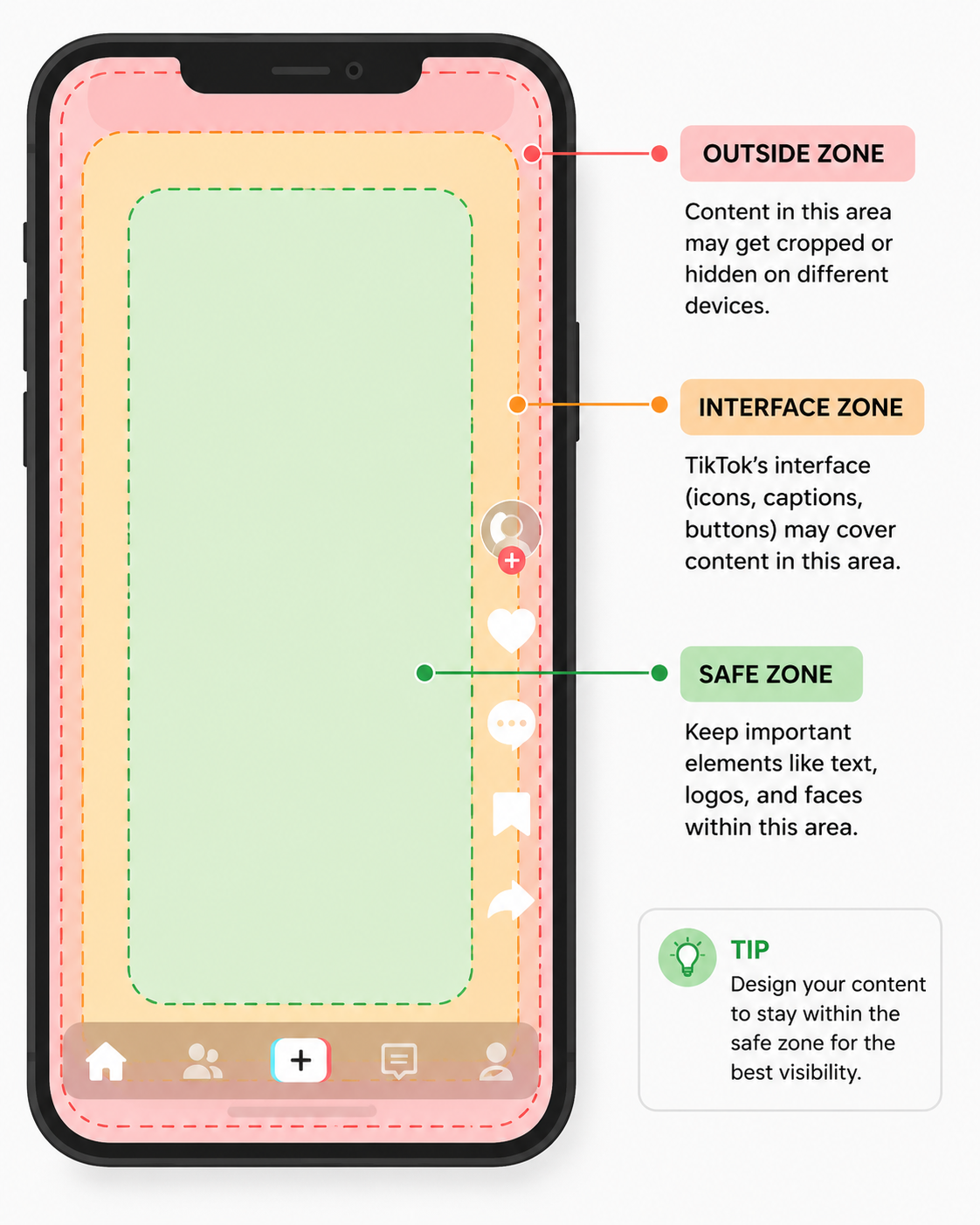
Using the correct video size is only part of the equation. You also need to think about where important elements appear on the screen. TikTok places several interface elements over your video, so text, logos, and calls to action can easily be covered if they’re positioned too close to the edges.
Right Side
The like, comment, share, and profile buttons appear along the right edge of the screen. Avoid placing captions, product details, or key visuals in this area, as viewers may not be able to see them clearly.
Bottom Area
Your username, video caption, hashtags, and music information appear near the bottom of the screen. If important text sits too low, it can end up hidden behind these overlays.
Top Area
The search bar and other interface elements may appear at the top, depending on how someone is browsing TikTok. Leaving a little breathing room at the top helps prevent anything important from being obscured.
Keep the Focus in the Centre
As a general rule, place your subject, captions, and key messages within the center portion of the 1080 × 1920 px frame. This gives them the best chance of remaining visible across different devices and app layouts.
X (Formerly Twitter) Image Sizes
Now rebranded as X, the platform has evolved from short text updates to a full multimedia experience. With images, videos, and even long-form posts taking center stage, visuals now play a huge role in helping your content stand out in busy feeds. Whether you’re running a personal account or managing a brand profile, getting your image sizes right ensures that your visuals always look sharp and professional.
X Post Image Specifications
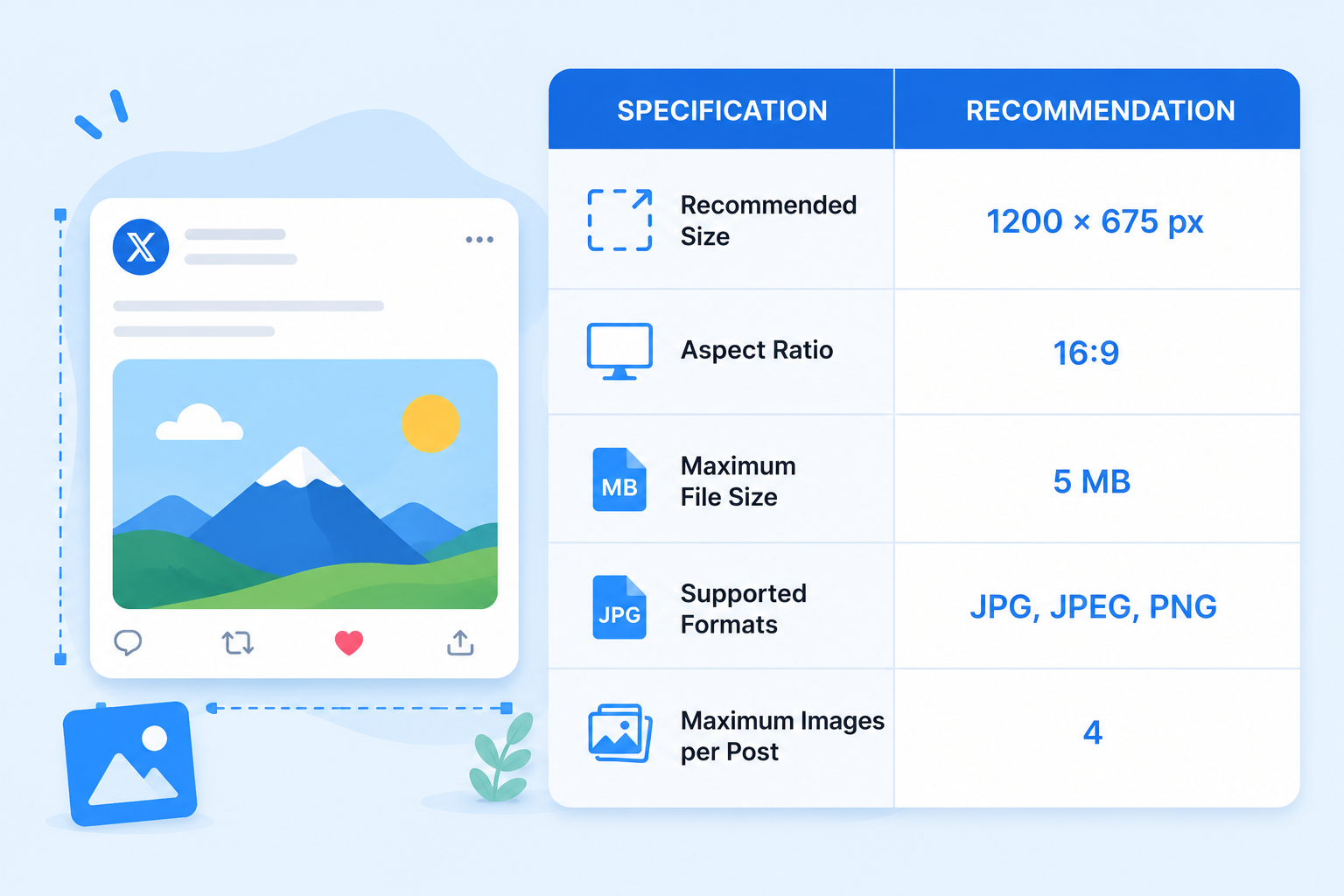
If you’re sharing a photo, graphic, infographic, or promotional creative on X, 1200 × 675 pixels is the recommended image size. This 16:9 aspect ratio fits neatly into the timeline preview, helping your entire image appear without awkward cropping.
For photographs, a high-quality JPG usually provides the best balance between image quality and file size. If your design contains text, logos, charts, or other graphics with sharp edges, PNG often keeps those details looking cleaner.
Single Images vs Multi-Image Posts
X gives you the flexibility to publish either a single image or up to four images in one post. While the recommended image size remains the same, the way your content is displayed changes depending on how many images you attach.
A single image gets the most screen space in the timeline. It’s the best choice for announcements, infographics, blog graphics, or any visual that needs maximum visibility. At the recommended 1200 × 675 px size, your image is more likely to appear as intended without unnecessary cropping.
When you upload multiple images, X automatically creates a collage-style layout. Two images appear side by side, while three and four images are arranged into a grid. Since each image occupies less space, X may crop them differently to fit the layout.
This means every image should be able to stand on its own. Keep faces, products, logos, and text away from the edges, and avoid splitting important information across multiple images. If you’re telling a story or showcasing a product collection, use a consistent design style so the entire set looks cohesive as users scroll through their feed.
X Video Specifications
Videos are one of the most engaging content formats on X, but they also have stricter upload limits than images. Using the recommended video size and format helps your content play smoothly, maintain good quality, and display properly in the timeline.
For most creators and businesses, 1280 × 720 pixels (16:9) is the ideal resolution. It produces a sharp landscape video that fits naturally into the X feed and works well across both desktop and mobile devices.
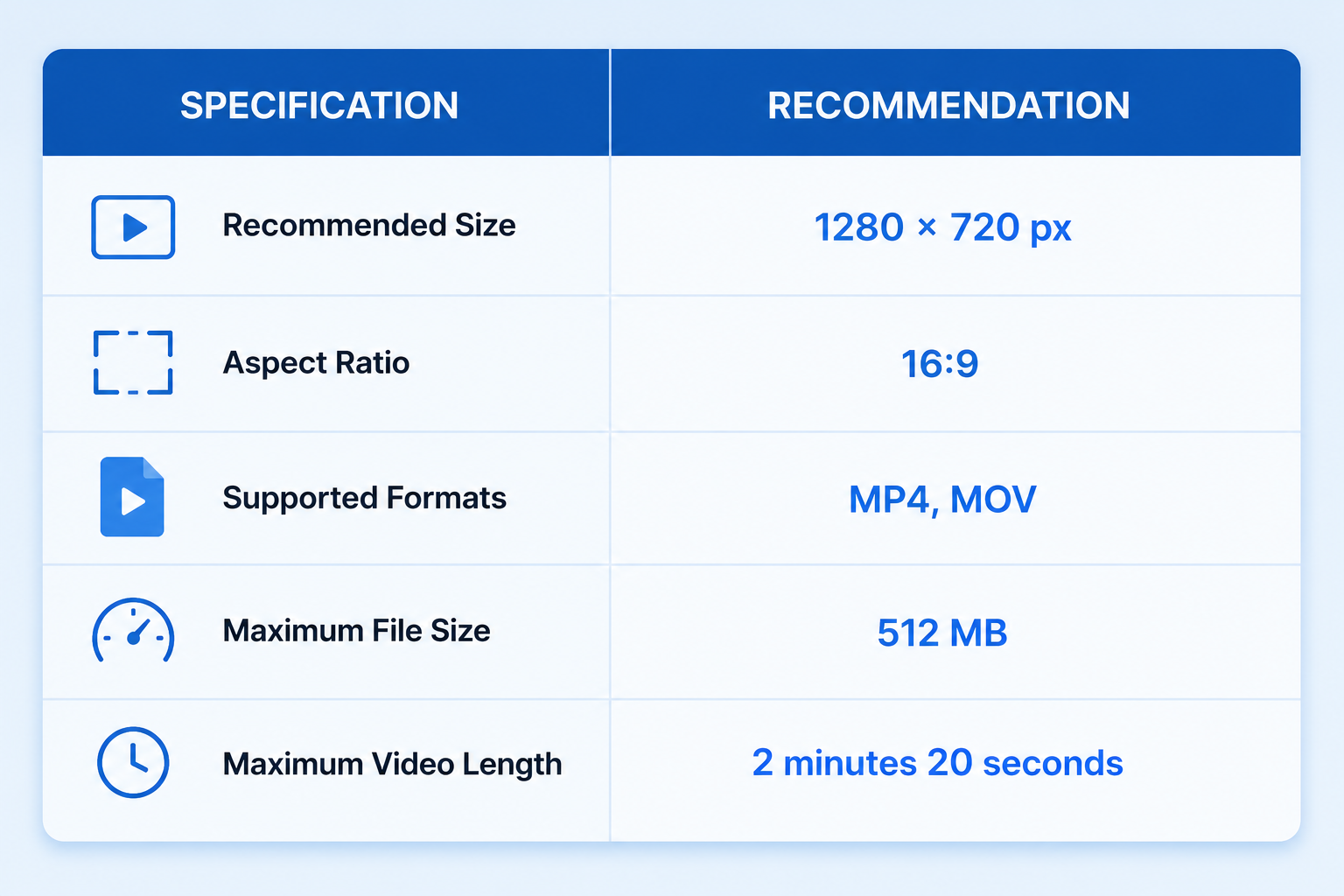
X supports both MP4 and MOV files, although MP4 is generally the preferred option because it offers broad compatibility and a good balance between quality and file size. If you’re exporting your video, using the H.264 codec in an MP4 container is a reliable choice.
Standard X accounts can upload videos of up to 140 seconds. Premium subscribers can upload much longer videos and larger files, but shorter clips are often more effective for capturing attention as people scroll through the timeline.
Before publishing, make sure your video is well compressed without sacrificing quality. Oversized files can take longer to upload and may be recompressed by X, resulting in a softer-looking video. Adding captions is also a good idea, as many users watch videos with the sound turned off.
X Header Image Specifications
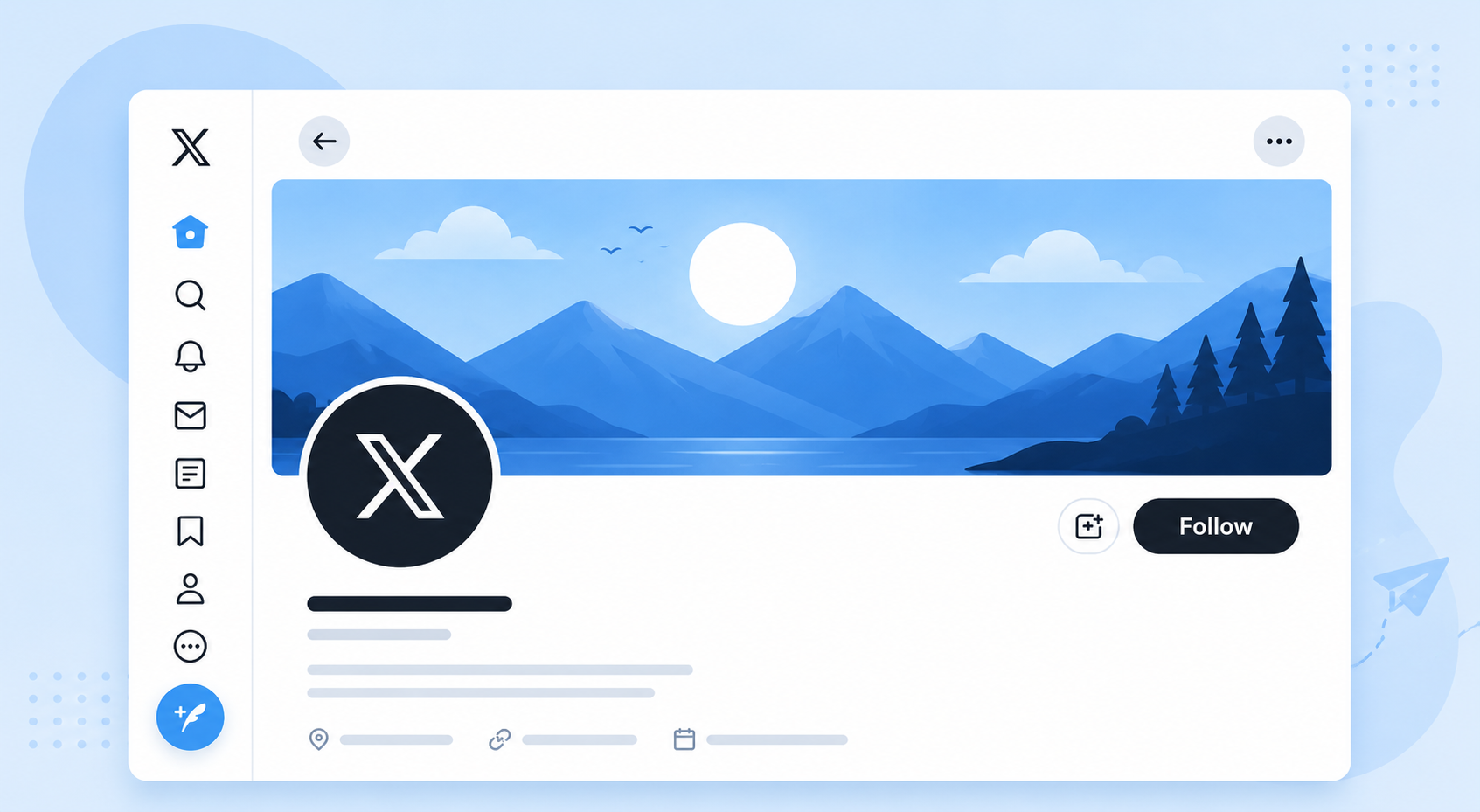
Your header image is one of the first things people notice when they visit your X profile. It spans the top of your page and gives you space to showcase your brand, highlight a campaign, or create a strong first impression. Using the correct dimensions helps your header look sharp across desktop and mobile devices.
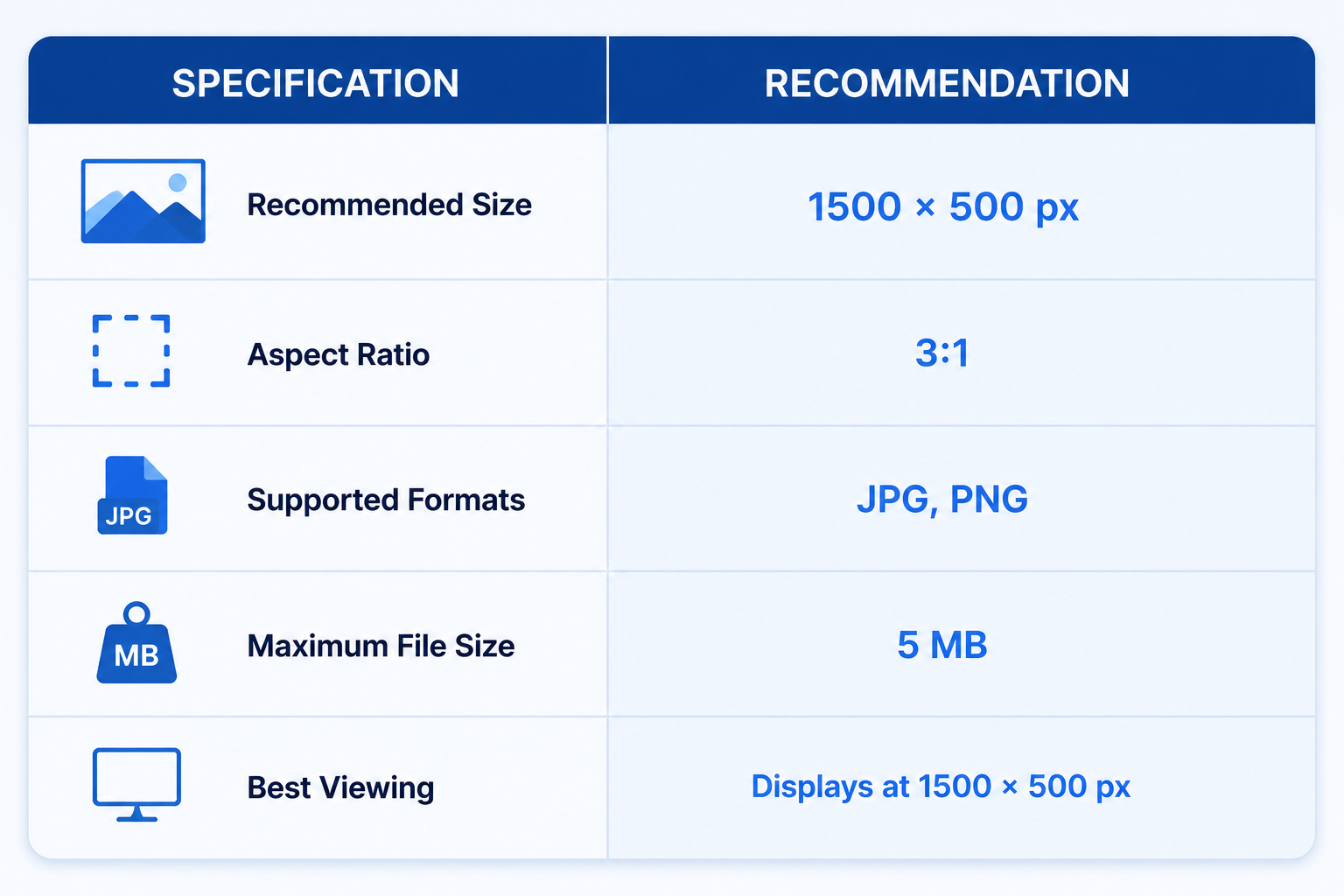
The recommended header size is 1500 × 500 pixels, which provides the ideal 3:1 aspect ratio for X. While the platform automatically resizes your image for different screen sizes, starting with these dimensions helps maintain image quality.
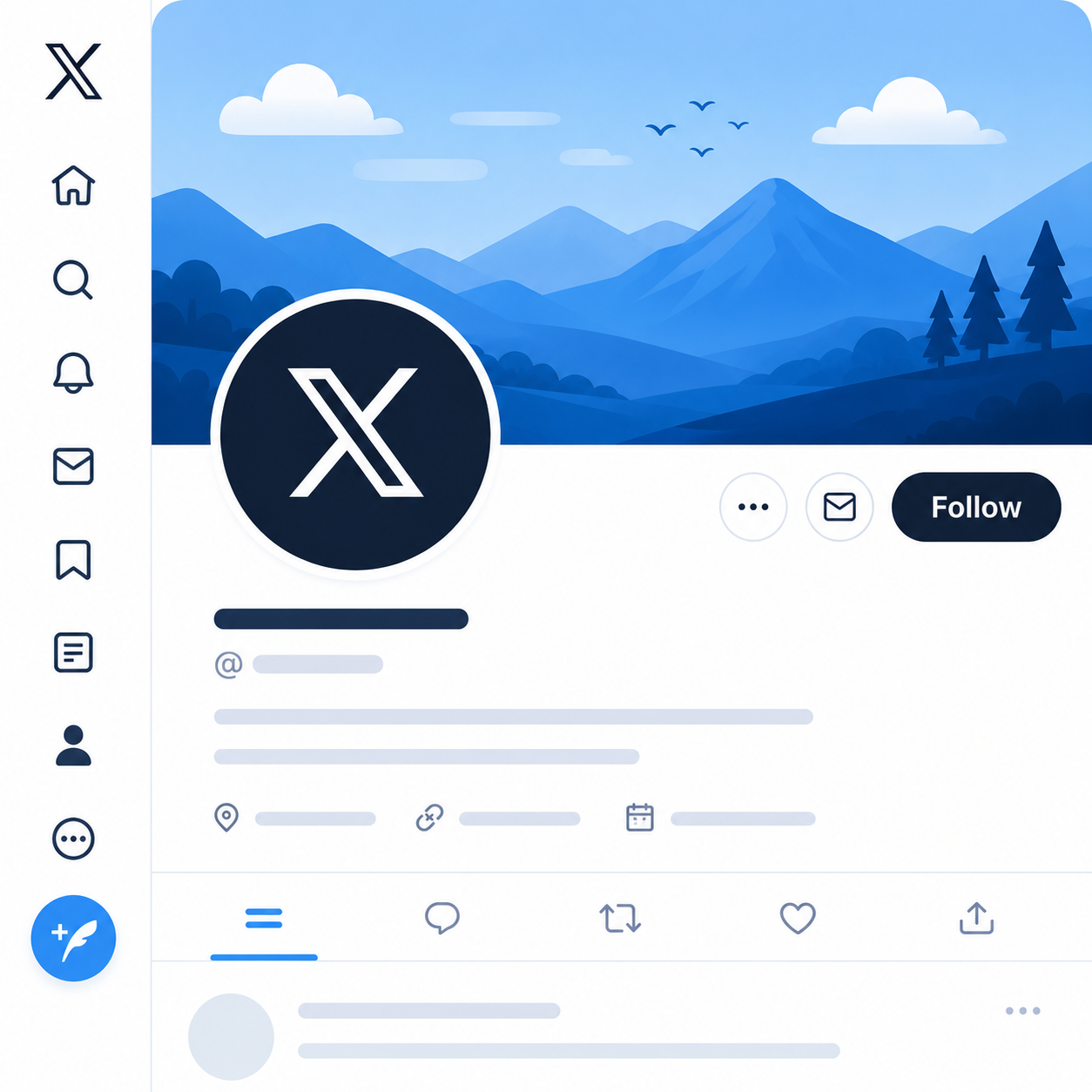
Keep in mind that your profile picture partially overlaps the bottom-left corner of the header. On mobile devices, parts of the header may also be cropped slightly. For this reason, avoid placing logos, text, faces, or other important design elements too close to the edges or lower-left area of the image.
If you’re designing a branded header, use a high-resolution image with a simple layout and leave some empty space around key elements. This gives your design room to adapt across different devices without losing important details.
Understanding the X Header Safe Zone
Designing your header at the correct size is only half the job. You also need to think about the safe zone, which is the area where important content is least likely to be covered or cropped.
On X, the profile picture overlaps the bottom-left corner of the header, while different screen sizes can crop small portions of the top, bottom, and sides. A design that looks perfect on your computer may appear slightly different on a mobile phone.
To avoid surprises, keep logos, text, product images, and faces toward the center of the header. Leave generous spacing around the edges, especially in the bottom-left corner where the profile picture sits. Background textures, patterns, or landscape photos work well near the edges because they can be cropped without affecting the overall design.
Here are a few simple guidelines:
- Place important content in the center of the header.
- Leave extra space around all four edges.
- Avoid putting text in the bottom-left corner.
- Use the outer edges for background elements instead of key information.
- Preview your profile on both desktop and mobile before finalizing your header.
X Profile Picture Specifications
Your profile picture appears almost everywhere on X. It’s shown next to your posts, replies, messages, notifications, and profile page, making it one of the most recognizable parts of your account. Choosing the right size helps your image stay sharp and professional.
Although you upload a 400 × 400 pixel square image, X displays profile pictures as circles across the platform. This means the corners of your image won’t be visible after it’s uploaded.
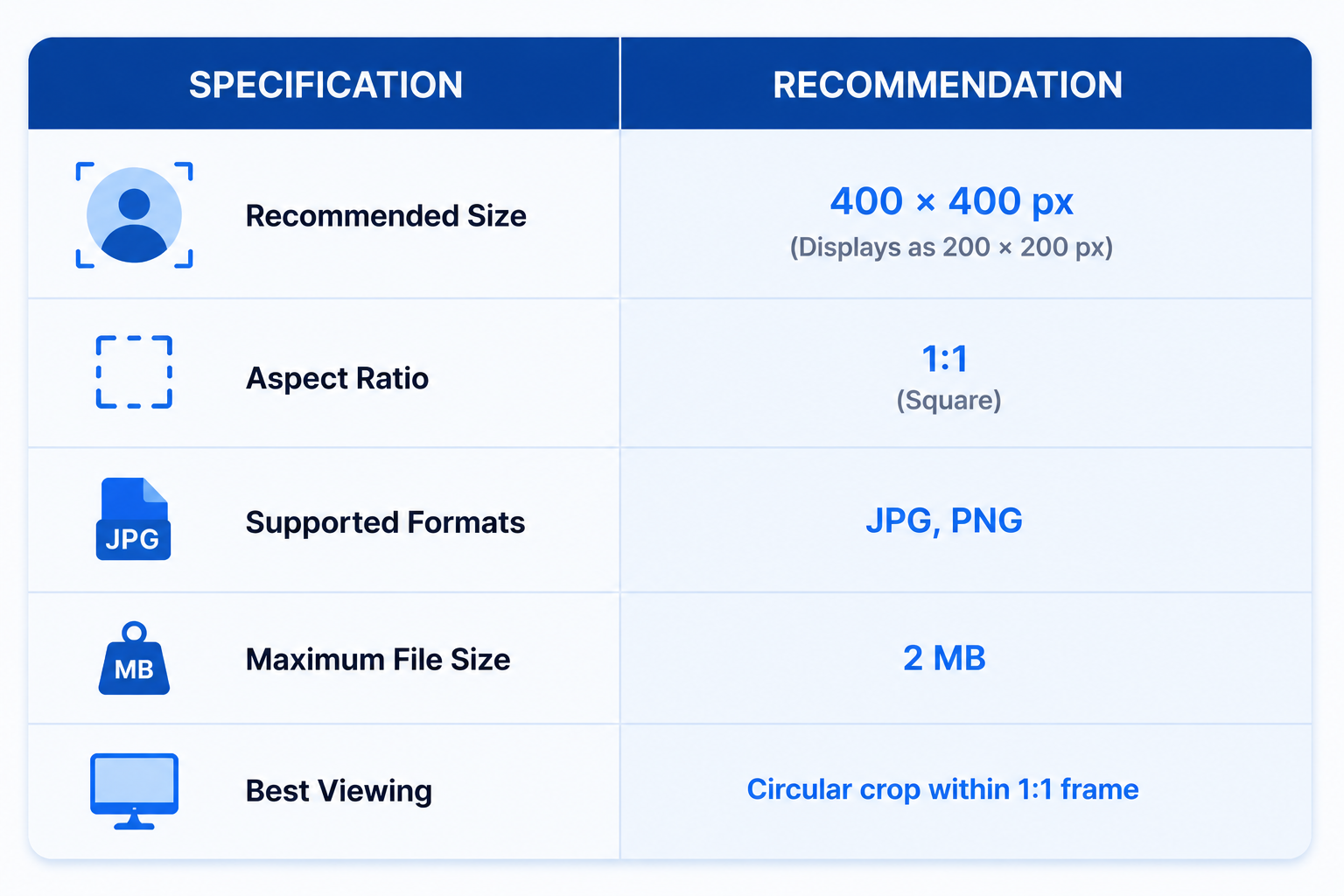
To get the best result, keep your face, logo, or other important elements centered within the image. Avoid placing text or logos too close to the edges, as they may be cut off by the circular crop.
If you’re using a personal profile, choose a clear, high-resolution headshot with good lighting. For businesses and brands, a clean logo on a simple background is usually the most recognizable option, even when displayed at smaller sizes.
Also, use the same profile picture across your social media accounts where possible. Consistent branding makes it easier for people to recognize your account and builds familiarity over time.
LinkedIn Image Sizes and Dimensions
LinkedIn might be known as the professional network, but visuals play just as big a role here as anywhere else. A well-sized profile or company image helps you look polished, credible, and ready for business.
On the other hand, poorly cropped or blurry photos can do the opposite. Just to keep things interesting, LinkedIn uses slightly different image sizes for personal profiles and company pages. Let’s break them down.
LinkedIn Post Image Sizes
LinkedIn supports several image sizes for feed posts, and each one serves a different purpose. The right choice depends on the type of content you’re sharing and how you want it to appear in your audience’s feed.
Here’s a closer look at the most common LinkedIn post image formats.
1. Standard Landscape (1.91:1)
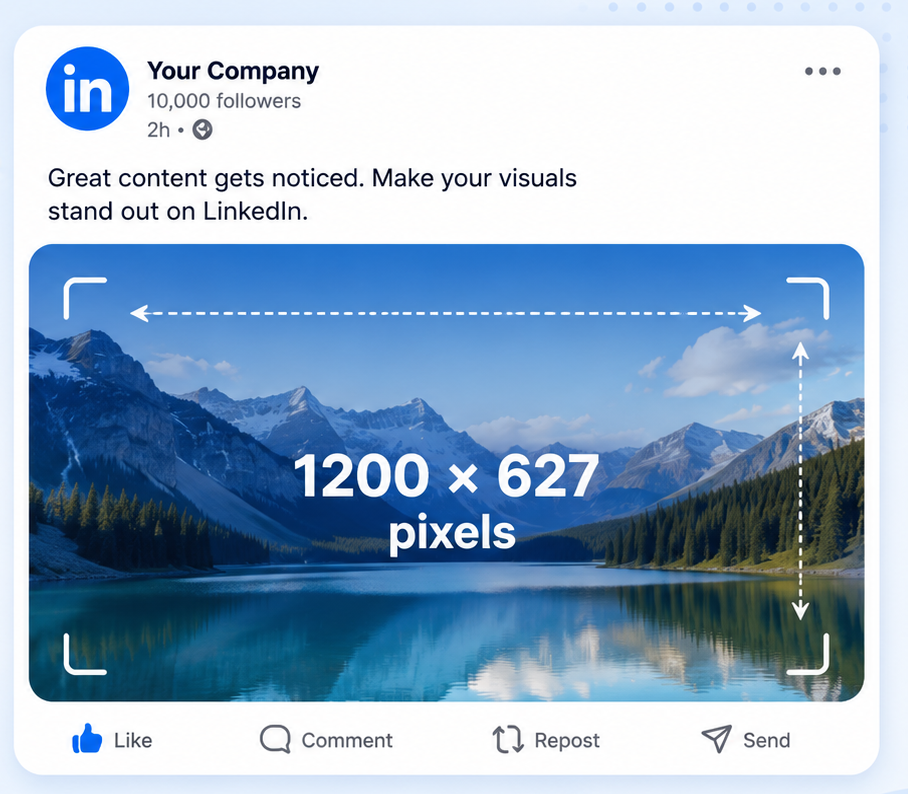
Recommended size: 1200 × 627 pixels
This is LinkedIn’s recommended image size for standard feed posts and link previews. It provides a wide layout that works well for blog promotions, company announcements, product launches, and marketing graphics.
If you’re unsure which size to use, this is a safe option that displays consistently across desktop and mobile.
Best for:
- Blog and article promotions
- Product announcements
- Event promotions
- Marketing campaigns
- Website link previews
2. Square (1:1)
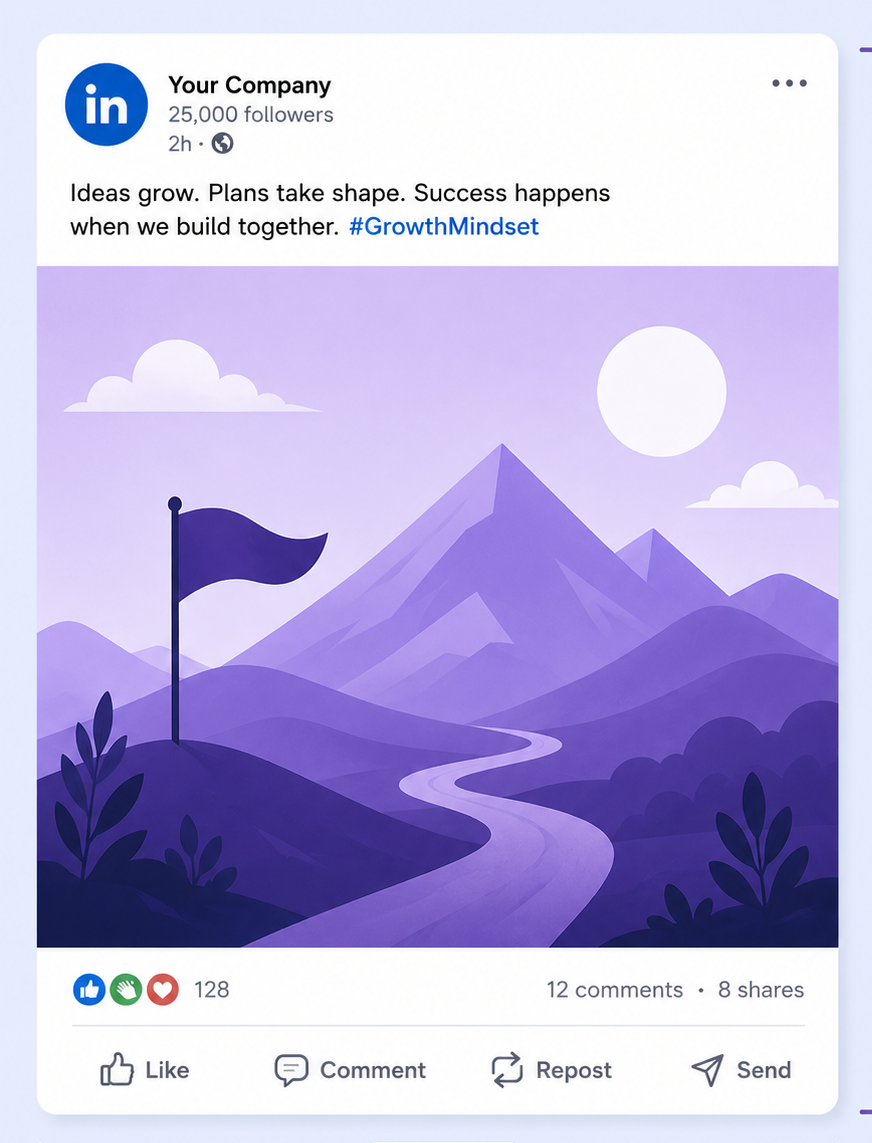
Recommended size: 1200 × 1200 pixels
Square images are one of the most versatile formats on LinkedIn. They look balanced on both desktop and mobile and are ideal for visuals that need to grab attention while people scroll.
They’re also easy to reuse across platforms like Instagram and Facebook, making them a popular choice for brands that publish the same content in multiple places.
Best for:
- Infographics
- Quote graphics
- Tips and educational posts
- Customer testimonials
- Product photos
3. Wide (3:1)
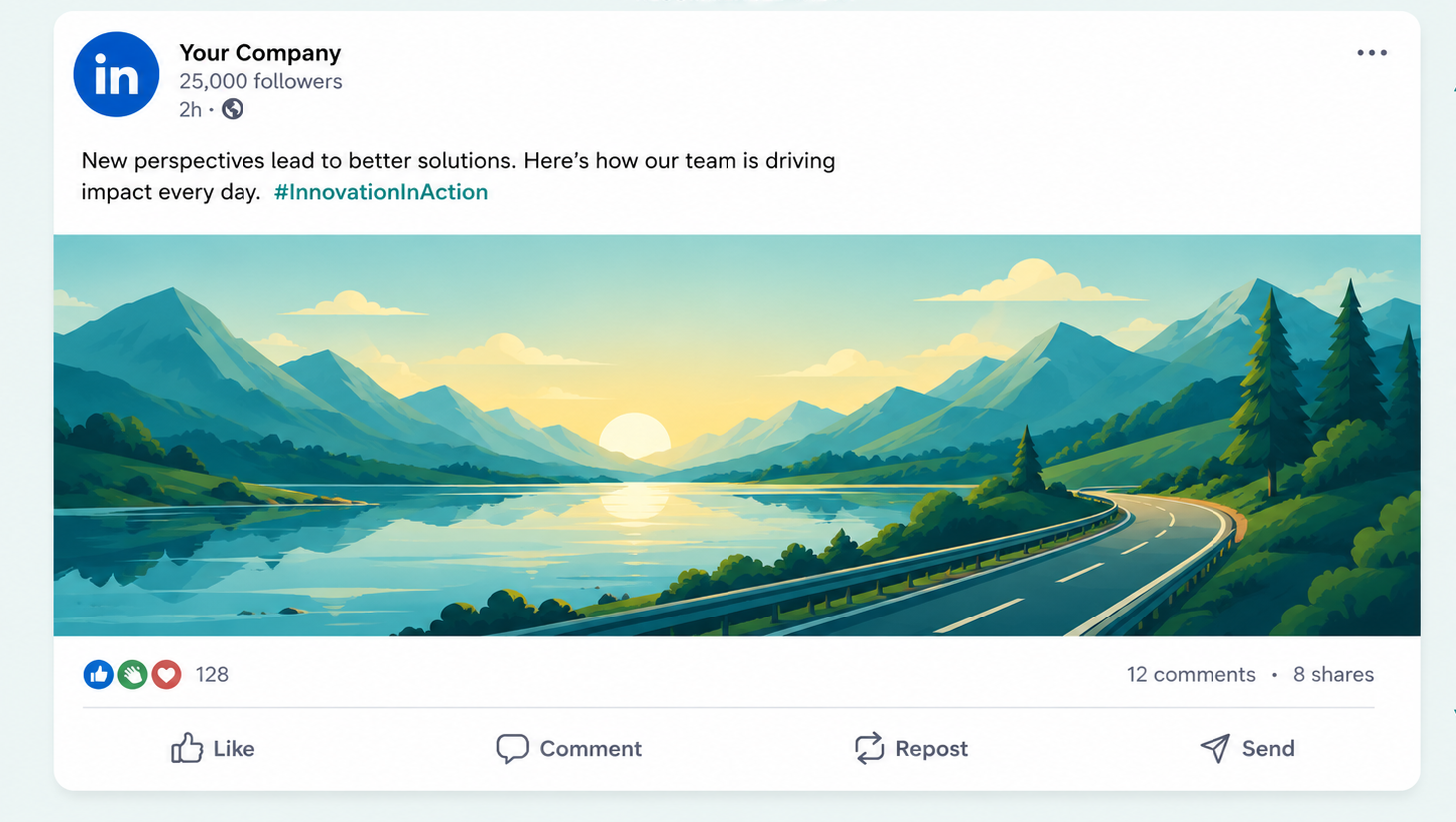
Recommended size: 1128 × 376 pixels
The wide format is less common but can work well when you want a banner-style design. It’s useful for promotional graphics, event headers, and branded announcements where the focus is on a simple visual message.
Because it’s much shorter than the other formats, avoid adding too much text or important details that could become difficult to read.
Best for:
- Event banners
- Campaign announcements
- Promotional graphics
- Brand messaging
- Header-style visuals
LinkedIn Post Image Specifications
Choosing the right image dimensions is important, but there are a few other technical requirements worth knowing. Following LinkedIn’s recommended specifications helps your images load faster, appear sharper, and display correctly across different devices.
Resolution
LinkedIn supports high-resolution images, allowing your visuals to remain crisp without appearing blurry or pixelated.
- Recommended resolution: 1200 × 627 pixels
- Maximum supported resolution: Up to 36 megapixels
For most posts, you won’t need to upload extremely large images. Sticking with LinkedIn’s recommended dimensions is usually the best balance between quality and performance.
Aspect Ratios
LinkedIn supports several aspect ratios for feed posts, giving you the flexibility to create different types of content.
- 91:1 – Recommended for standard feed posts and link previews.
- 1:1 – Ideal for single-image posts, infographics, and quote graphics.
- 3:1 – Best suited to banner-style graphics and promotional visuals.
File Size
LinkedIn allows images up to 8 MB, but smaller files usually upload faster and provide a smoother viewing experience.
For the best results:
- Maximum file size: 8 MB
- Recommended size: 5-8 MB or less
If your image is much larger, compress it before uploading to reduce loading time without noticeably affecting quality.
Supported File Formats
LinkedIn supports images in formats: JPG, JPEG and PNG.
As a general rule:
- JPG/JPEG works best for photographs because it keeps file sizes smaller.
- PNG is a better choice for graphics, infographics, logos, or images that contain text, as it preserves sharper edges.
Image Quality
High-quality images create a stronger first impression and are more likely to catch people’s attention in the feed.
Before uploading, check that your image:
- Is clear and high resolution.
- Doesn’t appear blurry or stretched.
- Uses readable fonts if it contains text.
- Has good contrast so important details stand out.
Accessibility with Alt Text
LinkedIn allows you to add alternative text (alt text) to images. Alt text describes what’s shown in the image, making your content more accessible to people who use screen readers.
It’s also a good habit for professional content because it ensures everyone can understand the context of your visuals, even if they can’t see the image itself.
Taking a few extra seconds to add descriptive alt text can make your posts more inclusive while improving the overall user experience.
LinkedIn Profile Picture Specifications
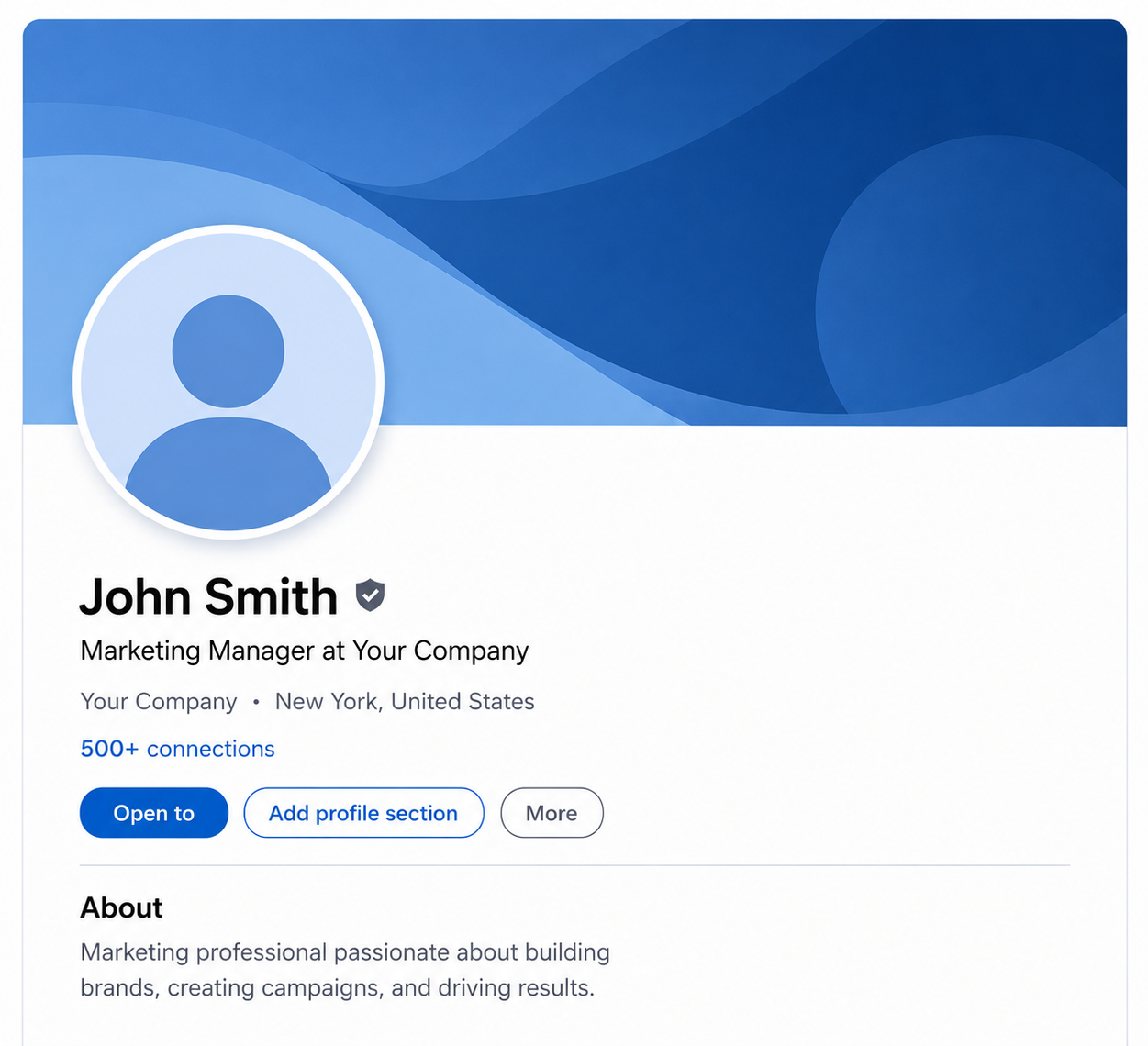
Your profile picture is one of the first things people notice when they visit your LinkedIn profile.
I you’re going to create a strong first impression and have your profile look more trustworthy, you’re going to ensure you have a clear, professional photo as your profile picture.
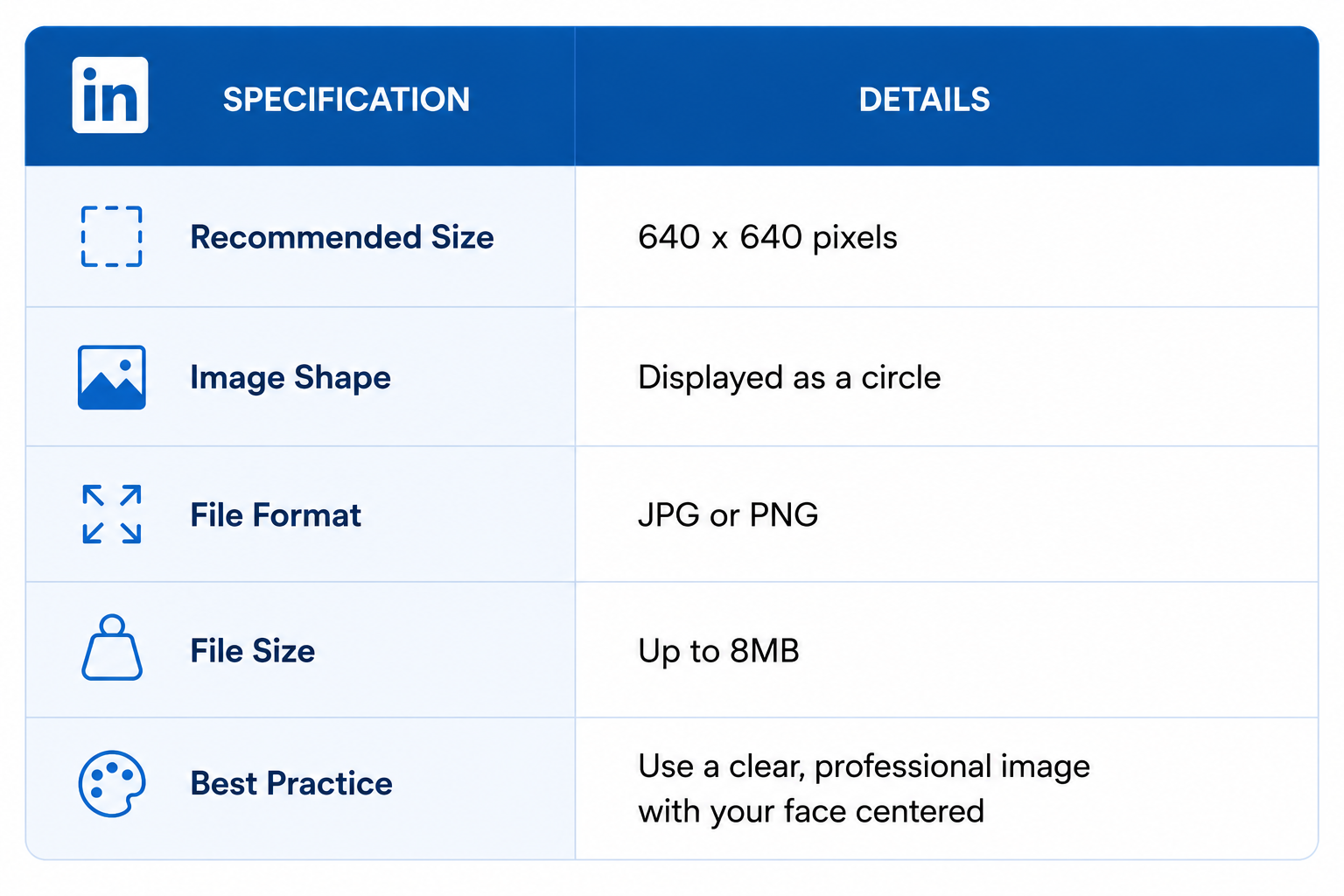
Recommended Size
LinkedIn recommends uploading a square image with the following dimensions:
- Recommended size: 640 × 640 pixels
- Minimum size: 400 × 400 pixels
- Maximum size: 7,680 × 4,320 pixels
- Aspect ratio: 1:1 (Square)
Although the image is uploaded as a square, LinkedIn displays it as a circle. Keep your face or logo centered so nothing important gets cropped.
File Size and Formats
Your profile photo should meet these file requirements:
- Maximum file size: 8 MB
- Supported formats: JPG, JPEG, PNG
Tips for the Best LinkedIn Profile Photo
A few small changes can make your profile picture look much more professional.
- Use a high-resolution image.
- Keep your face centered in the frame.
- Leave some space around your head to account for the circular crop.
- Choose a clean, uncluttered background.
- Use good lighting so your face is easy to see.
- Avoid blurry, heavily filtered, or pixelated photos.
If you’re uploading a company logo instead of a personal photo, use a high-quality square version with enough padding around the edges. This helps prevent important parts of the logo from being cut off inside LinkedIn’s circular display.
LinkedIn Cover Photo Specifications
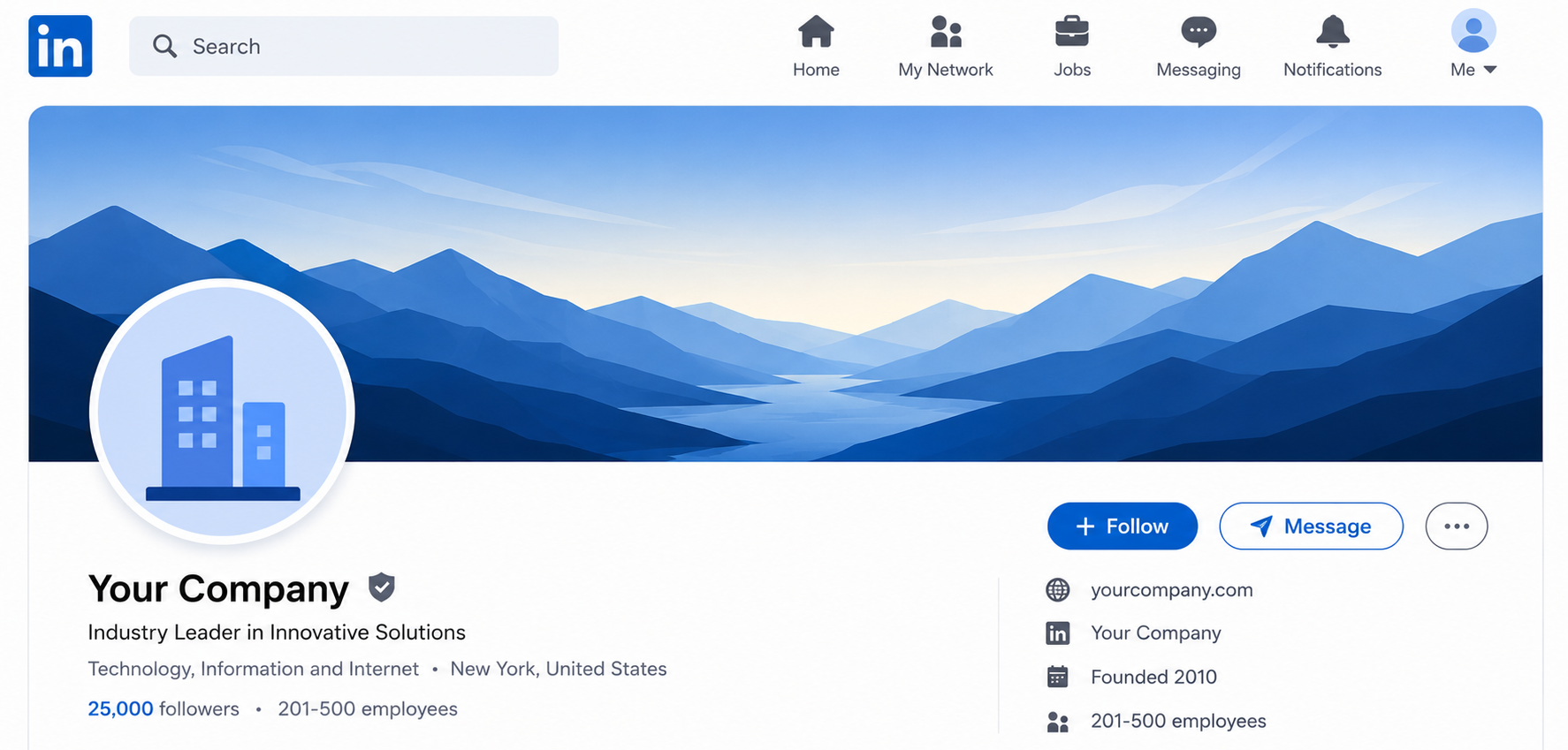
Your LinkedIn cover photo sits at the top of your profile and is one of the largest visual elements on the page. It’s a great place to showcase your personal brand, highlight your business, or reinforce what you do.
Unlike your profile picture, the cover photo is displayed as a wide banner, so choosing the correct dimensions helps prevent unwanted cropping.
Personal Profile Cover Photo
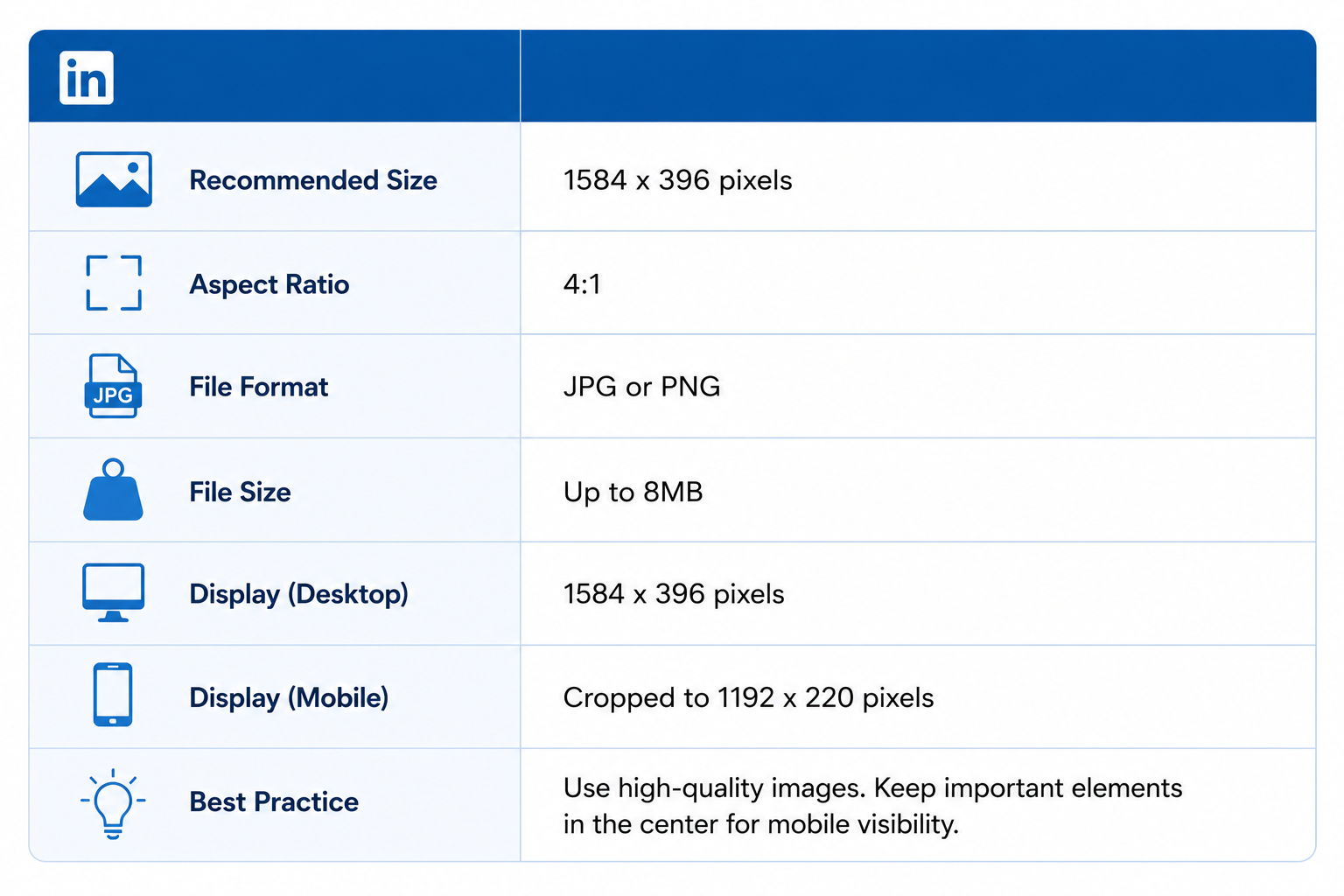
For individual LinkedIn profiles, use the following specifications:
- Recommended size: 1584 × 396 pixels
- Aspect ratio: 4:1
- Maximum file size: 8 MB
- Supported formats: JPG, JPEG, PNG
One thing to note is that your profile picture overlaps the bottom-left corner of the cover image. Avoid placing logos, text, or other important elements in that area.
Company Page Cover Photo
If you’re managing a LinkedIn Company Page, the recommended dimensions are slightly different.
- Recommended size: 1128 × 191 pixels
- Aspect ratio: Approximately 6:1
- Maximum file size: 8 MB
- Supported formats: JPG, JPEG, PNG
Because the banner is much shorter, simple designs usually work better than graphics packed with text.
Tips for a Better Cover Photo
To get the best results, try these best practices:
- Use a high-resolution image to keep it sharp.
- Leave space around important text and logos.
- Keep the design clean and uncluttered.
- Check how it looks on both desktop and mobile before finalizing it.
- Update your cover photo occasionally to reflect new campaigns, achievements, or branding.
LinkedIn Article Image Sizes
If you publish articles on LinkedIn, you need to know how to choose an image with the correct size. This will not only make your article look more polished but will also make it much easier to read.
There are three main image types you’ll work with: the feature image, the banner image, and images placed within the article itself.
Feature Image
The feature image appears at the top of your article and is often the first visual readers see.
Recommended specifications:
- Size: 1200 × 644 pixels
- Aspect ratio: Approximately 1.86:1
- Maximum file size: 8 MB
- Supported formats: JPG, JPEG, PNG
Choose a clear, high-quality image that reflects the topic of your article. Avoid placing important text near the edges, as slight cropping can occur on different devices.
Banner Image
A banner image can be used to introduce sections or reinforce your branding within the article.
Recommended specifications:
- Size: 600 × 322 pixels
- Aspect ratio: Approximately86:1
- Maximum file size: 8 MB
- Supported formats: JPG, JPEG, PNG
Inline Images
Inline images are there to help break up long sections of text and make your articles more engaging.
Recommended specifications:
- Maximum display width: 552 pixels
- Aspect ratio: Flexible
- Maximum file size: 8 MB
- Supported formats: JPG, JPEG, PNG
Best Practices for Article Images
To get the best results from your LinkedIn articles:
- Use high-resolution images throughout.
- Keep a consistent visual style from beginning to end.
- Compress large files without noticeably reducing quality.
- Add descriptive alt text where possible to improve accessibility.
- Preview your article before publishing to make sure every image displays correctly.
LinkedIn Company Page Image Sizes
Your LinkedIn Company Page is often the first place potential customers, partners, and job seekers learn about your business. You don’t want to ignore that part, or else your brand will struggle with looking professional and trustworthy.
Here are the main image specifications you’ll need.
Company Logo
Your company logo appears throughout LinkedIn, including your Company Page, posts, comments, and search results.
Recommended specifications:
- Size: 300 × 300 pixels
- Aspect ratio: 1:1 (Square)
- Maximum file size: 8 MB
- Supported formats: JPG, JPEG, PNG
Use a high-resolution version of your logo with enough spacing around the edges so it remains clear even at smaller sizes.
Company Cover Photo
The cover photo appears at the top of your Company Page and is a great place to showcase your brand, products, or services.
Recommended specifications:
- Size: 1128 × 191 pixels
- Aspect ratio: Approximately 6:1
- Maximum file size: 8 MB
- Supported formats: JPG, JPEG, PNG
Because the banner is relatively short, keep the design simple and avoid placing important text too close to the edges.
Life Tab Hero Image
If your Company Page uses LinkedIn’s Life tab to showcase company culture and careers, you’ll also need a hero image.
Recommended specifications:
- Size: 1128 × 376 pixels
- Aspect ratio: 3:1
- Maximum file size: 8 MB
- Supported formats: JPG, JPEG, PNG
Best Practices for Company Page Images
To make your Company Page look its best:
- Upload high-resolution images.
- Keep your branding consistent across all visuals.
- Use simple designs with readable text.
- Preview your page on both desktop and mobile.
- Update your cover images when running campaigns, launching products, or refreshing your brand.
YouTube Image Sizes
With over 2.5 billion monthly users, YouTube is the go-to platform for video content. And when it comes to how a channel is perceived here, visuals play a big part. Starting from your profile image to your video thumbnails, getting the right sizes helps your channel look polished, professional, and ready to attract subscribers. So, let’s see the updated image sizes for the platform:
YouTube Channel Profile Image
Your profile image is the face of your channel. That’s what shows up next to your videos, whether in search results or in comments. To look professional and instantly recognizable, you will need a clean, well-sized image.
- Recommended size: 800 × 800 pixels
- Minimum size: 98 × 98 pixels
- Maximum file size: 4 MB
- File type: PNG or GIF (no animations)
- Pro Tip: Keep it simple. Use your logo or a clear headshot, and remember that profile images appear as circles on most devices.
YouTube Channel Cover Photo
Your channel cover (or “channel art”) stretches across the top of your YouTube page. It’s often the first thing people notice when visiting your channel. That’s why you should do everything possible to make it visually appealing and consistent with your brand.
- Recommended size: 2560 × 1440 pixels
- Minimum size: 2048 × 1152 pixels
- Safe area (for mobile and web): 1546 × 423 pixels — keep key text and logos inside this zone to avoid cropping.
- Maximum file size: 6 MB
- File type: PNG or GIF
YouTube Video Thumbnail Size
Thumbnails are small but powerful. They can make or break your click-through rate. The right size and design ensure your videos look great on all devices and stand out in search results.
- Recommended size: 1280 × 720 pixels
- Minimum width: 640 pixels
- Aspect ratio: 16:9
- Maximum file size: 2 MB
- Pro Tip: Use high-contrast colors, close-up visuals, and readable text. A good thumbnail should make people want to click instantly.
YouTube Podcast Playlist Thumbnail Size
If you’re hosting a podcast on YouTube, your playlist thumbnail acts as your cover art. Think of it as a podcast album cover on streaming platforms. It’s your chance to grab attention and give your show a distinct look.
- Recommended size: 1280 × 1280 pixels
- Aspect ratio: 1:1
- Maximum file size: 10 MB
- File type: PNG or JPG
Pro Tip: Stick with a consistent design for all podcast playlists so listeners can easily recognize your brand at a glance.
Pinterest Image Sizes
Pinterest is all about inspiration, and visuals mean a whole lot here. Whether you’re pinning creative ideas, promoting products, or building your brand, you want to make sure you have the right image sizes so your pins will look clean, eye-catching, and easy to engage with.
Pinterest Profile Image
Your profile picture helps people recognize your brand or personal account at a glance. If you sign up using Facebook or Google, Pinterest will automatically use your photo from there. But you can always upload your own, especially if you want something that fits your brand identity better.
- Recommended size: 280 × 280 pixels
- Maximum file size: 10 MB
- File type: JPG or PNG
- Pro Tip: Use a simple, centered image – like a logo or clear headshot – since it will appear as a circle on your profile.
Pinterest Pin Sizes
Pins are the main focus on Pinterest. Each one is a visual bookmark that can drive traffic, spark inspiration, or showcase your products. While Pinterest limits the width of your pins, there’s no limit on the height, which gives you freedom to create tall, scroll-stopping images.
- Recommended image size: 735 × 1102 pixels
- Aspect ratio: 2:3
- Maximum file size: 20 MB
- File type: JPG, PNG, or GIF
- Note: Pinterest resizes larger images to a width of 238 pixels in feeds while keeping the height proportional.
Pro Tip: Taller pins often get more attention, but make sure they’re designed with purpose. Add value with useful visuals, infographics, or how-tos – not just longer images.
Pinterest Collections Pin Sizes
Collection Pins are a great way to show off multiple products or visuals in one post. They are perfect for brands, mood boards, or campaigns. They feature one large main image on top and several smaller ones beneath it.
- Recommended aspect ratios: 1:1 (square) or 2:3
- Recommended size: 1000 × 1000 pixels or 1000 × 1500 pixels
- Maximum file size: 10 MB
- File type: JPG or PNG
Tips for Collection Pins:
- Appears as one main image above 3-24 smaller ones.
- Smaller images must all share the same aspect ratio.
- Best viewed on mobile devices, where the layout looks cleanest.
- The 1:1 ratio is generally the safest choice.
- If you choose a different aspect ratio, Pinterest crops from the middle, so keep key visuals centered.
- Collection Pins can also be used as ad formats to highlight related products or showcase a full collection.
Snapchat Image Sizes
Snapchat is all about quick, eye-catching visuals. So, having the right image sizes makes your content look crisp across Stories, ads, and your profile. Since users mostly view Snapchat vertically on mobile, sticking to the proper dimensions makes sure your visuals always look professional and engaging.
Snapchat Profile Picture
Your Snapchat profile image is the small visual that represents you or your brand. While it doesn’t dominate the screen, it’s still a key part of your identity, especially for business accounts.
- Minimum size: 320 × 320 pixels
- Maximum file size: 2 MB
- File type: JPG or PNG
Pro Tip: Keep your photo simple and recognizable. Snapchat automatically crops profile images into circles, so center your logo or face for best results.
Snapchat Banner Image
The banner image sits behind your Snapcode and username. It’s a great way to add personality or branding to your profile.
- Recommended size: 375 × 278 pixels
- Upload limit: Up to 375 × 569 pixels (will crop to 375 × 278)
- Maximum file size: 2 MB
- File type: JPG or PNG
Pro Tip: Since Snapchat crops automatically, avoid putting text or key visuals near the edges.
Snapchat Ads Image Sizes
Snapchat ads are designed to be vertical and full-screen, blending naturally into the user experience. Here are the recommended dimensions to ensure your creative stays sharp and immersive.
- Minimum size: 1080 × 1920 pixels
- Aspect ratio: 9:16
- File type: JPEG or PNG
- Maximum file size: 5 MB
Google My Business Image Sizes
For local businesses, Google My Business (GMB) is a digital storefront. The right images can make your listing more appealing, help customers recognize your location, and boost trust when they see real, high-quality visuals. GMB supports three main image types:
- Logo: Your brand’s signature image. It’s great for instant recognition in search results.
- Cover Photo: The main banner that best represents your business or location.
- Business Photos: Additional visuals that show your store, team, products, or the atmosphere customers can expect.
Google My Business Image Guidelines
To make sure your photos display properly across Google Search and Maps, follow these recommended specifications:
- Recommended resolution: 720 × 720 pixels
- Minimum resolution: 250 × 250 pixels
- Maximum file size: 5 MB
- File type: JPG or PNG
Pro Tip: Use bright, high-quality photos that showcase your business authentically. Avoid using heavy filters. Google prefers realistic, well-lit images that help potential visitors feel confident about stopping by.
Threads Image Sizes
Threads has quickly become a popular space for real-time conversations with a more visual twist than traditional text-based platforms. Yes, it may look familiar to Instagram, Threads has its own image requirements that you should understand if you want to stand out on the platform.
Threads Profile Image
Your profile image is your visual identity on Threads. This can be your logo or a headshot. Just make sure it’s clear and easily recognizable because it will be cropped into a circle just like on Instagram.
- Recommended size: 640 × 640 pixels
- Cropping: Circular
- File type: JPG or PNG
Pro Tip: Keep your image simple and centered. Avoid text or small details near the edges, as they may get cut off in the circular crop.
Threads Post Image
Threads allows for flexible image posting, but it’s best to stick within the recommended dimensions to avoid compression or awkward cropping.
- Recommended size: 1440 × 1920 pixels
- Minimum width: 320 pixels
- Maximum width: 1440 pixels
- Native aspect ratio: 3:4
- Acceptable aspect ratios: Between 0.01:1 and 10:1
- Maximum file size: 8 MB
Pro Tip: The 3:4 aspect ratio works best across devices. It keeps your post images clear and proportionate without losing detail.
Bluesky Image Sizes
Bluesky is all about community and conversation, but that doesn’t mean you should neglect visuals here because it can really make your profile stand out. While it’s still evolving, the platform supports standard image formats similar to other social networks.
Bluesky Profile Picture
Your profile photo is the main identifier on Bluesky. It appears next to your posts, replies, and in search results.
- Recommended size: 1000 × 1000 pixels
- Aspect ratio: 1:1 (square)
- Cropping: Circular
- Pro Tip: Keep your subject centered, as the edges will be cropped. Simple, high-contrast images display best.
Bluesky Banner Image
The banner image stretches across the top of your profile, giving you a chance to show off your branding or personality.
- Recommended size: 3000 × 1000 pixels
- Note: Bluesky renders banners differently on desktop and mobile, so always preview it on both before finalizing.
- Pro Tip: Keep the most important text or visuals centered. The sides may get trimmed depending on screen size.
Bluesky Image Post
While Bluesky doesn’t have strict requirements for post images, it automatically scales uploaded visuals so that the longest side is stored at 1000 pixels.
- Recommended dimensions: Longest side at 1000 pixels
- Common aspect ratios: 1:1, 9:16, 3:4, or 4:5
- File type: JPG or PNG
Pro Tip: Stick to standard photo dimensions and avoid overly wide or tall images. This helps your content display consistently across both desktop and mobile feeds.
Threads Image Sizes and Dimensions
Threads has grown beyond being a simple companion app to Instagram. It’s now one of the fastest places to share updates, start conversations, and build a community.
While text remains at the heart of the platform, images and videos often grab attention first. If your media looks blurry, cropped, or awkwardly framed, it’s easy for people to scroll past.
Compared to most social platforms, Threads keeps things simple. At the moment, there are just two primary media formats you need to optimize for: posts and videos.
Both work best in a 1080 × 1920 pixel vertical format, making it easy to create content that looks great across the app.
Threads Post Image Size
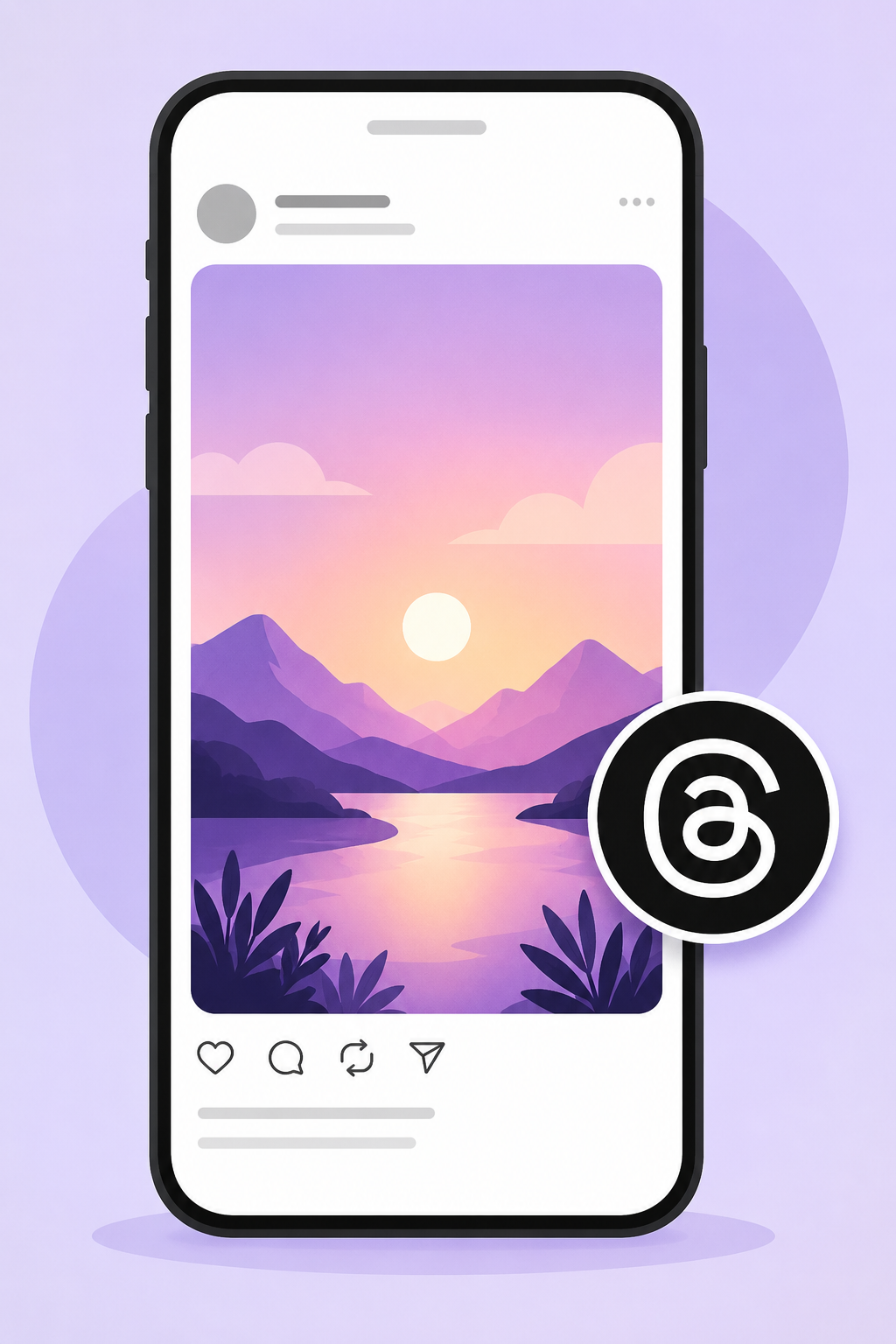
The recommended image size for a Threads post is 1080 × 1920 pixels with a 9:16 aspect ratio. This vertical format fills more of the mobile screen, helping your content stand out as people scroll through the feed.
Threads also supports square and landscape images, so you aren’t limited to one format. However, wider images occupy less space in the feed and can be easier to scroll past. If your goal is to maximize visibility and create a more immersive experience, a vertical image is usually the better choice.
When designing your posts, keep your main subject close to the center of the image. This helps prevent important details from being cropped or partially hidden as Threads adapts your content to different screens.
Threads Post Specifications
| Specification | Recommendation |
| Recommended Size | 1080 × 1920 px |
| Aspect Ratio | 9:16 |
| Maximum File Size | 100 MB |
| Supported Formats | JPG, JPEG, PNG, GIF |
Threads Video Size
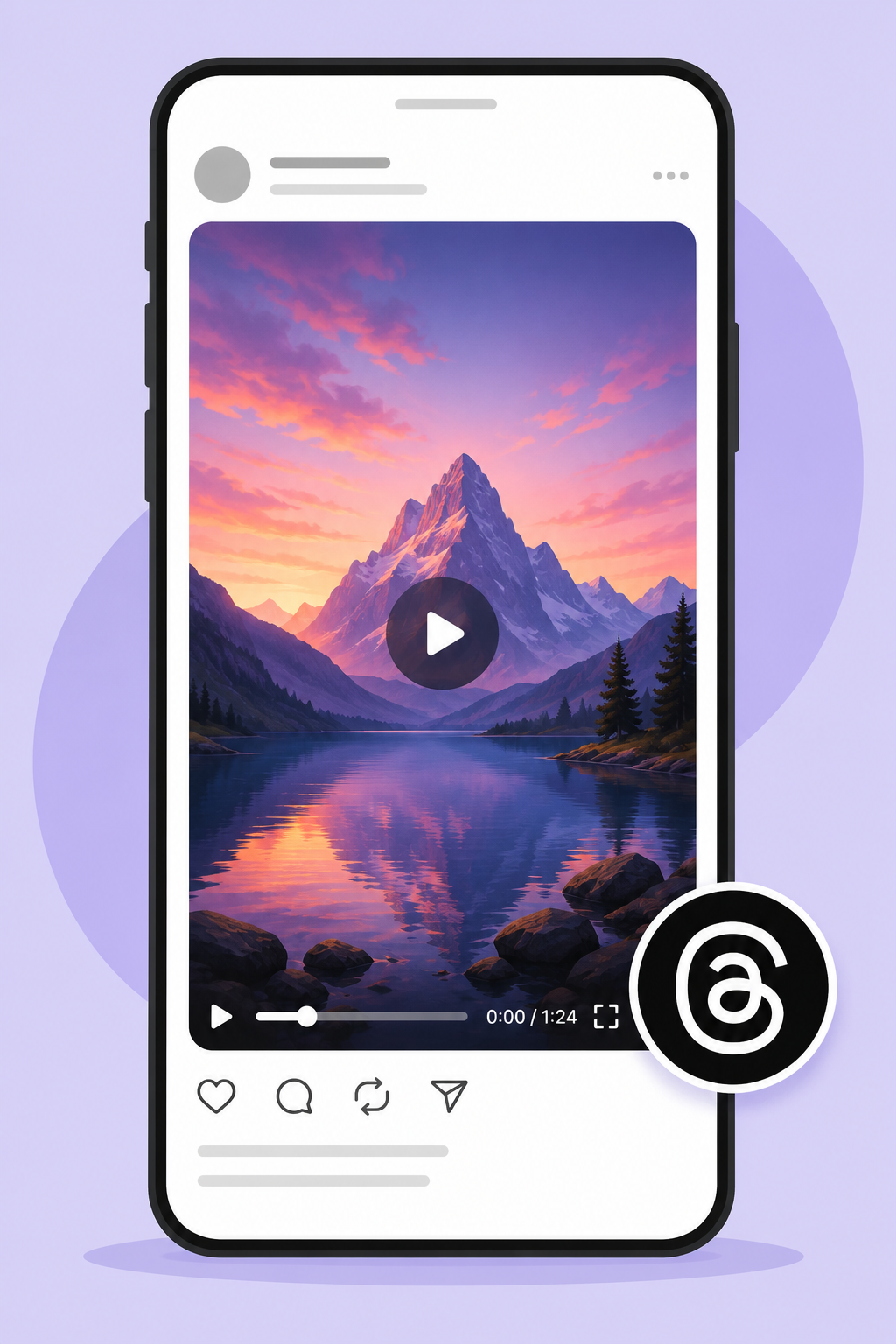
Threads videos use the same recommended dimensions as image posts: 1080 × 1920 pixels with a 9:16 aspect ratio. Vertical videos naturally take up more screen space, making them easier to notice and more enjoyable to watch on mobile devices.
Videos can be up to 5 minutes long, giving you plenty of room to share tutorials, product demonstrations, behind-the-scenes clips, or short-form storytelling.
For the best results, export your videos in MP4 format before uploading, as it provides excellent quality while keeping file sizes manageable.
Like images, high-resolution videos tend to hold up better after Threads applies its compression. Starting with a sharp source file helps preserve quality and gives your audience a better viewing experience.
Threads Video Specifications
| Specification | Recommendation |
| Recommended Size | 1080 × 1920 px |
| Aspect Ratio | 9:16 |
| Maximum File Size | 1000 MB |
| Supported Formats | MP4, MOV |
| Maximum Video Length | 5 minutes |
Threads File Formats & Compression
Using the right file format is just as important as choosing the correct dimensions. Threads automatically compresses uploaded images and videos to improve loading speeds, so starting with the right format helps preserve quality after your content has been processed.
- JPG and JPEG: JPG and JPEG are the best choices for most photographs. They offer an excellent balance between image quality and file size, making them ideal for everyday posts.
- PNG: PNG works best for graphics, illustrations, screenshots, infographics, and images that contain text. It preserves sharp edges better than JPG, making logos and branded graphics appear cleaner after upload.
- GIF: Threads also supports GIF files, allowing you to share lightweight looping animations. They’re a good option when you want to add movement without creating a full video.
- MP4: MP4 is the recommended format for Threads videos. It provides high-quality playback while keeping file sizes relatively small, making uploads faster and ensuring good compatibility across devices.
- MOV: MOV files are also supported and can produce excellent video quality, particularly if you’re exporting directly from video editing software. If file size becomes an issue, converting to MP4 is usually the better option.
Like other Meta platforms, Threads re-encodes images and videos after they’re uploaded.
While you can’t disable this compression, you can reduce visible quality loss by uploading media at the recommended 1080 × 1920 pixel resolution, using high-quality source files, and choosing the appropriate format for your content.
Photos generally perform best as JPG files, graphics as PNG, and videos as MP4.
Best Practices for Threads Images and Videos
A few small adjustments can make a noticeable difference in how your content looks on Threads. Following these best practices helps your posts appear sharper, more engaging, and better suited to the platform’s mobile-first experience.
Use Vertical Media Whenever Possible
Threads is built around a mobile feed, so 1080 × 1920 px (9:16) images and videos usually make the strongest impression. They occupy more screen space and naturally draw more attention than wider formats.
Keep Your Subject in the Centre
Although Threads supports multiple aspect ratios, slight cropping can occur in previews. Positioning people, products, logos, or other important elements near the center helps ensure they remain fully visible.
Upload High-Resolution Files
Always start with high-quality images and videos. Better source files hold up much better after Threads applies its compression, resulting in sharper-looking content.
Export Videos as MP4
MP4 provides the best combination of quality, compatibility, and file size. It also helps reduce upload times while maintaining smooth playback across different devices.
Make the First Frame Count
The opening frame of your video is often what people notice first as they scroll. Choose a clear, eye-catching opening scene that encourages viewers to stop and watch.
Preview Before Publishing
Before posting, check how your image or video appears on a mobile device. A quick preview can help you catch alignment, cropping, or quality issues before your audience sees them.
Final Note
Staying on top of social media image sizes can feel like a full-time job, but it’s one of those small details that makes a big difference. Well-sized visuals keep your content looking sharp, professional, and consistent across every platform. As these dimensions continue to evolve, keeping this guide handy will help you save time, avoid guesswork, and make sure your posts always look their best – wherever you share them.
Take Your Social Media Further with OnlySocial
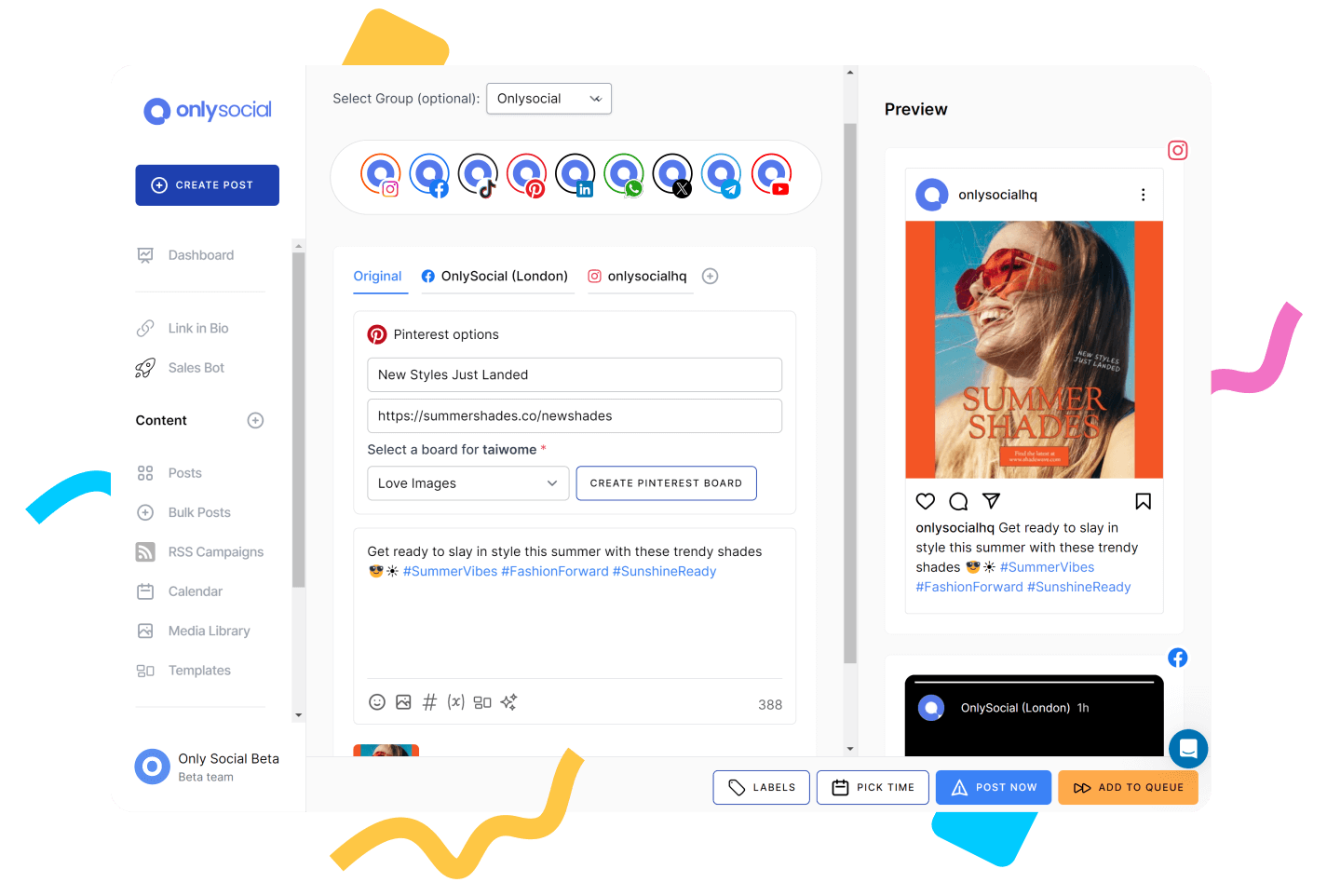
Knowing the correct image and video dimensions is the first step. Publishing consistently across multiple social media platforms is the real challenge. Every network has its own content formats, posting schedule, and audience expectations, making it difficult to stay organized without the right tools.
OnlySocial brings all your social media management into one place.
You can create, schedule, and publish content to Facebook, Instagram, X, LinkedIn, TikTok, Pinterest, Threads, Bluesky, YouTube, Google Business Profile, and more without switching between multiple apps. It’s an easy way to keep your content calendar organized while ensuring every post is published at the right time.
Some of the features that make OnlySocial stand out include:
- Multi-platform scheduling from a single dashboard.
- Visual content calendar for planning weeks or months of content in advance.
- AI-powered writing assistant to generate captions, hashtags, and post ideas.
- Bulk scheduling for uploading hundreds of posts at once.
- Performance analytics to measure reach, engagement, and content performance.
- Team collaboration tools with roles, approvals, and shared workspaces.
- Cross-platform publishing so one piece of content can be adapted for multiple social networks.
Frequently Asked Questions
What is the recommended Facebook image size?
The recommended size depends on the type of content you’re posting. For feed posts, Facebook recommends 1080 × 1350 pixels, while Stories and Reels should be 1080 × 1920 pixels.
What is the best size for a Facebook cover photo?
The recommended Facebook cover photo size is 820 × 360 pixels. Keep important text and graphics near the center because the image is cropped differently on desktop and mobile devices.
Does Facebook compress uploaded images?
Yes. Facebook compresses most uploaded images and videos to improve loading speeds. Uploading media at the recommended dimensions and using high-quality source files helps reduce visible quality loss.
Can I use the same image size for every Facebook post?
You can, but it’s not always the best approach. Feed posts, Stories, Reels, cover photos, profile pictures, Groups, and Events all have different recommended dimensions. Creating content specifically for each format usually produces the best results.
What is the best image size for Instagram?
For most feed posts, the recommended image size is 1080 × 1350 pixels (4:5). This format takes up more space in the feed than square or landscape images, helping your content stand out.
What size should Instagram Stories be?
Instagram Stories should be 1080 × 1920 pixels with a 9:16 aspect ratio. This ensures they fill the entire screen on mobile devices.
Which file formats does Instagram support?
Instagram supports JPG and PNG for images, along with MP4 and MOV for videos. These formats provide the best compatibility across the platform.
Why do my Instagram photos look blurry?
Blurry images are often caused by uploading files that are too large, heavily compressed, or saved at low quality. Exporting your images at 1080 pixels wide using the correct aspect ratio usually produces the sharpest results.
What is the recommended TikTok video size?
The recommended TikTok video size is 1080 × 1920 pixels with a 9:16 aspect ratio. This fills the entire screen and provides the best viewing experience.
What aspect ratio does TikTok use?
TikTok primarily uses a 9:16 aspect ratio for videos and photo carousels. Profile pictures use a 1:1 square aspect ratio.
What is the TikTok safe zone?
The safe zone is the central area of your video where important text, graphics, and your main subject remain visible. Avoid placing key elements near the right edge, bottom, or top of the screen, where TikTok’s interface may cover them.
What file formats does TikTok support?
TikTok supports MP4 and MOV for videos, while JPG and JPEG are recommended for photo carousels and profile pictures.
How long can TikTok videos be?
TikTok currently supports videos of up to 10 minutes, although shorter videos are often more effective at holding viewers’ attention.
What is the best profile picture size for X?
A profile picture should be 400 × 400 pixels. Although you upload a square image, X displays it as a circle, so keep important elements centred.
What video size does X recommend?
For most videos, 1280 × 720 pixels with a 16:9 aspect ratio is the recommended size. Upload your videos in MP4 or MOV format for the best compatibility.
Why does X crop my images?
X crops images to fit different timeline layouts and screen sizes. Using the recommended dimensions and keeping important content near the centre of the image helps minimize cropping.