How to Get a QR Code for Instagram in 2026 [Step-by-Step Guide]
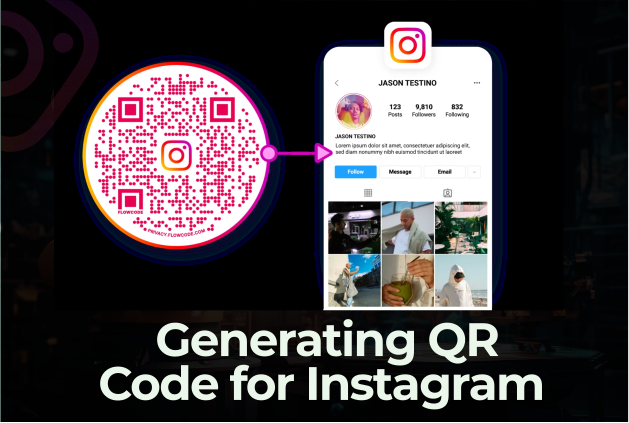
QR codes aren’t new. But the way people use them has completely changed.
What used to feel like a tech gimmick is now part of everyday behavior. According to recent data, nearly 60% of people scan QR codes daily. It’s quick, effortless, and feels natural. That makes it one of the easiest ways to connect your offline world to your Instagram presence.
For creators and businesses, this is a shortcut you don’t want to ignore. Instead of asking people to search for your username, you can take them straight to your profile in seconds.
In this guide, we’ll show you exactly how to generate your Instagram QR code, different ways to use it, and how to make sure it actually drives results.
Table of Contents
- 1 What Is a QR Code on Instagram and How Does It Work?
- 2 How to Generate QR Codes for Instagram on Mobile
- 3 How to Generate QR Code for Instagram on Desktop [3 Methods]
- 4 Different Ways to Use Your Instagram QR Code
- 5 Generating QR Codes for Specific Instagram Posts, Stories, and Reels
- 6 Pro Tips for Getting More Scans from Your Instagram QR Code
- 7 Troubleshooting Common Instagram QR Code Issues
- 8 Final Note
- 9 Frequently Asked Questions
What Is a QR Code on Instagram and How Does It Work?
Think of an Instagram QR code as a shortcut.
Instead of asking someone to search for your username, type it correctly, and find the right profile, you give them a simple scan that takes them there instantly. It’s a small thing, but it removes friction. And less friction means more people actually follow through.
At its core, an Instagram QR code is a scannable code that links directly to your profile, a specific post, a Reel, or even a campaign page. Once scanned, it opens your content immediately on the user’s phone.
It’s also worth noting that this replaced Instagram’s older “Nametag” feature. The difference is that QR codes are universal. You don’t need to open Instagram to scan them. Most smartphones can scan QR codes directly from the camera app, whether it’s iOS or Android.
So, how does all of this work from the user’s side?
The process is simple and fast:
- The scan – The user points their phone camera at your QR code
- The recognition – Their phone detects the link automatically
- The redirect – A tap opens your Instagram profile or content instantly
They don’t need to type or search for anything, removing a great deal of confusion.
How to Generate QR Codes for Instagram on Mobile
The easiest way to get your Instagram QR code is by using the Instagram app itself.
You don’t need any extra tools or generators. Instagram has built this feature directly into your profile, and it works the same way on both iPhone and Android.
Here’s how to do it step by step:
Step 1: Open Your Profile
Launch the Instagram app and tap your profile picture in the bottom-right corner. This takes you to your main profile page.
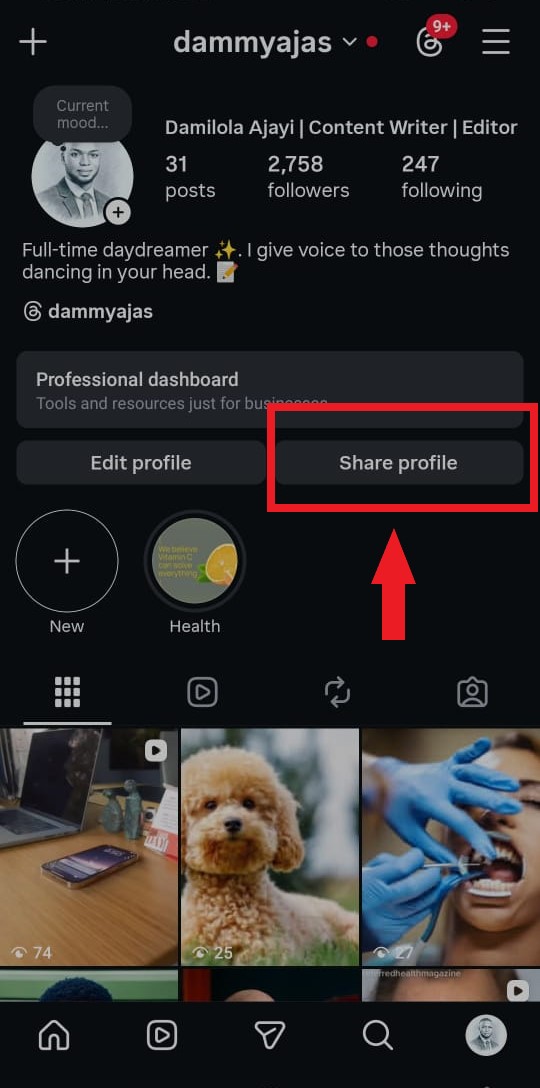
On your profile, look for the “Share Profile” button. It usually sits next to “Edit Profile.” Once you tap it, Instagram will instantly generate your QR code.
Step 3: View Your QR Code
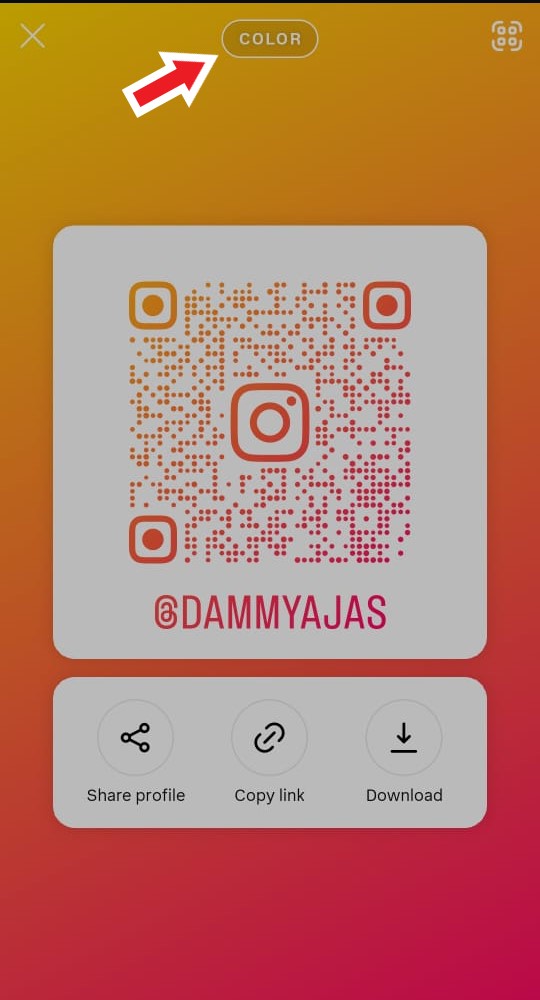
Your unique QR code will appear on the screen right away.
This code is linked directly to your profile, so anyone who scans it will land on your page instantly.
Step 4: Customize the Look
Instagram lets you tweak the design to match your style. You can switch between:
- Color backgrounds
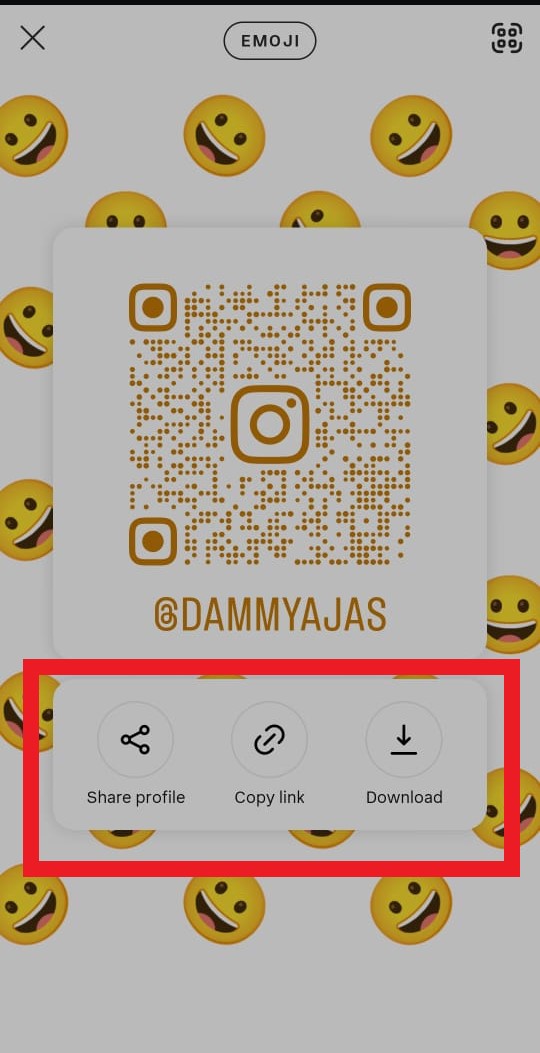
- Emoji patterns
- Selfie mode (yes, your face becomes part of the code)
Just tap the screen or use the options at the top to cycle through designs.
Once you’re happy with how it looks, tap the download icon or share button to save it to your phone or send it directly to others.
You now have a high-quality QR code ready to use anywhere.
How to Generate QR Code for Instagram on Desktop [3 Methods]
If you’re working from a laptop or desktop, things can feel a bit… hidden.
Instagram doesn’t always make the QR code option obvious on the web version. But don’t worry. You’ve got a few solid ways to generate your code without touching your phone.
Here are three methods that actually work.
Method 1: Use Instagram’s Built-In Option (When Available)
This is the official route. It’s quick, simple, and doesn’t require any extra tools. But depending on updates, it might not always show up for everyone.
Here’s how to find it:
- Log in to Instagram on your browser
- Go to your profile page
- Click the settings (gear icon) next to “Edit Profile”
- Look for the QR Code option in the menu
- Customize the color if needed and click Download
If you see it, use it. It’s the fastest option.
If you don’t… move to the next method.
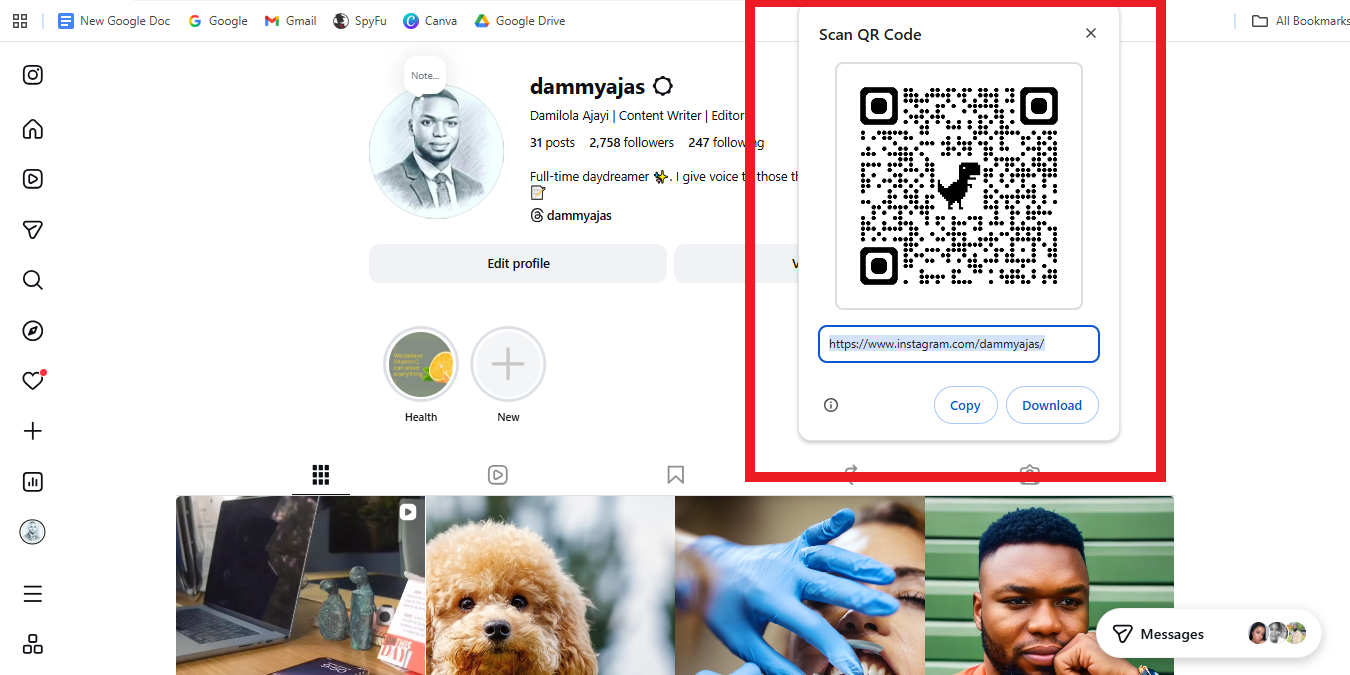
Method 2: Use Your Browser’s Built-In QR Generator
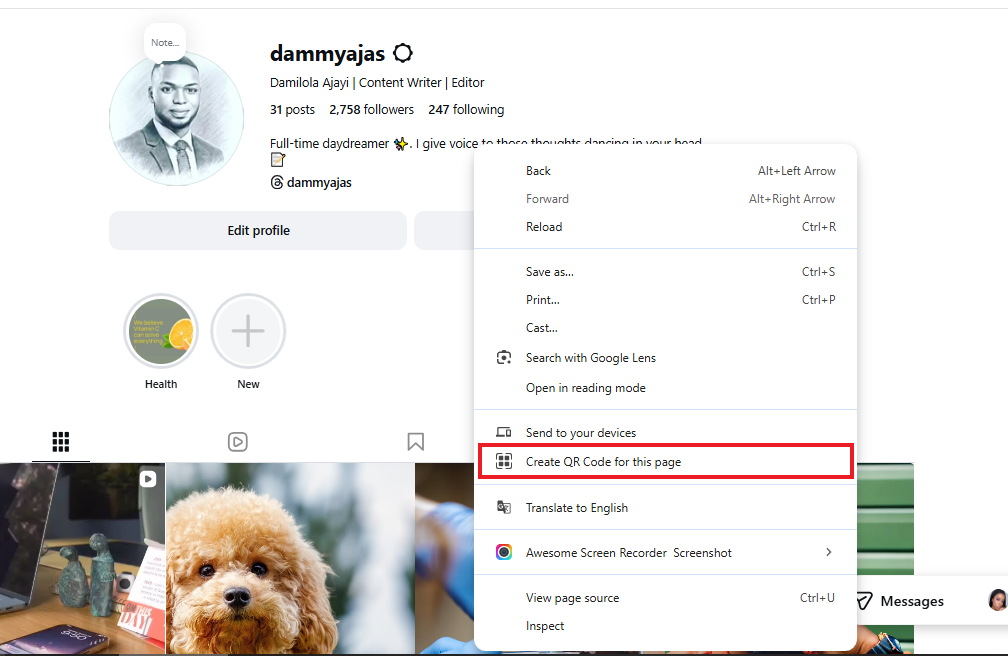
This is the easiest fallback. Most modern browsers like Chrome and Edge have a built-in QR generator that works on any webpage.
Here’s what to do:
- Open your Instagram profile in your browser
- Right-click anywhere on the page
- Select “Create QR Code for this page”
- A QR code will appear instantly
- Download it and you’re good to go
No extra tools. No setup. It just works.
Method 3: Use Professional QR Code Generators
If you want more control over design and tracking, this is the best option. Third-party tools let you go beyond basic QR codes. You can customize them, track performance, and even update links later.
Here’s how it works:
- Copy your Instagram profile URL
- Paste it into a QR code generator
- Customize your design (colors, logo, style)
- Download in high-quality formats like SVG or PNG
Tools like Canva or QRFY are popular choices.
And if you want something more advanced, OnlySocial’s QR code generator adds extra features like:
- Branded QR codes that match your visual identity
- Trackable scans so you can see performance
- Easy integration into your broader marketing workflow
This is especially useful if you’re running campaigns, printing materials, or placing QR codes in physical locations.
Different Ways to Use Your Instagram QR Code
Creating your QR code is the easy part. The real value comes from where and how you use it.
A good placement can turn casual interest into followers, customers, or even repeat buyers. A bad placement? It gets ignored.
Here are some practical ways to use your Instagram QR code that actually drive results.
1. On Product Packaging
If you sell physical products, this is a no-brainer. Add your QR code to packaging, inserts, or thank-you cards. When customers receive your product, they can scan and instantly connect with your brand online.
You can use this to:
- Encourage follows
- Share tutorials on how to use the product
- Promote user-generated content
It keeps the relationship going after the purchase.
2. In Your Physical Store or Office
Is your store having good foot traffic? Turn it into followers. Place your QR code at checkout counters, windows, entrances, tables, or waiting areas.
People already in your space are the easiest to convert. A quick scan is all it takes.
3. On Business Cards and Flyers
Instead of hoping people type your handle correctly, make it effortless. Add your QR code to:
- Business cards
- Flyers
- Brochures
- Event handouts
This works especially well at networking events, conferences, or pop-ups where attention is short.
4. At Events and Pop-Ups
Events are high-attention moments. People are already engaged. They’re curious. They’re open to discovering new brands.
Display your QR code on banners, booth stands, and presentation slides. You can even encourage scans with a simple call-to-action like: “Scan to see how this works” or “Scan for a special offer.”
5. On Your Website or Landing Pages
It might sound backward, but it works. Some visitors prefer mobile interaction. Adding a QR code to your website allows them to quickly switch from desktop to Instagram.
It’s also useful for downloadable PDFs, email newsletters, and digital brochures.
6. Inside Your Content (Videos & Graphics)
If you create videos or visual content, you can embed your QR code directly. For example:
- Add it at the end of a video
- Include it in tutorials or presentations
- Use it in slides or webinars
This works well when you’re teaching or demonstrating something and want viewers to take the next step.
7. On Receipts and Order Confirmations
This one is often overlooked. Adding a QR code to receipts or confirmation pages gives customers another touchpoint to connect with you. It’s subtle, but effective.
Generating QR Codes for Specific Instagram Posts, Stories, and Reels
One common question in the minds of people when it comes to Instagram QR code is whether they can create QR codes for specific Instagram posts.
Luckily, this is possible – whether directly on the Instagram app or through a third-party QR code generator.
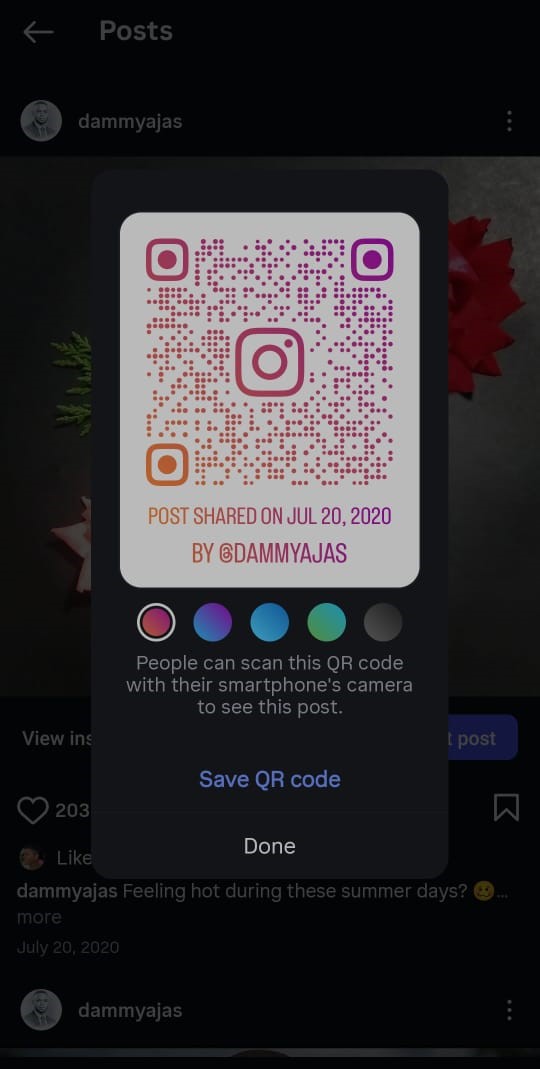
On the app, just follow the below steps:
- Open the post or Reel you want to share
- Tap the three dots (•••) on the content
- Select the QR code icon at the top to create a code for the post
- Download your QR code
That’s it.
Now, when someone scans the code, they’ll land directly on that specific post or Reel instead of your full profile.
This is useful when you’re promoting a viral video, want to highlight a product demo, or running a campaign tied to one piece of content. It keeps the experience focused.
What About Instagram Stories?
Stories are a bit different.
Since regular Stories disappear after 24 hours, creating a QR code for them doesn’t make much sense. By the time someone scans it, the content might already be gone.
If you really want to use Stories with QR codes, the better option is:
- Save the Story as a Highlight
- Then link to your profile or a related post instead
Pro Tips for Getting More Scans from Your Instagram QR Code
Creating a QR code is easy. Getting people to actually scan it? That’s where the real work is.
A QR code only performs when it’s visible, clear, and gives people a reason to act. Small tweaks in design and placement can make a big difference. So, before we round up this guide, let’s see some ways you can get more scans from your codes.
Make It Easy to See and Scan
Design matters more than most people think. Stick to strong contrast. A dark code on a light background works best, especially for older phone cameras. While Instagram allows creative colors, readability should always come first.
Also, leave enough space around your code. That empty border (called the “quiet zone”) helps phones recognize the code quickly. If text or graphics are too close, scanning will become harder.
Get the Size Right
If your code is too small, people won’t bother.
For print materials, aim for at least 2 x 2 cm as a minimum. If you’re placing it on a poster or banner, scale it up properly. A simple rule: the farther the scanning distance, the bigger the code should be. If someone has to squint or move too close, you’ve already lost them.
Add a Clear Call-to-Action
Don’t assume people will scan just because it’s there. Tell them why.
Simple prompts work best:
- “Scan to follow us”
- “Scan to see how it works”
- “Scan for exclusive content”
When people know what they’ll get, they’re more likely to act.
Place It Where Attention Already Exists
A QR code in the wrong place will definitely be ignored. Think about where people are already engaged:
- Checkout counters
- Product packaging
- Event booths
- Waiting areas
These are moments where people are more likely to pause and interact. Just test different placements to see what works best for you.
Give People a Reason to Scan Now
Urgency increases action. If your QR code leads to something time-sensitive, say it clearly:
- “Limited-time offer”
- “Exclusive drop”
- “Watch before it’s gone”
People are more likely to scan when they feel they might miss out.
Track What’s Working
If you’re using QR codes seriously, don’t guess. Use trackable links (like shortened URLs or UTM parameters) to see how many people are scanning and where they’re coming from. This helps you understand which placements and campaigns are actually driving results.
Interestingly, this feature is already built into the OnlySocial’s QR code generator, so you can easily track how your codes are performing.
Sync It with Your Content
This part is often overlooked. When someone scans your QR code and lands on your Instagram, what do they see?
Make sure your content is fresh and active. If you’re running a campaign, time your posts, Stories, or Reels to go live alongside your QR code placements.
Tools like OnlySocial can help you schedule everything in advance, so when the scans come in, your profile is ready to convert that attention into follows or sales.
Troubleshooting Common Instagram QR Code Issues

QR codes are simple, but when they don’t work, they can quietly ruin your campaign.
Someone tries to scan… nothing happens… and they move on. That’s a lost opportunity. So, let’s address the most common issues and how to fix them quickly.
#1: Your QR Code Won’t Scan
This is the most common problem. Usually, it comes down to poor design or environment. Low contrast, bad lighting, glare on printed surfaces, or even slight distortions can make a code unreadable.
Here’s how to fix it:
- Use a dark code on a light background
- Avoid glossy materials that reflect light
- Make sure the surface is flat and clean
- Increase the size if needed
Before using your QR code anywhere, test it on multiple devices. If it struggles to scan, fix it before going live.
#2: The Link Is Broken
Sometimes the code scans… but leads nowhere.
This usually happens when the wrong link was copied or the original content has been moved or deleted. To fix it:
- Double-check your URL before generating the code
- Make sure the post, Reel, or profile is still live
- If you’re using a dynamic QR code, update the link instead of creating a new one
A quick test scan can save you from a lot of missed traffic.
#3: The QR Code Looks Blurry or Pixelated
Low-quality QR codes don’t scale well. If you downloaded a small image or used a screenshot, the code can become blurry when printed or enlarged. That makes it harder for phones to recognize.
The fix is simple:
- Export your QR code in high resolution
- Use formats like SVG or large PNG files
- Keep enough spacing around the edges
High-quality codes stay sharp, even on posters, banners, or packaging.
#4: Your Profile Is Private or Restricted
If your Instagram account is private, people who scan your QR code won’t be able to see your content unless they’re approved. That defeats the whole purpose of using a QR code for growth.
To fix it switch your account to public for campaigns or ensure the linked content is accessible. If your goal is reach, your content needs to be visible.
Final Note
Remember, getting your Instagram QR code is easy. Using it well is what makes the difference.
A QR code is more than just a shortcut. It’s a bridge between offline attention and online engagement. When placed correctly and paired with the right content, it can turn a quick glance into a follow, a click, or even a sale.
But here’s the part many people overlook.
What happens after the scan matters just as much.
If someone lands on your profile and sees inconsistent posts, outdated content, or no clear direction, that opportunity fades fast. That’s why pairing your QR code strategy with a solid content system is key.
Tools like OnlySocial help you stay consistent by scheduling posts, planning campaigns, and keeping your profile active. So when people scan your code, they’re not just landing on a page. They’re landing on a brand that looks alive and worth following.
Frequently Asked Questions
Can I post a QR code on Instagram?
Yes, you can.
You can upload your QR code as a regular post, Story, or even include it in a Reel. This is useful if you want people to quickly access another page, campaign, or even a different account. Just make sure it’s clear, high-quality, and easy to scan on a screen.
How do you scan a QR code on Instagram?
You don’t need Instagram to scan a QR code. Most smartphones can scan QR codes directly using the camera app. Just point your camera at the code, tap the link that appears, and it will open the Instagram profile or content.
Alternatively, you can scan inside Instagram by:
- Opening the app
- Going to search
- Tapping the scan icon
Can I customize my Instagram QR code?
Yes, but with limits inside Instagram. Instagram allows you to change the background style using colors, emojis, or even a selfie. If you want deeper customization, like adding your logo or brand colors, you’ll need to use a third-party QR code generator.
Can I track how many people scan my Instagram QR code?
Not with Instagram’s built-in QR code. If you want tracking, you’ll need to use a professional QR code generator that supports analytics. These tools let you see how many people scanned your code, when they scanned it, and sometimes even where.
Where should I place my Instagram QR code for best results?
Place it where people already have attention. Think product packaging, checkout counters, event booths, business cards, or posters. The easier it is to notice and scan, the better it performs. Always pair it with a clear call-to-action so people know why they should scan