LinkedIn Video Sizes: The Complete Guide to Dimensions, Specs & Best Formats (2026)
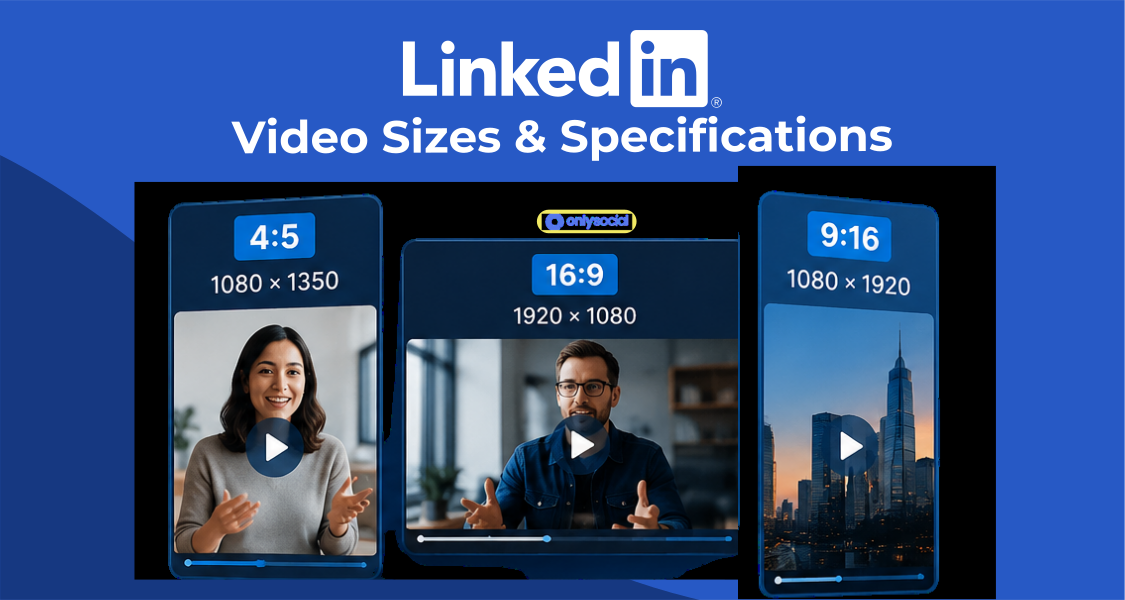
Video has become one of the best ways to get noticed on LinkedIn. It helps you explain ideas faster, build trust with your audience, and often sparks more conversations than text alone. But even the best video can lose its impact if it’s uploaded in the wrong size or format.
The good news is that getting your LinkedIn video settings right isn’t complicated.
Once you know the recommended dimensions, aspect ratios, file sizes, and duration limits, you’ll be able to upload videos that look sharp on both desktop and mobile.
In this guide, you’ll find everything you need to know about the latest LinkedIn video sizes and specifications for 2026. We’ll explain which video format works best for different types of content and share practical tips on creating videos that get more views and engagement.
Table of Contents
- 1 LinkedIn Video Sizes at a Glance
- 2 Why LinkedIn Video Size Matters
- 3 LinkedIn Video Dimensions Explained
- 4 Which LinkedIn Video Size Should You Choose?
- 5 LinkedIn Video Specifications
- 6 Aspect Ratios
- 7 LinkedIn Native Video vs. YouTube Links
- 8 LinkedIn Video Ads Specifications
- 9 LinkedIn Company Page Video Specifications
- 10 Best Practices for LinkedIn Videos
- 11 Common LinkedIn Video Mistakes to Avoid
- 12 Schedule Your LinkedIn Videos for Consistent Growth
- 13 LinkedIn Video Size Cheat Sheet
- 14 Final Thoughts
- 15 Frequently Asked Questions
- 15.0.1 What is the best LinkedIn video size?
- 15.0.2 What aspect ratio works best on LinkedIn?
- 15.0.3 Can I upload vertical videos to LinkedIn?
- 15.0.4 What’s the maximum video length on LinkedIn?
- 15.0.5 What’s the LinkedIn video file size limit?
- 15.0.6 Which video format should I use for LinkedIn?
- 15.0.7 Does LinkedIn support 4K videos?
- 15.0.8 Should I upload videos directly or share YouTube links?
- 15.0.9 Why does my LinkedIn video look blurry?
- 15.0.10 Can I schedule LinkedIn videos?
LinkedIn Video Sizes at a Glance
If you’re in a hurry, here’s a quick overview of the latest LinkedIn video specifications. You’ll find more details and recommendations throughout the rest of this guide.
| Specification | Recommended |
| Landscape Size | 1920 × 1080 px |
| Vertical Size (4:5) | 1080 × 1350 px |
| Square Size | 1080 × 1080 px |
| Portrait Size (9:16) | 1080 × 1920 px |
| Recommended Aspect Ratio | 4:5 for mobile, 16:9 for landscape content |
| Supported Aspect Ratios | 16:9, 4:5, 1:1, 9:16 |
| Minimum Resolution | 256 × 144 px |
| Maximum Resolution | 4096 × 2304 px |
| Recommended Resolution | 1920 × 1080 px (Full HD) |
| File Formats | MP4, MOV |
| Recommended Codec | H.264 |
| Maximum File Size | 5 GB (Native videos) |
| Recommended Video Length | Under 60 seconds for higher engagement |
| Recommended Frame Rate | 30 fps |
Why LinkedIn Video Size Matters
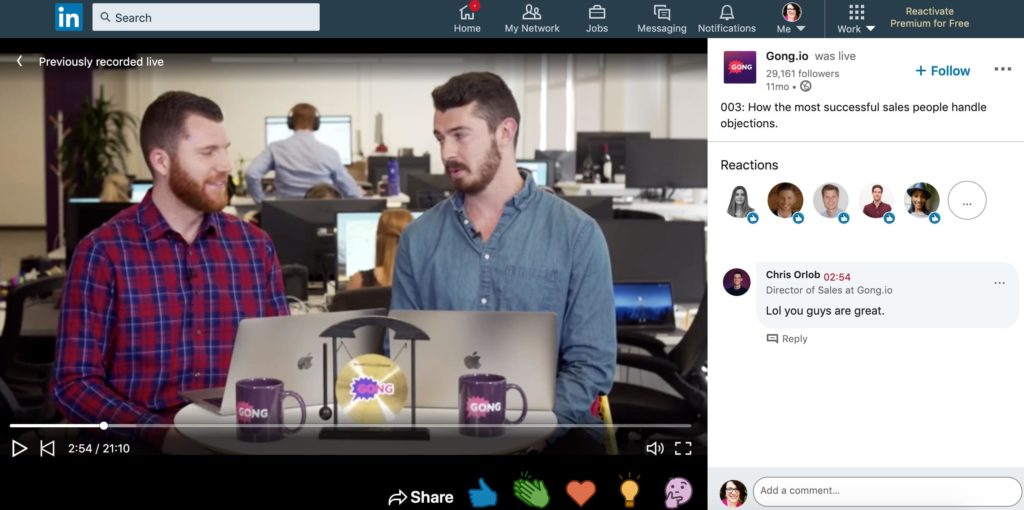
It might seem like a small detail, but the size of your video can make a big difference to how people experience it.
Uploading the right dimensions helps your content look cleaner, load properly, and take up more space in the LinkedIn feed. That gives viewers one less reason to scroll past.
If you’ve not been paying attention to your video size, here are a few reasons it’s worth doing so:
Better Video Quality
Using LinkedIn’s recommended dimensions helps preserve your video’s quality. Instead of looking blurry or pixelated, your content stays sharp and professional.
A Better Mobile Experience
Most people check LinkedIn on their phones. Formats like 4:5 and 9:16 take up more screen space, making your videos easier to watch without viewers having to rotate their device.
Higher Engagement
A well-formatted video naturally grabs more attention in the feed. Combined with a strong opening, the right dimensions can help increase watch time, likes, comments, and shares.
Fewer Upload Issues
Uploading videos that meet LinkedIn’s specifications reduces the chances of failed uploads, unexpected cropping, or quality loss after processing.
A More Professional Look
Whether you’re posting as a creator, job seeker, business owner, or brand, polished videos leave a stronger impression. Getting the technical details right shows you care about the viewing experience, allowing your message to take center stage.
LinkedIn Video Dimensions Explained
LinkedIn supports several video sizes, and each one has its strengths. The best choice depends on the type of content you’re creating and where you expect most people to watch it.
Here’s what each format offers.
1. Landscape (16:9)
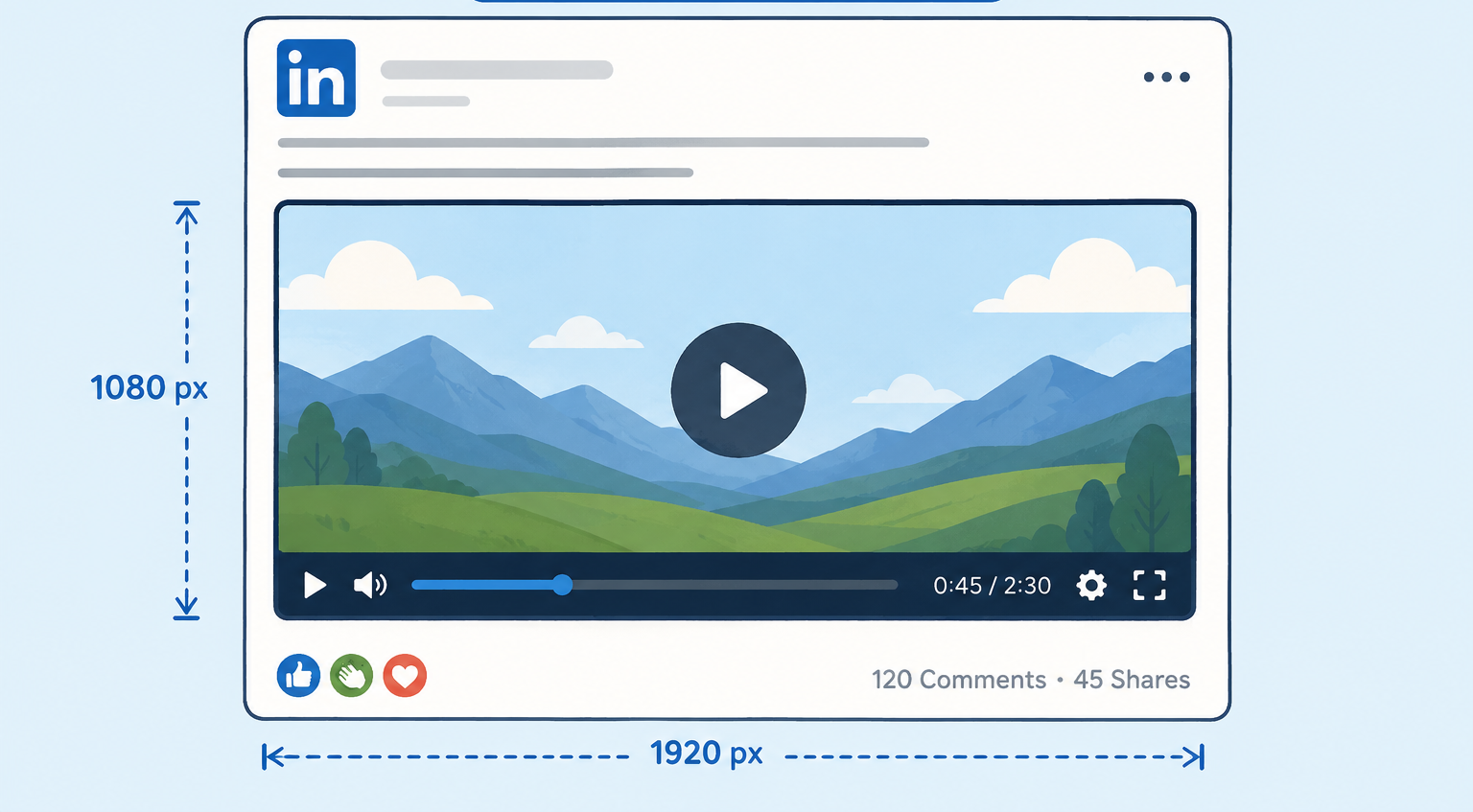
Recommended size: 1920 × 1080 pixels
Landscape is the classic widescreen format. It’s the best choice for presentations, webinars, product demonstrations, interviews, and videos that include slides or screen recordings. It also looks great when viewed on desktops and laptops.
While it still performs well on mobile, landscape videos take up less space in the feed than vertical formats. If your audience mainly browses LinkedIn on their phone, another aspect ratio may help your content stand out more.
Best for:
- Webinars and presentations
- Product demos
- Interviews
- Tutorials
- Screen recordings
2. Vertical (4:5)
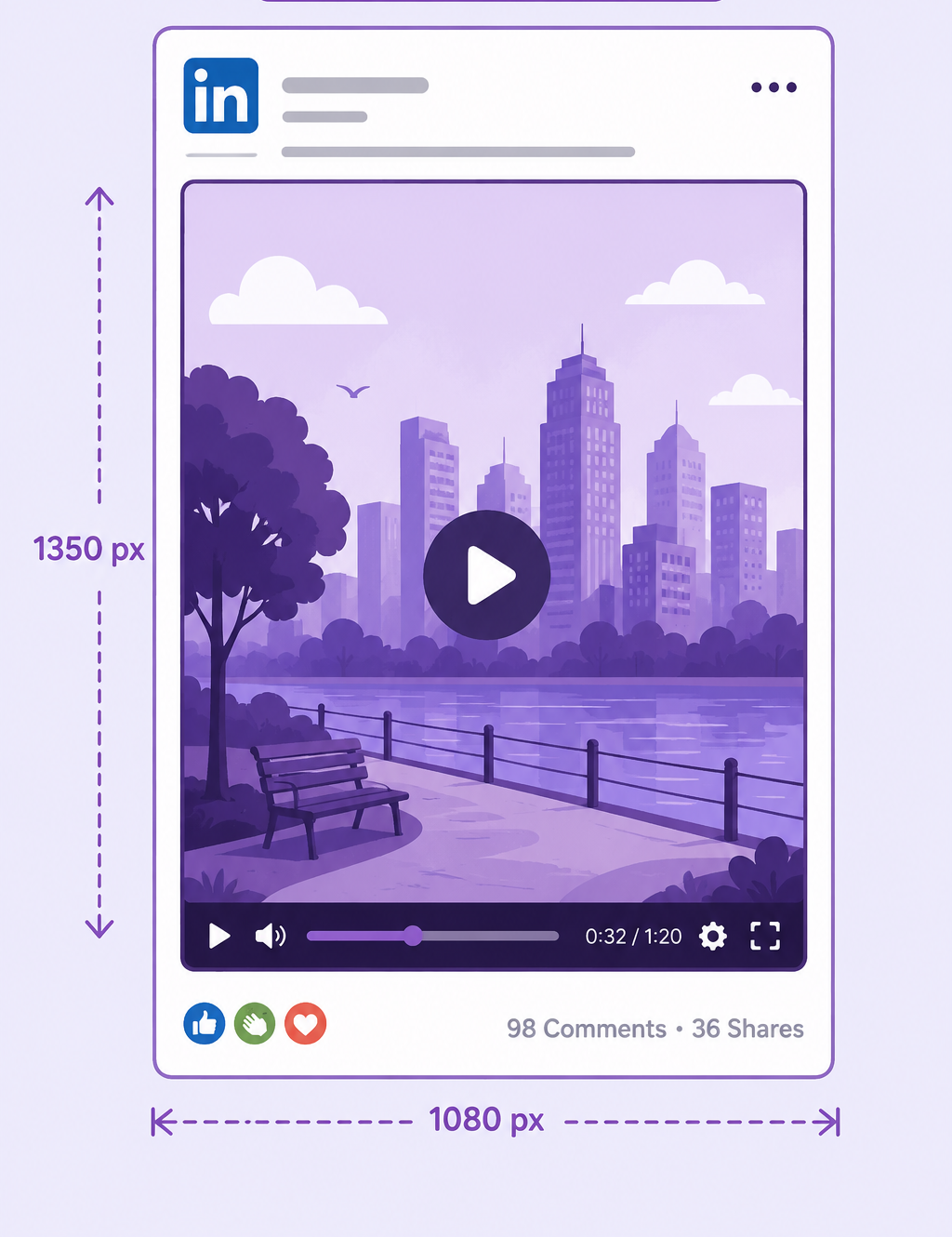
Recommended size: 1080 × 1350 pixels
The 4:5 format has become one of the most popular choices for LinkedIn. It fills more of the mobile screen without taking over the entire display, making it easy to watch while scrolling through the feed.
If you’re creating thought leadership videos, sharing quick tips, or posting regular updates, this is often the format to choose. It offers a good balance between visibility and a comfortable viewing experience.
Best for:
- Personal branding
- Business tips
- Educational content
- Behind-the-scenes videos
- Company updates
3. Square (1:1)
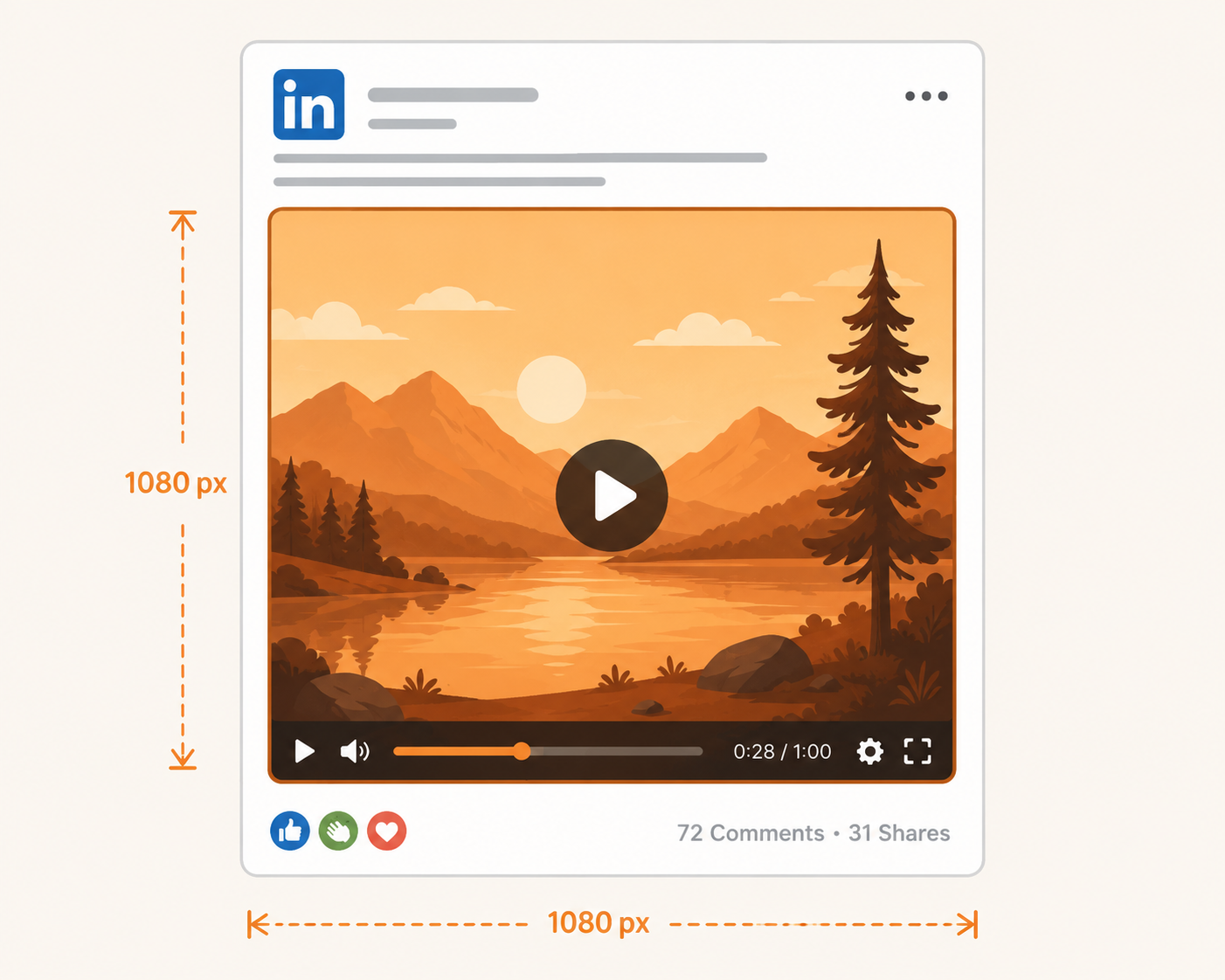
Recommended size: 1080 × 1080 pixels
Square videos are a reliable middle ground. They look good on both desktop and mobile and are easy to repurpose across different social platforms.
While they don’t occupy as much screen space as 4:5 videos on mobile, they still provide a clean and balanced look that’s suitable for many types of content.
Best for:
- Interviews
- Customer testimonials
- Product highlights
- Company announcements
- Short educational videos
4. Portrait (9:16)
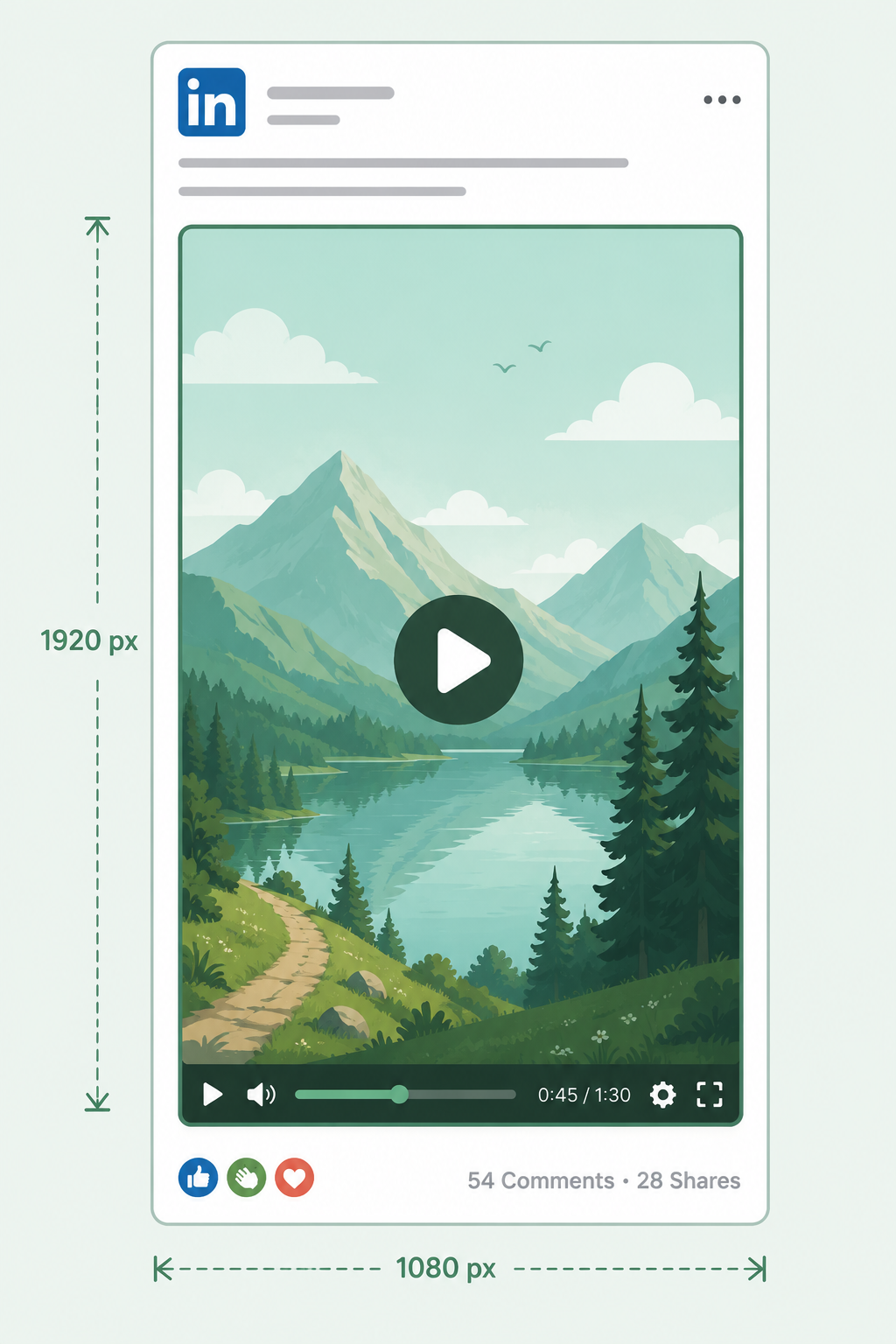
Recommended size: 1080 × 1920 pixels
Portrait videos are designed for full-screen viewing on smartphones. If you’re repurposing content from platforms like TikTok, Instagram Reels, or YouTube Shorts, this format can work well on LinkedIn too.
That said, not every LinkedIn user expects full-screen vertical content. It works best for quick, engaging videos rather than long presentations or detailed tutorials.
Best for:
- Short-form videos
- Event highlights
- Quick updates
- Personal stories
- Repurposed vertical content
Which LinkedIn Video Size Should You Choose?
There’s no single “best” LinkedIn video size. The right one depends on what you’re posting and how you want people to experience it. Some formats are better for mobile viewing, while others work well for presentations, product demos, or screen recordings.
If you’re creating videos from scratch, 1080 × 1350 pixels (4:5) is a great default. It fills more of the mobile feed, where many people browse LinkedIn, while still looking clean on desktop.
For content that includes slides, detailed visuals, or screen shares, 1920 × 1080 pixels (16:9) is usually the better choice.
Here’s a quick guide to help you decide.
| Content Type | Recommended Video Size | Why It Works |
| Thought leadership videos | 1080 × 1350 px (4:5) | Takes up more space in the mobile feed and keeps viewers focused. |
| Educational tips | 1080 × 1350 px (4:5) | Easy to watch while scrolling and ideal for talking-head videos. |
| Product demonstrations | 1920 × 1080 px (16:9) | Gives you more room to show products and explain features. |
| Webinars and presentations | 1920 × 1080 px (16:9) | Best for slides, charts, and screen recordings. |
| Customer testimonials | 1080 × 1080 px (1:1) | Looks balanced on both desktop and mobile. |
| Company updates | 1080 × 1350 px (4:5) | Helps announcements stand out in the feed. |
| Event highlights | 1080 × 1920 px (9:16) or 1080 × 1350 px (4:5) | Great for mobile-first, fast-paced content. |
| Repurposed Reels or Shorts | 1080 × 1920 px (9:16) | Lets you reuse existing vertical videos with minimal editing. |
If you’re still undecided, stick with 4:5 for most organic LinkedIn posts. It’s one of the most versatile formats and gives your content a stronger presence on mobile without sacrificing the viewing experience on desktop.
LinkedIn Video Specifications
Choosing the right dimensions is only part of the equation. LinkedIn also has technical requirements that affect how your video uploads and plays. Following these specifications helps your content look its best and reduces the chances of upload errors or poor video quality.
Resolution
LinkedIn supports a wide range of video resolutions, but higher quality usually leads to a better viewing experience.
- Minimum resolution: 256 × 144 pixels
- Maximum resolution: 4096 × 2304 pixels
- Recommended resolution: 1920 × 1080 pixels (Full HD)
If possible, export your videos in Full HD. It offers an excellent balance between image quality and file size.
Aspect Ratios
LinkedIn supports multiple aspect ratios, giving creators the flexibility to publish different types of content. Each format has its place, so choose the one that best matches your content and audience.
- 16:9 – Ideal for landscape videos, presentations, and screen recordings.
- 4:5 – A great choice for mobile-first content and personal branding videos.
- 1:1 – Works well across both desktop and mobile devices.
- 9:16 – Best for full-screen vertical videos and repurposed short-form content.
Video Duration
Your video must be at least 3 seconds long to upload to LinkedIn. The maximum length depends on how you upload it:
- Minimum duration: 3 seconds
- Maximum duration: 10 minutes for most uploads
- Desktop uploads: Up to 15 minutes
Although LinkedIn allows longer videos, shorter ones often keep viewers watching for longer. If you’re sharing quick tips, insights, or updates, aiming for 30 to 60 seconds is usually a smart choice.
File Size
LinkedIn supports fairly large video uploads, but there are different limits depending on the type of content.
- Native video posts: Up to 5 GB
- Video ads: Up to 200 MB
- Company page videos: Up to 200 MB
A smaller file size also means faster uploads, so compress your video if it’s larger than necessary without sacrificing quality.
Supported File Formats
LinkedIn currently supports two video formats: MP4 and MOV.
For the best compatibility, export your videos as MP4 using the H.264 codec. This format offers high-quality playback while keeping file sizes manageable.
Frame Rate
LinkedIn accepts different frame rates, but 30 frames per second (fps) is the recommended setting for most videos.
Common frame rates include:
- 24 fps – Gives videos a more cinematic look.
- 30 fps – Recommended for most LinkedIn content.
- 60 fps – Useful for fast-moving footage but usually creates larger file sizes.
If you’re unsure which option to choose, 30 fps is a reliable default that delivers smooth playback on almost every device.
LinkedIn Native Video vs. YouTube Links
If you’re sharing a video on LinkedIn, you have two options. You can upload the video directly to LinkedIn, or you can paste a YouTube link into your post.
While both methods work, they’re not equal.
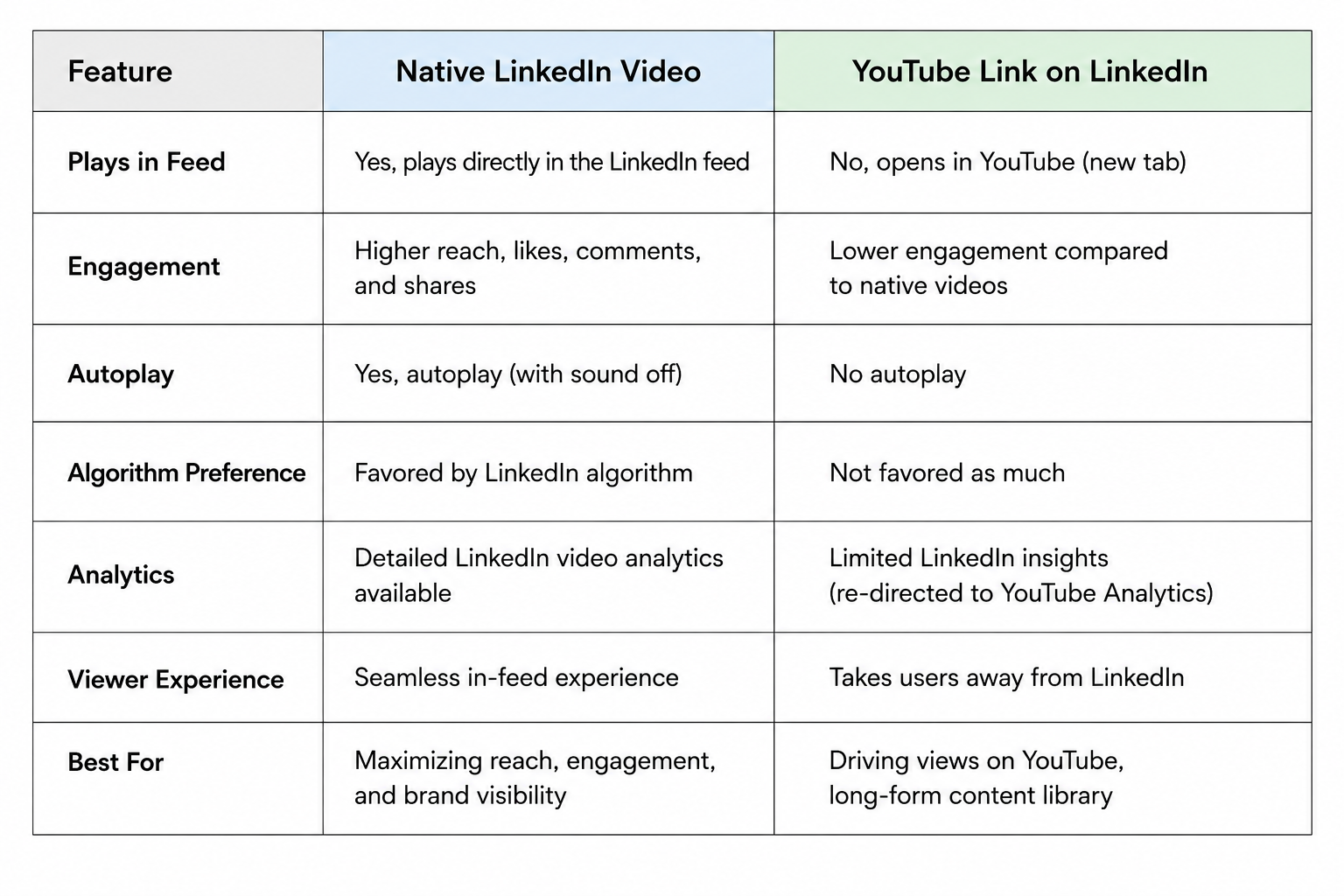
A native video is uploaded directly to LinkedIn. It plays automatically as people scroll through their feed, making it easier to grab attention. You also get access to LinkedIn’s built-in video analytics, so you can see metrics like views, watch time, and engagement.
A YouTube link, on the other hand, sends people away from LinkedIn to watch the video. That extra step often means fewer people actually click through and watch.
Here’s a quick comparison.
Which Should You Use?
If your goal is to get more views, comments, and engagement on LinkedIn, uploading your video directly to the platform is usually the better choice. Native videos feel more natural in the feed and make it easier for people to start watching without leaving the app.
That doesn’t mean YouTube links don’t have a place. If you’re promoting a long webinar, podcast, or in-depth tutorial that already lives on YouTube, sharing the link can still make sense. Just be aware that it’s less likely to stop someone mid-scroll.
For most day-to-day LinkedIn content, native uploads remain the simplest way to give your videos the best chance of reaching and engaging your audience.
LinkedIn Video Ads Specifications
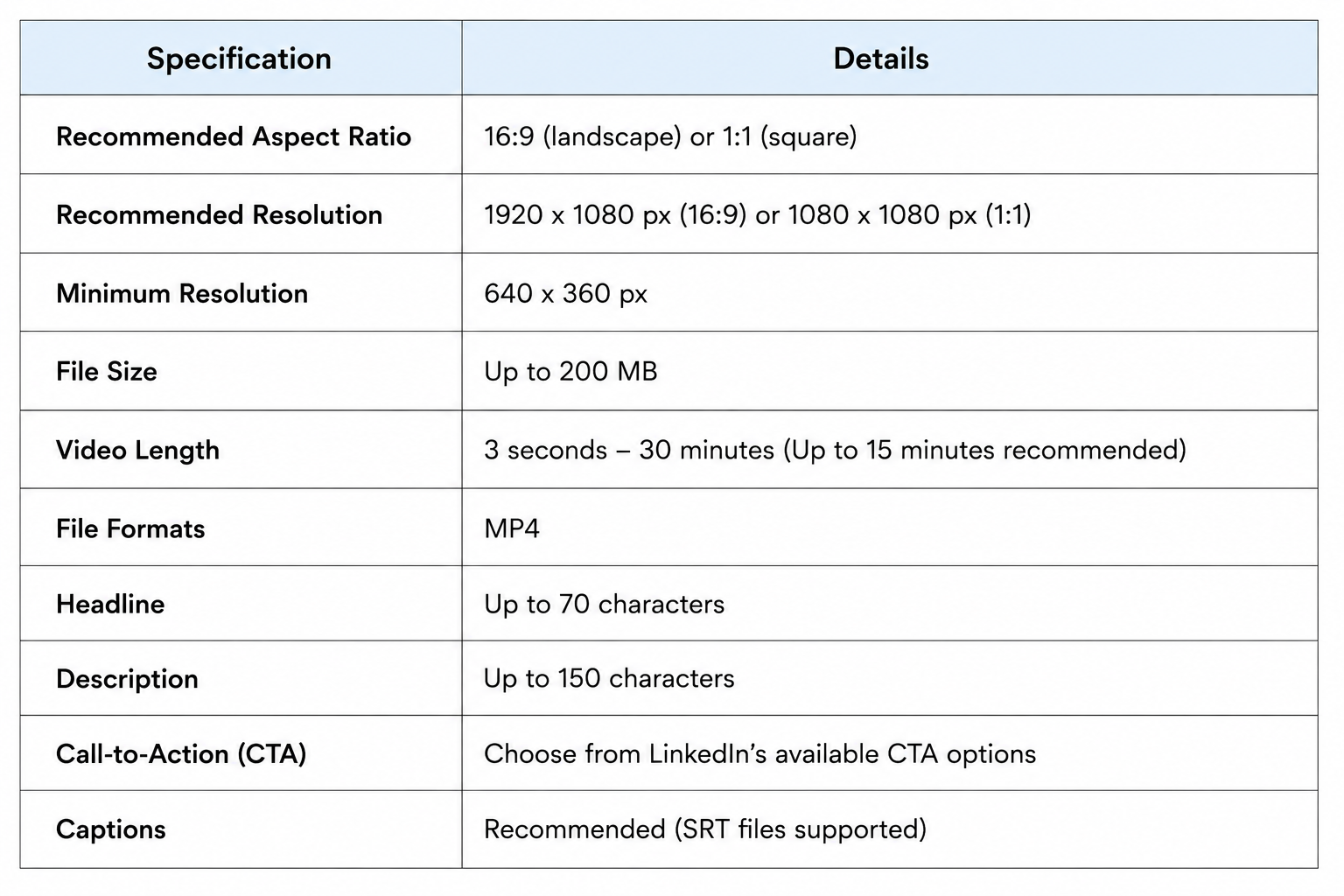
If you’re running paid campaigns on LinkedIn, the requirements are a little different from regular video posts. Video ads have stricter file size limits, so it’s worth checking your export settings before uploading.
Here are the key specifications to follow.
Tips for Better LinkedIn Video Ads
Getting the technical settings right is only the first step. Your creative has just as much impact on how well the ad performs.
Here are a few best practices:
- Capture attention quickly. Make your main message clear within the first few seconds.
- Design for silent viewing. Many people watch videos without sound, so captions can help keep them engaged.
- Keep your branding visible. Introduce your brand naturally without making the ad feel overly promotional.
- Use high-quality visuals. Sharp, well-lit videos create a more professional impression.
- Include a clear call to action. Tell viewers what to do next, whether that’s visiting your website, downloading a resource, or getting in touch.
Although LinkedIn allows video ads to run for up to 30 minutes, shorter ads often perform better. A concise message is easier to watch and gives viewers a stronger reason to stick around until the end.
LinkedIn Company Page Video Specifications
Posting videos from a LinkedIn Company Page follows many of the same rules as personal posts, but there are a few extra limitations to keep in mind.
In particular, Company Page videos have a lower file size limit, so you’ll need to compress larger videos before uploading.
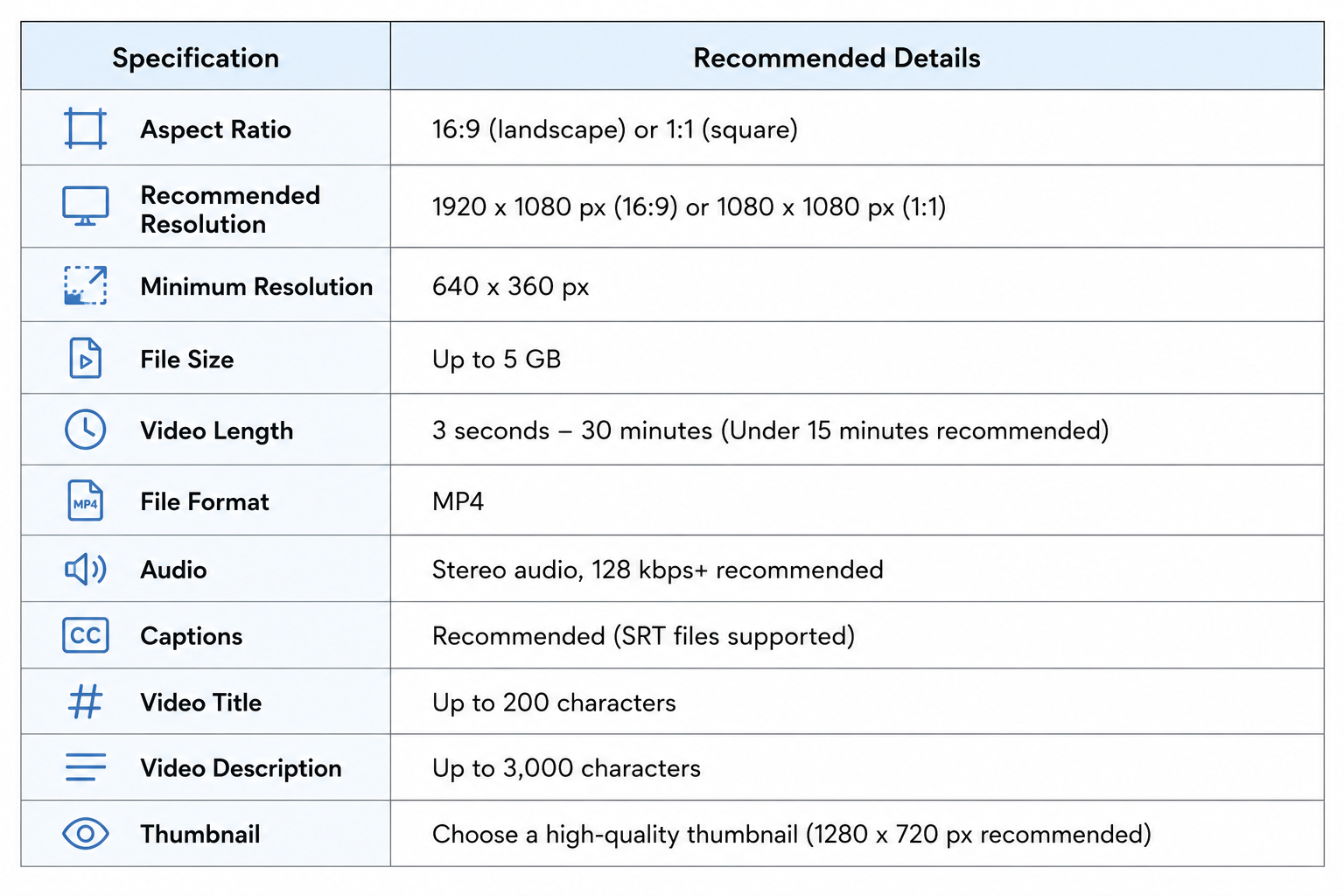
Best Practices for Company Page Videos
Company Page videos often represent your brand, so quality and consistency matter just as much as the content itself.
Here are a few tips to help your videos make a stronger impression:
- Use high-quality visuals. Crisp, professional-looking videos help build trust with your audience.
- Share valuable content. Product updates, customer stories, industry insights, company news, and educational tips tend to perform well.
- Keep branding consistent. Use the same colors, fonts, and visual style across your videos to make your content instantly recognizable.
- Add captions. This improves accessibility and helps people who watch with the sound turned off.
- Keep videos focused. It’s better to cover one idea well than to squeeze too much information into a single video.
Best Practices for LinkedIn Videos
Grab Attention in the First Few Seconds
The beginning of your video matters more than anything else. Instead of spending the first few seconds on a logo or long introduction, jump straight into the topic.
Start with a question, an interesting fact, or a bold statement that gives people a reason to keep watching.
Keep It Short and Focused
LinkedIn supports longer videos, but that doesn’t mean every video should be several minutes long.
If you’re sharing tips, insights, or company updates, try to keep your video under a minute. For tutorials, interviews, or webinars, only make the video as long as it needs to be.
Add Captions
Many LinkedIn users scroll through their feed with the sound off, especially when they’re commuting or working. Captions help people follow your message without needing to turn the volume on. They also make your content more accessible to a wider audience.
Design with Mobile Viewers in Mind
A large percentage of LinkedIn traffic comes from mobile devices. That’s why formats like 4:5 (1080 × 1350 pixels) often perform so well.
Make sure your text is easy to read, avoid tiny graphics, and leave enough spacing around important elements.
Prioritize Value Over Promotion
The best-performing LinkedIn videos usually teach something, solve a problem, or share a useful insight.
Instead of focusing on selling your product or service, think about what your audience wants to learn. If viewers find your content helpful, they’re much more likely to engage with it and remember your brand.
Upload Videos Natively
Whenever possible, upload your video directly to LinkedIn instead of sharing a link from another platform. Native videos provide a smoother viewing experience and generally attract more engagement because people can watch them without leaving the feed.
Use a Strong Thumbnail
Your thumbnail is often the first thing people notice. Choose a clear, high-quality frame that reflects what the video is about. If LinkedIn lets you select a thumbnail, avoid blurry or awkward frames.
End with a Clear Call to Action
Once you’ve delivered value, tell viewers what to do next. That could be leaving a comment, sharing their opinion, visiting your website, downloading a guide, or following your page.
A simple call to action gives people a reason to continue interacting with your content instead of scrolling away.
Common LinkedIn Video Mistakes to Avoid
Even experienced creators get the technical side wrong from time to time. The good news is that most LinkedIn video mistakes are easy to fix once you know what to look for.
Here are some of the most common ones.
Using the Wrong Aspect Ratio
A video that’s designed for another platform won’t always look right on LinkedIn. Using the wrong aspect ratio can lead to awkward cropping or a video that doesn’t stand out in the feed.
Before uploading, make sure your video matches one of LinkedIn’s supported formats, such as 4:5, 16:9, 1:1, or 9:16.
Uploading Low-Quality Videos
No one enjoys watching blurry or pixelated videos. If your footage isn’t clear, people are more likely to keep scrolling.
Whenever possible, export your videos in 1920 × 1080 pixels (Full HD) or another high-quality resolution.
Ignoring Mobile Viewers
Most LinkedIn users browse the platform on their phones. If your text is too small or your visuals only work on a large screen, many viewers will struggle to follow your message.
Always preview your video on a mobile device before publishing.
Making the Introduction Too Long
People decide within seconds whether they’re going to keep watching. Spending the first 10 or 15 seconds on logos, animations, or lengthy introductions often leads to lower watch time.
Get to the point quickly and give viewers a reason to stay.
Forgetting Captions
Many people watch LinkedIn videos without turning on the sound. If your message relies entirely on audio, a large part of your audience could miss it.
Adding captions makes your content easier to understand and more accessible.
Posting Videos That Feel Like Adverts
LinkedIn users usually visit the platform to learn something, discover new ideas, or connect with professionals. A video that’s nothing more than a sales pitch is less likely to hold their attention.
Focus on sharing useful information first. If people find your content valuable, they’ll naturally become more interested in your business.
Reposting Videos with Watermarks
If you’re repurposing content from TikTok, Instagram Reels, or another platform, remove any visible watermarks before uploading. A clean, platform-native video looks more professional and creates a better viewing experience.
Schedule Your LinkedIn Videos for Consistent Growth
Things don’t only depend on creating a great video here. Posting consistently is just as important if you want to grow your audience, build your personal brand, or generate leads on LinkedIn.
The challenge is finding time to publish regularly. That’s where a LinkedIn scheduling tool can make life much easier.
With OnlySocial, you can schedule LinkedIn videos in advance, so your content goes live exactly when you want it to. Instead of uploading videos one by one every week, you can plan your content calendar ahead of time and stay active without the last-minute rush.
OnlySocial also lets you:
- Schedule videos alongside text posts and images.
- Manage multiple LinkedIn profiles and company pages from one dashboard.
- Publish the same content across other social platforms with just a few clicks.
- Organize your posting schedule using a visual content calendar.
- Work with your team through built-in collaboration and approval tools.
If you’re publishing LinkedIn content regularly, scheduling helps you stay consistent without adding extra work to your day. And because OnlySocial supports multiple social networks, you can manage your entire social media strategy from a single place instead of switching between different apps.
LinkedIn Video Size Cheat Sheet
Need a quick reminder before you upload? Use this cheat sheet to find the right LinkedIn video size for almost any type of content.
| Content Type | Recommended Size | Aspect Ratio |
| Standard landscape video | 1920 × 1080 px | 16:9 |
| Mobile-friendly feed video | 1080 × 1350 px | 4:5 |
| Square video | 1080 × 1080 px | 1:1 |
| Full portrait video | 1080 × 1920 px | 9:16 |
| LinkedIn video ad | 1920 × 1080 px | 16:9 |
| Company Page video | 1920 × 1080 px | 16:9 |
| Screen recordings | 1920 × 1080 px | 16:9 |
| Thought leadership videos | 1080 × 1350 px | 4:5 |
| Product demonstrations | 1920 × 1080 px | 16:9 |
| Customer testimonials | 1080 × 1080 px | 1:1 |
Quick Tips
- Best all-round choice: 1080 × 1350 px (4:5) for most organic LinkedIn posts.
- Best for presentations and tutorials: 1920 × 1080 px (16:9).
- Recommended video format: MP4 with the H.264 codec.
- Recommended frame rate: 30 fps.
- Ideal video length: Under 60 seconds for most posts.
- Maximum native upload size: 5 GB.
- Always upload videos directly to LinkedIn for the best viewing experience and stronger engagement.
Bookmark this page or save the table for future reference. It’ll make choosing the right LinkedIn video size much quicker the next time you’re ready to post.
Final Thoughts
Using the right LinkedIn video size doesn’t have to be complicated. Once you know which dimensions work best for your content, you can create videos that look professional, play smoothly, and provide a better viewing experience on every device.
As a general rule, 1080 × 1350 pixels (4:5) is the best choice for most organic LinkedIn posts, while 1920 × 1080 pixels (16:9) remains ideal for presentations, webinars, and screen recordings.
Pair those settings with valuable content, clear captions, and consistent posting, and you’ll give your videos the best chance of reaching more people and generating meaningful engagement.
If you’re planning your LinkedIn content in advance, a scheduling tool like OnlySocial can help you stay consistent, organize your publishing calendar, and manage your posts across multiple social platforms from one place.
Frequently Asked Questions
What is the best LinkedIn video size?
For most organic LinkedIn posts, 1080 × 1350 pixels (4:5) is the best option. It takes up more space in the mobile feed, making it more noticeable while still displaying well on desktop devices.
What aspect ratio works best on LinkedIn?
It depends on the type of content you’re sharing. 4:5 is a great choice for everyday posts and personal branding, while 16:9 works better for presentations, webinars, product demos, and screen recordings.
Can I upload vertical videos to LinkedIn?
Yes. LinkedIn supports vertical videos, including 4:5 and 9:16 aspect ratios. The 4:5 format is generally the better choice for standard feed posts, while 9:16 works well for mobile-first, short-form content.
What’s the maximum video length on LinkedIn?
Native LinkedIn videos can be up to 10 minutes long for most uploads, while desktop uploads can be up to 15 minutes. However, shorter videos, especially those under 60 seconds, often generate higher engagement.
What’s the LinkedIn video file size limit?
The maximum file size for a native LinkedIn video is 5 GB. If you’re uploading a video ad or posting from a Company Page, the limit is 200 MB.
Which video format should I use for LinkedIn?
MP4 is the recommended format because it’s widely supported and delivers excellent quality. Exporting your video with the H.264 codec is also recommended for the best compatibility.
Does LinkedIn support 4K videos?
Yes. LinkedIn supports video resolutions up to 4096 × 2304 pixels. However, 1920 × 1080 pixels (Full HD) is still the recommended resolution for most creators because it offers excellent quality without creating unnecessarily large files.
Uploading videos directly to LinkedIn is usually the better option. Native videos play within the feed, provide better analytics, and generally receive more engagement than external video links.
Why does my LinkedIn video look blurry?
This usually happens when the video is exported at a low resolution, compressed too heavily, or uploaded in the wrong dimensions. Exporting your video in 1920 × 1080 pixels or 1080 × 1350 pixels with the H.264 codec can help maintain image quality.
Can I schedule LinkedIn videos?
Yes. LinkedIn offers native scheduling for posts, and you can also use social media management tools like OnlySocial to schedule videos in advance, plan your content calendar, and manage multiple LinkedIn accounts from one dashboard.