Instagram Image Sizes & Dimensions: The Complete Guide (2026)

Instagram is all about visuals, but even the best photo can lose its impact if it’s uploaded at the wrong size. Images that are too large may be compressed, while the wrong aspect ratio can lead to awkward cropping that cuts off important details. This is what makes many brands end up with content that doesn’t look as polished as they intended.
Interestingly, getting your Instagram image sizes right is straightforward once you know the recommended dimensions.
In this guide, you’ll find the latest Instagram image sizes for 2026, covering feed posts, Stories, Reels covers, profile pictures, and carousel posts. We’ll also share the key specifications and practical tips to help every image look sharp and professional across the platform.
Table of Contents
- 1 Instagram Image Sizes at a Glance
- 2 Why the Right Instagram Sizes Make a Difference
- 3 Instagram Feed Image Sizes Explained
- 4 Which Instagram Feed Image Size Should You Choose?
- 5 Instagram Feed Image Specifications
- 6 Instagram Story Image Specifications
- 7 Instagram Reels Specifications
- 8 Instagram Profile Picture Specifications
- 9 Instagram Carousel Image Sizes
- 10 Best Practices for Instagram Images
- 11 Common Instagram Image Mistakes to Avoid
- 12 Get the Most from Your Instagram Posts with OnlySocial
- 13 Instagram Image Size Cheat Sheet
- 14 Final Thoughts
- 15 Frequently Asked Questions
- 15.0.1 What is the best image size for Instagram?
- 15.0.2 What size should Instagram Stories be?
- 15.0.3 What is the recommended size for Instagram Reels?
- 15.0.4 What size should an Instagram profile picture be?
- 15.0.5 What size should Instagram carousel images be?
- 15.0.6 Does Instagram compress photos?
- 15.0.7 Which file formats does Instagram support?
- 15.0.8 Why do my Instagram photos look blurry?
Instagram Image Sizes at a Glance
Looking for a quick answer? The table below lists the recommended image sizes for every major Instagram format. You’ll find more detailed explanations, specifications, and best practices later in this guide.
| Image Type | Recommended Size | Aspect Ratio |
| Feed Post (Portrait) | 1080 × 1350 px | 4:5 |
| Feed Post (Square) | 1080 × 1080 px | 1:1 |
| Feed Post (Landscape) | 1080 × 566 px | 1.91:1 |
| Stories | 1080 × 1920 px | 9:16 |
| Reels Cover | 1080 × 1920 px | 9:16 |
| Profile Picture | 1080 × 1080 px | 1:1 |
| Carousel Posts | 1080 × 1350 px (recommended) | 4:5 |
These dimensions follow Instagram’s current recommendations and are designed to give you the best image quality while reducing unnecessary cropping and compression. Bookmark this table if you regularly create content for Instagram.
Why the Right Instagram Sizes Make a Difference
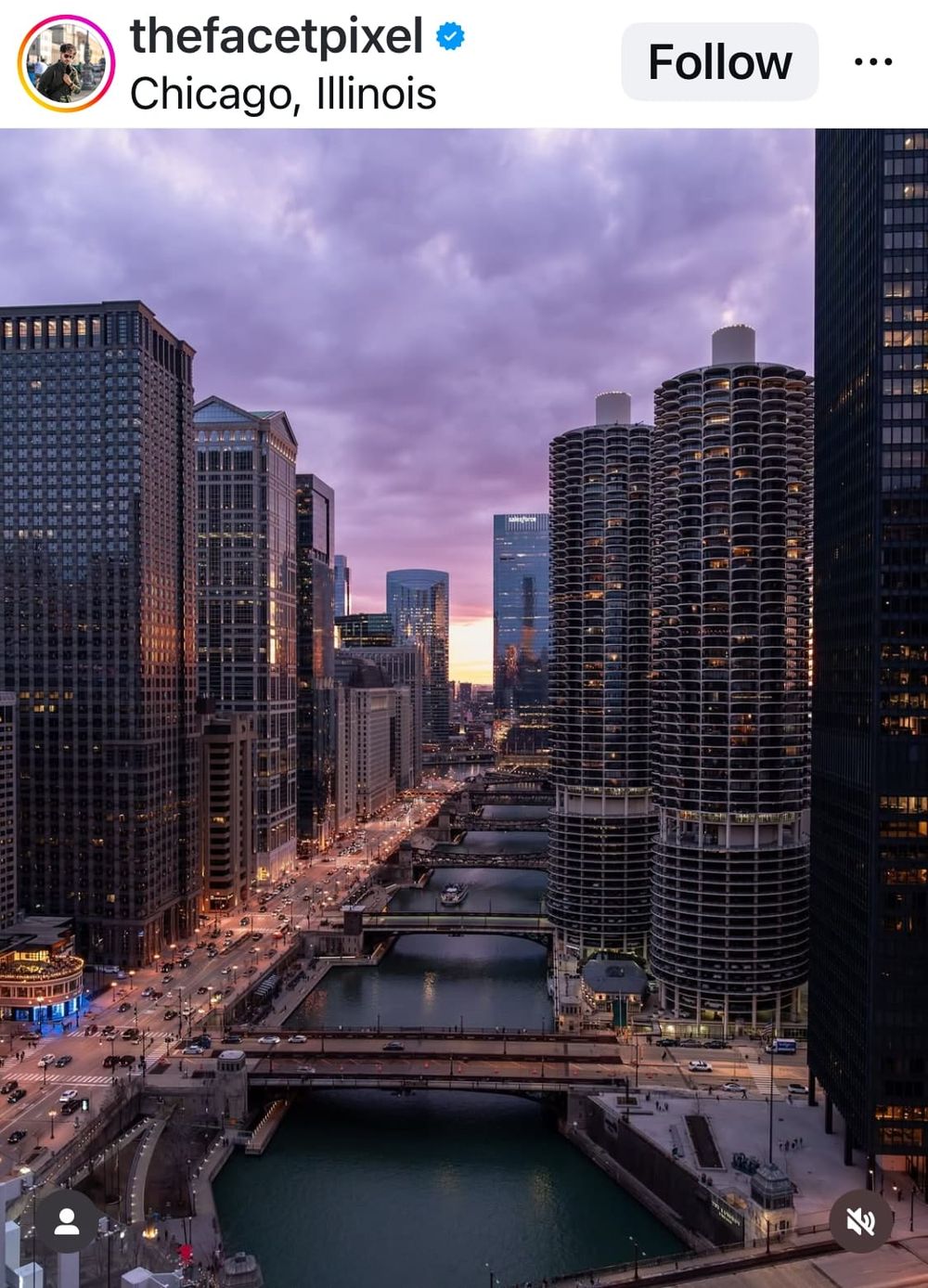
On Instagram, your visuals are often the first thing people notice. Using the correct image dimensions doesn’t just make your content look better. It also helps ensure your posts appear exactly as you intended across the feed, Stories, Reels, and profile.
Here are some of the biggest benefits of using Instagram’s recommended sizes.
Sharper, Higher-Quality Images
Instagram compresses every image you upload. Starting with the correct dimensions helps minimize quality loss, so your photos and graphics stay crisp instead of looking blurry or pixelated.
Less Cropping
Uploading an image with the wrong aspect ratio can result in Instagram automatically cropping parts of it. This can cut off faces, text, logos, or other important design elements.
A More Professional Look
Consistent image sizes make your profile and content feel polished. This is especially important for businesses, creators, and brands that want to build a recognizable visual identity.
Better Viewing on Mobile
Most Instagram users browse on their phones. Images that follow Instagram’s recommended dimensions display naturally across different screen sizes without awkward resizing.
Stronger Engagement
While great content always comes first, clear, properly sized visuals are easier to view and more likely to encourage likes, comments, shares, and saves.
Getting the dimensions right only takes a few extra moments, but it can make a noticeable difference in how your content looks and performs.
Instagram Feed Image Sizes Explained
Instagram supports three main image formats for feed posts: portrait, square, and landscape. While all three are supported, they don’t take up the same amount of space in the feed, and some are better suited to certain types of content.
Here’s what you need to know about each format.
1. Portrait Images (4:5)
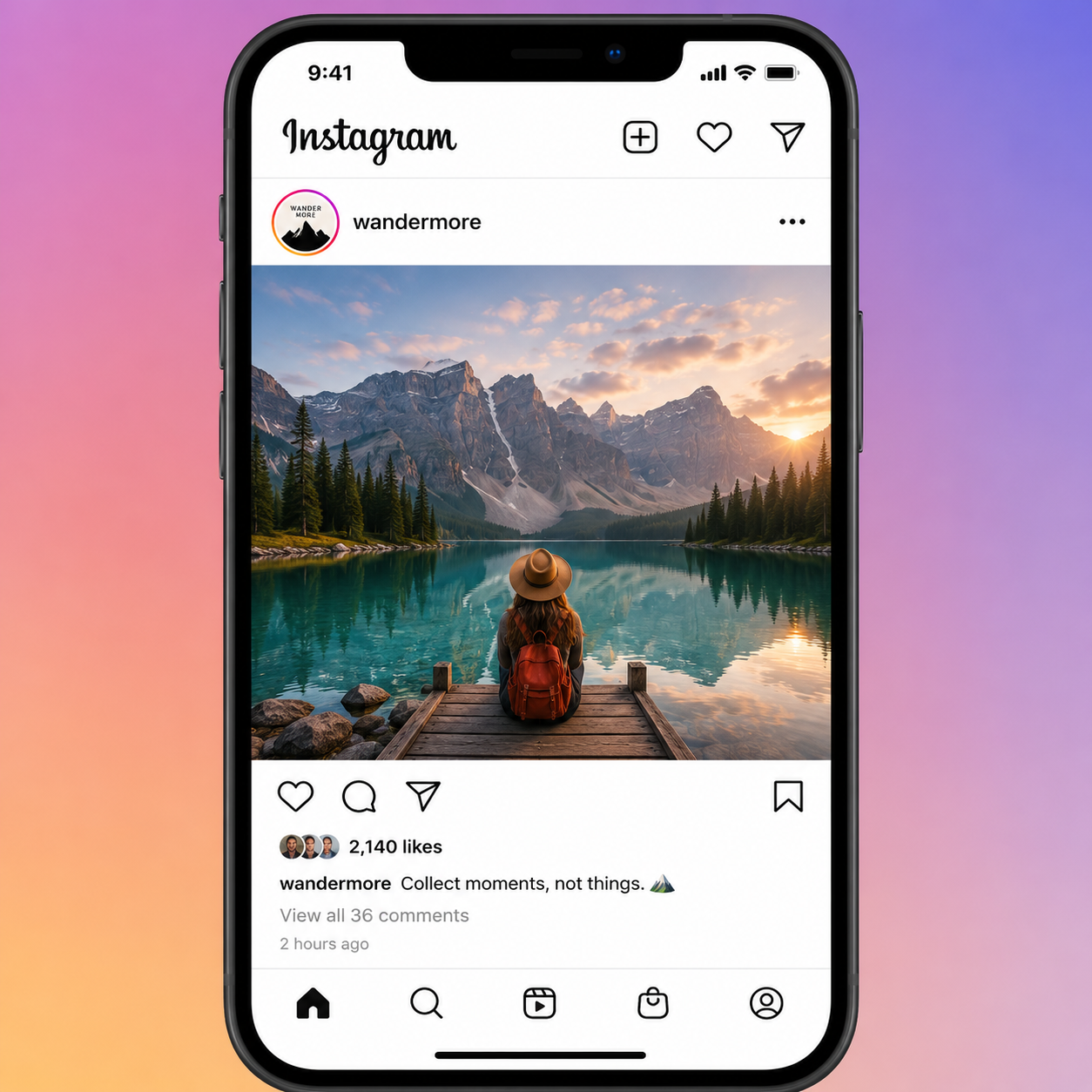
Recommended size: 1080 × 1350 pixels
Portrait is Instagram’s recommended format for feed posts because it occupies the most vertical space as people scroll. That extra screen space helps your content stand out and gives viewers more time to notice it.
Best for:
- Product photos
- Fashion and lifestyle content
- Educational graphics
- Promotional posts
- Portrait photography
2. Square Images (1:1)
Recommended size: 1080 × 1080 pixels
Square images were once Instagram’s default format and remain a popular choice today. They’re versatile, easy to design, and work well across multiple social media platforms.
Although they don’t fill as much of the screen as portrait posts, they still deliver a clean and balanced appearance.
Best for:
- Quotes
- Infographics
- Product images
- Brand announcements
- General social posts
3. Landscape Images (1.91:1)
Recommended size: 1080 × 566 pixels
Landscape images are ideal when your photo or design is naturally wide, such as travel photography or panoramic scenes. However, because they take up less vertical space in the feed, they’re generally less eye-catching than portrait images.
Best for:
- Landscapes
- Panoramic photography
- Website screenshots
- Wide product shots
- Team or group photos
Which Instagram Feed Image Size Should You Choose?
Instagram gives you three options for feed posts, but they don’t all deliver the same viewing experience. The right choice depends on what you’re posting and the result you want to achieve.
| Feed Format | Recommended Size | Best For | Why Choose It |
| Portrait | 1080 × 1350 px | Products, portraits, educational posts, promotions | Takes up the most space in the feed, making posts more noticeable. |
| Square | 1080 × 1080 px | Quotes, graphics, brand announcements, carousel posts | Clean, balanced, and easy to repurpose across other social platforms. |
| Landscape | 1080 × 566 px | Panoramic photos, travel shots, website screenshots | Ideal for naturally wide images that shouldn’t be cropped. |
For most creators and businesses, portrait (1080 × 1350 pixels) is the best option. It occupies more screen space as people scroll, helping your content stand out and increasing the chances that users will stop to engage with it.
Square posts remain a solid choice for graphics and carousel posts, especially if you publish across multiple platforms. Landscape images work best when the composition depends on a wider frame, but they generally receive less visual attention because they take up less room in the feed.
Instagram Feed Image Specifications
Choosing the right dimensions is only part of the equation. Using the correct file format, aspect ratio, and image quality helps ensure your feed posts stay sharp after Instagram applies its compression.
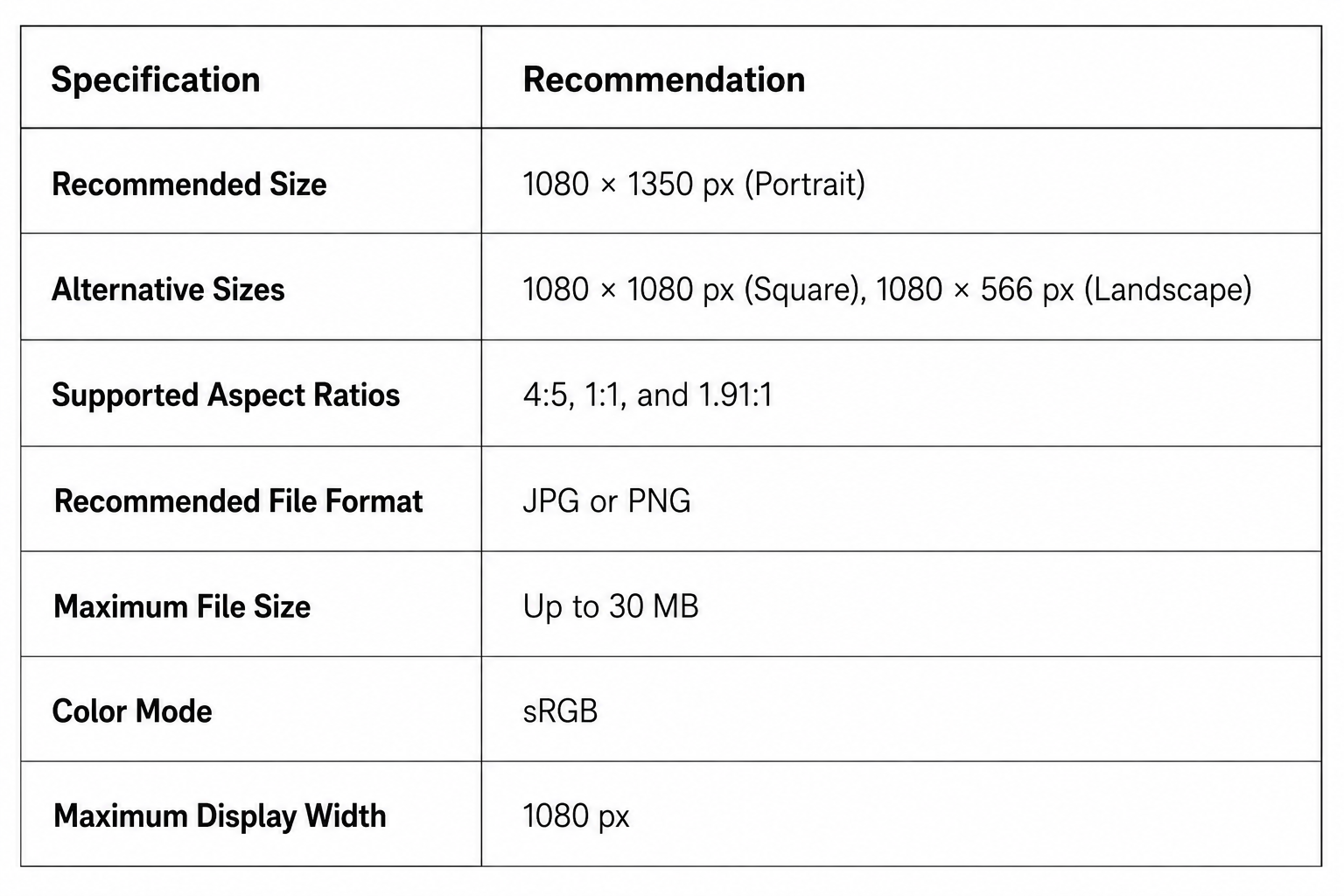
Instagram automatically resizes and compresses every image you upload. Exporting your images at 1080 pixels wide gives you more control over the final quality and helps avoid unnecessary loss of detail.
If you’re uploading graphics with text, PNG files often preserve sharper edges. For photographs, JPG usually offers an excellent balance between quality and file size.
When creating carousel posts, use the same dimensions and aspect ratio for every slide. Mixing portrait, square, and landscape images in the same carousel can result in inconsistent cropping and a less polished viewing experience.
Instagram Story Image Specifications
Instagram Stories are designed for full-screen vertical viewing, making them one of the most engaging content formats on the platform.
To ensure your Stories look their best, create them in a 9:16 aspect ratio so they fill the entire screen without unwanted cropping or empty space.
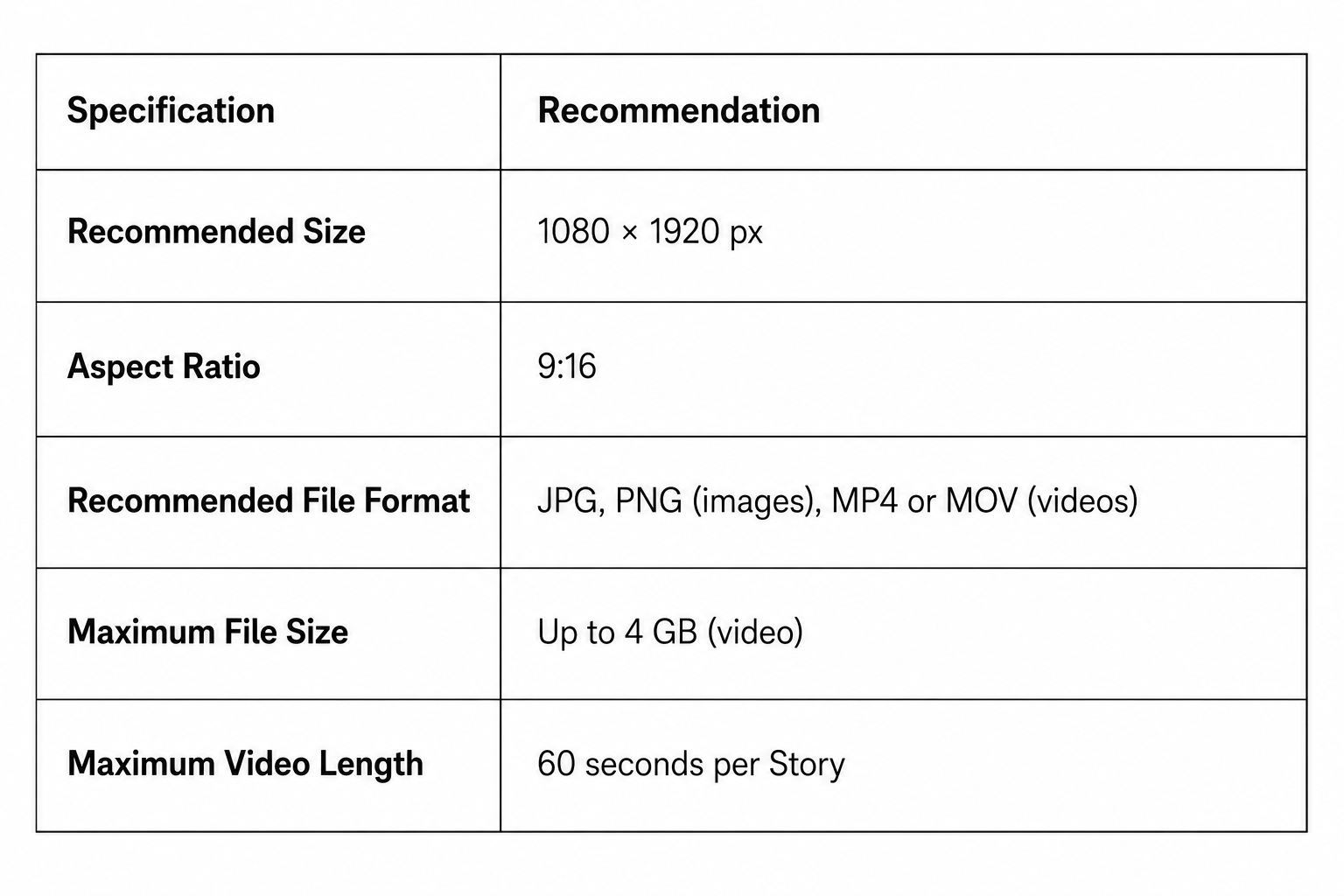
One of the most common mistakes is placing text, stickers, or logos too close to the top or bottom of the screen. Instagram overlays your profile photo, username, message box, and other interface elements, which can partially hide important content.
For the best results, keep key text and design elements within the center of the Story, leaving comfortable margins around the edges. This simple adjustment helps ensure everything remains visible across different devices.
Instagram Reels Specifications
Reels use the same full-screen vertical format as Stories, but they’re designed for longer-form video content and have their own dedicated tab on Instagram.
Uploading your videos in the recommended dimensions ensures they fill the screen and deliver the best viewing experience.
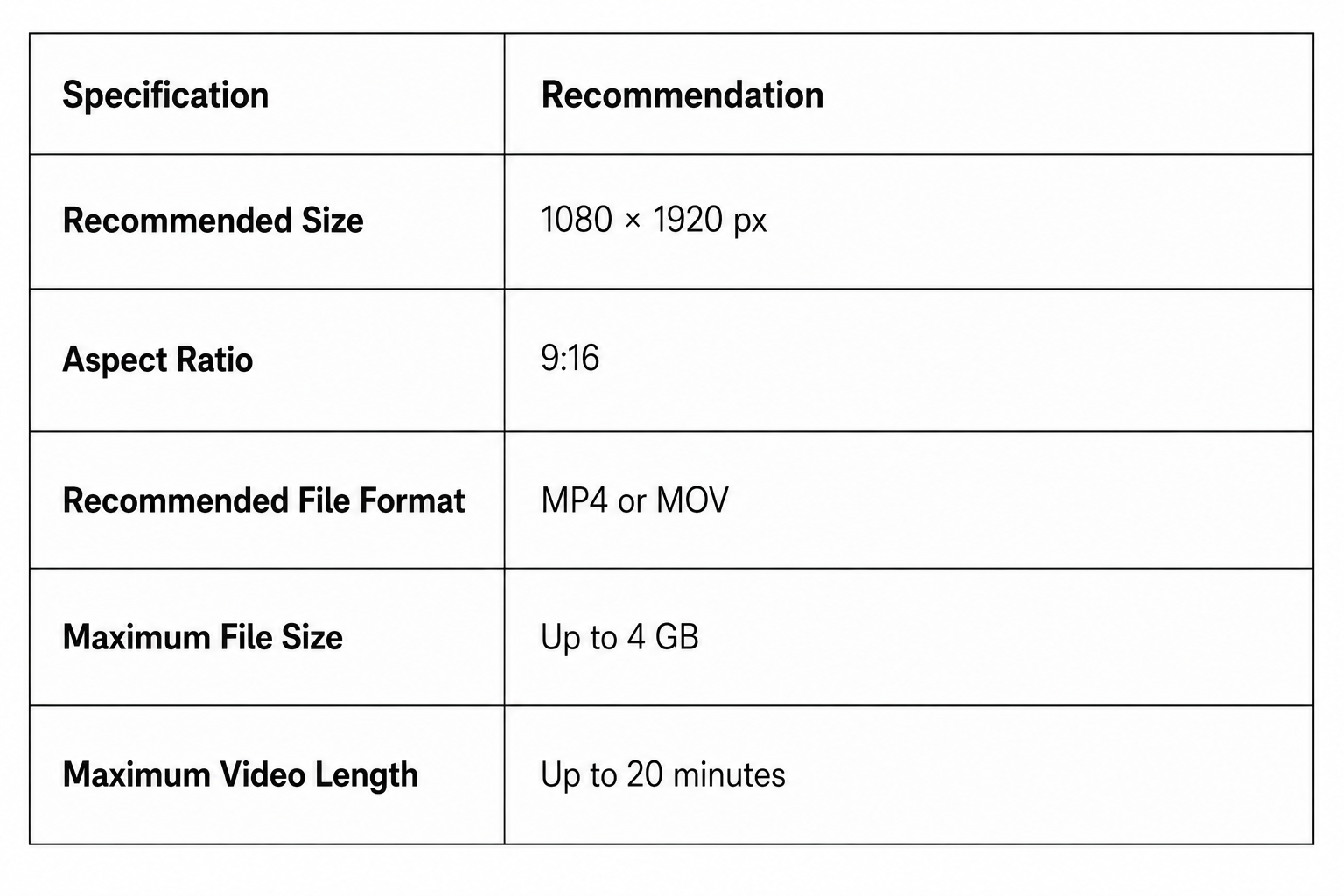
Although Reels are displayed vertically, the thumbnail shown on your profile grid is cropped differently. If you’re adding text or graphics to the cover frame, keep important elements near the center so they remain visible in both the Reels feed and your profile grid.
Avoid uploading landscape videos whenever possible. Instagram will add empty space around them, making the content look less immersive and reducing its visual impact.
Instagram Profile Picture Specifications
Your Instagram profile picture is one of the first things people notice when they visit your account. Although you upload it as a square image, Instagram displays it as a circle across your profile, comments, Stories, and search results.
| Specification | Recommendation |
| Recommended Size | 1080 × 1080 px |
| Aspect Ratio | 1:1 |
| Display Shape | Circle |
| Recommended File Format | JPG or PNG |
| Maximum File Size | Up to 30 MB |
Since Instagram crops profile pictures into a circle, avoid placing important details near the corners of your image. Position your face, logo, or main subject in the center with enough padding around it to prevent unwanted cropping.
For business accounts, use a high-resolution version of your logo. Personal accounts generally look best with a clear headshot and a simple background that remains recognizable even at smaller sizes.
Instagram Carousel Image Sizes
Carousel posts let you share up to 20 photos or videos in a single post, giving you more room to tell a story, showcase products, or create step-by-step content. To keep the experience smooth, every slide should use the same dimensions and aspect ratio.
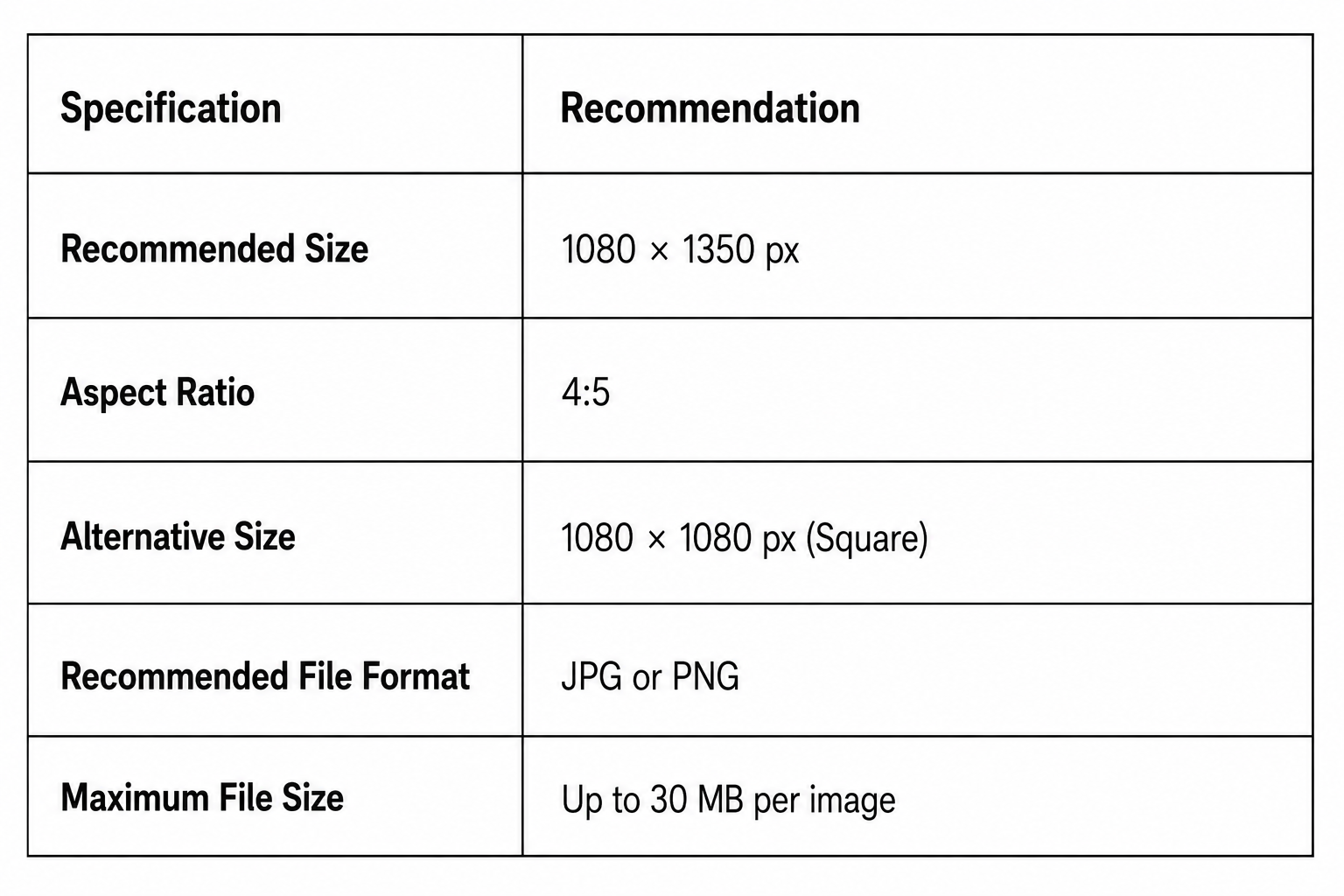
Portrait carousels (4:5) are generally the best option because they occupy more space in the feed and create a more immersive viewing experience. If you choose a square layout, keep every slide square from beginning to end.
Avoid mixing portrait, square, and landscape images in the same carousel. Instagram uses the dimensions of the first slide for the entire post, so inconsistent image sizes can lead to awkward cropping on subsequent slides.
Best Practices for Instagram Images
Using the right image dimensions is a great starting point, but a few additional habits can make your content look even better after it’s uploaded. So, before we round up this guide, let’s see some best practices that can help you maintain image quality and create a more consistent experience for your audience.
Export Images at 1080 Pixels Wide
Instagram displays images at a maximum width of 1080 pixels. Exporting at this size gives you more control over quality and helps reduce unnecessary compression.
Use Portrait Images for Feed Posts
Whenever possible, publish feed posts at 1080 × 1350 pixels (4:5). Portrait images occupy more space on the screen, making them more noticeable as people scroll through their feeds.
Create Stories and Reels in a 9:16 Format
Design Stories and Reels specifically for a vertical screen. Using 1080 × 1920 pixels ensures your content fills the display without black bars or awkward cropping.
Leave Safe Margins Around Important Content
Keep text, logos, and calls to action away from the edges of Stories and Reels. This prevents Instagram’s interface elements from covering key information.
Choose the Right File Format
Use JPG for most photos, PNG for graphics that include text or logos, and MP4 (H.264) for videos. These formats offer excellent compatibility and reliable image quality.
Keep Carousel Slides Consistent
Use the same dimensions, aspect ratio, colours, and design style across every slide in a carousel. Consistency creates a smoother viewing experience and gives your content a more polished appearance.
Preview Before Publishing
Take a final look at your post before it goes live. A quick preview helps you catch cropping issues, misplaced text, or design elements that may not display as expected on mobile devices.
Common Instagram Image Mistakes to Avoid
Uploading Images Larger Than Necessary
Many people export images at much higher resolutions, assuming they’ll look better. In reality, Instagram compresses oversized images, which can reduce their quality. Exporting at 1080 pixels wide usually delivers the best results.
Using Landscape Images for Every Feed Post
Landscape images have their place, but they take up less space in the feed than portrait posts. If your goal is to maximize visibility, portrait images are generally the better choice.
Placing Text Too Close to the Edges
Stories and Reels include interface elements such as profile information, buttons, and reply fields. Text or logos placed near the top or bottom can easily become hidden.
Ignoring Profile Picture Cropping
Your profile photo is displayed as a circle, not a square. If your logo or face sits too close to the corners, parts of it may be cropped out.
Uploading Low-Quality Images
Starting with blurry or heavily compressed images makes it difficult for Instagram to preserve quality. Always export your content at a high resolution using the recommended dimensions and supported file formats.
A few small adjustments before you upload can make a noticeable difference in how your content appears across Instagram.
Get the Most from Your Instagram Posts with OnlySocial

Creating Instagram images at the right dimensions is only half the job. The next step is making sure they’re published on time and appear exactly as you intended. That’s where OnlySocial helps.
OnlySocial lets you plan, schedule, and publish Instagram content from one intuitive dashboard. Whether you’re sharing feed posts, Stories, or Reels, you can preview your content before it goes live to make sure everything looks right.
Some of the features that make OnlySocial a great choice for Instagram management include:
- Schedule feed posts, Stories, and Reels from a single calendar.
- Visual content calendar that makes it easy to organize your publishing schedule.
- Bulk scheduling to plan weeks or even months of Instagram content in one session.
- Cross-platform publishing so you can post to Instagram, Facebook, LinkedIn, X, TikTok, Pinterest, Threads, Bluesky, YouTube, Google Business Profile, and more without switching tools.
- Team collaboration with approval workflows and shared workspaces for agencies and marketing teams.
- AI-powered caption assistance to help you write engaging post captions faster.
- Built-in analytics to monitor post performance and refine your content strategy over time.
If you’re managing multiple Instagram accounts or posting regularly as part of a broader social media strategy, OnlySocial helps streamline the entire workflow while ensuring your content is ready to publish in the correct format.
Instagram Image Size Cheat Sheet
Need a quick reminder before you create your next post? Use this cheat sheet to find the recommended dimensions for every major Instagram image format.
| Content Type | Recommended Size | Aspect Ratio | Best File Format |
| Feed Post (Portrait) | 1080 × 1350 px | 4:5 | JPG, PNG |
| Feed Post (Square) | 1080 × 1080 px | 1:1 | JPG, PNG |
| Feed Post (Landscape) | 1080 × 566 px | 1.91:1 | JPG, PNG |
| Stories | 1080 × 1920 px | 9:16 | JPG, PNG, MP4, MOV |
| Reels | 1080 × 1920 px | 9:16 | MP4, MOV |
| Profile Picture | 1080 × 1080 px | 1:1 (displayed as a circle) | JPG, PNG |
| Carousel Posts | 1080 × 1350 px (recommended) | 4:5 | JPG, PNG |
If you’re unsure which size to use, 1080 × 1350 pixels (4:5) is the safest choice for most feed posts, while 1080 × 1920 pixels (9:16) is the standard for Stories and Reels.
Final Thoughts
Using the correct Instagram image sizes is one of the easiest ways to improve the quality of your content. From feed posts and Stories to Reels and profile pictures, the right dimensions help your images stay sharp, reduce unwanted cropping, and create a more polished experience for your audience.
If you post regularly, pairing these best practices with a scheduling tool like OnlySocial can make your workflow even smoother. You can plan your content in advance, preview how it will appear, and publish consistently without worrying about image sizes or missed posting times.
Frequently Asked Questions
What is the best image size for Instagram?
For most feed posts, the recommended image size is 1080 × 1350 pixels (4:5). This format takes up more space in the feed than square or landscape images, helping your content stand out.
What size should Instagram Stories be?
Instagram Stories should be 1080 × 1920 pixels with a 9:16 aspect ratio. This ensures they fill the entire screen on mobile devices.
What is the recommended size for Instagram Reels?
Instagram Reels should also be 1080 × 1920 pixels (9:16). Uploading videos in this format prevents black bars and delivers the best viewing experience.
What size should an Instagram profile picture be?
Upload your profile picture at 1080 × 1080 pixels. Although it’s uploaded as a square, Instagram displays it as a circle, so keep your main subject centered.
What size should Instagram carousel images be?
The recommended size for carousel posts is 1080 × 1350 pixels (4:5). Using the same dimensions for every slide creates a consistent look and prevents unexpected cropping.
Does Instagram compress photos?
Yes. Instagram compresses all uploaded photos and videos. Exporting your images at the recommended dimensions helps minimize quality loss.
Which file formats does Instagram support?
Instagram supports JPG and PNG for images, along with MP4 and MOV for videos. These formats provide the best compatibility across the platform.
Why do my Instagram photos look blurry?
Blurry images are often caused by uploading files that are too large, heavily compressed, or saved at low quality. Exporting your images at 1080 pixels wide using the correct aspect ratio usually produces the sharpest results.