X (Twitter) Sizes & Dimensions Guide for 2026: Posts, Videos, Headers & Profile Photos

Ever uploaded an image to X only to discover it looks cropped, blurry, or completely different in the timeline? It’s a common frustration. A graphic that looks perfect in your design software can lose its impact once X applies its own preview and compression.
The good news is that it’s easy to avoid these issues. This guide covers the latest X (Twitter) image and video sizes for 2026, including posts, videos, headers, and profile pictures.
You’ll also learn the recommended file formats, size limits, safe placement tips, and best practices to help every post look sharp on both desktop and mobile.
X (Twitter) Sizes at a Glance (2026)
Before diving into each content type, here’s a quick overview of the recommended X dimensions you’ll use most often.
| Content Type | Recommended Dimensions | Aspect Ratio | Maximum File Size | Maximum Length |
| Post Image | 1200 × 675 px | 16:9 | Up to 5 MB | N/A |
| Video | 1280 × 720 px | 16:9 | Up to 512 MB | Up to 140 seconds* |
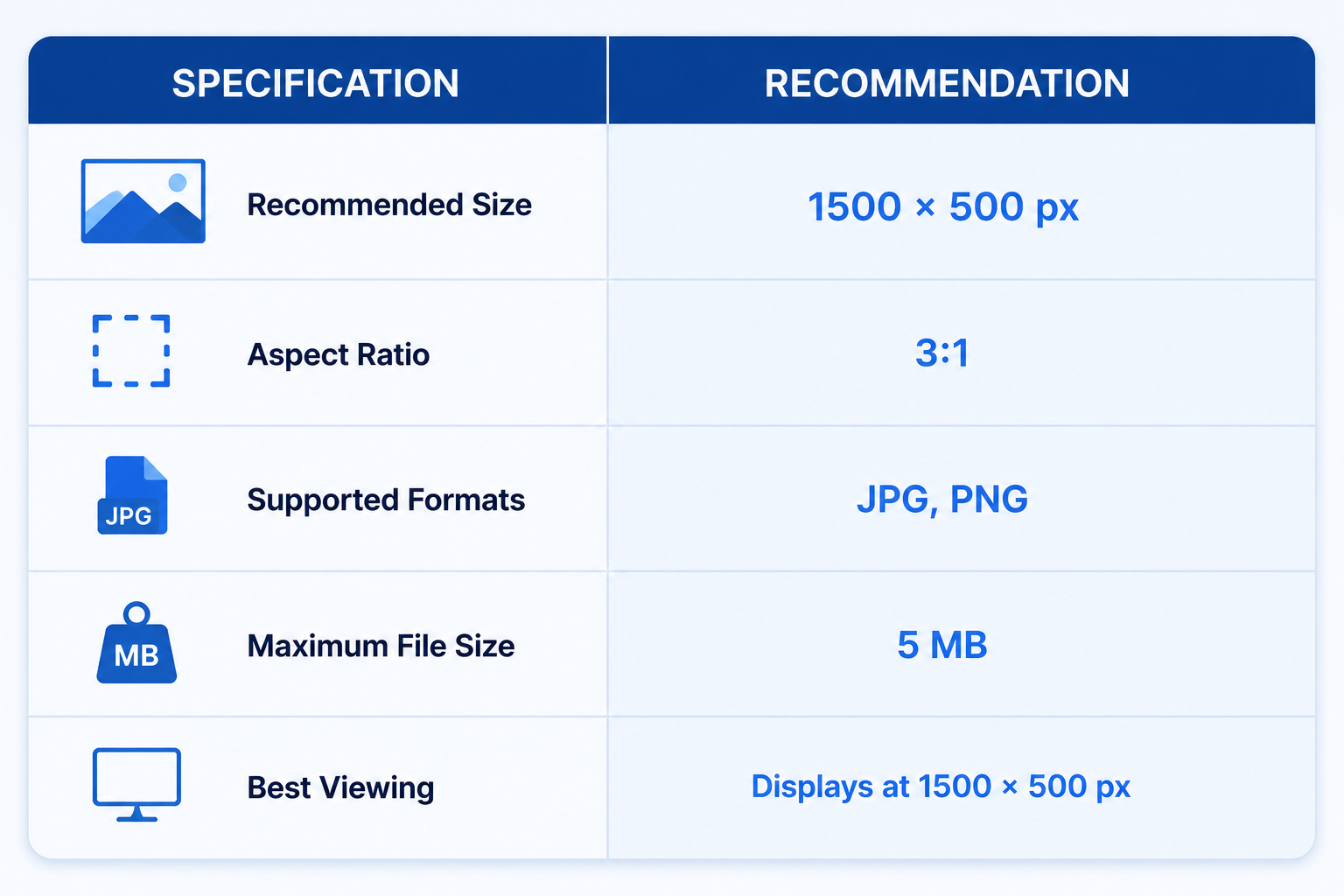
| Header Image | 1500 × 500 px | 3:1 | Up to 2 MB | N/A |
| Profile Picture | 400 × 400 px | 1:1 | Up to 2 MB | N/A |
*Standard X accounts can upload videos up to 140 seconds. Premium accounts have higher upload limits, but the dimensions and aspect ratio above remain the best choice for most videos.
Why X Crops Some Images
Unlike some social platforms, X doesn’t always display your uploaded image in its original shape. Instead, it creates a timeline preview that fits the layout of the feed. If your image uses an unsupported aspect ratio or places important content near the edges, parts of it may be cropped before someone even taps on your post.
That’s why using the recommended dimensions matters. A 1200 × 675 px (16:9) image is designed to fit naturally into the X timeline, helping your entire image remain visible in the preview.
Cropping isn’t the only thing to watch for. X also compresses large images and videos to improve loading speeds, which can reduce sharpness if your file is much larger than necessary. Exporting your media at the recommended size and keeping it within the file size limits helps preserve image quality.
X Post Image Specifications
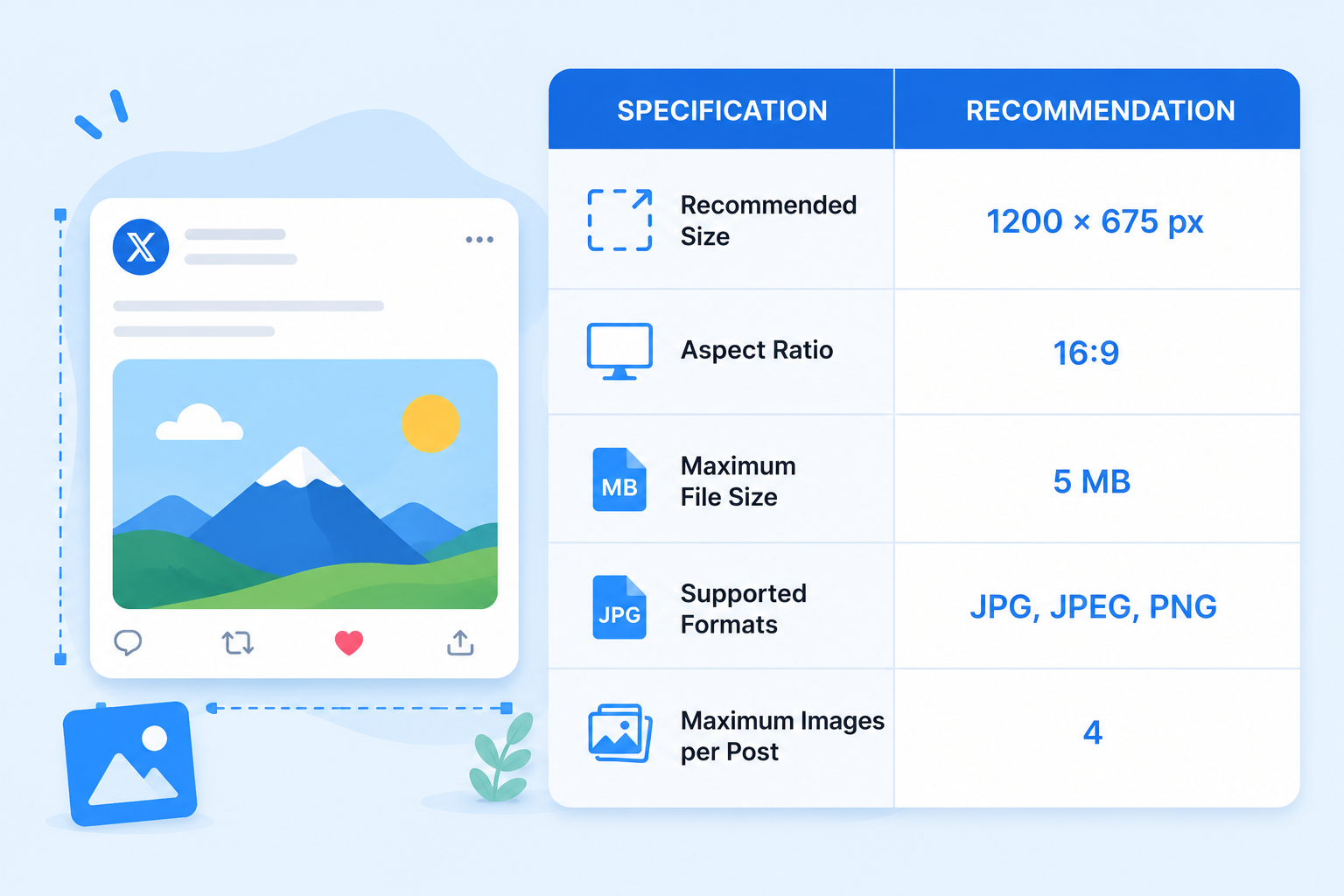
If you’re sharing a photo, graphic, infographic, or promotional creative on X, 1200 × 675 pixels is the recommended image size. This 16:9 aspect ratio fits neatly into the timeline preview, helping your entire image appear without awkward cropping.
For photographs, a high-quality JPG usually provides the best balance between image quality and file size. If your design contains text, logos, charts, or other graphics with sharp edges, PNG often keeps those details looking cleaner.
Single Images vs Multi-Image Posts
X gives you the flexibility to publish either a single image or up to four images in one post. While the recommended image size remains the same, the way your content is displayed changes depending on how many images you attach.
A single image gets the most screen space in the timeline. It’s the best choice for announcements, infographics, blog graphics, or any visual that needs maximum visibility. At the recommended 1200 × 675 px size, your image is more likely to appear as intended without unnecessary cropping.
When you upload multiple images, X automatically creates a collage-style layout. Two images appear side by side, while three and four images are arranged into a grid. Since each image occupies less space, X may crop them differently to fit the layout.
This means every image should be able to stand on its own. Keep faces, products, logos, and text away from the edges, and avoid splitting important information across multiple images. If you’re telling a story or showcasing a product collection, use a consistent design style so the entire set looks cohesive as users scroll through their feed.
X Video Specifications

Videos are one of the most engaging content formats on X, but they also have stricter upload limits than images. Using the recommended video size and format helps your content play smoothly, maintain good quality, and display properly in the timeline.
For most creators and businesses, 1280 × 720 pixels (16:9) is the ideal resolution. It produces a sharp landscape video that fits naturally into the X feed and works well across both desktop and mobile devices.
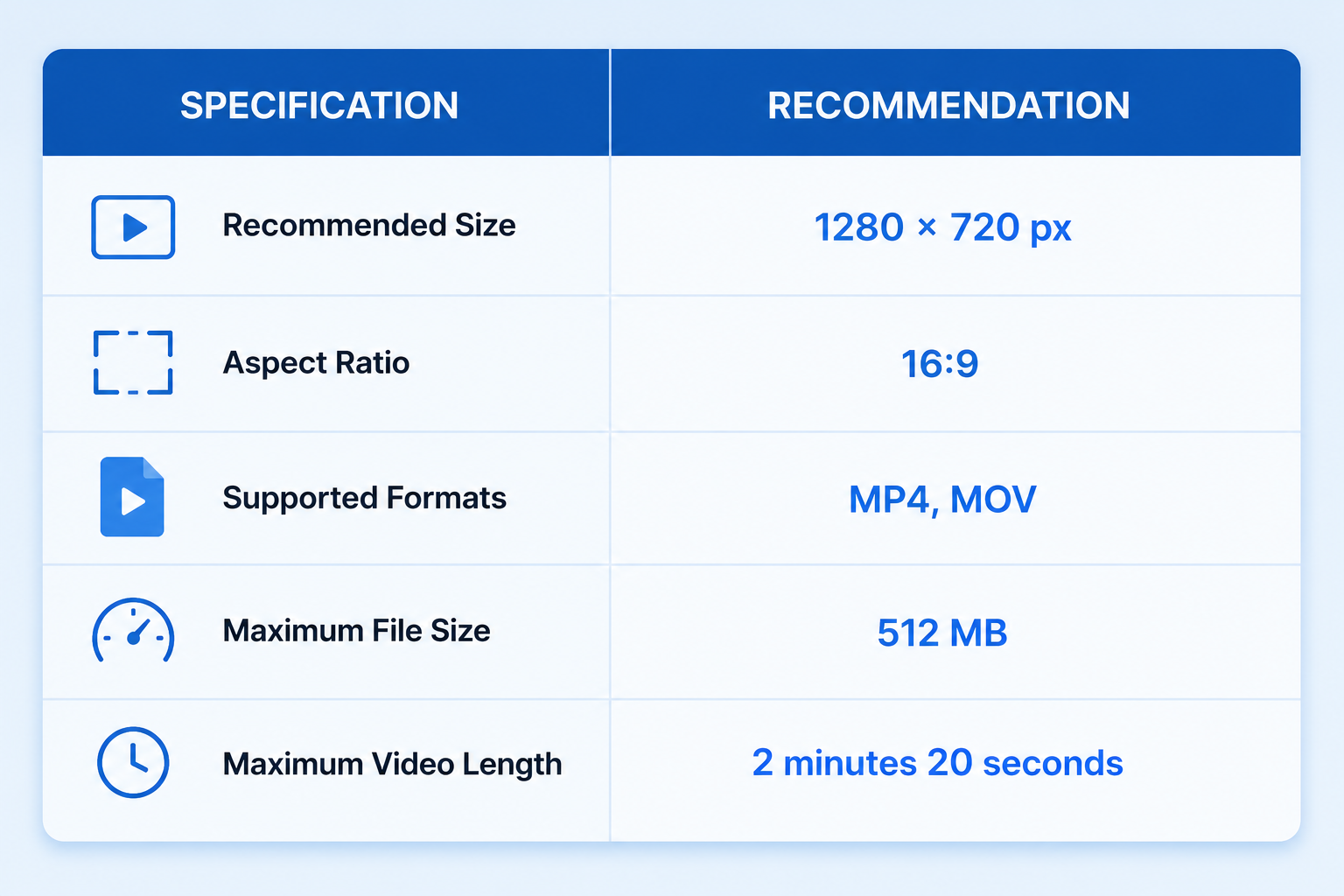
X supports both MP4 and MOV files, although MP4 is generally the preferred option because it offers broad compatibility and a good balance between quality and file size. If you’re exporting your video, using the H.264 codec in an MP4 container is a reliable choice.
Standard X accounts can upload videos of up to 140 seconds. Premium subscribers can upload much longer videos and larger files, but shorter clips are often more effective for capturing attention as people scroll through the timeline.
Before publishing, make sure your video is well compressed without sacrificing quality. Oversized files can take longer to upload and may be recompressed by X, resulting in a softer-looking video. Adding captions is also a good idea, as many users watch videos with the sound turned off.
X Header Image Specifications
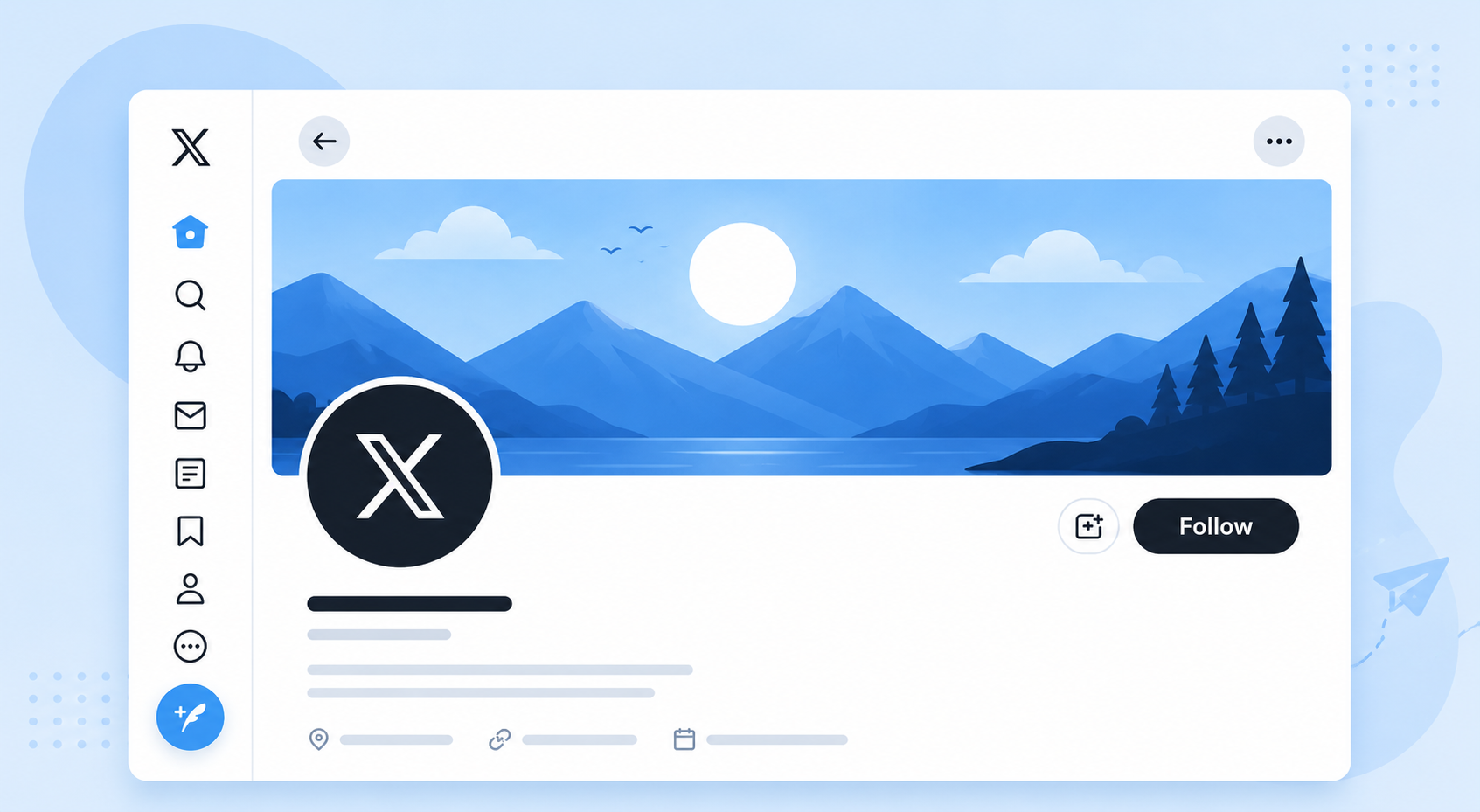
Your header image is one of the first things people notice when they visit your X profile. It spans the top of your page and gives you space to showcase your brand, highlight a campaign, or create a strong first impression. Using the correct dimensions helps your header look sharp across desktop and mobile devices.
The recommended header size is 1500 × 500 pixels, which provides the ideal 3:1 aspect ratio for X. While the platform automatically resizes your image for different screen sizes, starting with these dimensions helps maintain image quality.
Keep in mind that your profile picture partially overlaps the bottom-left corner of the header. On mobile devices, parts of the header may also be cropped slightly. For this reason, avoid placing logos, text, faces, or other important design elements too close to the edges or lower-left area of the image.
If you’re designing a branded header, use a high-resolution image with a simple layout and leave some empty space around key elements. This gives your design room to adapt across different devices without losing important details.
Understanding the X Header Safe Zone
Designing your header at the correct size is only half the job. You also need to think about the safe zone, which is the area where important content is least likely to be covered or cropped.
On X, the profile picture overlaps the bottom-left corner of the header, while different screen sizes can crop small portions of the top, bottom, and sides. A design that looks perfect on your computer may appear slightly different on a mobile phone.
To avoid surprises, keep logos, text, product images, and faces toward the center of the header. Leave generous spacing around the edges, especially in the bottom-left corner where the profile picture sits. Background textures, patterns, or landscape photos work well near the edges because they can be cropped without affecting the overall design.
Here are a few simple guidelines:
- Place important content in the center of the header.
- Leave extra space around all four edges.
- Avoid putting text in the bottom-left corner.
- Use the outer edges for background elements instead of key information.
- Preview your profile on both desktop and mobile before finalizing your header.
X Profile Picture Specifications
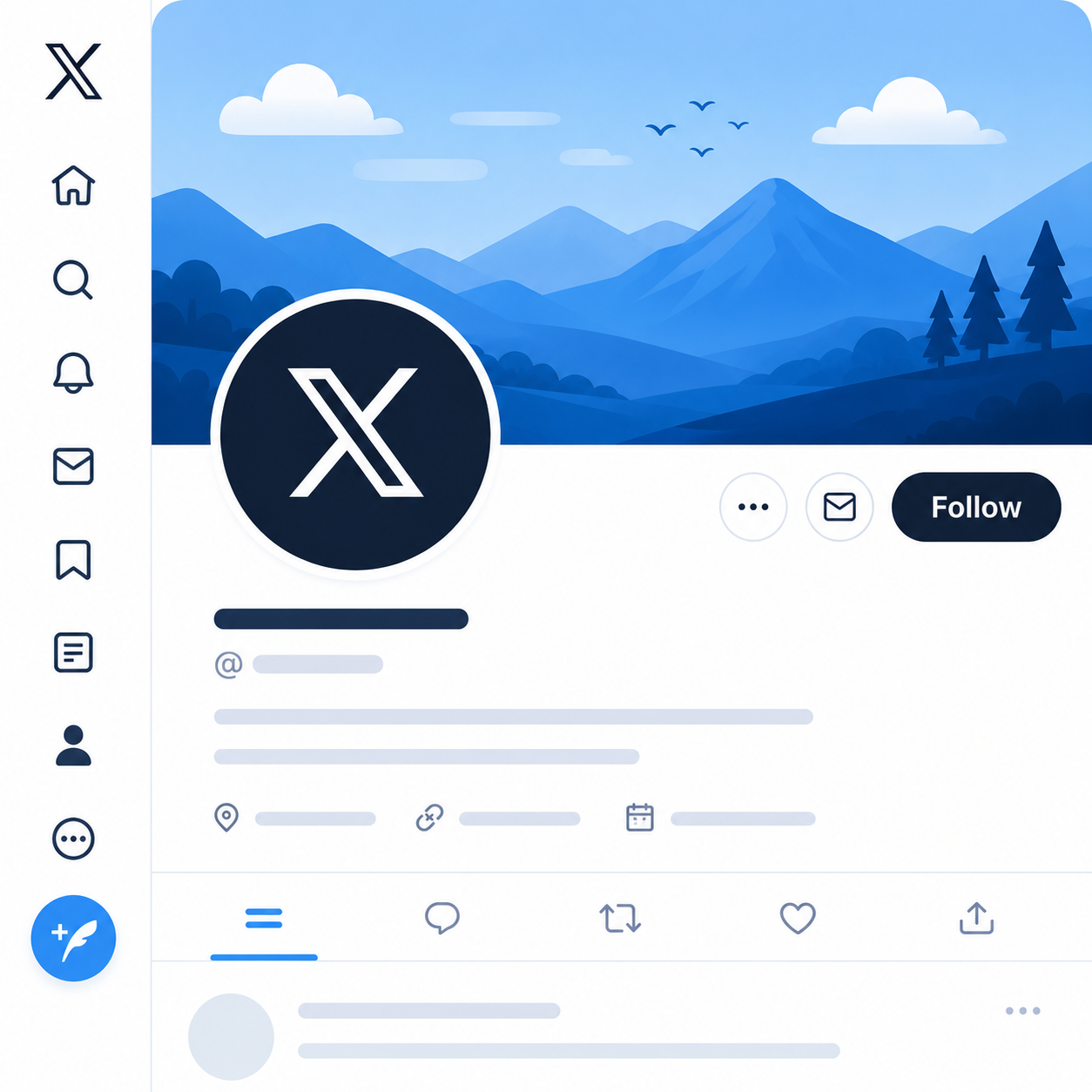
Your profile picture appears almost everywhere on X. It’s shown next to your posts, replies, messages, notifications, and profile page, making it one of the most recognizable parts of your account. Choosing the right size helps your image stay sharp and professional.
Although you upload a 400 × 400 pixel square image, X displays profile pictures as circles across the platform. This means the corners of your image won’t be visible after it’s uploaded.
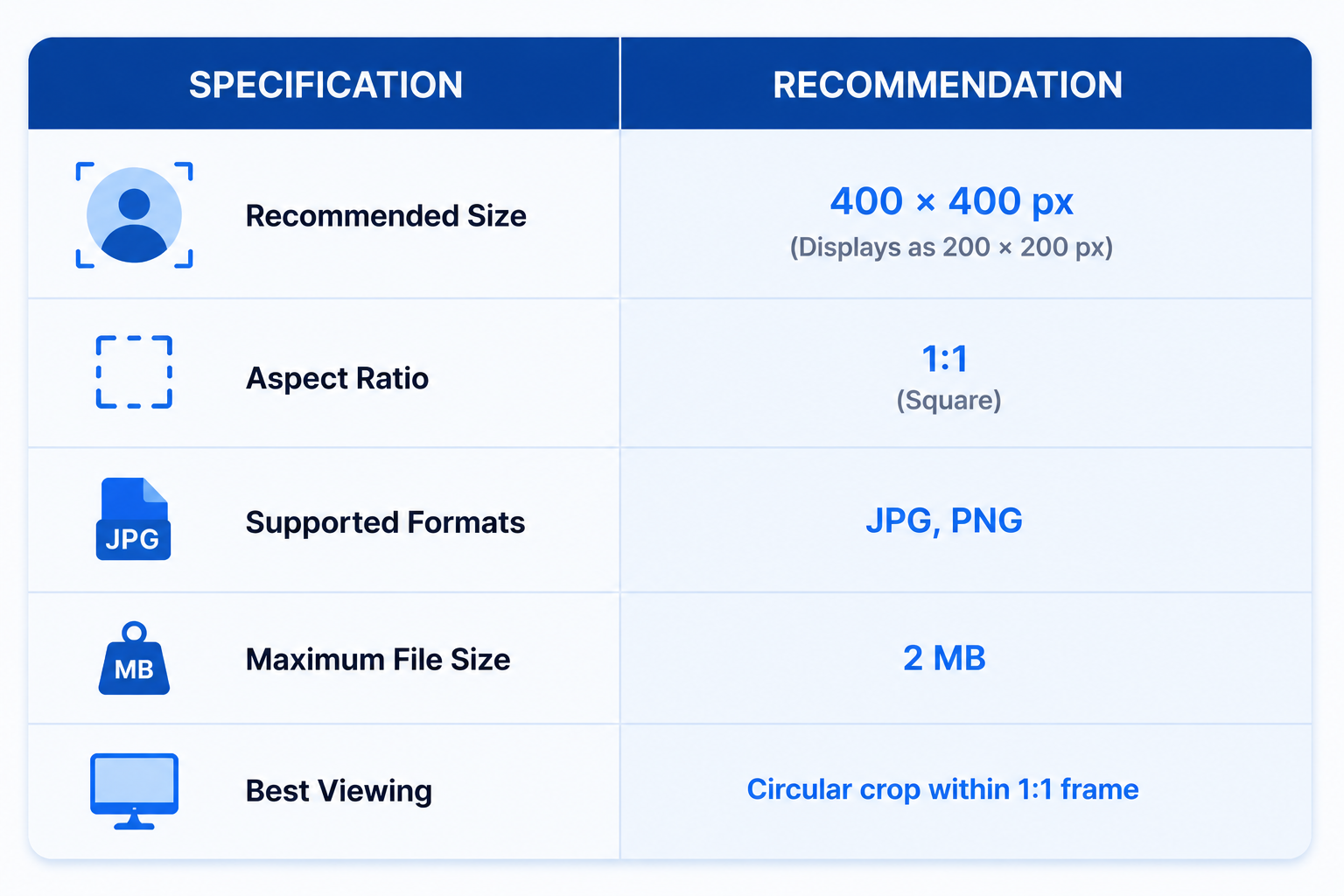
To get the best result, keep your face, logo, or other important elements centered within the image. Avoid placing text or logos too close to the edges, as they may be cut off by the circular crop.
If you’re using a personal profile, choose a clear, high-resolution headshot with good lighting. For businesses and brands, a clean logo on a simple background is usually the most recognizable option, even when displayed at smaller sizes.
Also, use the same profile picture across your social media accounts where possible. Consistent branding makes it easier for people to recognize your account and builds familiarity over time.
Which X Image Size Should You Use?
The right image size depends on what you’re posting. While X accepts different dimensions, using the recommended size for each type of content gives you the best chance of avoiding unwanted cropping, compression, or quality loss.
Here’s a quick guide to help you choose.
| If you’re posting… | Use this size |
| A single image post | 1200 × 675 px |
| A video | 1280 × 720 px |
| A profile header | 1500 × 500 px |
| A profile picture | 400 × 400 px |
If you’re creating graphics for your feed, 1200 × 675 pixels should be your default choice. It’s the size X recommends and fits naturally into the timeline preview.
For videos, 1280 × 720 pixels offers an excellent balance between quality and file size. It displays well across desktop and mobile while keeping uploads manageable.
When updating your profile, use 1500 × 500 pixels for your header and 400 × 400 pixels for your profile picture. Following these dimensions helps your profile look clean and professional on every device.
If you’re designing content regularly, consider creating templates for these four sizes in your preferred design tool. Having ready-made templates saves time and helps keep your branding consistent across every post.
X File Formats and Compression Explained
Choosing the right dimensions is only part of the equation. The file format you use also affects how sharp your images and videos look after they’re uploaded to X.
For images, X supports JPG, JPEG, PNG, GIF, and WebP. In most cases, JPG is the best option for photographs because it keeps file sizes small while maintaining good quality. If your image contains logos, text, screenshots, or graphics with fine details, PNG is usually a better choice because it preserves sharper edges.
For videos, X recommends uploading MP4 or MOV files. MP4 is the preferred format for most users since it offers excellent compatibility, efficient compression, and high video quality.
Like most social media platforms, X compresses uploaded media to improve loading speeds. While this helps posts load faster, it can also reduce image or video quality if your files are unnecessarily large. Uploading media close to the recommended dimensions and staying within the file size limits gives X less work to do during compression.
Here are a few simple tips to preserve quality:
- Export images at the recommended dimensions instead of uploading oversized files.
- Use JPG for photos and PNG for graphics with text or logos.
- Upload videos in MP4 whenever possible.
- Avoid repeatedly downloading and re-uploading the same image, as each upload can reduce quality.
- Preview your post after publishing to make sure your media still looks sharp.
A few small adjustments before uploading can make a noticeable difference in how your content appears in the X timeline.
Best Practices for X Images and Videos
1. Design for the Timeline First
Most people will see your content in the timeline before they open it. Make sure your main subject, headline, or product is easy to recognize at a glance.
2. Keep Important Elements Near the Centre
Avoid placing text, logos, or faces too close to the edges. This reduces the risk of important details being cropped in previews or on different devices.
3. Use High-Quality Images
Start with sharp, high-resolution files. Even though X compresses uploads, a high-quality original usually produces better-looking results than a low-resolution image.
4. Match the Recommended Dimensions
Creating your images and videos at the recommended sizes saves time and helps prevent stretching, black bars, or unexpected cropping.
5. Keep File Sizes Reasonable
There’s no benefit to uploading files that are much larger than X’s recommendations. Optimized files upload faster and are less likely to lose quality during compression.
6. Preview Before You Publish
Take a moment to review your post before publishing. This lets you catch any cropping issues or formatting problems while they’re still easy to fix.
7. Maintain Consistent Branding
Use the same colors, fonts, and visual style across your posts, header, and profile picture. A consistent look makes your account more recognizable and professional.
8. Test Different Visual Formats
Try mixing single-image posts, multi-image posts, videos, and graphics to see what resonates most with your audience. Reviewing your analytics over time can help you identify which formats consistently generate the most engagement.
Create and Schedule X Posts with OnlySocial
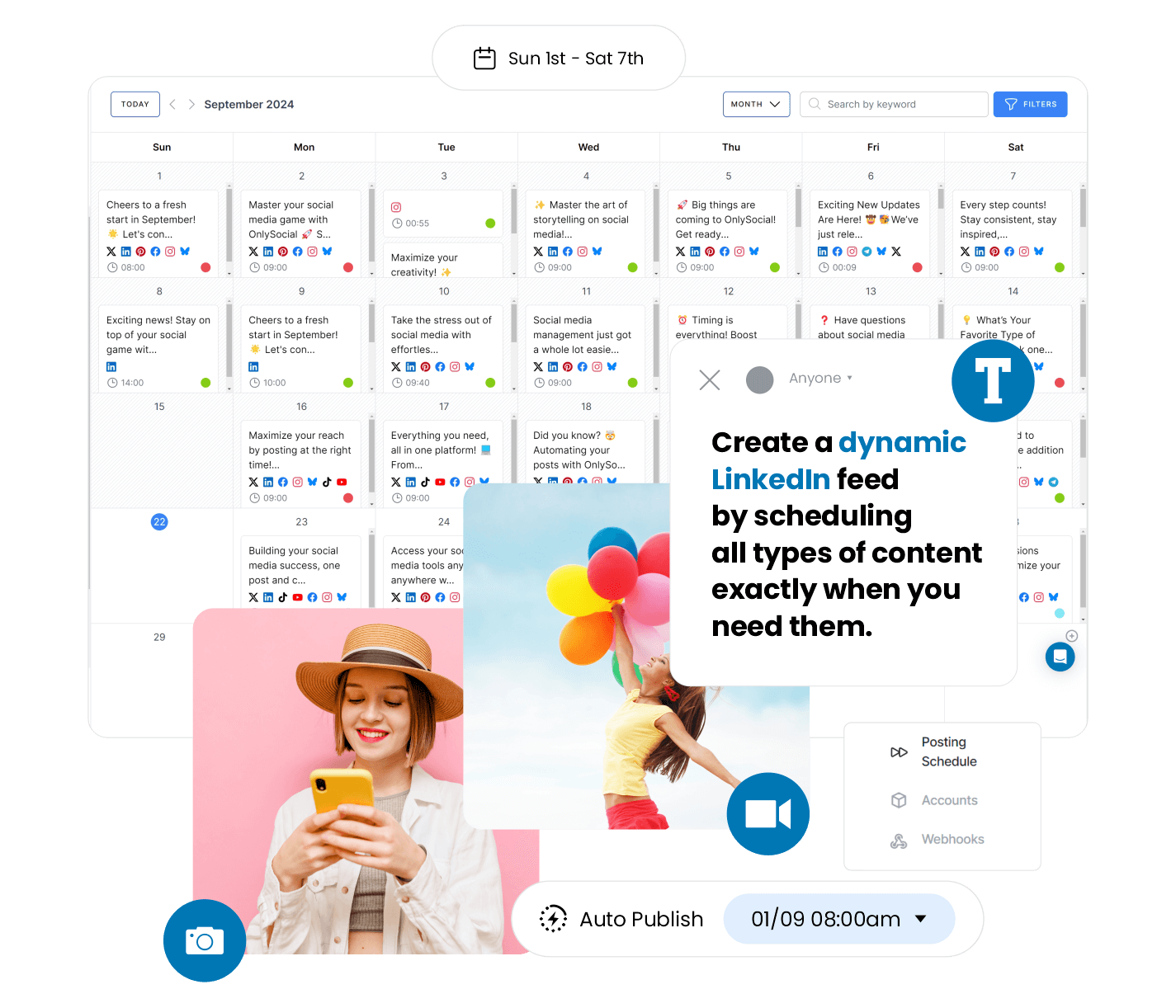
Getting your X image sizes right is only part of creating a consistent presence. The next challenge is publishing at the right time, keeping your content organized, and managing your entire social media workflow without jumping between multiple tools.
That’s where OnlySocial comes in.
With OnlySocial, you can plan, schedule, and publish X posts alongside content for Instagram, Facebook, LinkedIn, TikTok, Pinterest, Threads, Bluesky, and other major social networks from one dashboard.
Some of the features that make managing X easier include:
- Visual content calendar to plan your posting schedule weeks or months in advance.
- AI-powered caption generator to help write engaging posts and adapt content for X.
- Bulk scheduling to upload and schedule hundreds of posts in one go.
- Best time to post suggestions based on your audience’s activity.
- Team collaboration tools with approval workflows for agencies and marketing teams.
- Performance analytics to track impressions, engagement, clicks, and audience growth.
- Cross-platform publishing so you can tailor one campaign for multiple social networks without repeating the same work.
Instead of switching between different scheduling tools and spreadsheets, you can manage your entire content workflow from a single place while making sure every image and video is published at the right time and in the correct format.
If you publish on X regularly, OnlySocial helps you save time, stay consistent, and keep your content calendar running smoothly throughout the year.
Final Thoughts
Getting your X image sizes right doesn’t require complicated design skills. Once you know the recommended dimensions for posts, videos, headers, and profile pictures, you can create content that looks sharp, loads quickly, and displays properly across both desktop and mobile.
If you’re publishing on X regularly, pairing the right dimensions with a scheduling tool like OnlySocial can make your workflow even smoother. You can organize your content calendar, schedule posts in advance, and keep your branding consistent across all your social channels from one place.
Frequently Asked Questions
What is the recommended X image size?
The recommended size for a standard X post image is 1200 × 675 pixels with a 16:9 aspect ratio. This size fits well in the timeline and helps reduce unwanted cropping.
What size should an X header image be?
The recommended X header image size is 1500 × 500 pixels. This 3:1 aspect ratio gives the best results across desktop and mobile devices.
What is the best profile picture size for X?
A profile picture should be 400 × 400 pixels. Although you upload a square image, X displays it as a circle, so keep important elements centred.
What video size does X recommend?
For most videos, 1280 × 720 pixels with a 16:9 aspect ratio is the recommended size. Upload your videos in MP4 or MOV format for the best compatibility.
Why does X crop my images?
X crops images to fit different timeline layouts and screen sizes. Using the recommended dimensions and keeping important content near the centre of the image helps minimize cropping.
What image formats does X support?
X supports JPG, JPEG, PNG, GIF, and WebP for images. JPG is generally best for photos, while PNG is a better choice for graphics, screenshots, and images containing text.
How many images can I include in one X post?
You can upload up to four images in a single X post. When multiple images are added, X automatically arranges them into a grid layout.
Does X compress uploaded images and videos?
Yes. Like most social platforms, X compresses uploaded media to improve loading speeds. Starting with the recommended dimensions and optimized file sizes helps preserve the best possible quality after upload.