LinkedIn Image Sizes: The Complete Guide to Post, Profile & Cover Photo Dimensions (2026)

When you’re creating content for LinkedIn, the image you use is often the first thing people notice. A sharp, well-sized image can make your post look professional and encourage more people to stop scrolling.
On the other hand, the wrong dimensions can leave your image looking blurry, awkwardly cropped, or less eye-catching than you intended.
The good news is that getting your LinkedIn image sizes right is easy once you know the recommended dimensions. So, in this guide, you’ll find the latest LinkedIn image specifications for 2026, including post images, profile pictures, cover photos, company pages, and article images.
We’ll also share practical tips to help your visuals look their best on both desktop and mobile.
Table of Contents
- 1 LinkedIn Image Sizes at a Glance
- 2 Why LinkedIn Image Sizes Matter
- 3 All You Should Know About LinkedIn Post Image Sizes
- 4 Which LinkedIn Post Image Size Should You Choose?
- 5 LinkedIn Post Image Specifications
- 6 LinkedIn Profile Picture Specifications
- 7 LinkedIn Cover Photo Specifications
- 8 LinkedIn Article Image Sizes
- 9 LinkedIn Company Page Image Sizes
- 10 Best Practices for LinkedIn Images
- 11 Schedule Perfectly Sized LinkedIn Images with OnlySocial
- 12 Final Thoughts
- 13 Frequently Asked Questions
- 13.0.1 What is the best image size for a LinkedIn post?
- 13.0.2 What size should a LinkedIn profile picture be?
- 13.0.3 What is the recommended LinkedIn cover photo size?
- 13.0.4 What image formats does LinkedIn support?
- 13.0.5 What is the maximum image file size on LinkedIn?
- 13.0.6 Can I upload multiple images in one LinkedIn post?
- 13.0.7 Why do my LinkedIn images look blurry?
- 13.0.8 How can I schedule LinkedIn posts with images?
LinkedIn Image Sizes at a Glance
Need a quick answer? The table below covers the most common LinkedIn image sizes you’ll use. You’ll find more details, examples, and best practices throughout the rest of this guide.
| Image Type | Recommended Size | Aspect Ratio |
| Feed Post (Standard) | 1200 × 627 px | 1.91:1 |
| Feed Post (Square) | 1200 × 1200 px | 1:1 |
| Feed Post (Wide) | 1128 × 376 px | 3:1 |
| Profile Picture | 640 × 640 px | 1:1 |
| Cover Photo (Personal Profile) | 1584 × 396 px | 4:1 |
| Company Logo | 300 × 300 px | 1:1 |
| Company Cover Photo | 1128 × 191 px | ~6:1 |
| Company Life Tab Hero | 1128 × 376 px | 3:1 |
| Article Feature Image | 1200 × 644 px | ~1.86:1 |
| Article Banner Image | 600 × 322 px | ~1.86:1 |
| Inline Article Images | 552 px (maximum width) | Varies |
| Maximum Images per Post | 20 | Carousel Display |
| Supported Formats | JPG, JPEG, PNG | — |
| Maximum File Size | 8 MB | — |
Why LinkedIn Image Sizes Matter
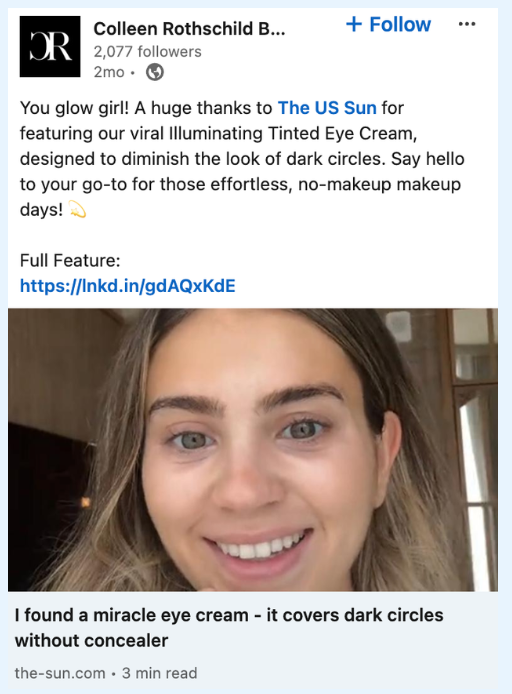
It’s easy to think that any image will do as long as it looks good. But on LinkedIn, the size of your image plays a big role in how it appears in the feed and how people interact with it. So, before you disregard it completely, here are a few reasons it’s worth using the recommended dimensions.
Your Images Look Sharper
Uploading images at the right size helps preserve their quality. Instead of appearing blurry or stretched, your visuals stay crisp and professional on both desktop and mobile.
They Stand Out in the Feed
A properly sized image fills the available space more naturally, making your post more noticeable as people scroll through their feed. That extra visibility can help attract more views and engagement.
Better Experience on Mobile
A large percentage of LinkedIn users browse the platform on their phones. Images that are optimized for LinkedIn display correctly across different screen sizes without awkward cropping or missing important details.
Stronger Professional Branding
Your profile picture, cover photo, and post images all contribute to your personal or business brand. Using the correct dimensions helps create a polished, consistent appearance that builds credibility.
Fewer Upload Issues
Oversized files, incorrect aspect ratios, or low-resolution images can affect how your content is displayed. Following LinkedIn’s recommended specifications helps avoid unnecessary quality loss during upload.
More Effective Communication
Whether you’re sharing a product announcement, promoting an event, or posting an infographic, the right image size helps your message come across clearly. People can focus on your content instead of being distracted by poor image quality or awkward cropping.
All You Should Know About LinkedIn Post Image Sizes
LinkedIn supports several image sizes for feed posts, and each one serves a different purpose. The right choice depends on the type of content you’re sharing and how you want it to appear in your audience’s feed.
Here’s a closer look at the most common LinkedIn post image formats.
1. Standard Landscape (1.91:1)
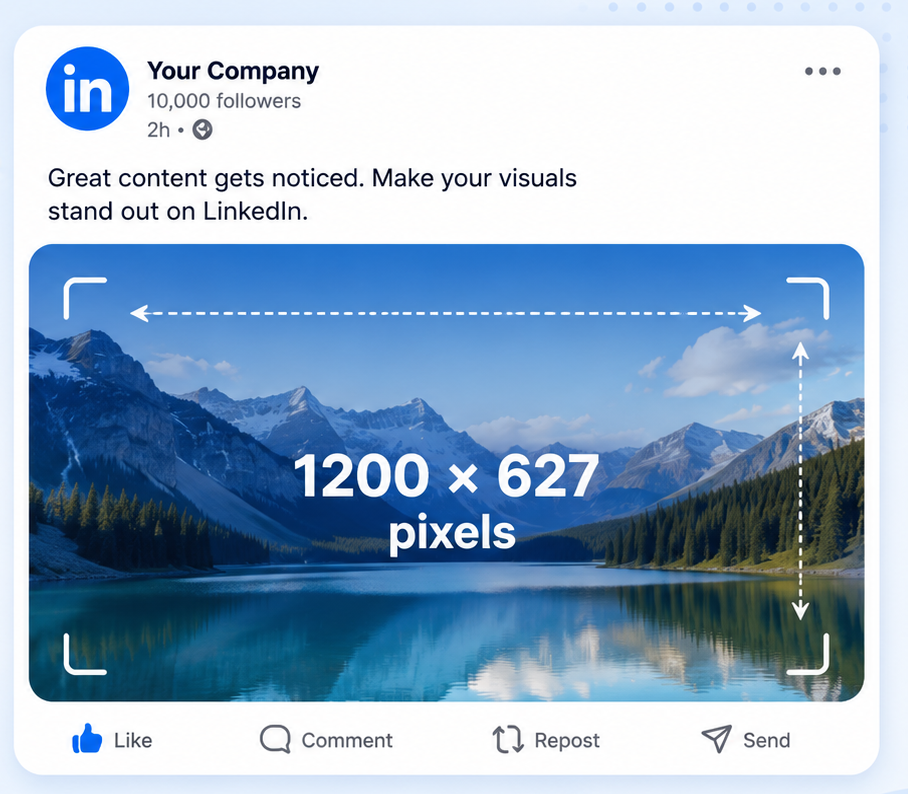
Recommended size: 1200 × 627 pixels
This is LinkedIn’s recommended image size for standard feed posts and link previews. It provides a wide layout that works well for blog promotions, company announcements, product launches, and marketing graphics.
If you’re unsure which size to use, this is a safe option that displays consistently across desktop and mobile.
Best for:
- Blog and article promotions
- Product announcements
- Event promotions
- Marketing campaigns
- Website link previews
2. Square (1:1)
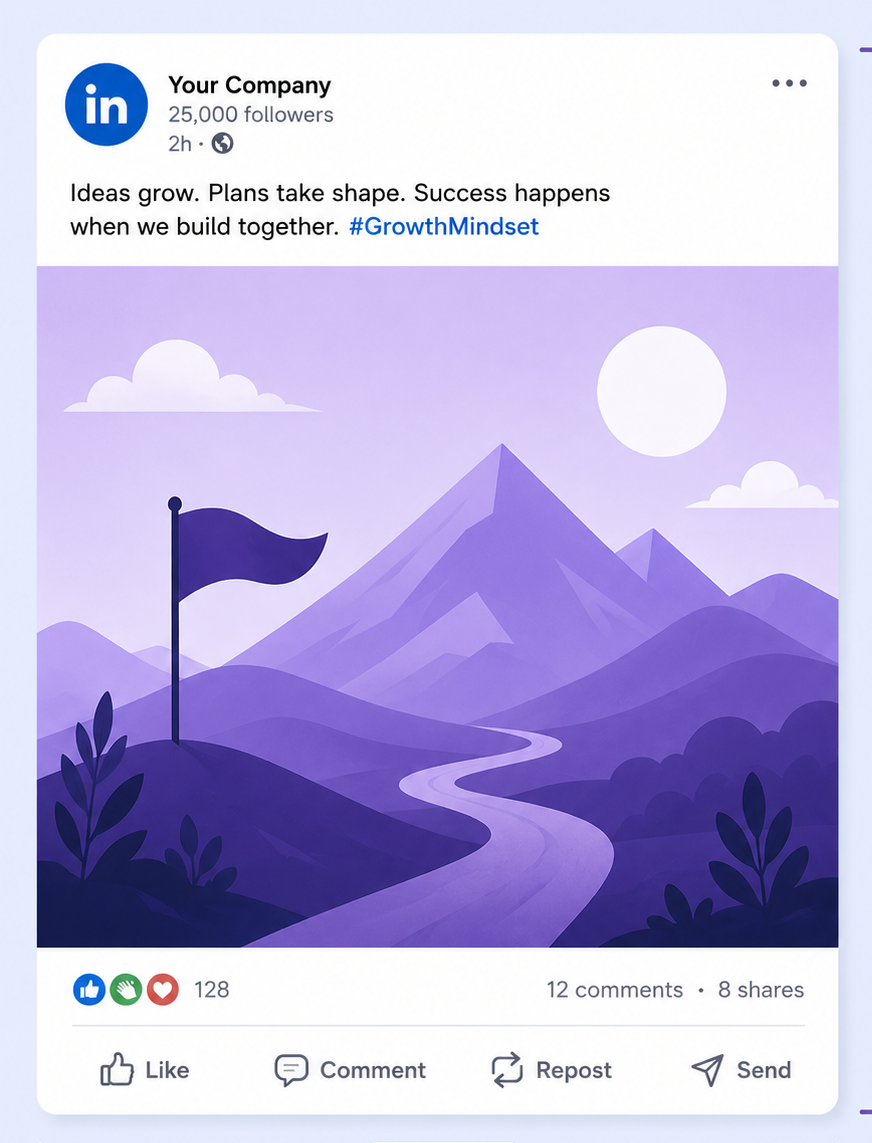
Recommended size: 1200 × 1200 pixels
Square images are one of the most versatile formats on LinkedIn. They look balanced on both desktop and mobile and are ideal for visuals that need to grab attention while people scroll.
They’re also easy to reuse across platforms like Instagram and Facebook, making them a popular choice for brands that publish the same content in multiple places.
Best for:
- Infographics
- Quote graphics
- Tips and educational posts
- Customer testimonials
- Product photos
3. Wide (3:1)
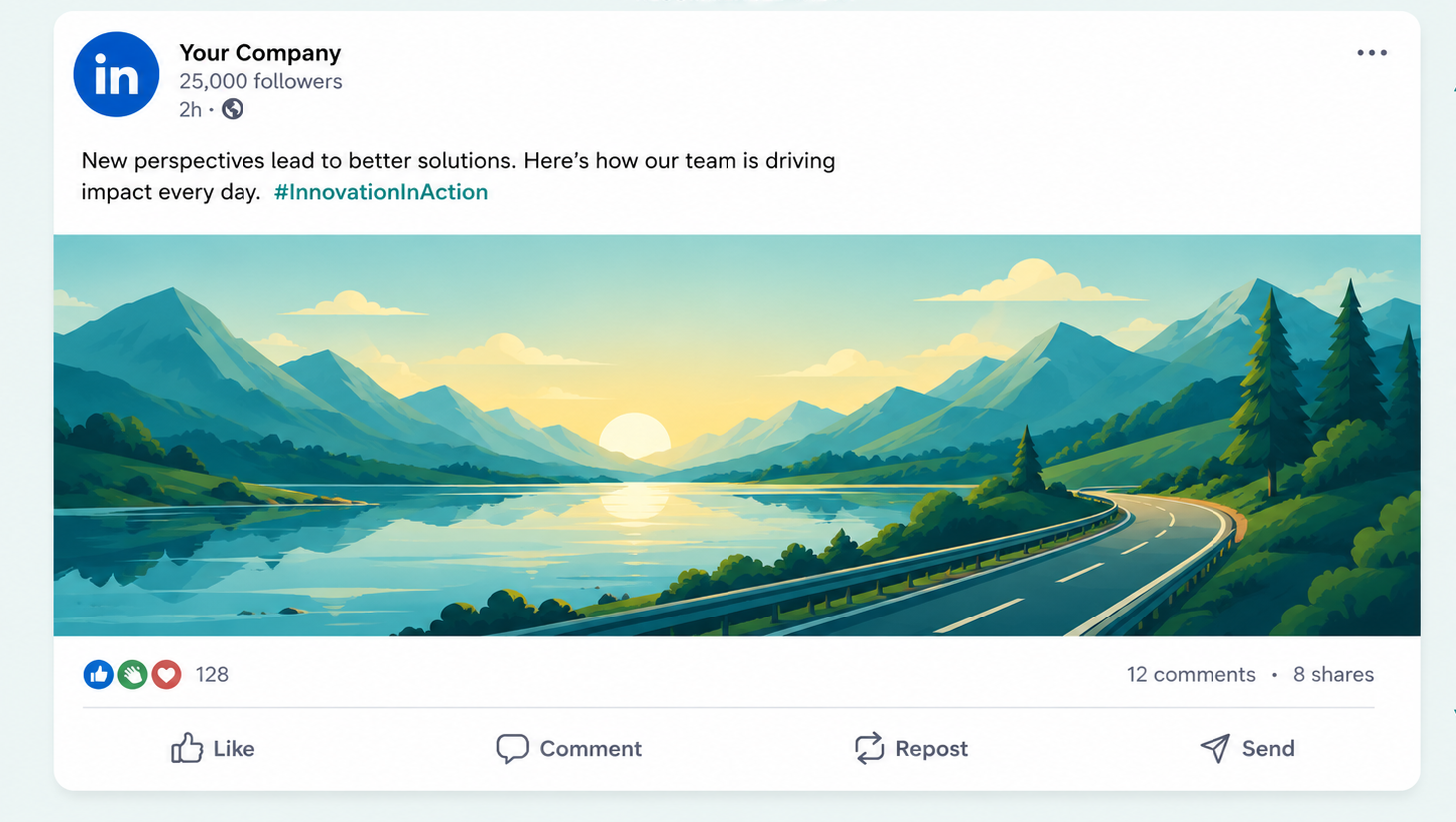
Recommended size: 1128 × 376 pixels
The wide format is less common but can work well when you want a banner-style design. It’s useful for promotional graphics, event headers, and branded announcements where the focus is on a simple visual message.
Because it’s much shorter than the other formats, avoid adding too much text or important details that could become difficult to read.
Best for:
- Event banners
- Campaign announcements
- Promotional graphics
- Brand messaging
- Header-style visuals
Which LinkedIn Post Image Size Should You Choose?
The best LinkedIn image size depends on the type of content you’re sharing. While 1200 × 627 pixels is the recommended size for most posts, other formats can work better in certain situations.
For example, a square image is often a better fit for infographics or quote graphics, while a wide image can help promote an event or highlight a campaign.
| Content Type | Recommended Image Size | Why It Works |
| Blog or article promotion | 1200 × 627 px | Perfect for link previews and standard feed posts. |
| Company announcements | 1200 × 627 px | Delivers a clean, professional look across devices. |
| Product launches | 1200 × 627 px | Gives your visuals plenty of room without taking up too much feed space. |
| Infographics | 1200 × 1200 px | Makes text and graphics easier to read while scrolling. |
| Quote graphics | 1200 × 1200 px | Balanced layout that naturally grabs attention. |
| Educational tips | 1200 × 1200 px | Ideal for step-by-step graphics and visual guides. |
| Event banners | 1128 × 376 px | Great for simple promotional designs and campaign headers. |
| Brand awareness campaigns | 1128 × 376 px | Works well when the focus is on a strong visual message. |
If you’re ever unsure which format to use, 1200 × 627 pixels (1.91:1) is the safest choice. It’s LinkedIn’s recommended size, looks great in the feed, and works well for most types of professional content.
LinkedIn Post Image Specifications
Choosing the right image dimensions is important, but there are a few other technical requirements worth knowing. Following LinkedIn’s recommended specifications helps your images load faster, appear sharper, and display correctly across different devices.
Resolution
LinkedIn supports high-resolution images, allowing your visuals to remain crisp without appearing blurry or pixelated.
- Recommended resolution: 1200 × 627 pixels
- Maximum supported resolution: Up to 36 megapixels
For most posts, you won’t need to upload extremely large images. Sticking with LinkedIn’s recommended dimensions is usually the best balance between quality and performance.
Aspect Ratios
LinkedIn supports several aspect ratios for feed posts, giving you the flexibility to create different types of content.
- 91:1 – Recommended for standard feed posts and link previews.
- 1:1 – Ideal for single-image posts, infographics, and quote graphics.
- 3:1 – Best suited to banner-style graphics and promotional visuals.
File Size
LinkedIn allows images up to 8 MB, but smaller files usually upload faster and provide a smoother viewing experience.
For the best results:
- Maximum file size: 8 MB
- Recommended size: 5-8 MB or less
If your image is much larger, compress it before uploading to reduce loading time without noticeably affecting quality.
Supported File Formats
LinkedIn supports images in formats: JPG, JPEG and PNG.
As a general rule:
- JPG/JPEG works best for photographs because it keeps file sizes smaller.
- PNG is a better choice for graphics, infographics, logos, or images that contain text, as it preserves sharper edges.
Image Quality
High-quality images create a stronger first impression and are more likely to catch people’s attention in the feed.
Before uploading, check that your image:
- Is clear and high resolution.
- Doesn’t appear blurry or stretched.
- Uses readable fonts if it contains text.
- Has good contrast so important details stand out.
Accessibility with Alt Text
LinkedIn allows you to add alternative text (alt text) to images. Alt text describes what’s shown in the image, making your content more accessible to people who use screen readers.
It’s also a good habit for professional content because it ensures everyone can understand the context of your visuals, even if they can’t see the image itself.
Taking a few extra seconds to add descriptive alt text can make your posts more inclusive while improving the overall user experience.
LinkedIn Profile Picture Specifications
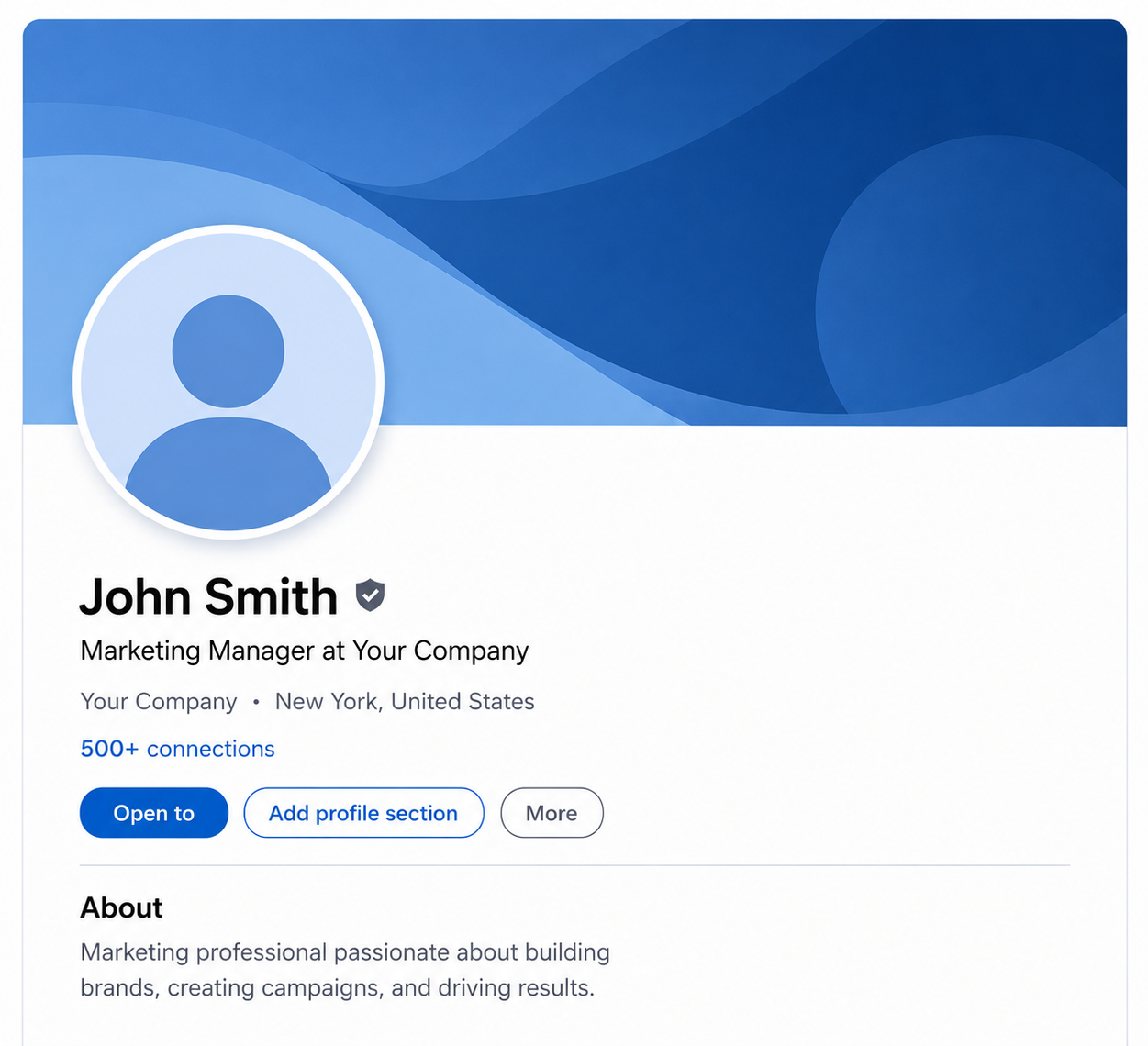
Your profile picture is one of the first things people notice when they visit your LinkedIn profile.
I you’re going to create a strong first impression and have your profile look more trustworthy, you’re going to ensure you have a clear, professional photo as your profile picture.
Recommended Size
LinkedIn recommends uploading a square image with the following dimensions:
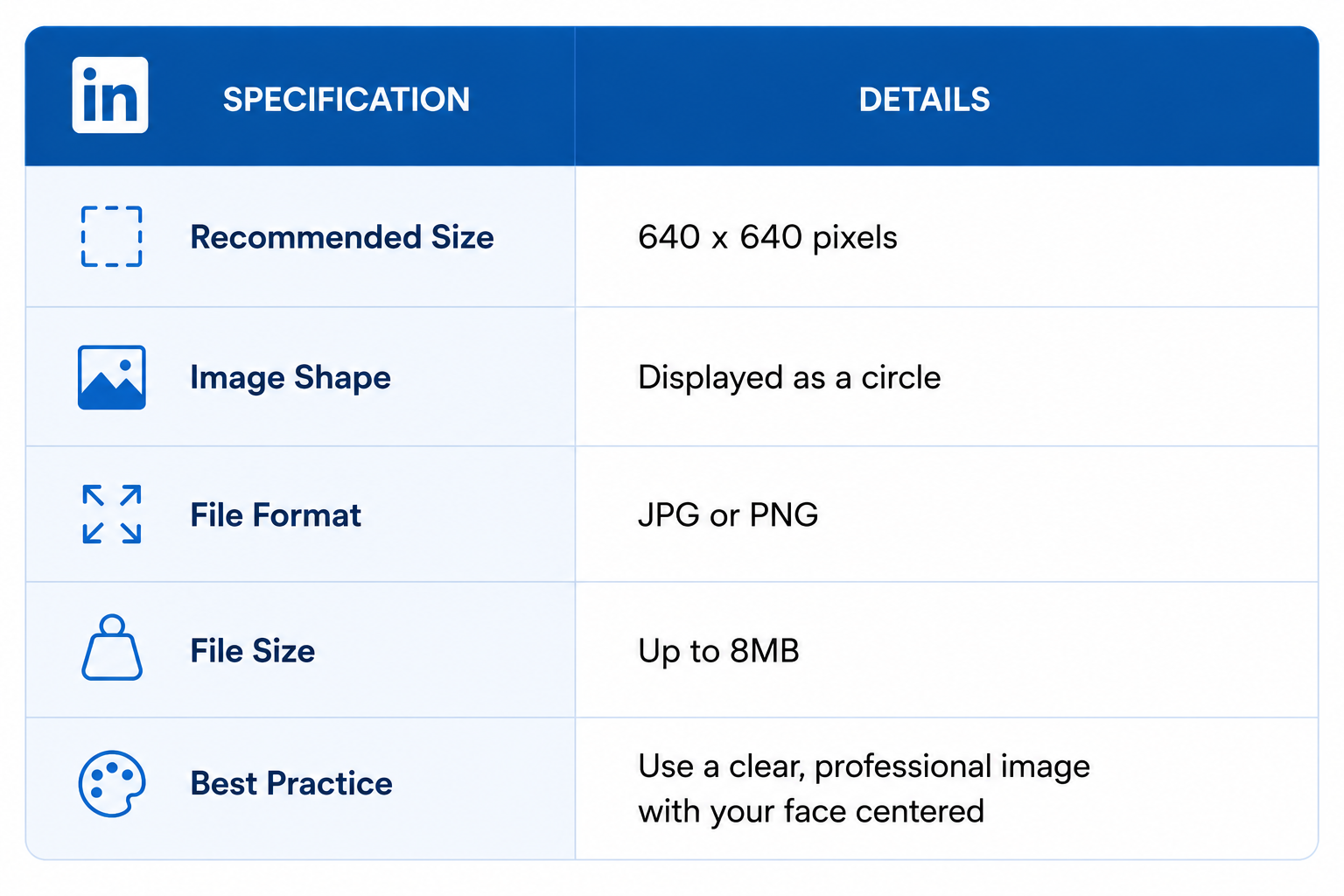
- Recommended size: 640 × 640 pixels
- Minimum size: 400 × 400 pixels
- Maximum size: 7,680 × 4,320 pixels
- Aspect ratio: 1:1 (Square)
Although the image is uploaded as a square, LinkedIn displays it as a circle. Keep your face or logo centered so nothing important gets cropped.
File Size and Formats
Your profile photo should meet these file requirements:
- Maximum file size: 8 MB
- Supported formats: JPG, JPEG, PNG
Tips for the Best LinkedIn Profile Photo
A few small changes can make your profile picture look much more professional.
- Use a high-resolution image.
- Keep your face centered in the frame.
- Leave some space around your head to account for the circular crop.
- Choose a clean, uncluttered background.
- Use good lighting so your face is easy to see.
- Avoid blurry, heavily filtered, or pixelated photos.
If you’re uploading a company logo instead of a personal photo, use a high-quality square version with enough padding around the edges. This helps prevent important parts of the logo from being cut off inside LinkedIn’s circular display.
LinkedIn Cover Photo Specifications
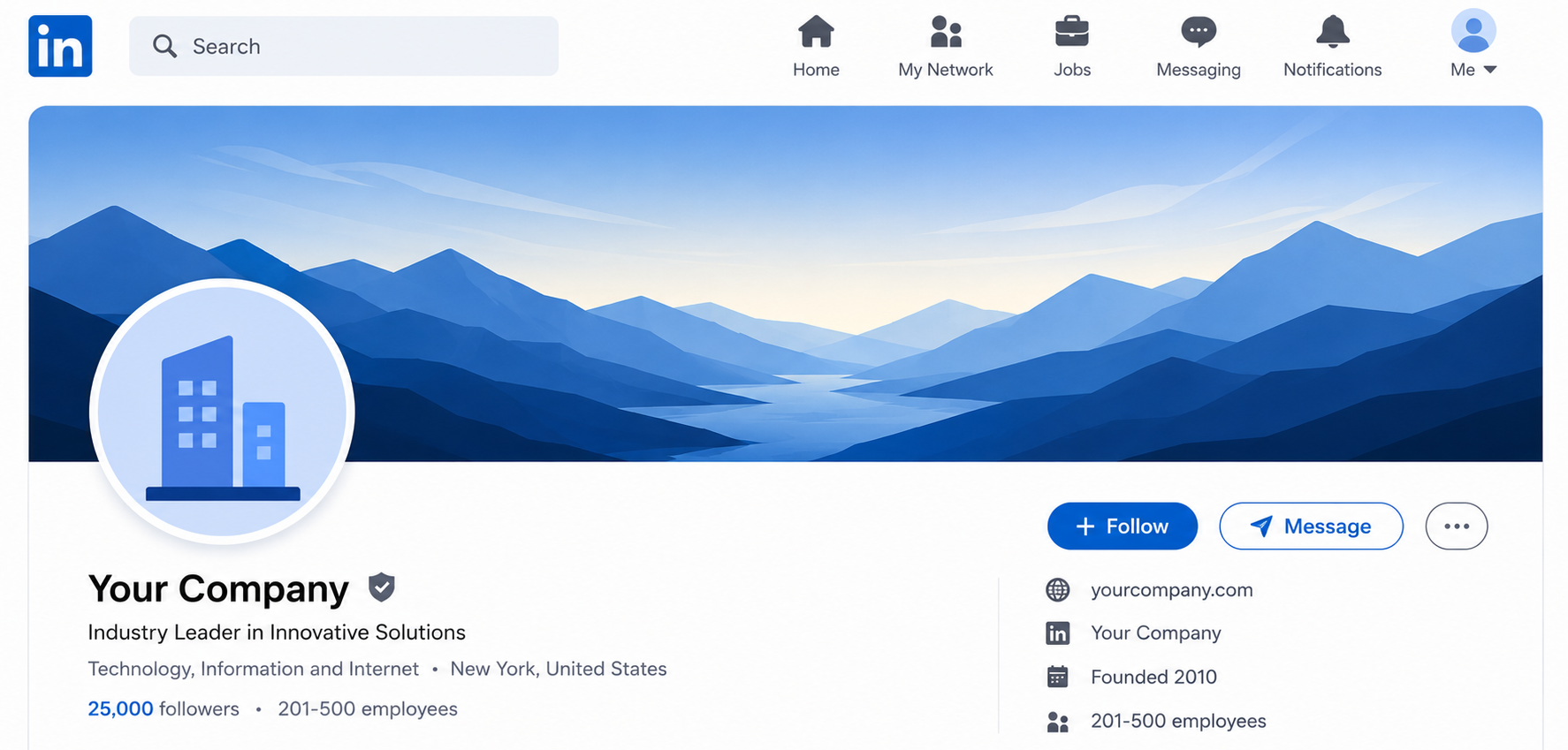
Your LinkedIn cover photo sits at the top of your profile and is one of the largest visual elements on the page. It’s a great place to showcase your personal brand, highlight your business, or reinforce what you do.
Unlike your profile picture, the cover photo is displayed as a wide banner, so choosing the correct dimensions helps prevent unwanted cropping.
Personal Profile Cover Photo
For individual LinkedIn profiles, use the following specifications:
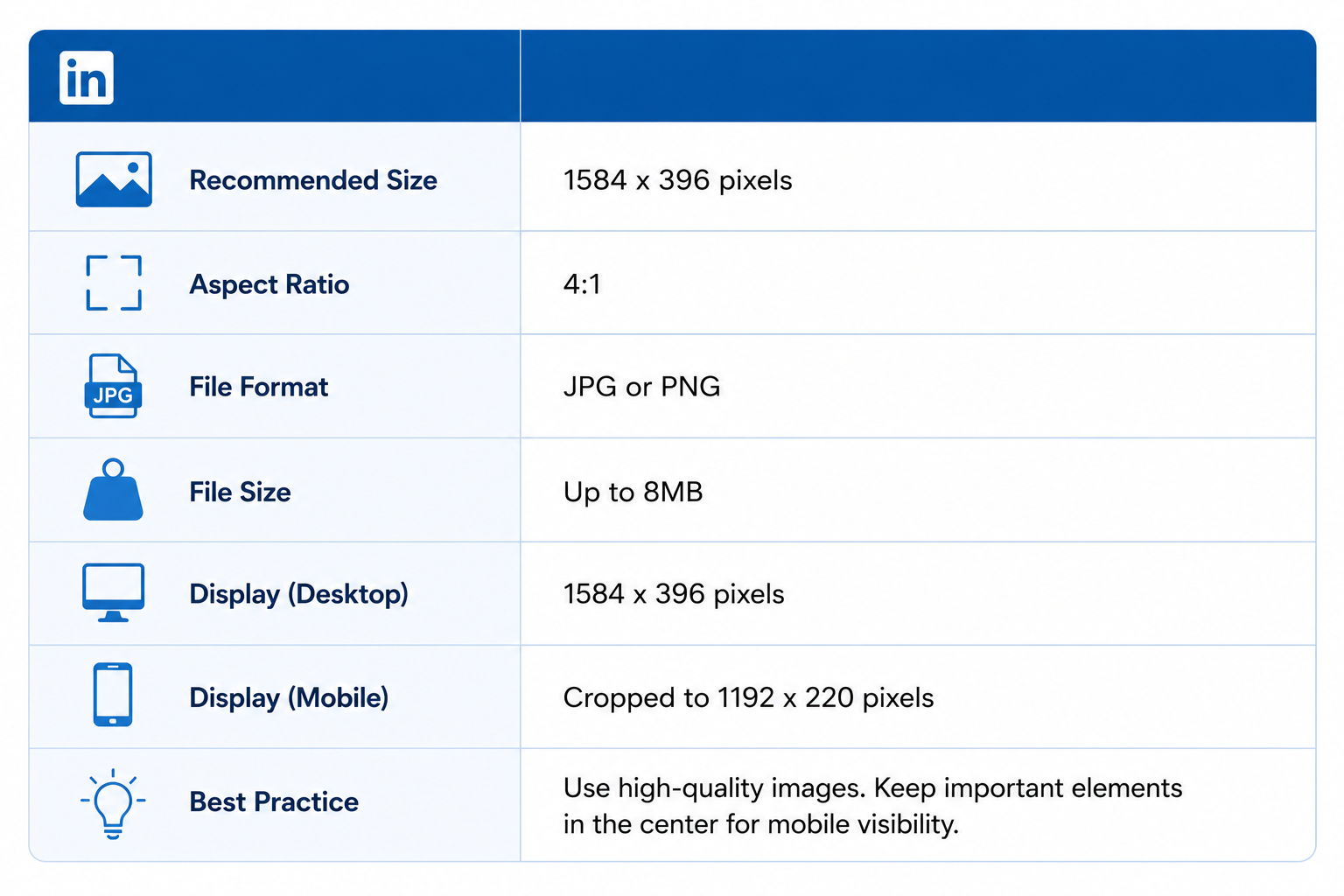
- Recommended size: 1584 × 396 pixels
- Aspect ratio: 4:1
- Maximum file size: 8 MB
- Supported formats: JPG, JPEG, PNG
One thing to note is that your profile picture overlaps the bottom-left corner of the cover image. Avoid placing logos, text, or other important elements in that area.
Company Page Cover Photo
If you’re managing a LinkedIn Company Page, the recommended dimensions are slightly different.
- Recommended size: 1128 × 191 pixels
- Aspect ratio: Approximately 6:1
- Maximum file size: 8 MB
- Supported formats: JPG, JPEG, PNG
Because the banner is much shorter, simple designs usually work better than graphics packed with text.
Tips for a Better Cover Photo
To get the best results, try these best practices:
- Use a high-resolution image to keep it sharp.
- Leave space around important text and logos.
- Keep the design clean and uncluttered.
- Check how it looks on both desktop and mobile before finalizing it.
- Update your cover photo occasionally to reflect new campaigns, achievements, or branding.
LinkedIn Article Image Sizes
If you publish articles on LinkedIn, you need to know how to choose an image with the correct size. This will not only make your article look more polished but will also make it much easier to read.
There are three main image types you’ll work with: the feature image, the banner image, and images placed within the article itself.
Feature Image
The feature image appears at the top of your article and is often the first visual readers see.
Recommended specifications:
- Size: 1200 × 644 pixels
- Aspect ratio: Approximately 1.86:1
- Maximum file size: 8 MB
- Supported formats: JPG, JPEG, PNG
Choose a clear, high-quality image that reflects the topic of your article. Avoid placing important text near the edges, as slight cropping can occur on different devices.
Banner Image
A banner image can be used to introduce sections or reinforce your branding within the article.
Recommended specifications:
- Size: 600 × 322 pixels
- Aspect ratio: Approximately86:1
- Maximum file size: 8 MB
- Supported formats: JPG, JPEG, PNG
Inline Images
Inline images are there to help break up long sections of text and make your articles more engaging.
Recommended specifications:
- Maximum display width: 552 pixels
- Aspect ratio: Flexible
- Maximum file size: 8 MB
- Supported formats: JPG, JPEG, PNG
Best Practices for Article Images
To get the best results from your LinkedIn articles:
- Use high-resolution images throughout.
- Keep a consistent visual style from beginning to end.
- Compress large files without noticeably reducing quality.
- Add descriptive alt text where possible to improve accessibility.
- Preview your article before publishing to make sure every image displays correctly.
LinkedIn Company Page Image Sizes
Your LinkedIn Company Page is often the first place potential customers, partners, and job seekers learn about your business. You don’t want to ignore that part, or else your brand will struggle with looking professional and trustworthy.
Here are the main image specifications you’ll need.
Company Logo
Your company logo appears throughout LinkedIn, including your Company Page, posts, comments, and search results.
Recommended specifications:
- Size: 300 × 300 pixels
- Aspect ratio: 1:1 (Square)
- Maximum file size: 8 MB
- Supported formats: JPG, JPEG, PNG
Use a high-resolution version of your logo with enough spacing around the edges so it remains clear even at smaller sizes.
Company Cover Photo
The cover photo appears at the top of your Company Page and is a great place to showcase your brand, products, or services.
Recommended specifications:
- Size: 1128 × 191 pixels
- Aspect ratio: Approximately 6:1
- Maximum file size: 8 MB
- Supported formats: JPG, JPEG, PNG
Because the banner is relatively short, keep the design simple and avoid placing important text too close to the edges.
Life Tab Hero Image
If your Company Page uses LinkedIn’s Life tab to showcase company culture and careers, you’ll also need a hero image.
Recommended specifications:
- Size: 1128 × 376 pixels
- Aspect ratio: 3:1
- Maximum file size: 8 MB
- Supported formats: JPG, JPEG, PNG
Best Practices for Company Page Images
To make your Company Page look its best:
- Upload high-resolution images.
- Keep your branding consistent across all visuals.
- Use simple designs with readable text.
- Preview your page on both desktop and mobile.
- Update your cover images when running campaigns, launching products, or refreshing your brand.
Best Practices for LinkedIn Images

Using the correct dimensions is a great start, but there’s more to creating images that perform well on LinkedIn. Let’s take a quick look at some simple best practices that can help your visuals look more professional and attract more attention in the feed.
Use High-Quality Images
Always upload sharp, high-resolution images. Blurry or pixelated visuals can make even the best content look unprofessional.
Stick to the Recommended Sizes
Using LinkedIn’s recommended dimensions reduces the chances of your images being cropped, stretched, or displayed incorrectly on different devices.
Keep Important Elements Away from the Edges
Leave some padding around text, logos, and other important design elements. This helps prevent them from being cut off by LinkedIn’s interface or different screen sizes.
Optimize for Mobile
Many people browse LinkedIn on their phones. Before publishing, check that your images are easy to view on smaller screens and that any text remains readable.
Use Consistent Branding
If you’re posting regularly, use consistent colors, fonts, and design styles. A recognizable visual identity helps people identify your content more easily.
Don’t Overload Images with Text
A clean design is usually more effective than one packed with information. Use short headlines and let the accompanying post provide the extra context.
Compress Large Files
Large image files can take longer to upload without providing any noticeable improvement in quality. Compress images when necessary while keeping them clear and sharp.
Add Alt Text
Whenever possible, include descriptive alt text for your images. It improves accessibility for people using screen readers and helps ensure everyone can understand the content you’re sharing.
Preview Before Publishing
Take a final look at your post before clicking Publish. A quick preview can help you spot cropping issues, alignment problems, or text that’s difficult to read.
Schedule Perfectly Sized LinkedIn Images with OnlySocial
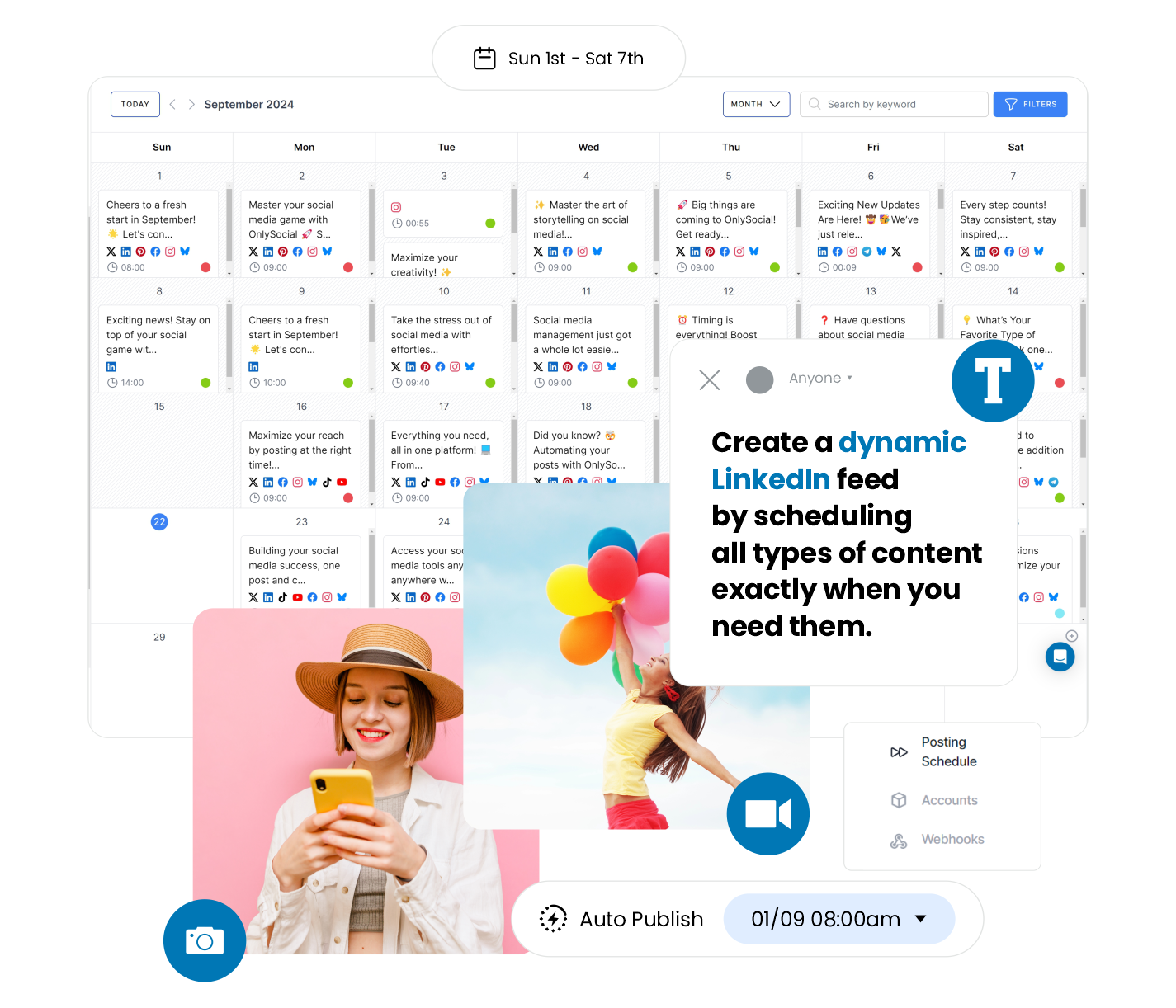
Creating the right-sized LinkedIn images is only half the job. Publishing them consistently is what helps you grow your audience and keep your profile active.
With OnlySocial, you can plan, schedule, and publish your LinkedIn posts from one place, alongside your other social media accounts.
Once your images are ready, simply upload them, write your caption, and choose when you want the post to go live. You can schedule a single post or plan weeks of content in advance using the visual content calendar.
OnlySocial also makes it easy to:
- Schedule LinkedIn posts alongside Facebook, Instagram, X, Bluesky, Threads, Pinterest, TikTok, and other platforms.
- Bulk schedule hundreds of posts at once to save time.
- Preview your posts before publishing.
- Collaborate with teammates using approval workflows and shared workspaces.
- Track post performance with built-in analytics to see what resonates with your audience.
Using the correct LinkedIn image sizes together with a consistent posting schedule helps your content look professional and keeps your brand visible. With OnlySocial, you can manage both without switching between multiple tools.
Final Thoughts
Using the right LinkedIn image sizes might seem like a small detail, but it can make a noticeable difference in how your content looks and performs. Sharp, properly sized images create a more professional impression, reduce unwanted cropping, and help your posts stand out in a busy feed.
With the dimensions and specifications in this guide, you’ll be able to create images that look great across LinkedIn. Pair that with a consistent posting schedule using OnlySocial, and you’ll have everything you need to maintain a polished LinkedIn presence.
Frequently Asked Questions
What is the best image size for a LinkedIn post?
The recommended size for a standard LinkedIn post is 1200 × 627 pixels with a 1.91:1 aspect ratio. For square posts, 1200 × 1200 pixels is recommended.
What size should a LinkedIn profile picture be?
LinkedIn recommends a profile picture that’s 640 × 640 pixels. The image is uploaded as a square but displayed as a circle, so keep important parts of the photo centered.
What is the recommended LinkedIn cover photo size?
For a personal profile, the recommended cover photo size is 1584 × 396 pixels. For a Company Page, the recommended size is 1128 × 191 pixels.
What image formats does LinkedIn support?
LinkedIn supports JPG, JPEG, and PNG image formats. PNG is generally better for graphics and images with text, while JPG is ideal for photographs.
What is the maximum image file size on LinkedIn?
LinkedIn allows image uploads of up to 8 MB. Keeping your files below this limit helps ensure smooth uploads while maintaining good image quality.
Can I upload multiple images in one LinkedIn post?
Yes. LinkedIn allows you to upload up to 20 images in a single post, making it easy to create carousel-style posts or share multiple photos at once.
Why do my LinkedIn images look blurry?
Blurry images are usually caused by uploading low-resolution files or images with incorrect dimensions. Using the recommended sizes and exporting high-quality images helps preserve clarity after uploading.
How can I schedule LinkedIn posts with images?
You can use a social media management tool like OnlySocial to upload your images, write your captions, and schedule LinkedIn posts in advance. This makes it easier to maintain a consistent posting schedule without having to publish everything manually.