LinkedIn Page Comments 2025: Engage, Moderate & Optimize Responses
LinkedIn looks a lot different in 2025. Posts move faster, comment sections get busier, and your audience expects real interaction, not generic replies pasted from a clipboard.
A single post can pull in dozens of questions. It can generate plenty of opinions and hot takes. And if you’re running a brand page, you can multiply that by ten.
The tricky part isn’t getting comments. It’s keeping up with them.
Reply too slowly and the conversation dies. Miss a comment and it reflects badly on your brand. Respond poorly and you risk turning a simple misunderstanding into a public problem.
This guide breaks down how to handle LinkedIn comments with confidence. It will show you how to engage, moderate, and run your page’s comment section like someone who’s genuinely in control.
And yes, you’ll also see how tools like OnlySocial make the whole process smoother.
Table of Contents
- 1 Why LinkedIn Page Comments Matter More Than Ever in 2025
- 2 Common Challenges with Managing LinkedIn Comments
- 3 Managing LinkedIn Page Comments with OnlySocial
- 3.1 Centralize All LinkedIn Comments in One Inbox
- 3.2 Tag, Filter & Prioritize Conversations Without the Chaos
- 3.3 Use AI Assistance to Craft Clear, On-Brand Replies
- 3.4 Use Saved Replies and Smart Templates for Faster, Consistent Responses
- 3.5 Assign Comments to Team Members with Zero Confusion
- 3.6 Automate Routine Engagement Without Losing the Human Touch
- 3.7 Trigger Smart Replies Based on Keywords
- 3.8 Hide or Delete Harmful Comments Without Delay
- 4 Optimizing Your LinkedIn Comment Responses for Growth
- 5 Best Practices for Managing LinkedIn Page Comments in 2025
- 5.0.1 1. Reply Quickly, Even if the Answer Is Short
- 5.0.2 2. Keep Your Tone Warm, Clear, and Human
- 5.0.3 3. Stay Calm and Professional When Comments Get Negative
- 5.0.4 4. Use Internal Notes or Tags to Keep Your Team Aligned
- 5.0.5 5. Don’t Be Afraid to Move Valuable Threads into DMs
- 5.0.6 6. Highlight Great Comments to Encourage More Engagement
- 6 Never Miss a LinkedIn Comment Again
- 7 FAQs
Why LinkedIn Page Comments Matter More Than Ever in 2025
Gone are the days when LinkedIn was just a place people went to post updates. The platform has now become a full conversation hub.
And in 2025, the comment section is where most of the real action happens. It’s where people challenge ideas, ask follow-up questions, share their experiences, and decide whether they trust your brand enough to stick around.
If you’re serious about visibility, community, or lead generation, your comments matter more than your posts.
LinkedIn’s algorithm now pays extra attention to comment activity. When your page replies quickly or sparks longer conversations, the platform pushes your content to more feeds. That means more impressions, more profile visits, and more people discovering what you do.
A quiet comment section, on the other hand? LinkedIn treats that as a sign your content isn’t worth amplifying.
Comments also act as live social proof. Every time someone asks a question, leaves praise, or tags a colleague, they’re publicly validating your brand. How you respond goes a long way to determine your reputation.
A thoughtful reply builds trust. A dismissive one, or none at all, leaves a mark.
And beyond reach and reputation, comments are an untapped goldmine of insights. They show you what people care about, what they’re confused by, and where your offering can improve. The more active your comment section is, the more free feedback you get.
So, while posts help you grab attention, comments are what help you build authority. If you treat your comment section like an extension of your brand voice, you’ll see the difference in both engagement and business outcomes.
Common Challenges with Managing LinkedIn Comments
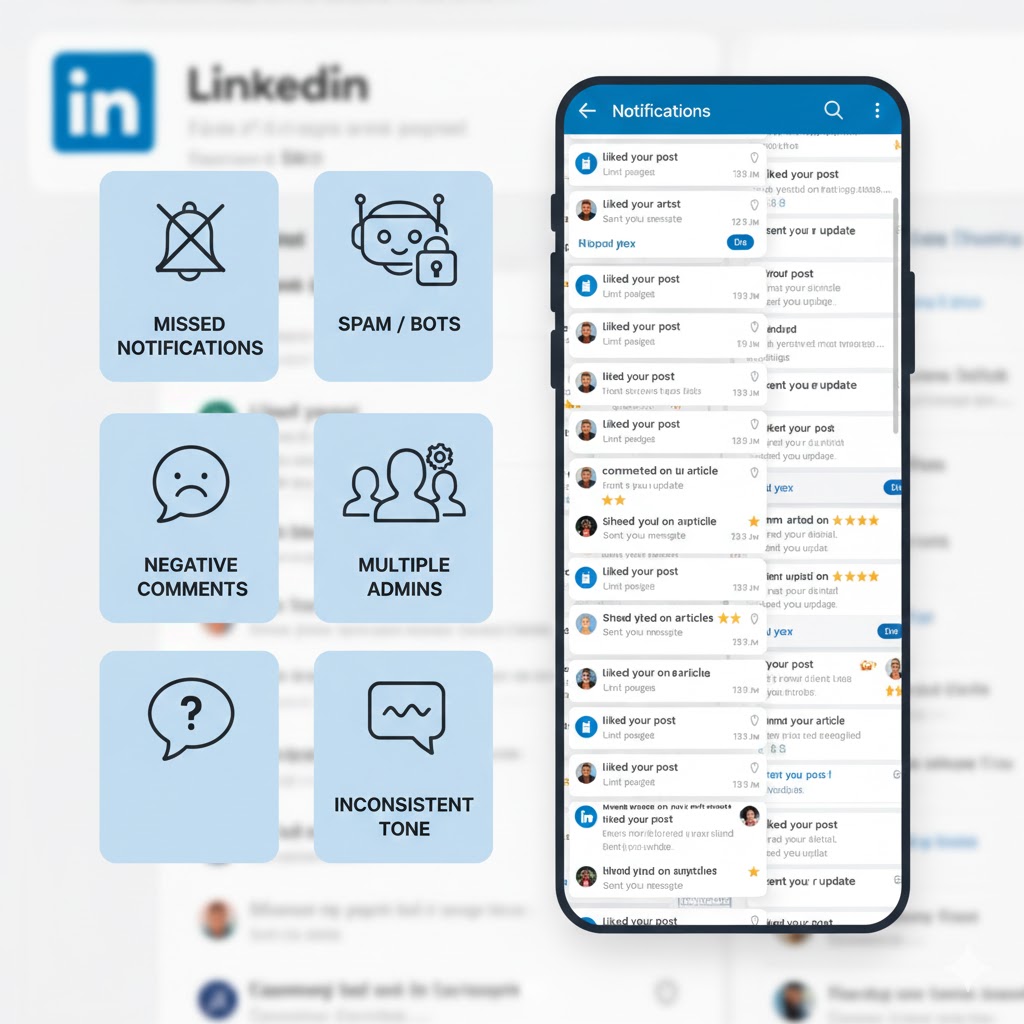
Handling LinkedIn comments sounds simple until your page starts gaining traction. Then reality kicks in. Comments pile up, notifications get messy, and suddenly you’re trying to maintain a professional tone while digging through dozens of replies you didn’t even know were there.
Here is a quick look at some challenges most teams quietly deal with every day:
It’s easy to miss important comments
LinkedIn’s notification system isn’t perfect. Some alerts show up hours late, some get swallowed by the feed, and others get buried under likes or mentions. When you’re juggling multiple posts – or multiple admins – it’s surprisingly easy for valuable comments to fall through the cracks.
Spam and bots slip into the comment section
Every busy LinkedIn page deals with spammy promotions, irrelevant links, or the occasional bot account dropping nonsense. Cleaning these up manually can quickly become draining, especially when you’re posting regularly or running ads.
Multiple admins = inconsistent replies
When different people respond to comments, the tone can fluctuate. One reply is friendly and short; another reads like a formal email; a third accidentally sounds defensive. Without a unified approach, your brand voice quickly becomes scattered.
It’s hard to sort comments by priority
LinkedIn gives you a single stream of notifications. It doesn’t tell you which comment is a lead, which is a complaint, which is a question, and which one you can ignore. That means valuable comments end up swimming in the same pool as low-priority ones.
Tracking recurring questions becomes a chore
People often ask the same things – pricing, availability, job applications, and partnership inquiries. Replying manually each time wastes hours, and checking past threads to stay consistent is even more difficult.
LinkedIn’s native tools aren’t built for scale
LinkedIn is great for conversation, but its built-in comment management tools are basic. No filters, no tags, no assignments, no internal notes. Once your page becomes active, manual management simply can’t keep up.
These challenges don’t mean LinkedIn is hard. It just means the platform wasn’t designed for brands handling hundreds of comments or working with multi-person teams. That’s why having a smarter, more organized workflow becomes essential as your page grows.
Managing LinkedIn Page Comments with OnlySocial
Keeping up with LinkedIn comments becomes far easier when everything lives in one clean, organized space – not scattered across notifications, tabs, and team members’ devices.
That’s where OnlySocial steps in. Instead of treating comment management like a daily scramble, the platform turns it into a smooth, predictable workflow your whole team can rely on.
OnlySocial brings all your LinkedIn Page comments into a single inbox, updates conversations in real time, and lets you respond, organize, and collaborate without leaving your dashboard.
Whether your page gets 20 comments a week or 2,000, the experience stays consistent, clear, and stress-free.
Below are the core ways OnlySocial helps you manage LinkedIn comments like someone who genuinely has everything under control.
Centralize All LinkedIn Comments in One Inbox
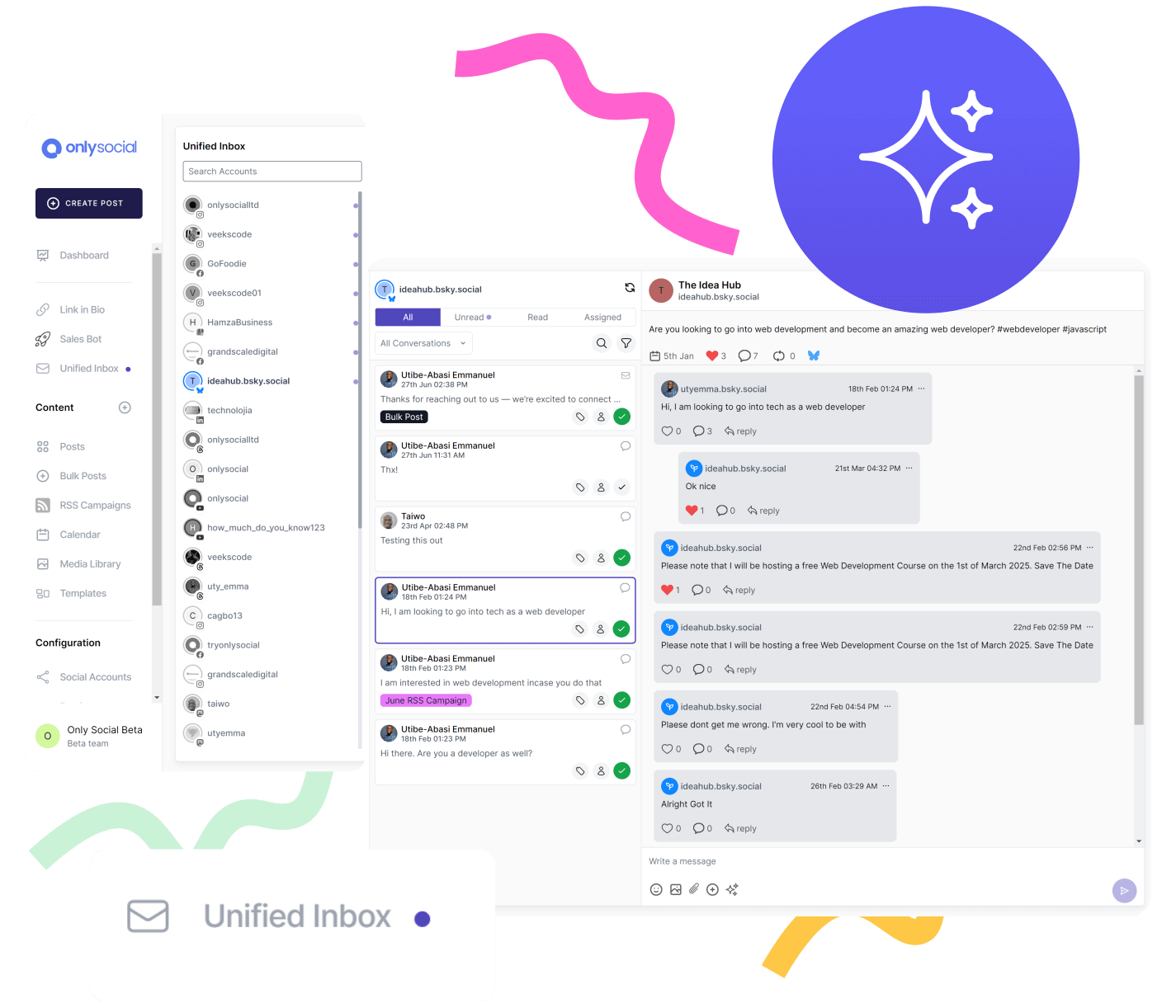
The biggest time-waster on LinkedIn is jumping from post to post trying to find new comments. OnlySocial eliminates that entirely. Every comment from every LinkedIn Page you manage lands in one unified inbox – clean, chronological, and impossible to miss.
You don’t have to worry about late notifications or forgotten threads. New comments appear instantly, and you can reply right from the dashboard. No tab-hopping, no scrolling through old posts, no guessing which comment came first. Everything is there, ready to handle.
Tag, Filter & Prioritize Conversations Without the Chaos
LinkedIn doesn’t let you sort comments by urgency or type, which is why most brands find themselves drowning in notifications. OnlySocial fixes that by giving you full control over how you organize your inbox.
You can tag comments with labels like Lead, Complaint, FAQ, Media Request, or anything else your team needs. Then filter your inbox by those tags, so the most important comments rise to the top.
It’s a simple way to make sure you never miss a high-value conversation again, no matter how busy your page gets.

Use AI Assistance to Craft Clear, On-Brand Replies
Some comments need more than a quick template. Maybe the wording is sensitive, the tone needs care, or the question is phrased awkwardly. OnlySocial’s AI assistant helps you craft polished replies that sound natural and stay on-brand, without sounding robotic.
You can rewrite, shorten, or expand replies with a single click. The AI keeps your tone friendly and professional, while giving you a head start when your inbox is busy, or you’re dealing with tricky comments.
This is not about removing the human touch, but about speeding up your workflow without losing it.
Use Saved Replies and Smart Templates for Faster, Consistent Responses
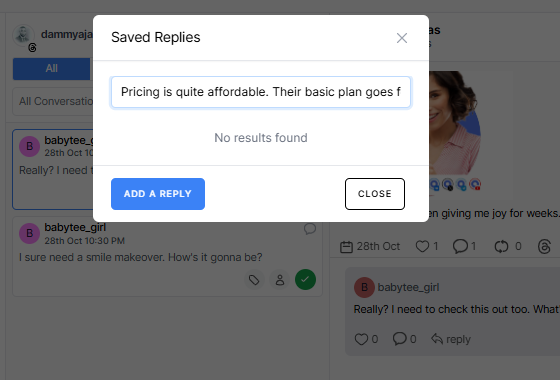
If you manage a LinkedIn Page long enough, you’ll notice the same questions come up again and again. “Are you hiring?” “How do I sign up?” “What’s your pricing?” Manually typing the same answer dozens of times becomes repetitive and slow.
OnlySocial helps you reclaim that time with saved replies and smart templates. You can store your most-used responses and pull them up instantly whenever they’re needed. And because they’re saved in your Workspace, every team member uses the same tone, same messaging, and same level of professionalism.
It keeps your brand voice consistent and saves hours of unnecessary typing each week.
Assign Comments to Team Members with Zero Confusion
When multiple people manage a LinkedIn Page, it’s easy for replies to overlap – or worse, for nobody to reply at all because everyone assumes someone else handled it. OnlySocial fixes this by letting you assign any comment to a specific team member with one click.
Each assigned comment shows exactly who is handling it, so your team stays aligned, and no comment slips through the cracks.
This is especially helpful for posts that attract questions related to sales, HR, PR, or technical support. Instead of guessing who should jump in, you route each comment to the right person instantly.
It keeps replies accurate, consistent, and on brand, without endless back-and-forth messages behind the scenes.

Automate Routine Engagement Without Losing the Human Touch
Some comments don’t need a custom reply – they just need a quick acknowledgement. Things like “Thanks!”, “Love this!”, or simple tag notifications can pile up and eat into your day. OnlySocial lets you automate basic engagement so your page stays responsive even when you’re busy.
You can set up simple rules that trigger automatic responses based on specific actions or keywords. This keeps your comment section active and welcoming without requiring constant manual effort. Automation handles the repetitive stuff. You handle the meaningful conversations.
Trigger Smart Replies Based on Keywords
Certain comments show clear intent: someone asks about pricing, features, job openings, demos, store location, or availability. Instead of scrambling for the right answer every time, OnlySocial lets you set keyword-based triggers.
A comment containing terms like “price,” “cost,” “fee,” or “quote” can automatically surface the perfect response template or trigger a reply you’ve already written.
If someone asks about careers, the system can instantly point them to your jobs page.
These triggers help you move faster, keep information accurate, and reduce the chances of a delayed reply. It’s a small feature that makes a big difference when your page receives repetitive questions day after day.
Hide or Delete Harmful Comments Without Delay
Every LinkedIn Page attracts the occasional problem comment, including spam, self-promotion, irrelevant links, or someone trying to pick a fight. Leaving these comments visible for hours can hurt your brand image, especially on posts with high visibility.
OnlySocial lets you hide or delete harmful comments instantly from your unified inbox. You don’t have to search for the post or scroll through long threads.
Just click, moderate, and move on.
It keeps your comment section clean, professional, and welcoming, without wasting time or creating awkward public moments.

Optimizing Your LinkedIn Comment Responses for Growth
Managing comments is the first step. But knowing how to respond – and using those responses to boost reach, spark conversations, and strengthen your brand – is where the real impact happens.
LinkedIn rewards pages that keep discussions alive, add value, and encourage more interaction. So instead of treating comments as something to “get through,” this section helps you use them as a growth tool.
Here’s how to turn every reply into something that pushes your brand forward.
Write Replies That Add Value – Not Just Fill Space
A short “Thanks!” might feel polite, but it doesn’t move the conversation anywhere.
Instead, add a little more context or personality. If someone shares an insight, ask a follow-up question. If they disagree respectfully, acknowledge their point. If they’re confused, clarify the idea.
When your replies invite more discussion, the post stays active longer, and LinkedIn boosts it to new audiences. Small touches like expanding on an idea or sharing a quick example can turn a one-off comment into a proper conversation.
The goal isn’t to impress anyone. It’s to make each reply feel like a genuine interaction instead of a checkbox task.
Use Comment Threads to Build Community Around Your Page
Communities aren’t built through the posts you publish. They’re built in the threads beneath them. Replying to commenters by name, referencing their ideas, and showing you’re listening helps people feel part of something rather than talking into a void.
When people feel welcome, they come back. They comment more often. They tag colleagues. They remember your brand.
The more your page behaves like a real person behind the screen, the more naturally your comment section becomes a community instead of a list of replies.
Use Comments as Warm Lead Opportunities (Without Being Pushy)
Some comments signal interest, even if the person doesn’t ask directly. Maybe they mention a challenge your product solves, or they ask a broad question that hints at a pain point.
Instead of jumping straight into a pitch, use your reply to guide them gently:
- point them to a helpful resource
- expand on what they’re asking
- ask a follow-up question
- share a short insight they can use
If they reply, then you can move the conversation to DMs or pass it to the right team member. Good comment management isn’t aggressive selling. It’s recognizing opportunities and responding in a way that feels natural.
Best Practices for Managing LinkedIn Page Comments in 2025
Keeping a LinkedIn Page active is one thing. Keeping the comment section healthy, organized, and genuinely engaging is another. So, before we round up this post, let’s talk about some best practices that can help you stay consistent, protect your brand reputation, and build stronger relationships with your audience, even as your page grows.
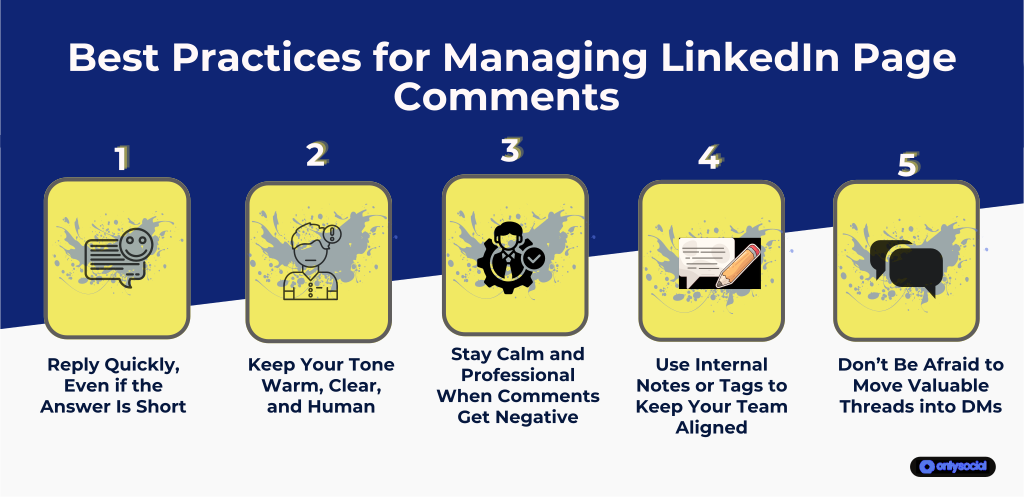
1. Reply Quickly, Even if the Answer Is Short
You don’t need to write an essay. A quick, thoughtful reply goes a long way. The faster you respond, the more LinkedIn pushes your post back into people’s feeds.
Fast responses also show followers you’re present, paying attention, and open to conversation, which encourages more comments over time. Consistency matters more than perfection here.
2. Keep Your Tone Warm, Clear, and Human
LinkedIn is a professional space, but that doesn’t mean your replies should sound robotic. A friendly, natural tone helps your brand feel approachable.
Use the commenter’s name when appropriate, acknowledge their perspective, and keep your language simple. People are far more likely to engage with a reply that feels like it came from a real person, not a template.
3. Stay Calm and Professional When Comments Get Negative
Negative comments are unavoidable, but they don’t have to turn into arguments. Respond with clarity, not emotion. If the person has a genuine concern, address it honestly or direct them to the right contact.
If it’s unfair criticism or trolling, stay polite and avoid back-and-forth. A measured response shows confidence, and it reassures everyone else reading the thread.
4. Use Internal Notes or Tags to Keep Your Team Aligned
When several people help manage your page, details get lost easily. Internal notes (or a tagging system if you’re using a tool like OnlySocial) help your team stay synced. Leave context, clarify next steps, or note previous interactions. This makes the whole process smoother and stops anyone from repeating answers or stepping on each other’s toes.
5. Don’t Be Afraid to Move Valuable Threads into DMs
Some conversations naturally evolve into something deeper – partnership discussions, sales interest, support questions, or sensitive clarifications. When that happens, shift the conversation to DMs.
It keeps the thread clean, avoids sharing private details publicly, and lets you handle the conversation with more focus. A simple “Let’s take this to DM so we can help you properly” works perfectly.
6. Highlight Great Comments to Encourage More Engagement
Every now and then, elevate a thoughtful comment by replying to it publicly, referencing it in another post, or tagging the commenter with appreciation. It signals that your page pays attention.
The more your audience feels seen, the more motivated they are to contribute. That ripple effect builds a healthier, more interactive community around your content.
Never Miss a LinkedIn Comment Again
A busy LinkedIn Page can easily feel overwhelming, especially when comments start coming in from multiple posts, campaigns, and boosted updates all at once.
Missing even one important comment can mean missing a lead, ignoring a customer, or leaving a thoughtful message unanswered – none of which looks great on a public platform.
The good news is that you don’t have to chase notifications anymore. With the right systems in place, keeping up with LinkedIn comments becomes calm, predictable, and almost effortless.
You can streamline your workflow by pulling every comment into one central place, adding tags to sort by priority, and assigning replies to the right team members. When everything is organized, nothing slips through the cracks – not the compliments, not the questions, not the high-value opportunities hiding in long threads.
Think of this as moving from reactive comment management to something intentional and controlled. Instead of constantly checking your notifications and hoping you didn’t miss anything, you operate with a setup that brings the comments to you.

FAQs
How do I manage comments on my LinkedIn Page more efficiently?
You can manage comments manually through LinkedIn, but the process becomes messy once your page grows. A better way is using a unified inbox tool like OnlySocial, which pulls every comment into one dashboard so you can reply, organize, and assign comments without jumping between posts or tabs.
Why are LinkedIn comments important for my page’s reach?
LinkedIn boosts posts with active conversations. When people comment, and when your page replies, the algorithm sees it as a signal that your content is worth showing to more people. Comments directly influence your reach and can bring fresh eyes to your brand.
How often should I reply to LinkedIn comments?
Daily is ideal, but it depends on your posting schedule. Fast replies help you stay visible in the feed and keep conversations alive. If your page gets a lot of comments, using tools that filter and prioritize them can help you stay consistent.
What’s the best way to handle negative or rude comments?
Stay calm, stay factual, and stay polite. Address genuine concerns with clarity and offer solutions. If the comment is abusive or spammy, hide it or remove it. How you respond publicly reflects your brand more than the comment itself.
Can I assign LinkedIn comments to different team members?
LinkedIn doesn’t offer this natively, but OnlySocial does. You can route comments to the right person, whether it’s sales, HR, support, or marketing, so the replies stay accurate and nothing gets duplicated.