How Agencies Can Use Shared Calendars to Improve Team Collaborations
Running an agency means keeping a lot of moving parts under control. Between client approvals, endless email threads, and last-minute content changes, it’s easy for things to slip through the cracks.
That’s why having the right tools is essential.
With Shared Calendar, OnlySocial takes away the headaches agencies face with client collaboration. No more chasing clients for feedback or scrambling to explain timelines. Instead, clients see exactly what’s planned, when it’s going live, and can approve posts with just a click.
It’s collaboration made simple. And for agencies looking to save time, reduce confusion, and build trust with their clients, it’s a feature worth paying attention to.
Table of Contents
- 1 How Shared Calendars Improve Client Relationships
- 2 How to Set Up a Shared Calendar with Your Clients
- 2.0.1 1. Go to Calendar from the main menu, then click on Shared Calendar
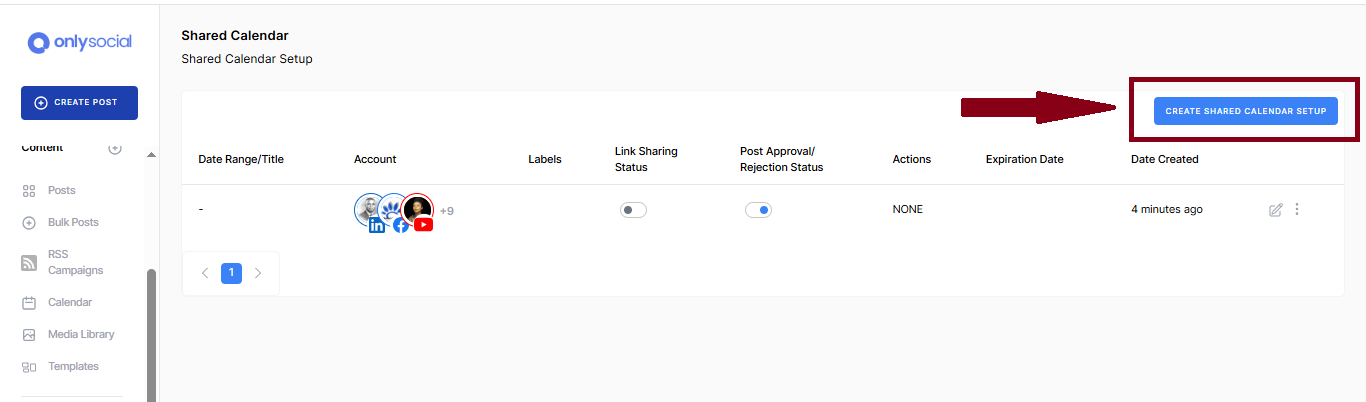
- 2.0.2 2. Click on the Create Shared Calendar button
- 2.0.3 3. Enter the Shared Calendar name
- 2.0.4 4. Set the start and end dates
- 2.0.5 5. Select the profiles to appear on the shared calendar
- 2.0.6 6. Set Post Approval
- 2.0.7 7. Set the Calendar Link Expiration
- 2.0.8 8. Click the Enable Link Sharing button to finish
- 3 Best Practices for Using Shared Calendars with Clients
- 4 OnlySocial Giving Agencies the Tools to Do More with Less
- 5 Final Thoughts
If you’ve managed social media for clients, you know the drill.
At some point, a client asks to “see everything before it goes live.” Or you’ve found yourself pulling together mock-ups in Word docs or clunky slides just to win over a new client.
It’s a lot of work, and honestly, it rarely shows what a post will really look like once it hits the feed.
That’s where a Shared Calendar changes the game. Instead of endless back-and-forth, your clients can open up the calendar, see exactly what’s planned, and approve posts with a single click.
No guessing. No pretending. Just the real deal, in a format that looks and feels natural.
1. Give your clients the final say
Here’s something I hear a lot: “Will another company really get our voice?” It’s a fair concern. With a shared calendar, clients don’t have to wonder. They can see every post before it goes out, approve what they love, and flag anything that doesn’t fit.
With this feature, nothing goes live until your client gives the green light. It’s a perfect feature for new clients who want extra peace of mind.
2. Boost productivity for your team
Let’s be honest – your inbox probably pinged three times while you’ve been reading this. Agencies live in email chaos, and chasing client feedback in endless threads is no one’s idea of fun.
Shared calendars help cut that noise down. Instead of sifting through messages, you and your client keep every content conversation in one place. You can assign posts for review, ask specific questions, and get feedback tied directly to each piece of content.
This means less email, fewer missed messages, and more time for the creative work that actually grows your clients’ social presence.
3. Build Transparency and Trust
Clients love to know what’s happening behind the scenes. A shared calendar gives them full visibility into what’s planned and when it will be posted. Instead of feeling “out of the loop,” they feel included in the process.
That kind of transparency builds confidence in your agency and makes clients more likely to stick with you long term.
4. Simplify Reporting and Check-Ins
Instead of preparing custom documents every time you have a catch-up call, the shared calendar itself becomes the update.
Want to show what went out last month? Or highlight what’s lined up for next week? It’s already there, laid out clearly for them to see. This means less time prepping for meetings and more time strategizing on how to make campaigns stronger.
5. Handle Multiple Clients with Ease
If you’re running campaigns for more than one client (and let’s face it, most agencies are), juggling separate workflows can be a nightmare.
Shared calendars let you manage each client’s schedule in its own space while keeping your internal team aligned. That way, no posts get mixed up, and every client feels like they have your full attention.
Getting started with OnlySocial’s Shared Calendar is quick and straightforward. In just a few steps, you can create a customized calendar, share it with your clients, and make collaboration smooth and transparent.
Here’s how to do it:
Head over to your dashboard and open the Calendar section. You’ll see an option for Shared Calendar –this is where the magic begins.
One click, and you’re on your way. This opens up the setup page where you’ll customize the calendar for your client.
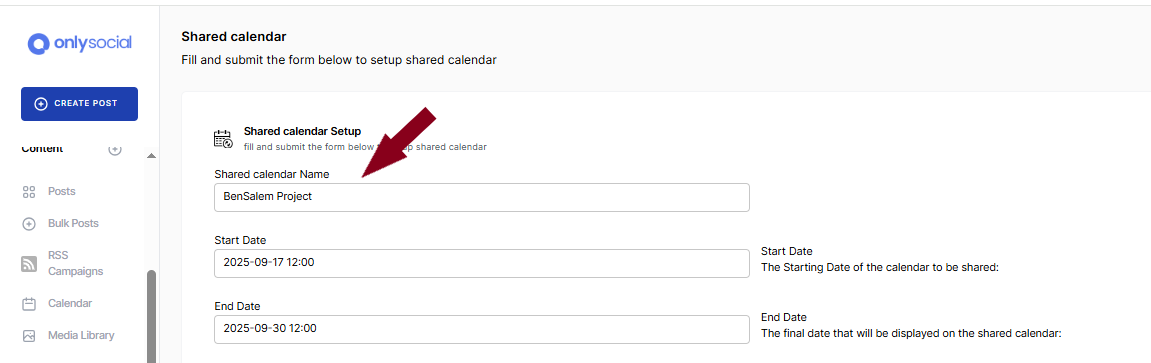
Give your calendar a name that makes sense for you and your client. This can be the client’s brand name or the specific campaign you’re running. It keeps things organized and easy to find later.
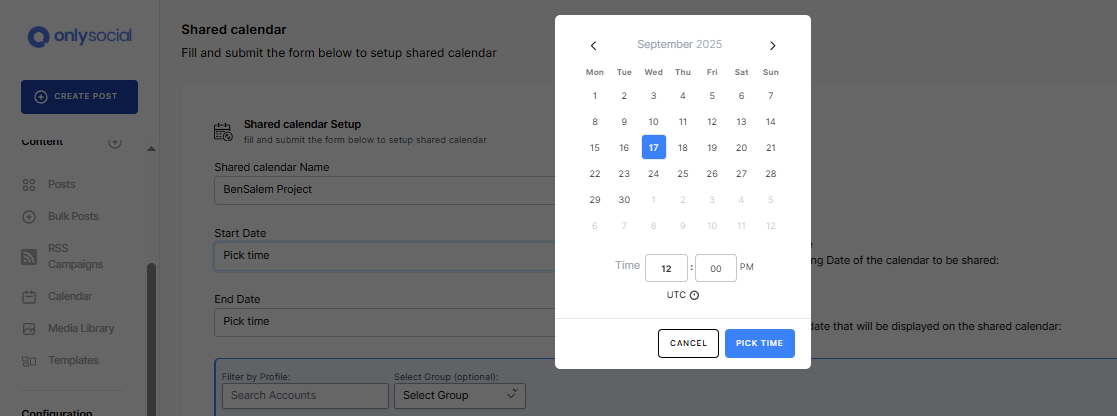
4. Set the start and end dates
- Start Date: Choose when you want the shared calendar to begin.
- End Date: Pick the last date you want to display.
This helps frame the calendar around your campaign timeline, so clients know exactly what period they’re looking at.
Working across multiple social channels? No problem. You can select one profile, multiple profiles, or even an entire group. This way, the client sees everything relevant in one place.
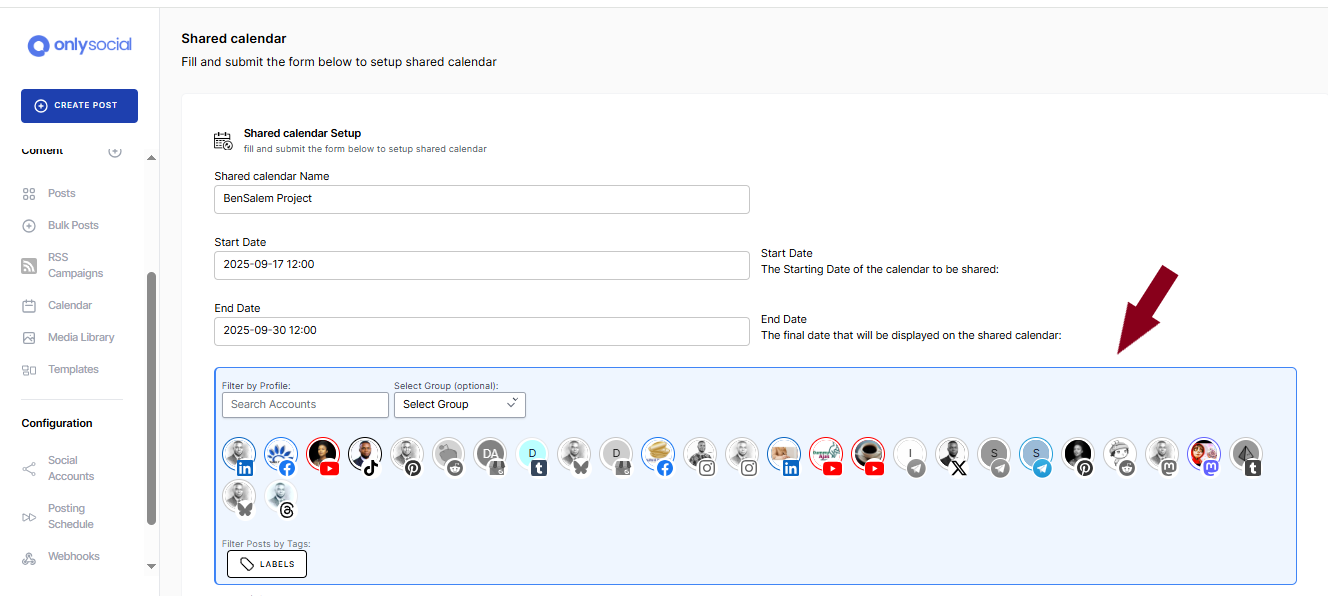
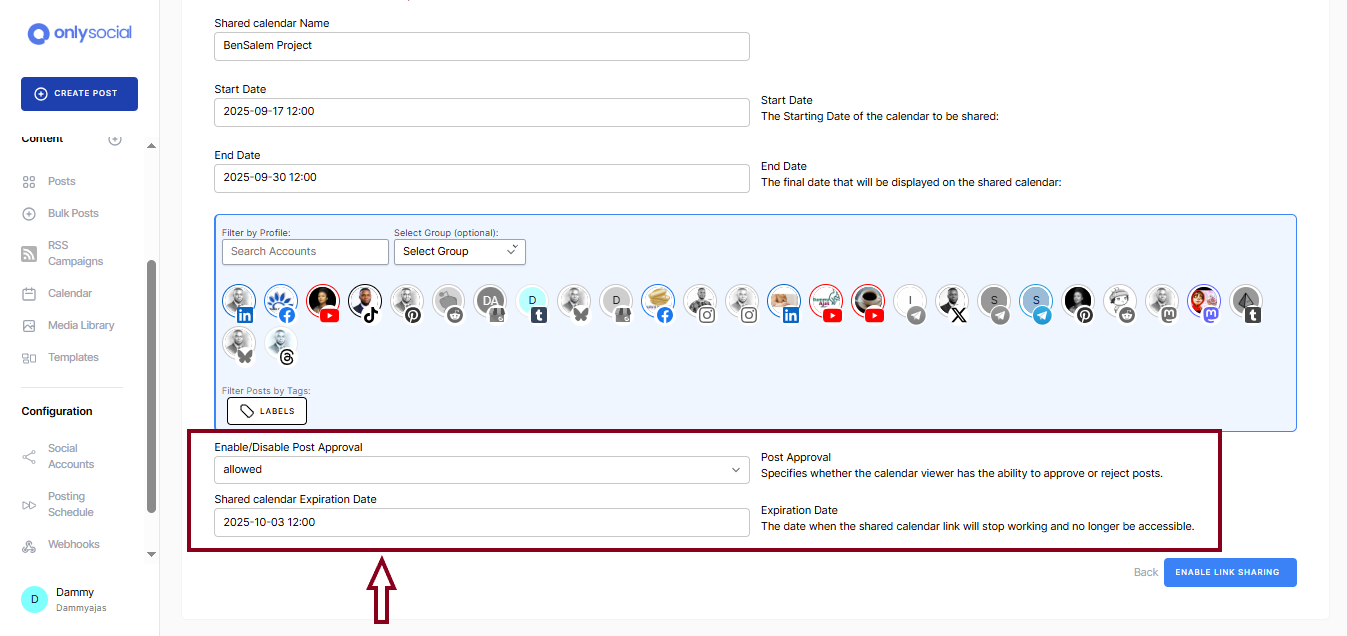
6. Set Post Approval
Decide if your client should have the power to approve or reject posts. This is a key feature – some agencies prefer to give clients full control, while others use it for quick “approve or change” feedback loops.
7. Set the Calendar Link Expiration
Choose when the calendar link should expire. Once it does, the client won’t be able to access it anymore.
Hit that button, and you’re done! You’ll be redirected back to the Shared Calendar list. From there, copy the calendar link and send it directly to your client.
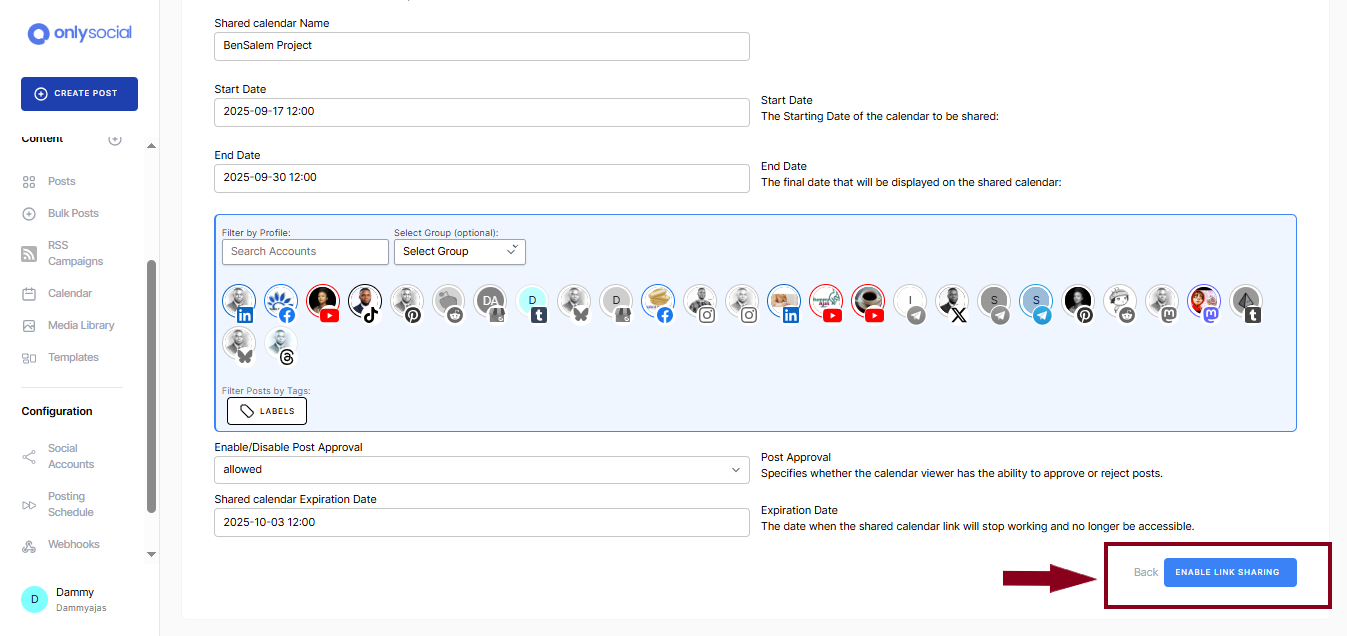
And that’s it – you’ve set up a Shared Calendar that keeps your agency and your client perfectly aligned without all the messy back-and-forth.
A shared calendar is a powerful tool, but how you use it makes all the difference. So, before you go, let’s take a quick look at a few simple practices that can help your agency get the most out of the feature:
- Set clear approval deadlines
Don’t just share the calendar and wait. Let clients know when you need their feedback by. This keeps campaigns moving smoothly and avoids last-minute rushes.
- Use notes to explain creative choices
Sometimes a post might need a little context. Adding quick notes in the calendar (like why a hashtag was chosen or what the image represents) can save clients from second-guessing and reduce unnecessary revisions.
- Group posts by campaign or theme
If you’re managing multiple campaigns at once, grouping posts in the calendar makes it easier for clients to see the bigger picture. It also helps them understand how each piece of content fits into the strategy.
- Keep communication inside the calendar
It’s tempting to switch back to email or chat, but keeping all content feedback in the shared calendar avoids confusion. Everyone knows where to look for answers.
- Review performance together
Once posts are approved and published, revisit the calendar during check-ins. Point out what worked, what didn’t, and how the next month’s calendar will improve. Clients love seeing that their input leads to results.
OnlySocial Giving Agencies the Tools to Do More with Less
Plenty of tools promise to make social media management easier. But OnlySocial offers many amazing features that are built specifically to make life easier for agencies, including the Shared Calendar.
With most platforms, you end up cobbling together spreadsheets, email chains, and third-party apps just to keep clients happy. That wastes time and leaves too much room for mistakes.
OnlySocial pulls it all into one place. Your team creates the content, schedules it, and shares a calendar link where clients can review and approve. Simple.
And it’s not just about the calendar. OnlySocial combines this feature with everything else agencies need: bulk scheduling, in-depth analytics, unified inbox, and the ability to group profiles by client or brand.
That means fewer tools to manage, lower costs, and smoother workflows.
For agencies, that’s a real edge. You save hours each week, keep clients engaged and confident in your work, and free up your team to focus on strategy instead of admin tasks. In short, you look more professional and deliver better results. You will agree that there is no better way to grow faster.
Final Thoughts
For agencies, collaboration can often feel like the hardest part of social media management. Shared Calendars take that pain away by giving clients a clear view of what’s coming, an easy way to give feedback, and the confidence that their brand voice is in good hands.
With OnlySocial, you don’t just get another tool – you get a smarter way to work with your clients. It simplifies approvals and boosts productivity, helping you cut through the noise and focus on what really matters.
If your agency is ready to spend less time chasing emails and more time building great campaigns, this feature is the upgrade you’ve been waiting for.