How to Handle Comments for Multiple YouTube Channels Like a Pro
Every successful person on YouTube would understand the challenges that come with management feedback on their videos.
For people with big accounts or managing multiple channels at the same time, it can be overwhelming switching between accounts and sorting through spam just to make sure they don’t miss any genuine conversation.
Luckily, managing YouTube comments doesn’t have to be complicated or draining. There are tools that can make the job easier for you. They allow you manage comments from all your channels efficiently and more effectively, whether you’re a content creator or an agency with high engagement.
Table of Contents
- 1 Why Pay Attention to YouTube Comments?
- 2 How to Manage Comments for Multiple YouTube Channels with OnlySocial
- 2.1 Centralize All Comments in One Inbox
- 2.2 Leave Internal Notes for Other Team Members
- 2.3 Assign Certain Comments to Specific Team Members
- 2.4 Use Multiple Filtering Options
- 2.5 Automate YouTube Comments with AI Precision
- 2.6 Auto-Reply to Common Questions with Saved Replies and Smart Templates
- 2.7 Add Labels or Tags for Quick Sorting
- 2.8 Trigger Replies Based on Keywords
- 2.9 Auto Hide or Delete Harmful or Irrelevant Comments
- 3 Best Practices for Managing Comments Across Multiple YouTube Channels
- 4 Never Miss Another YouTube Comment
- 5 FAQs
Why Pay Attention to YouTube Comments?
YouTube comments are more than just random noise. They’re your direct line to your audience. Every comment is a tiny piece of feedback that tells you what viewers love, what they don’t, and what they want to see next.
Ignoring that conversation means missing out on insights that can define your content and strengthen your connection with your community.
Engaging with comments also builds trust. When people see you (or your team) replying thoughtfully, they feel heard and valued. That kind of interaction can turn casual viewers into loyal subscribers, and loyal subscribers into brand advocates.
But that’s not all. YouTube’s algorithm also pays attention to engagement on your channels. The more conversations happening under your videos, the better your chances of ranking higher and reaching new audiences.
So, managing your comments isn’t just about being polite. It’s actually a smart way of improving visibility and building a channel that feels alive and approachable.
That’s why you need a smart YouTube management tool to help you do the job without wasting hours sifting through every single comment manually.
How to Manage Comments for Multiple YouTube Channels with OnlySocial
Speaking of tools, let’s show you how you can use OnlySocial to manage YouTube comments even when you are running multiple channels, and with high engagement.
Relying on YouTube’s built-in comment management tools may not do so well in this area, especially when you’re working with a team or dealing with high volumes of engagement.
But OnlySocial, with its Unified Inbox feature, allows you to manage all your YouTube comments in one simple, organized space. And with AI-powered moderation and auto-replies, it’s actually a much smarter and faster way to handle engagement on your channels.
Centralize All Comments in One Inbox
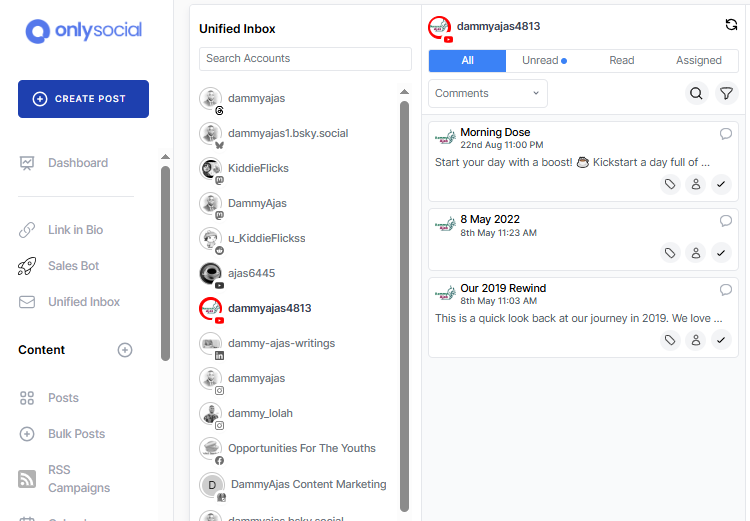
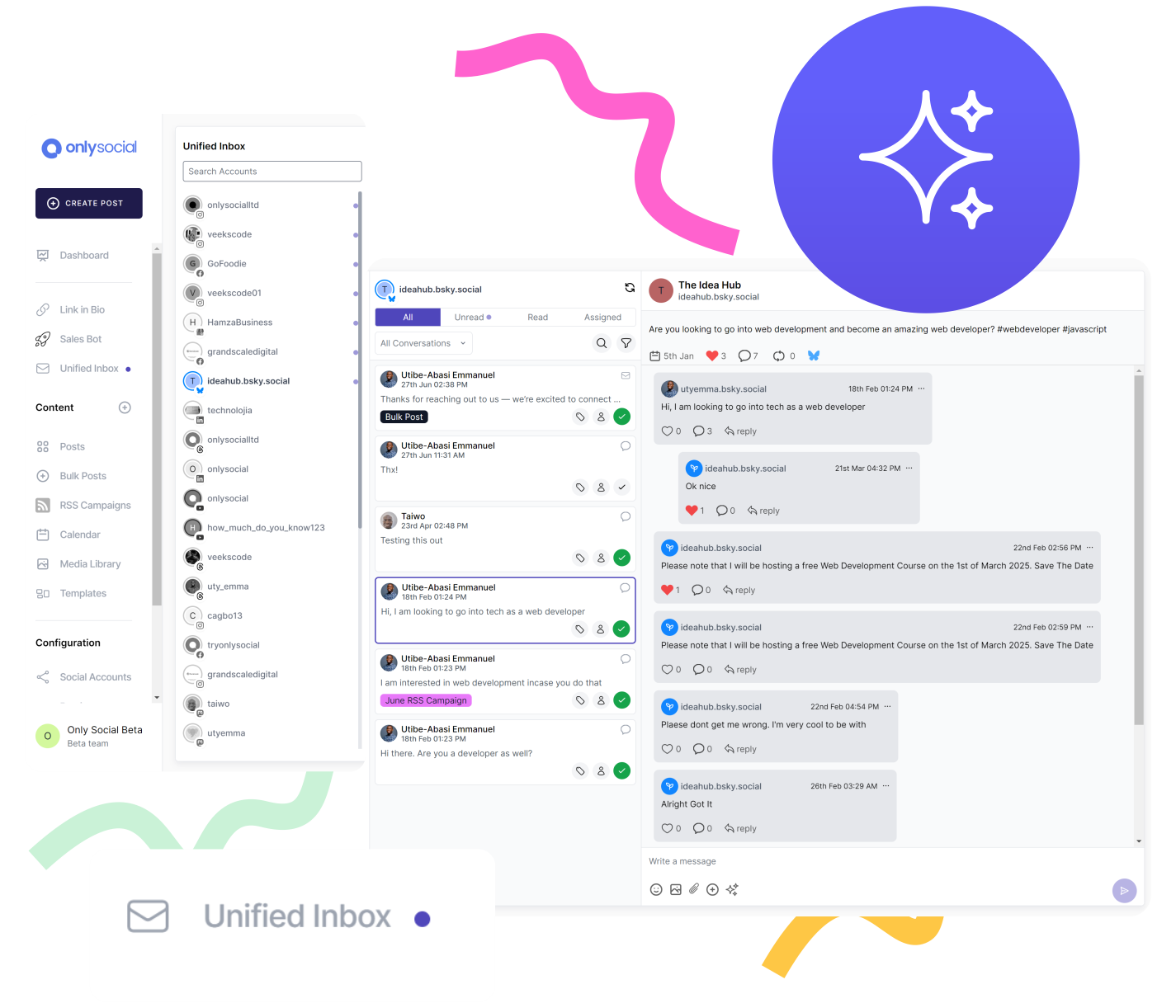
Instead of jumping between YouTube Studio tabs or separate accounts, OnlySocial lets you view every comment from all your channels in one unified inbox. It’s your central command center for engagement.
You can read, reply, and manage conversations without logging in and out of different profiles, saving you hours of repetitive work each week.
It’s not just about convenience. Having all your comments in one place helps you respond faster and keep your tone consistent, no matter which channel you’re replying from.
You can catch genuine feedback before it gets buried, thank loyal viewers across channels, and spot trends in what your audience is talking about – all without feeling scattered or overwhelmed.
Leave Internal Notes for Other Team Members
Sometimes a comment needs a bit of background before someone can respond. Maybe it’s a recurring issue, or perhaps the viewer has already reached out through another channel. With OnlySocial, you can leave internal notes on any comment so teammates have the full context before jumping in.
It’s like adding sticky notes behind the scenes – quick, clear, and private. You can mention details such as “Follow up after launch,” “Handled on Instagram,” or “Send this to the product team.”
It keeps communication tidy and helps your team stay aligned, especially when multiple people are managing replies across several YouTube channels.
Assign Certain Comments to Specific Team Members
If you’re running several YouTube channels as part of a team, trying to reply to every comment yourself can quickly become overwhelming. Some comments might be product-related, others might need tech support, and a few may just need a quick “thank you.”
Instead of sorting through all that manually, OnlySocial lets you assign comments to the right team member directly from your inbox.
This way, everyone knows what they’re responsible for. Your customer support rep can handle troubleshooting questions, your marketing lead can respond to collaboration offers, and your community manager can focus on fan engagement.
It’s a simple setup that keeps responses organized and ensures no comment gets lost or duplicated. Plus, it helps your team work together without stepping on each other’s toes – all while keeping your audience happy and heard.

Use Multiple Filtering Options
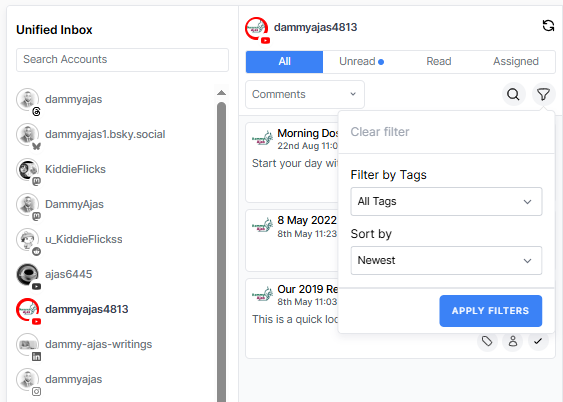
Even with everything in one inbox, hundreds of comments can still feel like a lot. That’s where filters come in handy. OnlySocial lets you sort comments by video, keyword, sentiment, or even how recent they are. You can quickly pull up questions that need answers or identify negative comments that require attention.
It’s a huge time-saver, but more than that, these filters also help you spot patterns in audience behavior across different channels. Maybe viewers on one channel love tutorials while another group engages more with short-form videos – filters make these insights crystal clear.
This means you can now spend less time scrolling and more time engaging meaningfully with your audience.
Automate YouTube Comments with AI Precision
Now, let’s consider what you can actually achieve with OnlySocial’s AI-powered comment moderation. Everyone knows how stressful and time-consuming it can be trying to manage YouTube comments manually, especially when several channels are involved.
With OnlySocial’s AI-powered comment management, you can set up smart responses that sound natural, not robotic. The AI analyzes the tone and intent of a comment, then suggests or generates a suitable reply.
This means you can acknowledge viewers, answer repetitive questions, and maintain engagement even when you’re not online. You stay responsive without burning out or losing your authentic voice.
It’s like having a digital assistant that works 24/7, keeping your comment sections active and positive while freeing up your time to focus on creating more great content.
Auto-Reply to Common Questions with Saved Replies and Smart Templates
Dealing with the same questions again and again is not always easy – “What camera do you use?”, “When’s the next video?”, “Can you do a tutorial on this?”
Typing out the same answers repeatedly wastes time you could spend elsewhere. OnlySocial helps fix that with saved replies and smart templates.
You can create ready-made responses for FAQs, edit them quickly when needed, and send them with a click. It keeps your replies consistent across all your channels and ensures viewers get answers faster.
It’s a simple but powerful way to stay engaged, sound professional, and manage large comment volumes without losing that personal touch.
Add Labels or Tags for Quick Sorting
Tag your comments based on type – for example, FAQ, Collab Request, Customer Issue, or Positive Feedback. This makes it much easier to prioritize your responses. You can filter comments by tag to focus on what’s most urgent or delegate certain categories to specific team members.
Over time, these tags also help you spot patterns in audience engagement – like what people love, where confusion happens most, or which topics drive the most conversation.
Trigger Replies Based on Keywords
OnlySocial allows you to set up automatic responses when certain words or phrases appear in a comment. For instance, if someone comments “price” or “how much,” you can have a pre-set reply that shares your pricing link or directs them to your website.
This feature helps you maintain quick, relevant interactions without having to be glued to your screen. It also ensures no question goes unanswered, especially the common ones.
Auto Hide or Delete Harmful or Irrelevant Comments
Perhaps you also already know by now that for every thoughtful comment, there’s often a few that are spammy, irrelevant, or downright toxic. Manually weeding those out across multiple channels can eat up hours you don’t have.
That’s why OnlySocial includes the ability to auto-hide or delete harmful comments before they ever reach your audience.
You can set filters to detect specific keywords, links, or phrases commonly used in spam or hate speech. Once detected, OnlySocial automatically removes or hides them, keeping your community space clean and positive.
This not only protects your viewers but also saves you from having to constantly play moderator. It’s like having a silent guardian for your comment sections – one that filters out negativity so you can focus on engaging with the people who genuinely care about your content.
Best Practices for Managing Comments Across Multiple YouTube Channels

When it comes to managing comments for several YouTube channels, you need structure so you don’t get quickly overwhelmed. With the right habits and systems in place, it becomes much easier to stay organized, responsive, and in tune with your community. Here are six practical best practices to help you manage comments like a pro.
1. Set a Daily or Weekly Comment Routine
Consistency is key. Instead of checking comments at random, set aside specific times each day (or week) to go through all your channels. This keeps you from feeling overwhelmed while ensuring no message gets ignored. You can dedicate short blocks of time – say 30 minutes in the morning and evening – to respond thoughtfully without burning out.
2. Prioritize Meaningful Conversations
Not every comment needs a reply, and that’s okay. Focus on the ones that build relationships – questions, thoughtful feedback, and genuine discussions. A quick like or heart can acknowledge simple comments, but make time for the ones that invite conversation. Viewers remember when creators take the time to engage authentically.
3. Use Tags and Filters to Stay Organized
Once comments start piling up, tagging and filtering become your best friends. Group comments by type, such as FAQs, collabs, or complaints, so you can tackle them efficiently. It helps you focus on what matters most first, especially when handling multiple channels where volume can get out of hand.
4. Keep a Consistent Tone Across Channels
When you manage several YouTube channels, it’s easy for each to develop its own “voice.” That’s fine, as long as your overall tone stays consistent with your brand. Whether you’re friendly and casual or formal and professional, make sure every response reflects that. Consistency helps reinforce your brand identity and makes your community feel familiar across channels.
5. Don’t Overlook Negative Comments
It’s tempting to ignore criticism, but how you respond to negative comments can define your reputation. Handle them calmly and constructively. If someone points out a valid issue, acknowledge it and offer a solution.
If it’s just trolling, use moderation tools to filter it out. The goal is to protect your community while showing professionalism and empathy.
6. Leverage Automation Without Losing Your Human Touch
Automation is great for efficiency, especially when you’re managing multiple channels, but it should enhance, not replace, genuine engagement. Use automation for basic replies or to filter spam, then follow up personally when needed.
Never Miss Another YouTube Comment
Comments are where your viewers tell you what they love, what they want more of, and sometimes, what needs fixing. Staying on top of those conversations is one of the simplest ways to build loyalty and keep your community engaged.
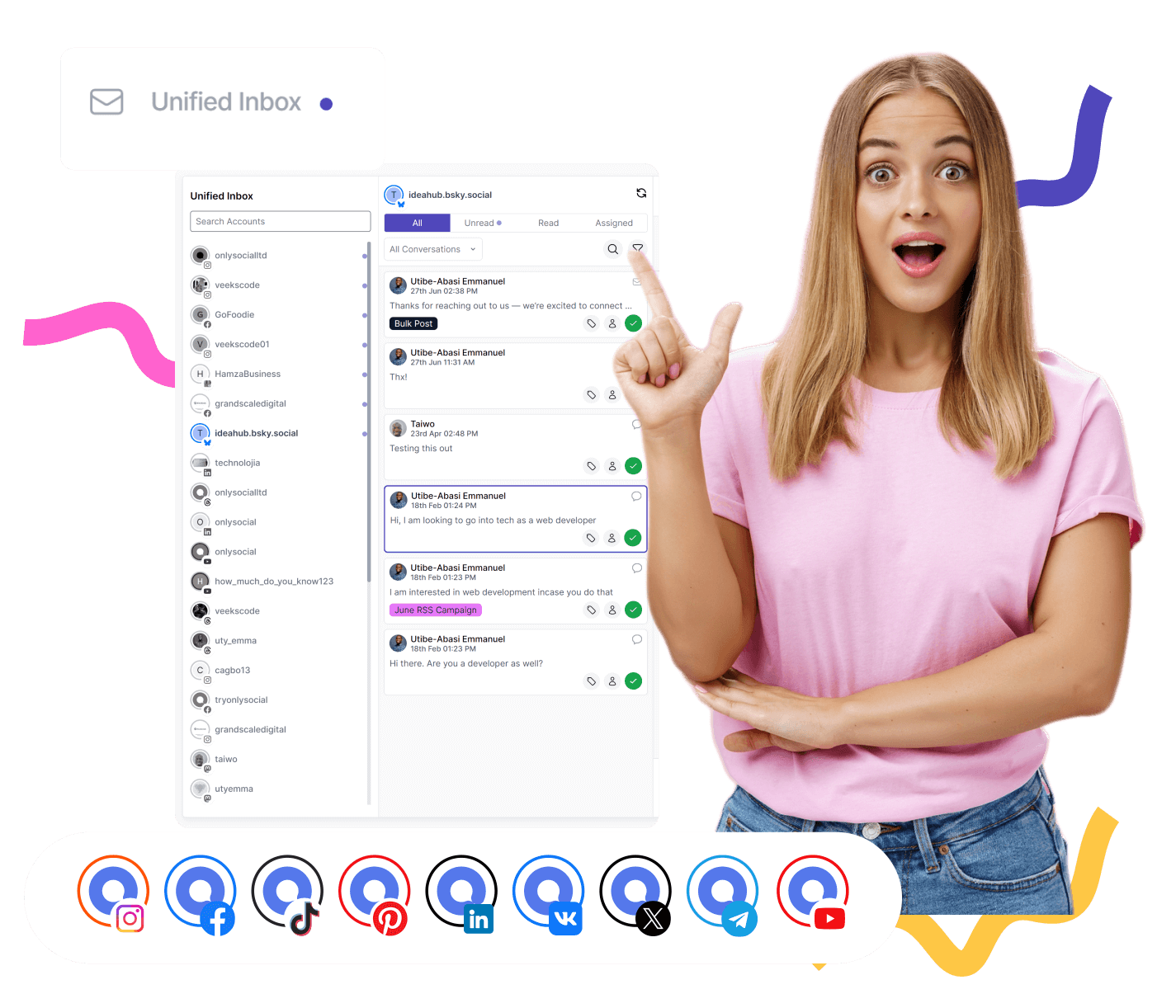
That’s exactly what OnlySocial helps you do. By bringing every comment from all your YouTube channels into one organized inbox, it ensures you never overlook an important message again. You can reply faster, assign comments to team members, automate common responses, and filter out spam – all without leaving the dashboard.
FAQs
How can I manage my YouTube comments?
You can manage comments directly through YouTube Studio, but if you’re handling multiple channels, that can get complicated fast. You will need a tool like OnlySocial. It lets you view, reply to, and organize all comments from every channel in one unified inbox.
Do I need many YouTube channels for a small business?
Not always. Most small businesses do just fine with one well-managed channel. However, if your business serves different audiences or offers distinct types of content – for example, tutorials on one channel and product updates on another – having multiple channels can help keep things focused and organized.
Is there a way to sort YouTube comments?
Yes. On YouTube Studio, you can sort comments by things like “top” or “newest first.” But with management tools like OnlySocial, you can go even further, filtering comments by keywords, tone, sentiment, or even tags you create. This makes it easier to prioritize important conversations or spot trends across multiple channels.
Can OnlySocial help me restrict certain words on YouTube comments?
Absolutely. OnlySocial allows you to set filters that automatically hide or delete comments containing offensive or unwanted words. You can create your own keyword lists to block spam, hate speech, or irrelevant promotions. His helps you maintain a cleaner, more positive comment section across all your channels.
How can I respond faster to comments without sounding robotic?
Saved replies and AI-assisted responses are your best friends here. You can create smart templates for common questions, tweak them for tone, and send them instantly. This keeps your replies quick and consistent – but still warm and personal.
What’s the best way to manage comments as a team?
Collaboration is much easier with shared inbox tools. OnlySocial lets you assign specific comments to teammates, leave internal notes, and track responses. This ensures every comment gets handled by the right person, without duplicate replies or confusion, keeping your team efficient and your audience satisfied.