How to Efficiently Manage 50+ Facebook Pages Without Losing Control

Imagine you’re responsible for 50, maybe even 100 Facebook Pages. Each one has its own audience, its own tone, and its own posting schedule.
Sounds like a marketer’s nightmare, right? For many social media managers, this isn’t imagination – it’s daily reality.
The challenge isn’t just the sheer number of pages. It’s the constant context switching. One moment you’re posting about a new menu launch in Glasgow, the next you’re sharing a corporate update in London.
In between, you’re fielding notifications, double-checking brand guidelines, and silently praying you don’t post the wrong content on the wrong page. (It happens more often than you’d think.)
But what if there is a smarter way to bring structure to the madness? By grouping your Facebook Pages by brand, client, or location, you can finally manage content without the endless troubles.
That’s exactly what OnlySocial’s Group feature was built for. It gives you a clear system to organize your pages, so instead of wasting time searching, you’re focusing on what really matters. In this guide, we’ll show you just how it works. Just keep reading.
And if you’re in a hurry, check out this video to see how OnlySocial helps bring control to all the chaos of managing multiple Facebook pages.
Table of Contents
- 1 The Challenges of Managing Multiple Facebook Pages
- 2 How to Manage Multiple Facebook Pages [2 Effective Methods]
- 3 More Powerful Ways OnlySocial Helps You Manage Facebook Pages
- 4 Why Have Multiple Facebook Pages?
- 5 Best Practices for Managing Multiple Facebook Pages
- 6 Effortlessly manage multiple Facebook pages with the right tools
- 7 FAQs
The Challenges of Managing Multiple Facebook Pages
Running one Facebook Page already takes time and focus. Multiply that by 50, and suddenly you’re juggling far more than posts and likes.
Before we talk about how you can solve this, let’s take a quick look at some of the biggest challenges marketers and business owners run into when managing multiple pages.
1. Constant context switching
One moment you’re scheduling content for a local coffee shop, the next you’re checking engagement for a corporate client.
Each page has its own brand voice, audience, and goals. Switching gears so often isn’t just exhausting – it increases the chances of making mistakes.
2. Posting to the wrong page
It happens more often than people admit. A post meant for a branch in Manchester accidentally goes live on the company’s main UK page.
Not only does it confuse your audience, but it can also make the brand look disorganized. When you’re managing dozens of pages, these slip-ups are hard to avoid without a system.
3. Staying consistent across pages
Consistency is one of the hardest things to achieve when you’re dealing with 50+ pages. Some end up with fresh content daily, while others go silent for weeks. This results in uneven engagement and missed opportunities.
4. Tracking performance at scale
Checking insights on one page is easy. But imagine trying to gather analytics for 80 different locations or brands. The process is time-consuming, and without a clear way to group and compare, you’re left with scattered data that’s tough to turn into actionable insights.
5. Overwhelmed teams and wasted time
If you’re part of a team, things can get even messier. Who’s posting where? Which client got approval? Did someone already schedule that campaign? Without clear organization, you end up with duplicate work, miscommunication, and a lot of wasted hours.
How to Manage Multiple Facebook Pages [2 Effective Methods]
So, how do you actually keep all your Facebook Pages under control?
There are two main routes: you can either use Meta Business Suite, or you can choose a specialized social media management tool like OnlySocial.
Both options technically let you manage multiple Pages, but they’re not created equal.
Meta Business Suite is free and built in, but it can be confusing and clunky once you’re dealing with a large number of accounts. That’s why many marketers and agencies prefer a dedicated tool that’s designed to make multi-page management easier.
Let’s break down the two methods so you can see which one fits your workflow best.
1. Manage Your Pages with Meta Business Suite
Meta’s Business Suite is the default tool for managing Facebook (and Instagram) Pages. It brings together scheduling, analytics, ads, and messaging in one dashboard.
On paper, it sounds like a dream. In practice, things aren’t so simple.
The interface is cluttered, and the way Meta organizes “business assets” (Pages, ad accounts, Instagram profiles) is far from intuitive.
To manage multiple Pages, they all need to be tied to the same Meta Business Account. If some are linked to a different one, you’ll find yourself logging out, switching profiles, and bouncing back and forth endlessly.

This setup might be manageable if you’re handling just a handful of Pages. But for businesses or agencies running 50+, it’s a headache.
Not only is navigation frustrating, but collaboration is limited too. Getting approvals, coordinating with teams, or simply keeping track of campaigns across different brands can feel like a never-ending puzzle.
That’s why many marketers quickly realize: while Meta Business Suite works at a basic level, it’s not built for scale.
2. Manage Your Pages with OnlySocial
If Meta Business Suite feels like a maze, OnlySocial is the shortcut you’ve been looking for. Instead of bouncing between dozens of pages, OnlySocial lets you neatly group your Facebook Pages (and other profiles) by brand, client, or location.
This grouping is where the real magic happens. Say you’re managing 80 Pages for a retail chain. Instead of posting to each location one by one, you create a group called “North Region Stores.” Now, with a single click, you can publish content across all those Pages.
It’s organized, efficient, and built to scale. Unlike Meta’s rigid setup, OnlySocial grows with you – whether you’re managing 10 Pages today or 100 tomorrow.
Here’s how simple it is to set up:
How to Group Profiles in OnlySocial
First, make sure you’ve imported all the social profiles you want to manage.
Go to Workspace Settings from the User menu at the bottom left, then click Settings.

From the side menu, select Groups.

Hit Add Group, and enter your group name and description (for example, “UK Clients” or “Franchise Pages”).

Select the profiles you want to include in the group.

Click Create, and you’re done.
Groups aren’t set in stone either – you can edit or delete them anytime, depending on how your business or clients evolve.

Posting now made easy
When you’re ready to post, just choose the group from the composer, and your content will go out across all the selected Pages at once. No more endless copy-pasting or worrying if you’ve left one location behind.

You can also filter your content calendar or post list by group. This means you’ll only see the posts for that specific set of Pages, making it much easier to stay focused and keep track of campaigns.
More Powerful Ways OnlySocial Helps You Manage Facebook Pages
Grouping your Pages is just the start. OnlySocial packs in a range of other features that make managing dozens of Facebook Pages far less overwhelming – and far more effective.
Let’s take a look at some of the standout functions you’ll love:
Manage Replies and DMs with the Unified Inbox
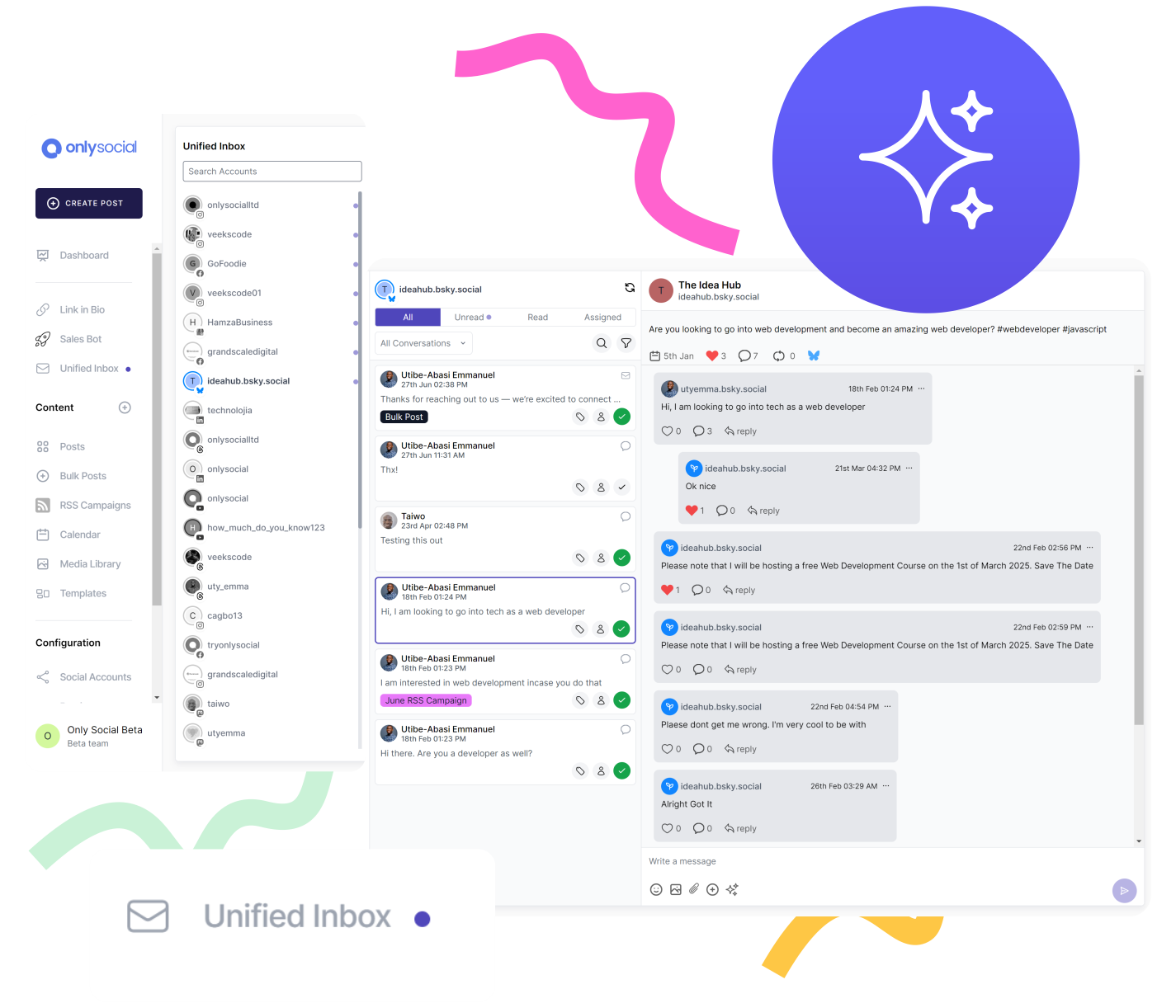
If you’ve ever tried keeping up with comments and DMs across multiple Pages, you’ll know it can be really daunting. You respond in one tab, miss a message in another, and before you know it, you’ve lost track of customer conversations.
OnlySocial fixes that with its Unified Inbox.
Instead of hopping between Pages and apps, all your comments, mentions, and DMs come into one central place. You can reply quickly, keep track of conversations, and make sure no customer gets ignored.
Whether someone messages your London branch or comments on a campaign in Edinburgh, you see it all in one feed. It saves time, reduces stress, and helps you deliver a consistent, responsive customer experience across every Page you manage.
Comment moderations: Auto-hide or delete offending comments
Comment sections can be a double-edged sword. On one hand, they’re great for engagement. On the other, they’re magnets for spam, trolls, and even sneaky competitor remarks on your ads.
With OnlySocial’s comment moderation, you can keep things under control without constantly babysitting your Pages.
Here’s how it works: you can set rules to auto-hide or delete offending comments. Maybe you want to block out spammy keywords, or automatically hide a negative comment after you’ve replied to it.
Either way, your Pages stay cleaner, more professional, and more welcoming for real customers.
And because you can automatically filter out competitor names, you’re also protecting your ad campaigns from prying eyes.

Automatically Reply to Comments Using Set Keywords or AI
We all know the pain of answering the same questions over and over again in the comments. “What are your opening hours?” “Do you ship to my area?” “Is this still in stock?”
With OnlySocial’s auto-reply tools, you can set up smart responses that trigger when certain keywords are used – or even let AI handle the replies.
For example, if someone comments “price” on a product post, your auto-reply could instantly share a link to your online store.
Or, if someone leaves a comment without a keyword match, you can set a default response to keep the conversation going. This not only saves you hours of repetitive typing, but it also boosts engagement because customers feel heard right away.
Think of it as having an assistant who never sleeps, working to keep your comment section active and helpful.
Build Chatbots for Common Questions
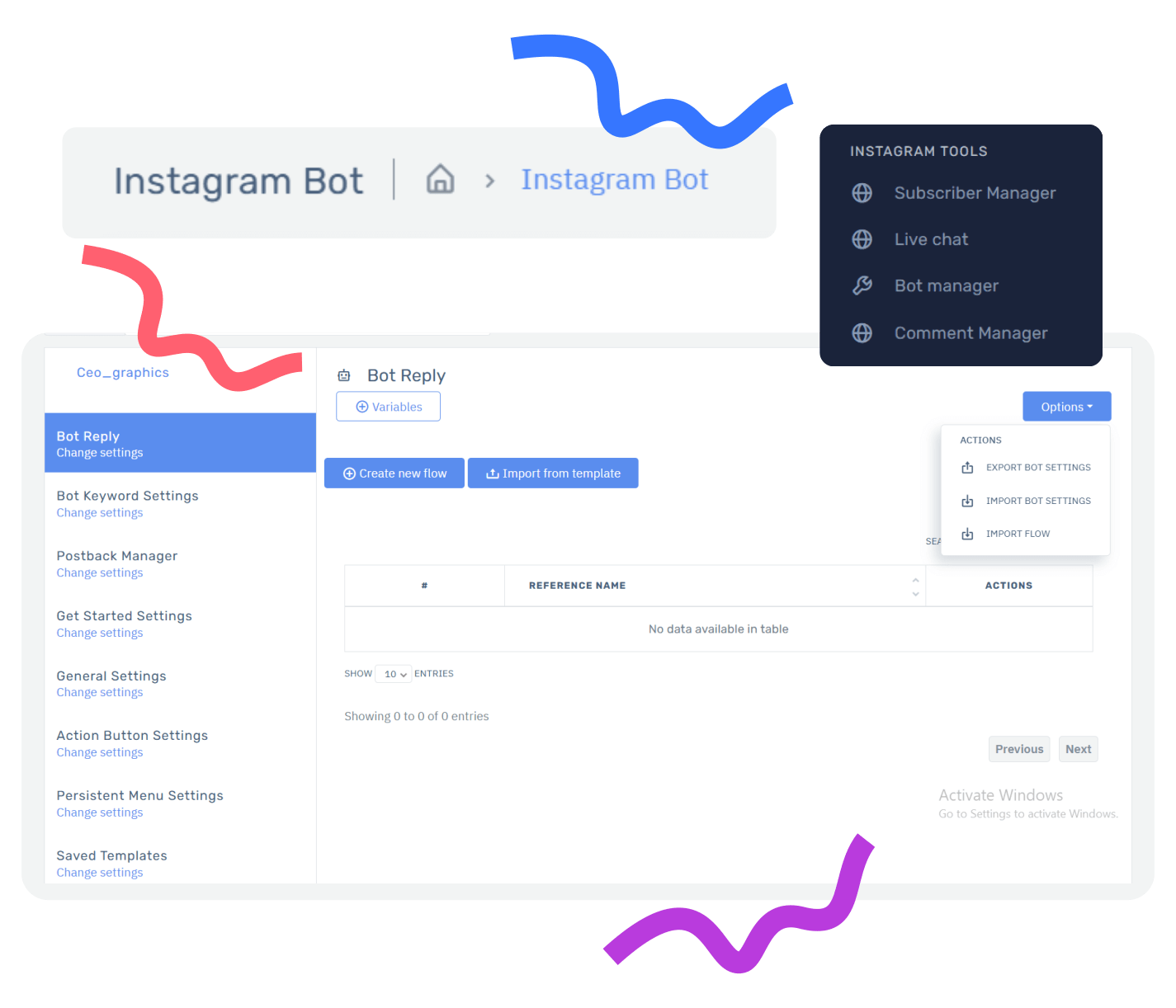
If your inbox is flooded with the same questions every day, OnlySocial’s chatbot builder is a lifesaver.
Using a simple, visual flow builder, you can create automated chatbot conversations that guide customers, answer FAQs, or even generate leads, without needing to write a single line of code.
Let’s say you’re running multiple restaurants. A chatbot can instantly answer “What’s on the menu today?”, “Do you deliver?”, or “Where are you located?” – freeing up your team to focus on more complex requests.
And because the chatbot works across all your grouped Pages, you can roll it out at scale without setting things up separately for each location. It’s automation that feels natural, and it keeps customers engaged 24/7.
Generate Captions and Images with AI

Content creation is one of the biggest bottlenecks in social media management. You can’t post without content, but brainstorming captions and designing images across dozens of Pages eats up a huge chunk of time.
OnlySocial changes that by letting you generate captions and visuals with AI directly inside the platform.
Are you struggling to write a fresh caption for the fifth coffee promo this week? Let AI draft options for you. Need an engaging image for a quick campaign post? Generate one without leaving your dashboard.
This feature doesn’t just save time; it also keeps your content pipeline moving so you never fall behind. And when you’re handling 50+ Pages, that’s the difference between burnout and balance.
Why Have Multiple Facebook Pages?
You might wonder, “Do I really need that many Facebook Pages?” In some cases, yes – you absolutely do. Having multiple Pages isn’t just about volume; it’s about strategy.
Here are some smart reasons why businesses and marketers choose to create and manage more than one:
1. Tailoring content to different locations
If you run a business with branches in different cities, a single Page won’t cut it. People in Manchester want updates about their local store, not news from Birmingham.
Multiple Pages let you post location-specific content that feels relevant to each audience. This builds stronger connections and keeps engagement high.
2. Managing different brands under one roof
Agencies, franchise owners, or businesses with multiple products often need separate voices.
A coffee shop brand and a fine-dining brand under the same group can’t share one Facebook Page – they have different audiences, tones, and goals.
Having multiple Pages gives each brand its own identity while still being manageable under one strategy.
3. Running targeted marketing campaigns
Sometimes, ads and promotions only apply to a segment of your audience. With multiple Pages, you can run campaigns tailored to that specific group – whether that’s a local event, a product launch, or a region-wide discount. This ensures your message lands with the right people, without confusing or alienating others.
4. Better customer service and engagement
A customer looking for answers doesn’t want to dig through posts about locations or services that don’t apply to them. Multiple Pages allow you to keep conversations clear and personal.
Each Page acts as a direct line between the business and its unique audience, making customer support smoother and more effective.

Best Practices for Managing Multiple Facebook Pages
Managing multiple Facebook Pages doesn’t have to be overwhelming. You just need to have a plan.
So, before we round up this guide, let’s see some tried-and-true best practices that can help you stay organized and get the most out of your efforts:
Use a Content Calendar
A content calendar is your roadmap. It helps you see what’s coming up across all your Pages, spot gaps, and avoid last-minute scrambles.
For multi-location or multi-brand businesses, a calendar also ensures your messaging stays consistent while giving each Page the unique content it needs.
With OnlySocial, you can even filter your calendar by group, so you’re only looking at the posts for a specific brand or location at a time.
Automate Post Scheduling
Manually posting to 50+ Pages is a recipe for burnout. Automating your scheduling allows you to plan ahead, publish at the right times, and keep content flowing even when you’re not online.
This is one thing you can enjoy with many social media management tools out there, including OnlySocial. To take it further, OnlySocial even lets you schedule posts for individual Pages – or entire groups – with just a few clicks, saving hours every week.
Monitor and Engage with Your Audience
Publishing content is only half the job. The real magic happens in the comments and DMs. Make sure you’re responding quickly to messages and joining conversations with your audience.
Interestingly, with a unified Inbox, you can manage all of these interactions from one central place instead of jumping between dozens of accounts.
Tailor Content for Different Audiences
Not all Facebook audiences are the same. A post that works for your London branch may not resonate with your Glasgow audience.
Use each Page to speak directly to its followers – whether that means localizing content, adjusting tone, or tailoring promotions. This makes your Pages feel more personal and relevant.
Track Performance and Optimize
Analytics across multiple Pages can get messy, but they’re essential. Track what content performs best, where engagement drops, and which campaigns deliver results.
Use those insights to refine your strategy. When you’re able to group your Facebook pages, that will make it even easier to filter performance data by groups to compare how different brands or regions are doing.
Keep Your Team Aligned
If you’re working with a team, communication is everything. Decide who’s responsible for scheduling, replying, or monitoring performance.
Using a centralized tool helps prevent mix-ups (like posting to the wrong Page) and keeps everyone working from the same playbook.
Protect Your Brand Reputation
When you manage many Pages, it’s easier for things like spam, negative comments, or even competitor poaching to slip through.
Use moderation tools to automatically hide or delete problematic comments, and keep your Pages professional and positive. This protects both your audience and your brand image.
Effortlessly manage multiple Facebook pages with the right tools
Managing dozens of Facebook Pages doesn’t have to feel like a never-ending cycle of logging in, switching tabs, and firefighting mistakes. The truth is, the more Pages you handle, the more important structure, automation, and smart tools become.
Meta Business Suite may work if you’re juggling just a few accounts, but once you start scaling up, it often creates more friction than clarity.
That’s why platforms like OnlySocial stand out – they’re built with growth in mind. With its many amazing features, including grouping Pages for easier publishing, OnlySocial takes the weight off your shoulders and gives you back time to focus on strategy.
If you’re serious about managing 10, 50, or even 100 Pages without losing control, the key isn’t working harder – it’s working smarter. With OnlySocial, you can finally replace chaos with confidence.
FAQs
Can I manage multiple Facebook Pages without a third-party tool?
Yes, you can use Meta Business Suite to manage multiple Pages under one account. But it’s often clunky, especially if you have dozens of Pages spread across different business accounts.
You’ll find yourself logging in and out repeatedly, which is frustrating and time-consuming. This is why most businesses at scale use specialized tools that simplify the process.
How many Facebook Pages can I manage at once with OnlySocial?
There’s no practical limit. Whether you’re managing 10 Pages for a few branches or 100+ for a franchise or agency, OnlySocial’s grouping feature helps you stay organized.
You can cluster Pages by brand, location, or client, making it easy to schedule posts and monitor content without getting lost in tabs.
How does OnlySocial help with customer engagement?
With OnlySocial’s Unified Inbox, you don’t need to check messages and comments separately on every Page. All DMs, mentions, and comments flow into one central dashboard.
That means you can reply faster, never miss a message, and deliver consistent customer support across all your Pages.
Can I still track performance for each Page individually?
Absolutely. OnlySocial lets you view analytics at the individual Page level or filter results by groups. This way, you can see how specific locations, brands, or campaigns are performing. It’s a huge time-saver compared to manually pulling insights from each Page.