QR Code Not Working? 12 Common Problems and How to Fix Them
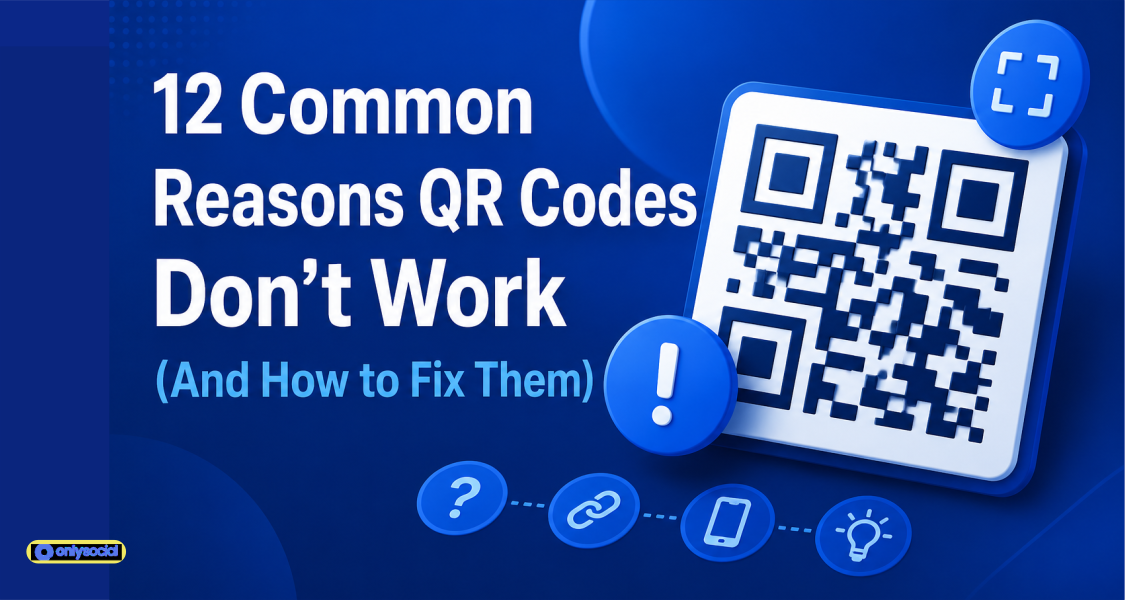
QR codes rarely stop working without a reason. In most cases, the problem is easy to identify and even easier to fix.
In this guide, we will cover 12 of the most common QR code issues and show you exactly how to solve each one, so every scan leads where it’s supposed to.
Table of Contents
- 1 QR Code Not Working? 12 Common Problems and How to Fix Them
- 1.1 1. Low Image Quality
- 1.2 2. The QR Code Is Too Small
- 1.3 3. Poor Color Contrast
- 1.4 4. Your QR Code Contains Too Much Data
- 1.5 5. The Error Correction Level Is Too High
- 1.6 6. The QR Code Doesn’t Have Enough White Space
- 1.7 7. The QR Code Points to a Broken Page
- 1.8 8. You’re Using the Wrong File Format
- 1.9 9. Poor Lighting or Too Much Glare
- 1.10 10. The Problem Is the Device, Not the QR Code
- 1.11 11. QR Code Scanning Is Disabled on the Device
- 1.12 12. A Weak or Unstable Internet Connection
- 2 Best Practices to Make Sure Your QR Codes Always Work
- 3 Create QR Codes That Keep Working
- 4 FAQs
QR Code Not Working? 12 Common Problems and How to Fix Them
When a QR code won’t scan, the problem usually falls into one of three categories: the QR code itself, the destination it points to, or the device trying to scan it. Identifying which one is causing the issue will help you fix it much faster.
Let’s look at the most common problems.
1. Low Image Quality
If your QR code looks blurry, pixelated, or distorted, many smartphones simply won’t be able to read it. This often happens when a low-resolution image is enlarged or compressed too much before printing or publishing.
How to fix it:
- Export your QR code at 300 DPI or higher for print.
- Use SVG or another vector format whenever possible.
- If you’re using PNG, export it at 1,000 pixels or larger.
- Never stretch a small QR code image to make it bigger.
A sharp, high-quality QR code almost always scans faster and more reliably.
2. The QR Code Is Too Small
Size matters more than many people realize. If the QR code is too small for the distance people are scanning from, their phone won’t capture enough detail to decode it.
How to fix it:
Follow the 10:1 rule:
- Allow 1 inch of QR code size for every 10 inches of scanning distance.
- For flyers, brochures, and product packaging, aim for at least 2 × 2 cm (0.8 × 0.8 inches).
- For posters, banners, or billboards, increase the size based on how far away people will be standing.
3. Poor Color Contrast
QR code scanners rely on strong contrast between the dark and light parts of the code. If your colors are too similar, the scanner may struggle to distinguish the pattern.
This often happens when brands try to match their color palette too closely.
How to fix it:
- Use dark modules on a light background whenever possible.
- Black on white remains the most reliable combination.
- If you use brand colors, make sure there’s plenty of contrast.
- Avoid light-colored QR codes or white codes on dark backgrounds, as many scanners have difficulty reading them.
A visually attractive QR code is great, but readability should always come first.
4. Your QR Code Contains Too Much Data
The more information a QR code has to store, the more complex its pattern becomes. Long URLs, extra parameters, or large amounts of embedded data can create dense codes that are harder for smartphones to scan quickly.
How to fix it:
Whenever possible, use a dynamic QR code instead of a static one. Dynamic QR codes store a short redirect URL rather than the full destination, resulting in a much cleaner and more scan-friendly design.
They also allow you to update the destination later without creating a new QR code and often include built-in analytics.
5. The Error Correction Level Is Too High
Error correction is what allows a QR code to remain readable even if part of it is damaged or covered. While this is useful, using the highest level unnecessarily can make the code denser and more difficult to scan.
For most QR codes, a moderate error correction level provides the best balance between durability and readability.
| Level | Recovery Capacity | Best Used For |
| L | ~7% | Short URLs and controlled environments |
| M | ~15% | Everyday use (recommended) |
| Q | ~25% | Outdoor signage and materials exposed to wear |
| H | ~30% | QR codes that include logos or branding |
How to fix it:
Use Level M for most situations. Only increase the error correction level if your QR code includes a logo or is likely to become partially damaged during use.
6. The QR Code Doesn’t Have Enough White Space
One of the most overlooked scanning issues is the missing quiet zone. This is the white border surrounding the QR code that tells scanners where the code starts and ends.
If your QR code is squeezed between text, images, or other design elements, many devices will struggle to recognize it.
How to fix it:
Always leave a clear white margin around the entire QR code.
A good rule is to leave a border that’s at least four modules (the small squares inside the QR code) wide on every side. Avoid cropping the edges or placing graphics too close to the code.
7. The QR Code Points to a Broken Page
Sometimes the QR code scans perfectly, but the destination doesn’t.
If the linked page has been deleted, moved, mistyped, or returns a 404 error, users often assume the QR code itself is broken.
How to fix it:
Before publishing your QR code:
- Test the link on multiple mobile devices.
- Make sure the landing page loads correctly.
- Check for typing errors in the URL.
- Confirm the page is still live.
Better yet, use a dynamic QR code. This allows you to change the destination URL whenever needed without having to reprint or redistribute the QR code, saving both time and money if your campaign changes.
8. You’re Using the Wrong File Format
Not all image formats are equally reliable for QR codes. Some formats, particularly low-quality JPEGs, can introduce compression that softens the sharp edges scanners rely on to read the code.
This becomes even more noticeable when the QR code is resized or printed.
How to fix it:
Choose the format that matches how you’ll use the QR code:
- SVG: Ideal for printed materials because it stays sharp at any size.
- PNG: Great for websites, emails, and social media. Export it in high resolution (at least 1,000 pixels).
If you’re creating posters, brochures, packaging, or other printed materials, SVG is usually the best option.
9. Poor Lighting or Too Much Glare
Even a perfectly designed QR code can fail if people can’t capture it clearly with their phone camera.
Low light, heavy shadows, reflections on glossy surfaces, or direct sunlight can all make scanning more difficult.
How to fix it:
Before launching your QR code, test it in the same environment where people will use it. A few simple adjustments can make a big difference:
- Move the QR code to a better-lit location.
- Avoid placing it behind reflective materials.
- Use matte finishes instead of glossy ones for printed signs.
- Ensure the code remains visible throughout the day if lighting changes.
10. The Problem Is the Device, Not the QR Code
Sometimes the QR code isn’t the issue at all. Older smartphones or devices running outdated software may struggle to recognize QR codes or may not support built-in scanning.
This can lead people to think the code is broken when the device simply isn’t equipped to read it.
How to fix it:
First, make sure the device is running the latest version of iOS or Android, as newer updates have significantly improved native QR code scanning.
If the device still can’t scan QR codes, installing a dedicated QR code scanner app usually solves the problem.
Before publishing your QR code, test it on both iPhone and Android devices to make sure it works consistently across different platforms.
11. QR Code Scanning Is Disabled on the Device
Most modern smartphones can scan QR codes without a separate app, but that feature can be turned off. If QR code scanning is disabled, pointing the camera at the code won’t do anything.
How to fix it:
Check that QR code scanning is enabled on the device.
- On iPhone: Go to Settings, then to Camera, and make sure Scan QR Codes is turned on.
- On Android: Open the Camera app, go to Settings, and enable Scan QR Codes (the exact location may vary depending on the device).
If the built-in scanner still doesn’t work, using a trusted QR code scanner app is a quick alternative.
12. A Weak or Unstable Internet Connection
Scanning the QR code is only the first step. If it leads to a website, payment page, video, or online document, the device still needs an internet connection to load the content.
If the connection is slow or unavailable, users may think the QR code has failed when it’s simply unable to open the destination.
How to fix it:
Test your QR code in the same environment where people will use it.
If it’s displayed in an area with weak mobile coverage, consider:
- Providing access to Wi-Fi.
- Moving the QR code to a location with better signal.
- Mentioning that an internet connection is required.
- Offering an offline alternative if the linked content is essential, such as for event check-ins or payments.
A working QR code still depends on a working connection, so it’s worth testing both before launching your campaign.
Best Practices to Make Sure Your QR Codes Always Work
Most QR code issues can be avoided with a little planning. These best practices will help you create codes that scan quickly, work across different devices, and deliver a better experience for your audience.
1. Test Before You Publish
Never assume a QR code works just because it was generated successfully.
Scan it multiple times using different smartphones, operating systems, and lighting conditions. If it’s going on printed materials, test the printed version too. A few minutes of testing can save you from costly mistakes later.
2. Keep the Design Simple
Custom colors, logos, and creative layouts can make a QR code look more attractive, but they shouldn’t come at the expense of functionality.
Stick with high-contrast colors, leave enough white space around the code, and avoid making it too small or overly complex. A QR code that scans instantly will always outperform one that simply looks better.
3. Use Dynamic QR Codes
If your destination URL might change in the future, avoid static QR codes.
Dynamic QR codes let you update the destination without creating and printing a new code. They’re ideal for marketing campaigns, product packaging, menus, event materials, and any situation where flexibility matters.
4. Create and Track QR Codes with OnlySocial
OnlySocial makes it easy to create dynamic QR codes that do much more than send people to a webpage.
From a single dashboard, you can generate customized QR codes, update their destination at any time without reprinting, and monitor how they’re performing through real-time scan analytics.
That means you can see how often your codes are scanned, measure campaign performance, and make smarter marketing decisions based on real data.
Instead of treating QR codes as one-time assets, OnlySocial helps you turn them into trackable marketing tools that continue delivering value long after they’re created.
5. Review Your QR Codes Regularly
A QR code that worked six months ago isn’t guaranteed to work today.
Landing pages change, websites move, campaigns end, and products get updated. Make it a habit to scan your active QR codes regularly to confirm they still lead to the correct destination and provide a smooth user experience.
A quick check every few months can prevent broken links and missed opportunities.
Create QR Codes That Keep Working
Most QR code problems are easy to avoid. By following the fixes and best practices in this guide, you can prevent failed scans, improve the user experience, and make every QR code work the way it’s supposed to.
If you want more flexibility, OnlySocial’s dynamic QR codes give you far more control than traditional static codes. You can update the destination URL without generating a new QR code, customize the design to match your brand, and track scan performance from a single dashboard.
Instead of guessing how your QR codes are performing, you’ll have the insights you need to optimize campaigns, fix issues quickly, and get more value from every scan.
Whether you’re using QR codes for marketing, events, product packaging, or social media, OnlySocial helps you create reliable, trackable QR codes in just a few minutes.
Get started with OnlySocial now to create your QR Codes.
FAQs
What is a QR code?
A QR (Quick Response) code is a type of barcode that stores information such as a website URL, contact details, payment information, or other digital content. Scanning it with a smartphone camera instantly opens or displays the stored information.
Are QR codes free to use?
Yes. Many QR code generators let you create static QR codes for free. If you need features like editable links, scan analytics, or custom branding, you’ll typically need a dynamic QR code, which is often included in paid plans.
Do QR codes expire?
Static QR codes generally do not expire because the information is permanently embedded in the code. Dynamic QR codes can remain active indefinitely as long as the service providing them keeps the code live, and your account stays in good standing if it’s a paid service.
What types of content can a QR code store?
QR codes can link to a wide range of content, including websites, landing pages, PDFs, videos, app downloads, contact cards, social media profiles, Wi-Fi credentials, payment pages, event registrations, and more.
Can I add a logo to my QR code?
Yes. Many QR code generators allow you to place a logo in the center of the code. To maintain reliable scanning, use a suitable error correction level (typically Level H) and avoid covering too much of the QR code with the logo.
Why won’t my Android phone scan a QR code?
There are several possible reasons. QR code scanning may be disabled in your camera settings, your Android version may not support native scanning, the camera lens could be dirty, or the QR code itself may have design or quality issues.
Can a damaged QR code still work?
Yes. QR codes include built-in error correction that allows them to remain readable even if part of the code is scratched, dirty, or partially covered. The amount of damage they can tolerate depends on the error correction level used when the QR code was created.